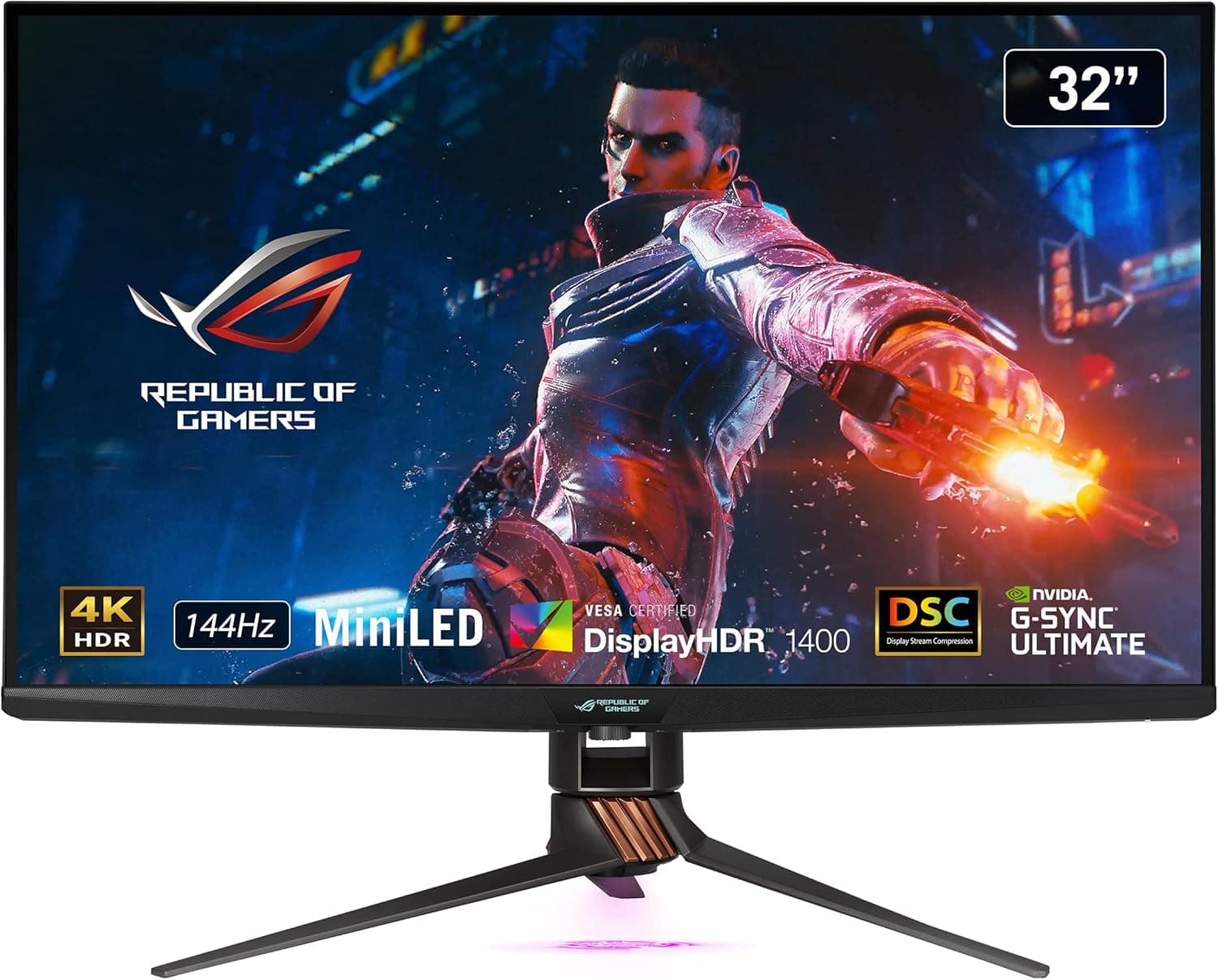
This article is a deep dive into the ASUS ROG Swift PG32UQX (listed as ASUS ゲーミングモニター ROG SWIFT PG32UQX 32インチ), based on its published specs and the price and review figures captured for it. The goal is to say clearly who should buy it and what you have to accept if you do.
Overview
The ASUS ROG Swift PG32UQX is a 32-inch 3840×2160 (4K UHD) 144Hz IPS monitor with a 1,152-zone Mini-LED backlight. The short version: this is a display that spends its budget on HDR contrast rather than on raw speed.
DisplayHDR 1400 certification, a 1,400 cd/m² peak, and quantum-dot wide gamut (roughly 97% DCI-P3) are exactly what you are paying for.
If frame rate alone is your goal, the same money buys a faster panel. What this monitor offers is black that does not glow in dark scenes, while explosions and sunlight still punch through as local highlights.
A conventional edge-lit IPS cannot do both at once. That contrast behavior is essentially the only reason to choose Mini-LED.
| Use case | Fit | Why |
|---|---|---|
| Story-driven HDR titles | Excellent | 1,152 dimming zones and 1,400 cd/m² peak pay off |
| 4K photo and video editing | Good | Wide quantum-dot gamut, factory calibration |
| Competitive FPS | Fair | 144Hz / 4ms GTG loses to 240Hz+ TN panels |
| PS5 / Xbox Series X at 120Hz | No | HDMI 2.0 caps 4K at 60Hz |
| Office work and browsing | No | No reason to pay this much for SDR work |
In other words, this is a monitor whose value swings hard depending on how you use it. The rest of this article focuses on whether your setup can actually get the performance out of it.
Compatibility Guide
Video inputs are one DisplayPort 1.4 and three HDMI 2.0 ports.
Only DisplayPort 1.4 carries the full 4K 144Hz bandwidth; HDMI 2.0 tops out at 4K 60Hz.
Because there are three HDMI ports, it is easy to assume any input behaves the same. Always connect a PC to DisplayPort.
Getting this wrong is the single most common failure: a 144Hz monitor quietly running at 60Hz.
There is a second requirement the spec sheet does not spell out. A 4K 144Hz 10-bit signal does not fit in DisplayPort 1.4 (HBR3) bandwidth uncompressed, so DSC (Display Stream Compression) is assumed.
NVIDIA GPUs from the RTX 20 series onward and AMD GPUs from roughly the Radeon RX 6000 series onward generally support DSC, but there are exceptions by model, so check your GPU spec page. An older GPU or a DSC-incapable adapter will silently drop either refresh rate or color depth.
The manufacturer compatibility note recommends an NVIDIA GeForce RTX 30-series or newer GPU to get the most out of G-SYNC ULTIMATE. If you want variable refresh rate and HDR active at the same time, that is the safe configuration.
Use the bundled DisplayPort cable; swapping in a long uncertified cable often causes brief black-outs or an automatic drop in resolution or refresh rate.
On consoles, both PS5 and Xbox Series X run at 4K 60Hz with HDR. Without HDMI 2.1 there is no 4K 120Hz and no HDMI Forum VRR.
If console 120Hz is your reason for buying, rule this model out now. It is a connector-generation limit, not something a setting or cable can fix.
Physical fit matters too. The chassis measures 727×504-574×306mm.
At 727mm wide, an 80cm desk leaves almost no room for speakers beside it, and height adjustment spans 70mm (504-574mm). Stand depth is 306mm, so on a 60cm-deep desk your eyes end up around 40cm from a 32-inch 4K panel, which is too close.
Either use a desk at least 70cm deep or mount it on a VESA 100×100mm arm to push it back. If you use an arm, check its load rating carefully: Mini-LED units tend to be heavy because of the backlight assembly, and weight is not listed in the spec table, so confirm it on the product page.
One more note on scaling. A 32-inch 4K panel is about 138 ppi, which makes text quite small at 100%.
Display scaling around 125-150% is practical in Windows, and some games will need UI scale adjustment as well.
Picture Quality and Mini-LED Quirks
Local dimming is not magic. 1,152 zones was very fine-grained for its time, but white subtitles or a small mouse cursor on a dark background can still show a faint halo (blooming) around them.
You rarely notice it in video or bright gameplay; it shows up most when you are working on a nearly black screen.
The practical workaround is to turn variable backlight off for SDR desktop work and enable it only for HDR content. Leaving Windows HDR on all the time makes non-HDR apps and browser pages look washed out, so toggling it per task gives better results.
Running the Windows HDR calibration tool once helps set consistent highlight and shadow behavior.
The panel itself is IPS, so native contrast is not as high as VA or OLED. Understanding that the black depth comes from local dimming makes it easier to decide how to tune settings.
Response time is 4ms GTG, and pushing overdrive too hard introduces overshoot artifacts, so start from the middle setting and adjust from there.
What Your PC Needs to Actually Hit 4K 144Hz
144Hz is the ceiling the monitor accepts, not what your GPU will deliver. Few demanding titles reach anywhere near 144fps at 4K without DLSS or FSR upscaling, and often frame generation as well.
An RTX 3080-class GPU or better is the realistic baseline; below that you end up playing at 60-something fps on a 144Hz screen.
That said, falling short of the ceiling is not wasted. G-SYNC ULTIMATE variable refresh is most noticeable in the 60-100fps range, smoothing out tearing and stutter.
The accurate framing is not that low frame rates make the monitor pointless, but that using all of its headroom requires a serious GPU.
Product Info
Key specifications:
| Item | Value |
|---|---|
| Screen Size | 32 inches |
| Resolution | 3840×2160 (4K UHD) |
| Refresh Rate | 144Hz |
| Panel Type | IPS |
| Backlight | Mini-LED |
| HDR Certification | DisplayHDR 1400 |
| Peak Brightness (HDR) | 1400 cd/m² |
| Response Time | 4ms GTG |
| Video Inputs | DisplayPort 1.4×1, HDMI 2.0×3 |
| G-SYNC Support | G-SYNC ULTIMATE |
| VESA Mount | 100×100mm |
| Dimensions (W×H×D) | 727×504-574×306mm |
It also includes two USB downstream ports and a 3.5mm stereo jack.
Released in 2021, it sat at the very top of the 32-inch 4K 144Hz Mini-LED segment at launch. Warranty is three years in Japan, and the box includes a DisplayPort cable, HDMI cable, AC adapter, power cord, USB 3.0 cable, quick start guide, and warranty card.
On pricing, the Amazon listing was ¥120,006 as captured on 26 August 2026. Prices move with stock levels and sales, so treat that as a reference figure for that moment only and check the product page for the current price.
No concrete figure was captured on the overseas marketplace (eBay search), and listing conditions vary seller by seller, so if you consider a parallel import, confirm how warranty coverage is handled first.
User ratings stood at 4.2 out of 5 (84% favorable) from 13 reviews as of 20 June 2026.
The score is good, but 13 is a very small sample: one outlier review moves the average noticeably. Read what individual reviews are actually about (unit defects, spec limitations, or installation issues) rather than judging by the star count alone.
Best Use Cases
- PC gamers buying primarily for HDR — people who play dark, atmospheric titles and HDR blockbusters at length. The 1,152-zone local dimming and 1,400 cd/m² peak exist for exactly this.
- Owners of RTX 30-series or newer GPUs — a setup that can run 4K 144Hz over DisplayPort with G-SYNC ULTIMATE active. Without that, you use barely half of what you paid for.
- Anyone combining play and creative work — roughly 97% DCI-P3 coverage from quantum dot plus factory calibration makes it usable as a color reference for photo and video work.
- People with desk space — room for a 727mm-wide, 306mm-deep chassis, or a VESA 100×100mm arm to mount it on.
Conversely, skip it if you need 120Hz on a console, if you prioritize 240Hz+ for competitive FPS, if your day is mostly SDR office work, or if your desk is shallow and crowded.
Before You Buy
First, a listing discrepancy. This is an ASUS monitor, but the Amazon listing metadata carried a manufacturer name from an unrelated storage-hardware brand, alongside an ASIN different from the one on the priced page.
That looks like crossed metadata in automated listing data rather than a question about the product itself, but you may run into the same inconsistency when you open the page. Before ordering, visually confirm the product images, the title, and that the model is ROG SWIFT PG32UQX.
Second, the most common misunderstanding here is HDMI. Having three HDMI ports is not the same as being able to output 4K 120Hz over HDMI.
HDMI 2.0 caps at 4K 60Hz, with no HDMI 2.1 features such as 4K 120Hz or HDMI Forum VRR.
If console high-refresh output is the goal, drop this model from your shortlist now.
Third, Mini-LED comes with trade-offs. Blooming never goes fully to zero regardless of zone count, and it is visible when small bright elements sit on a dark field.
You will not get OLED-grade absolute black. In exchange, burn-in risk is effectively a non-issue, which makes this a better fit for games with static HUDs and for long desktop sessions.
You are choosing which weakness you would rather live with.
Mini-LED backlight drivers also run hot, and some models include active cooling. If you work in a quiet room, check reports of operating noise before buying.
Power consumption also tends to be higher than a typical edge-lit panel.
There is a value question too. This is a 2021 product, and at the captured ¥120,006 level there are now alternative panel technologies in the same bracket.
The deciding factor is whether high-brightness Mini-LED HDR specifically is what you want; if you simply want 4K at 144Hz, a cheaper conventional IPS model covers that. Because it has been on the market for years, stock and distribution vary, so confirm you are buying a domestically warranted unit if warranty matters to you.
Finally, an installation trap. A 306mm-deep stand pushes the panel further forward than people expect on a 60cm desk.
A 32-inch 4K screen is easiest to read at roughly 70-80cm viewing distance, so if your desk is shallow, budget for a monitor arm from the start.
FAQ
Q. Does it work with PS5 or Xbox Series X? A.
Yes, at 4K 60Hz with HDR. HDMI 2.0 means no 4K 120Hz and no HDMI Forum VRR.
Choose a different model if console 120Hz is your goal.
Q. I connected DisplayPort but cannot select 144Hz. A.
Check in this order: (1) the PC is on DisplayPort, not HDMI; (2) your GPU supports DSC; (3) you are using the bundled DisplayPort cable; (4) the OSD DisplayPort settings and the Windows advanced display settings are set to 144Hz. Items (1) and (3) cause most cases.
Q. Should I leave HDR on all the time? A.
Not recommended. Non-HDR apps and web pages look washed out, so enable it only for HDR games and video.
Turning variable backlight off during SDR work also keeps blooming out of sight.
Q. How noticeable is blooming? A.
It depends on content. It is nearly invisible in movies and bright gameplay, but faintly visible with white subtitles or a cursor on a black background.
Want absolute black, choose OLED; want zero burn-in worry, choose Mini-LED.
Q. Can I use a monitor arm? A.
Yes, it supports VESA 100×100mm. Mini-LED units tend to be heavy, though, so match the arm load rating against the actual unit weight.
Weight is not in the spec table, so confirm it on the product page.
Q. Is it suitable for photo and video editing? A.
Yes. Roughly 97% DCI-P3 coverage from quantum dot plus factory calibration makes it viable for creative work.
As with any display, strict color-critical workflows still require periodic hardware calibration.