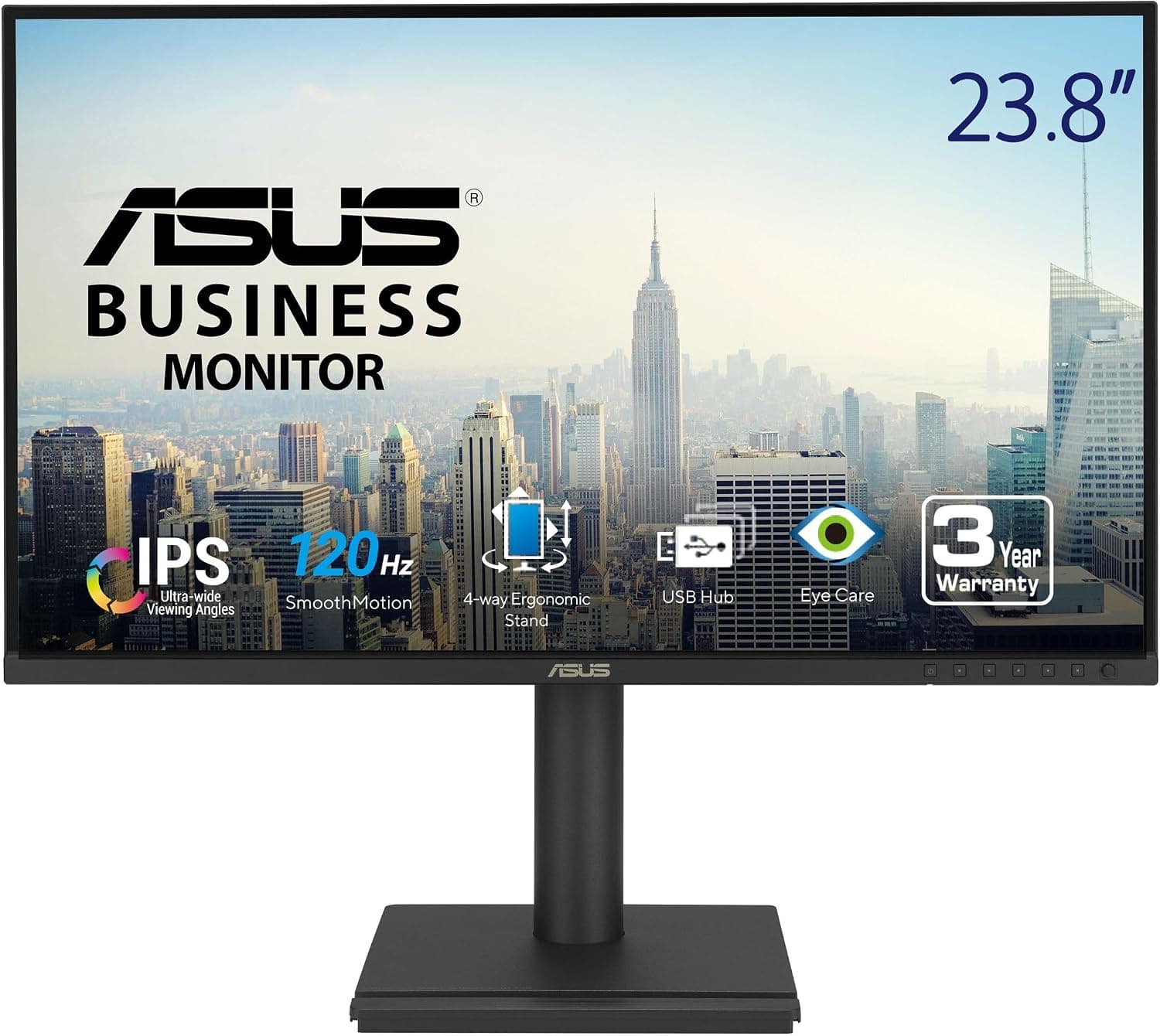
This article covers ASUS 61cm 1080P ビジネスモニター (BE249QG-R) 120Hz, focusing on what actually decides whether it fits your desk rather than repeating the spec sheet.
Overview
The ASUS BE249QG-R is a 23.8-inch 1920x1080 matte IPS monitor running at 120Hz, aimed at business use.
The short version: it suits someone whose day is mostly office work but who does not want to give up smooth motion or reasonably accurate color, and who wants fewer cables on the desk. It is not the right pick if you need more screen real estate or if you play competitive shooters.
Key specs are 95% DCI-P3 / 100% sRGB coverage, 178°/178° viewing angles, a USB 3.2 hub (one upstream, two downstream), 2W x 2 built-in speakers, and a 3-year warranty.
At 23.8 inches, 1920x1080 works out to roughly 93ppi, which means text stays readable at 100% scaling.
That avoids the layout glitches and blur that older applications often show when a 4K panel is run at 150% scaling.
The frameless design keeps bezel gaps small when you line up two identical panels. TÜV Rheinland Flicker-Free and Low Blue Light certifications round out a package built for long working days.
Does 120Hz Matter for Office Work?
High refresh rates are usually discussed in a gaming context, but here the payoff is on the office side. Vertical scrolling in spreadsheets, inertial scrolling in a browser, and dragging windows around are things you do hundreds of times a day, and at 120Hz they smear far less.
Coming from 60Hz, the difference is obvious within minutes.
What it will not do is make your work finish faster. If you expect a measurable productivity gain you will be disappointed.
Treat it as money spent on comfort, not on throughput.
One practical point: plugging the monitor in does not give you 120Hz. On Windows you must open Settings, System, Display, Advanced display, and switch the refresh rate to 120Hz.
Plenty of people run a 120Hz panel at the default 60Hz for months without noticing. Check this first.
Compatibility Guide
Video inputs are one HDMI and one DisplayPort. VESA mounting is 100x100mm, so arms and wall brackets fit.
To use the USB hub you must connect the supplied USB upstream cable between the PC and the monitor. Forget that one cable and nothing plugged into the downstream ports will be detected, which is the most common reason people assume the hub is broken.
| Item | Detail | What it means in practice |
|---|---|---|
| Video inputs | HDMI x1 / DisplayPort x1 | Two PCs can stay connected and be switched |
| USB hub | USB 3.2 (1 up, 2 down) | Keyboard and mouse can live on the monitor |
| VESA | 100x100mm | Monitor arms and wall mounts fit |
| Audio | 2W x 2 speakers plus headphone jack | Fine for calls, not for music |
Laptop users should read carefully. There is no USB-C or Thunderbolt video input, so you cannot run video, USB and power over a single USB-C cable.
A USB-C-only laptop needs a USB-C to HDMI or USB-C to DisplayPort adapter, plus the USB hub cable, plus its own charger. If you were hoping for dock-style single-cable docking, this is where expectations break.
The HDMI version is not stated in the data available for this article. Since 1080p at 120Hz does not pass over every HDMI generation, use DisplayPort first if you want the full refresh rate for certain.
ASUS Power Sync syncs the monitor power state with an HDMI-connected device, so if that feature matters to you, weigh it against which port you use.
There is no DisplayPort output, so daisy-chaining monitors from a single DP cable is not possible. A multi-monitor setup needs one video output per panel on the PC side.
Product Info
The price was ¥49,432 on the Japanese Amazon listing as captured on 17 September 2026. Monitor prices move with stock and sales, so check the current figure on the product page before buying.
Note that the value collected as an overseas price points at the same ASIN and the same Japanese listing, so it cannot be read as a separate market price. The eBay entry is a search result only and does not represent a confirmed street price.
Reviews stood at 18 ratings averaging 5.0 (100% positive) as captured on 16 September 2026.
The score is high, but 18 is a small sample that a handful of new ratings can move. Judge it on whether the specs match your use case rather than on the star rating.
| Item | Specification |
|---|---|
| Screen size | 23.8 inches (61cm) |
| Resolution | 1920x1080 (Full HD) |
| Refresh rate | 120Hz |
| Panel | IPS, matte |
| Color gamut | 95% DCI-P3 / 100% sRGB |
| Viewing angle | 178°/178° |
| Inputs | HDMI, DisplayPort |
| USB hub | USB 3.2 (1 up, 2 down) |
| Speakers | 2W x 2 |
| Warranty | 3 years |
Released around 2024, it sits a tier above the ordinary 60Hz office panel. The box includes an HDMI cable, a USB 3.2 cable, a power cord, a quick start guide and a warranty card.
The 3-year warranty carries real weight if the monitor is meant to serve for years of daily office use.
How It Compares
Widen the search beyond 24-inch Full HD and the options change a lot. If games matter more, a 24-inch gaming panel at 200Hz or above is the alternative; if you want working space, a 27-inch or a WQHD panel is; if you want a wide desk canvas, an ultrawide is.
Exact prices for those are not in this article's data, so no money comparison is possible. The deciding question is whether bundling 120Hz, wide gamut, a USB hub and a 3-year warranty into one unit is worth it to you.
On size: a 27-inch Full HD panel stretches the same pixel count over a bigger surface, so pixels are visible at close range. At 23.8 inches Full HD is well balanced and text edges stay crisp.
A simple rule is 24 inches when readability comes first, 27-inch WQHD or larger when information density comes first.
Who It's For
- Office and remote workers: anyone doing spreadsheet and browser work who values smoother scrolling and less eye strain. Moving keyboard and mouse onto the monitor hub cuts the laptop plug-in ritual to one or two cables.
- Heavy video-call users: the 2W x 2 speakers and headphone jack remove the need to swap audio gear for every meeting, as long as you accept voice-grade sound.
- Hobbyist photo editing and web design: 100% sRGB coverage is enough for checking web-bound color. Professional color-managed work still needs a hardware calibrator.
- Multi-monitor builds: slim bezels align neatly, and VESA 100x100mm allows arm mounting.
- Long screen sessions: Flicker-Free and Low Blue Light certification plus a matte coating keep reflections and fatigue down.
Before You Buy
The resolution is the real compromise. Full HD at 23.8 inches is easy to read, but it does not show more content than any other 1080p panel.
If you want to spread a spreadsheet sideways or place a document next to reference material, the same budget spent on WQHD or larger will satisfy you more. A 120Hz Full HD panel is a comfort choice, not a workspace choice, and confusing the two leads to instant regret.
Wide gamut can look too saturated. A 95% DCI-P3 panel renders sRGB images and websites with extra punch unless the gamut is clamped.
Whether an sRGB preset exists is not stated in the data available here, so if color accuracy matters, confirm on the product page that the OSD offers one. That setting is usually the answer when colors look louder than expected.
Fill in the spec gaps before ordering. Response time, brightness, contrast ratio, adaptive sync support, and whether the stand offers height adjustment or pivot are all absent from the data behind this article.
If you need tear-free gaming or a stand you can raise to eye level, verify those on the manufacturer page first. Guessing here is how people end up disappointed.
Check who is selling it. The listing shows a third-party marketplace seller as both seller and shipper, not ASUS or the retailer itself.
Confirm before ordering whether the unit is domestic retail stock and how the 3-year warranty would actually be claimed. Listing metadata such as model numbers and manufacturer fields is also wrong often enough that you should confirm from the product images and title that the item really is the BE249QG-R.
Consider whether the price makes sense for you. At ¥49,432 as captured in September 2026, this sits at the upper end of the 24-inch Full HD class.
That is fair if you want 120Hz, wide gamut, a USB hub and a 3-year warranty in one box, but if you simply need a Full HD monitor there are far cheaper options. Prices move, so recheck at the time of purchase.
FAQ
Q. Can it be used as a gaming monitor? A.
At 1080p and 120Hz it handles casual gaming comfortably. However, response time and adaptive sync support cannot be confirmed from the available data, so competitive players are better served by a dedicated 144Hz to 240Hz gaming panel.
Think of this as business-first with gaming as a bonus.
Q. Do I get 120Hz automatically? A.
No. You have to select 120Hz in the operating system display settings, under Advanced display on Windows.
If the option does not appear, try the DisplayPort input instead of HDMI.
Q. Can I connect a laptop with a single USB-C cable? A.
No. Video inputs are HDMI and DisplayPort only, so a USB-C-only laptop needs an adapter, and the monitor cannot charge the laptop.
Q. The USB hub does nothing. Why? A.
Almost always because the USB upstream cable between PC and monitor is not connected. Use the supplied USB 3.2 cable to link the two.
Q. How good are the built-in speakers? A.
At 2W x 2 they are fine for call audio and system sounds, but not for music or films. Use the headphone jack when you want proper sound.
Q. Will a monitor arm work? A.
Yes, it supports VESA 100x100mm. Match the arm's load rating against the monitor weight, which is not included in this article's data.
Product Disclosure (Amazon)
- Manufacturer: ASUS
- Seller: まーストアグローバル
- Fulfilled by: まーストアグローバル
- ASIN: B0HB7KMR5F
- Note: This article covers a manufacturer-made product based on Amazon listing details.