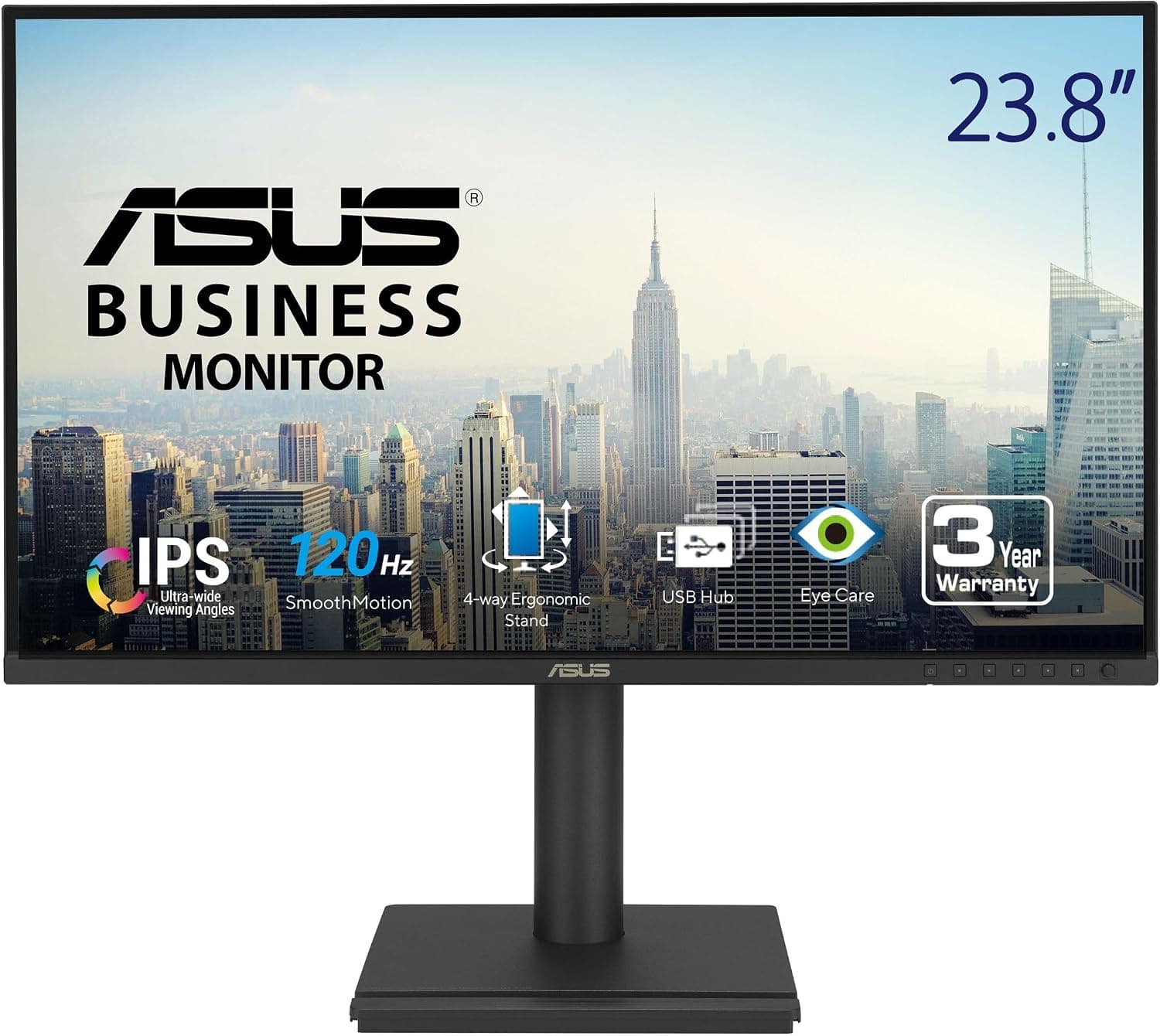
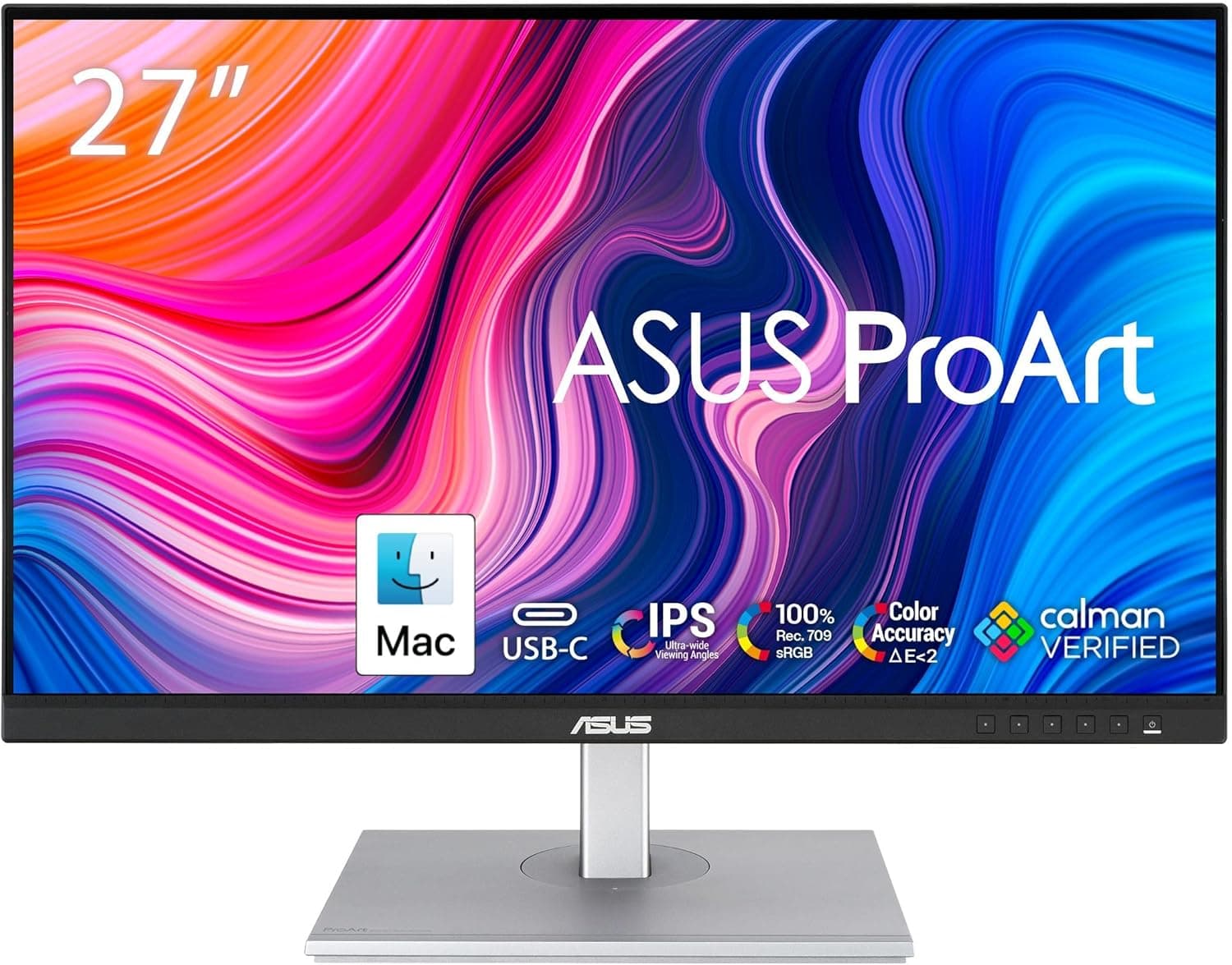
This article covers the ASUS BE27ACGN — 27-inch QHD 120Hz USB-C Business Monitor, using its spec data to explain who it suits and where buyers tend to run into trouble.
Overview
The ASUS BE27ACGN — 27-inch QHD 120Hz USB-C Business Monitor is a business monitor. It combines a 27-inch QHD (2560x1440) IPS panel with 96W USB-C Power Delivery, a built-in webcam and built-in speakers.
In short, it is for laptop users who want their whole desk setup to connect through a single cable. It is not built to push image quality or speed to the limit.
The 120Hz refresh rate with Adaptive-Sync makes scrolling and cursor movement clearly smoother than on a typical 60Hz office monitor.
The panel is IPS, with 178-degree viewing angles and a listed 99% sRGB color gamut. That is accurate enough for web work and for checking sRGB photos.
However, the data does not list DCI-P3 or Adobe RGB coverage. The stand offers 150mm of height adjustment plus tilt, swivel and pivot, and the monitor also supports 100x100mm VESA mounting, so you have plenty of freedom in how you place it.
What 27-inch QHD at 120Hz Means
QHD on a 27-inch screen works out to about 109ppi. On Windows, 100% scaling gives small but usable text.
125% scaling is usually the best balance between readability and screen space. Compared with a 27-inch Full HD screen (about 82ppi), text is much less jagged, and you can see more rows in spreadsheets and code.
Compared with a 27-inch 4K screen (about 163ppi), text is less sharp. macOS in particular is designed around high-density screens, so some people find text on a 27-inch QHD screen looks rougher on a Mac than on Windows.
If you mainly use a Mac, try to see one in person first.
120Hz is often seen as a gaming spec, but it also helps with office work. Scrolling through web pages and PDFs and dragging windows around are easier on the eyes.
To get 120Hz, your computer must be able to output this resolution at that refresh rate. A laptop's integrated graphics can usually handle office work at 120Hz, but running games at QHD and 120fps takes a capable graphics card.
Compatibility Guide
The monitor has three video inputs: HDMI, DisplayPort and USB-C (DisplayPort Alt Mode). USB-C is where most setups go wrong.
The single-cable setup only works if your laptop's USB-C port supports both video output (DP Alt Mode) and USB PD charging. A port can have a USB-C shape but only carry data, and a data-only port will not output video.
Look for a DisplayPort or Thunderbolt icon next to the port, or check your laptop's spec sheet. Thunderbolt 4 and USB4 ports usually work without extra steps.
The monitor can supply up to 96W of power. Most 13 to 14-inch laptops ship with chargers of around 65W, so 96W is plenty for them.
Laptops with high-performance CPUs or dedicated graphics, or large laptops with chargers above 100W, may not keep up under heavy load. Their battery can slowly drain, so plug in the original charger as well.
The webcam, USB hub and wired LAN port (RJ45) usually run over the monitor's internal USB connection. So if you only connect video over HDMI or DisplayPort, your computer may not detect the camera or LAN port.
With a desktop PC, plan to connect a USB-C cable as well as the video cable.
The monitor is also said to support DisplayPort daisy-chaining, which lets you connect a second monitor through this one. This only works if your computer supports DisplayPort MST.
macOS does not support extended displays over MST, so on a Mac the second screen will either mirror the first or stay blank. Some Macs, such as base M1 and M2 MacBook Air models, also support only one external display.
For two screens on a Mac, connect each monitor directly to its own port.
| What you connect | Typical use | What to watch |
|---|---|---|
| Laptop with USB-C (DP Alt Mode + PD) | One cable for video, power, USB and LAN | Laptops needing more than 96W may charge too slowly |
| Desktop PC | Video over DisplayPort or HDMI | The camera, hub and LAN may need a separate USB connection |
| Mac | One monitor over USB-C | No extended displays through daisy-chaining (MST) |
| Game console | HDMI | Check the product page for 120Hz support over HDMI |
If you use a monitor arm, choose one that fits the 100x100mm VESA standard. Because of the built-in webcam, this monitor may weigh more than others of the same size.
Compare the arm's weight limit with the monitor weight on the product page.
Product Info
This is a mid-to-upper model in ASUS's business monitor lineup. The original listing says it launched in late 2025.
The main specs are as follows.
| Item | Value |
|---|---|
| Screen size | 27-inch |
| Resolution | 2560x1440 (QHD) |
| Panel type | IPS |
| Refresh rate | 120Hz |
| Color gamut | 99% sRGB |
| USB-C Power Delivery | 96W |
| Built-in speakers | Yes |
| Built-in webcam | Yes |
| VESA mount | 100x100mm |
| Stand | 150mm height, -5° to +35° tilt, ±180° swivel, ±90° pivot |
When we checked on September 24, 2026, the price on Amazon.co.jp was ¥77,443.
Prices change often and can move a lot during sales, so check the product page for the current price before buying. Buying a docking station on its own adds a real cost, so it is fair to judge this price as a monitor, a dock, a webcam and speakers in one box.
At the same time, the Amazon rating was 4.9 out of 5 stars from 25 reviews.
The rating is very high, but there are still few reviews, so they cannot tell you much about long-term reliability.
The original listing gives a three-year manufacturer warranty. It lists a USB-C cable, HDMI cable, power cord, quick start guide and warranty card in the box, along with EPEAT Gold certification.
It also mentions a one-month Adobe Creative Cloud coupon valid until August 31, 2026. That date has already passed, so do not count on the coupon. Warranty terms and box contents can differ depending on where you buy, so check the listing before you order.
How It Compares
People considering this monitor are usually choosing between it and one of the options below. Exact numbers vary by product, so the table only shows what to weigh.
| Alternative | Where the BE27ACGN wins | Where the alternative wins |
|---|---|---|
| Typical 27-inch Full HD office monitor | Resolution, 120Hz, USB-C power, built-in camera | Much lower price |
| 27-inch QHD 60Hz monitor with USB-C power | Smoother 120Hz, more power headroom at 96W | Often cheaper |
| 27-inch 4K monitor with USB-C | 120Hz, lighter load on the graphics card | Sharper text, especially on a Mac |
| Gaming monitor at 144Hz or higher | Dock features, camera, office-friendly setup | Speed and responsiveness |
The real question is whether you will use the dock features and the camera. If you only use a desktop PC and already own a webcam, most of this monitor's strengths go unused.
In that case, a cheaper monitor is the better deal.
Who It's For
- Office and remote workers who mainly use a laptop: One USB-C cable handles charging, video, the USB hub and wired LAN. Your desk stays tidy, and you can start working as soon as you plug in. It pairs especially well with Thunderbolt 4 and USB4 laptops.
- People with frequent video calls: The built-in webcam and speakers mean you don't need a separate camera on top of the monitor, which keeps a home office desk clean.
- Windows users building a dual-monitor setup: The monitor is said to support DisplayPort daisy-chaining, which reduces cables if your computer supports MST.
- People who want a portrait screen: The ±90° pivot is useful for long documents, code and social media timelines.
- Office workers who also play games: For RPGs, simulation and strategy games, 120Hz with Adaptive-Sync is smooth enough.
Before You Buy
Check who is selling it. When we checked, the seller and shipper was Hello Gardenia Room, a third-party seller rather than ASUS or Amazon itself.
The Japanese product name also looks like a direct translation of an overseas listing. Before buying, confirm with the product page or the seller that this is an official Japanese unit, that ASUS's Japanese warranty applies, and that the power cord fits Japanese outlets.
The manufacturer listed in the product details is ASUS, which matches the product name.
Some specs are not listed. Our data does not include response time, HDR support, HDMI version, number of USB-A ports, speaker output, or whether there is a built-in microphone.
If you plan to connect a game console, check whether the HDMI input supports 120Hz. Whether the webcam has a privacy shutter also matters if you care about privacy.
It is not for competitive gaming. 120Hz is smooth for office work, but if you want an edge in competitive shooters, pick a fast gaming monitor at 144Hz or higher.
It is not for work that needs a wide color gamut. The listed gamut is 99% sRGB.
If you mainly work on print or grade video for DCI-P3, choose a monitor that advertises a wide color gamut.
96W is not enough for some laptops. Gaming laptops and high-performance creator laptops can draw more than 96W under heavy load.
With those laptops, give up on the single-cable setup and plug in the original charger as well.
Don't count on daisy-chaining with a Mac. As explained above, macOS cannot extend displays over MST.
Treat the built-in speakers as a way to hear calls. They are handy for hearing voices in video meetings.
For music or movies, external speakers or headphones will sound much better.
FAQ
Q. Does it work with a MacBook? A.
Yes, as a single monitor, if your MacBook can output video over USB-C. However, macOS cannot extend displays over daisy-chaining (MST), some models support only one external display, and text can look slightly rough on a 27-inch QHD screen.
Q. Can I use the webcam with a desktop PC? A.
If you connect only through HDMI or DisplayPort, your PC may not detect the camera or hub. Connect the PC to the monitor with a USB cable as well.
Check the manual for which port to use.
Q. Can 96W charge my laptop? A.
If your laptop's charger is 96W or less, it will usually be fine. Laptops with larger chargers may not keep up under heavy load.
Q. Is it good for gaming? A.
120Hz with Adaptive-Sync is fine for casual play. It is hard to recommend for serious competitive shooters, though: the data has no official response time, and it falls short of monitors at 144Hz or higher.
Q. Can I still use the bundled Adobe Creative Cloud coupon? A.
The original listing gave an expiry date of August 31, 2026. That date has passed, so do not count on it.
Product Disclosure (Amazon)
- Manufacturer: ASUS
- Seller: Hello Gardenia Room
- Fulfilled by: Hello Gardenia Room
- ASIN: B0F72VG29X
- Note: This article covers a manufacturer-made product based on Amazon listing details.