This article takes a closer look at the BenQ アイケア モニター 22インチ IPS 1080p GW2283 (BenQ GW2283 eye-care monitor), focusing on what the spec sheet doesn't tell you: how far it can take you, and where you have to compromise.
Overview
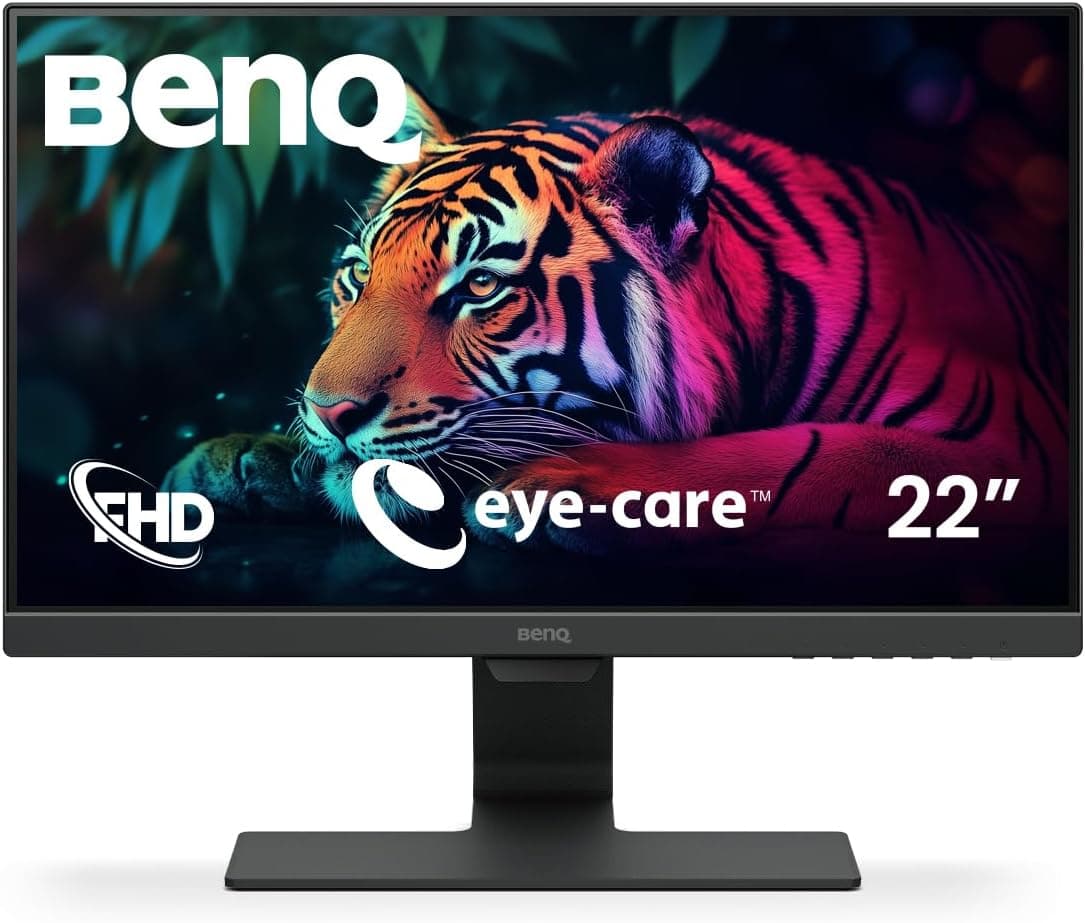
The BenQ GW2283 is a desktop monitor that pairs a 21.5-inch (54.6 cm) IPS panel with Full HD (1920×1080) resolution.
It is aimed at office work, study and video. The short verdict: it is a strong pick if you read text for hours and want an eye-friendly screen on a budget.
It is a poor fit if you want fast-paced gaming or fine-grained positioning to match your posture. The refresh rate tops out at 75Hz over HDMI and 60Hz over VGA.
Its headline feature is what BenQ calls eye care. It has a low blue light mode and a flicker-free backlight that suppresses screen flicker.
It also includes B.I.
(Brightness Intelligence), which adjusts brightness automatically. Add built-in 2W×2 speakers and a stand that keeps cables tidy, and it also suits anyone who wants a clean desk with as few devices as possible.
On Amazon.co.Check the retailer's page for the latest user reviews.
For an entry-level monitor, both the number of reviews and the rating are high. The numbers back up its reputation as a dependable staple with few nasty surprises.
What the Specs Actually Mean
| Item | Value | What it means |
|---|---|---|
| Screen size | 21.5 in (54.6 cm) | Viewable area works out to about 47.6 cm × 26.8 cm |
| Resolution | 1920×1080 (FHD) | About 102 ppi, so text looks sharper than on a 24-inch FHD screen (about 92 ppi) |
| Panel | IPS / 178°/178° viewing angles | Colors and brightness hold up off-axis |
| Refresh rate | 75Hz (HDMI) / 60Hz (VGA) | Slightly smoother than standard 60Hz; not a substitute for 144Hz gaming panels |
| Response time | 5ms (GtG) | Fine for office work and video; blur can show in competitive FPS games |
| Brightness / contrast | 250 cd/m² / 1000:1 | Typical for indoor use; not built for HDR |
| Speakers | 2W×2 | For notifications, calls and video audio |
| Inputs | HDMI 1.4×1, VGA (D-Sub)×1 | No DisplayPort or USB-C |
| Tilt | -5° to 20° | No height, swivel or pivot adjustment |
The table shows that the monitor's real strength is a fairly small screen for its resolution. At the same Full HD resolution, each pixel is smaller than on a 24- or 27-inch panel.
As a result, text edges stay crisp, which makes spreadsheets and documents easier on the eyes. The flip side is that two windows side by side each get quite narrow.
The 250 cd/m² brightness and 1000:1 contrast are standard for an IPS office monitor. They can feel weak in a room with direct sunlight near a window, but under normal indoor lighting they are plenty.
In fact, at night you are more likely to turn the brightness down.
Compatibility Guide
The monitor has two video inputs: HDMI 1.4 and VGA (D-Sub).
There is no DisplayPort or USB-C input. With modern laptops and graphics cards, this is the most common stumbling block.
Check your devices' outputs before you buy.
| Device | How to connect | Watch out for |
|---|---|---|
| Desktop or laptop with HDMI out | Direct HDMI cable | You may need to set 75Hz manually in the OS |
| Graphics card with DisplayPort only | DisplayPort-to-HDMI cable or adapter | Typical adapters handle 1080p at 60–75Hz; confirm supported modes |
| USB-C-only laptop (e.g. MacBook) | USB-C-to-HDMI adapter | The USB-C port must support video output (DisplayPort Alternate Mode) |
| PS5, Nintendo Switch, etc. | Direct HDMI | Runs at 1080p; consoles generally output 60Hz, so 75Hz mainly benefits PCs |
| Older PC with VGA only | VGA cable (sold separately) | Up to 60Hz; analog signal can make text slightly softer than HDMI |
Audio needs some thought, too. HDMI carries audio along with video, so the built-in speakers work straight away over HDMI.
VGA carries video only. If you want the speakers to work over VGA, check the product page for how audio is fed in.
A headphone output is also available for quiet listening at night or in shared rooms.
Physically, the key limitation is that the stand only tilts forward and back (-5° to 20°). If your desk puts the screen below eye level, a monitor riser will reduce neck strain.
The monitor supports VESA 100×100 mm mounting, so a monitor arm is another way to free up height adjustment. Before buying an arm, confirm the screw pattern and weight range on the product page.
Product Info
The seller is listed as BenQ Japan (ベンキュージャパン), and the Amazon ASIN is B07N5MG9LP. It has stayed on sale for years, and stock rarely runs out, as you would expect from a long-running staple.Check the retailer's page for the latest price.co.jp as of August 28, 2026.
Prices change with sales and stock, so check the product page for the current price before buying.
In the box you get a power cable, HDMI cable, quick start guide and warranty card, among other items. A VGA cable is not included, so you will need to supply one for VGA connections.
Check the warranty card and retailer listing for exact terms, including coverage of the panel and backlight.
Reviewers like that it combines an IPS panel, speakers, flicker control and blue light reduction for under ¥20,000. It has nothing flashy, but it covers the basics of a work tool well.
How It Compares
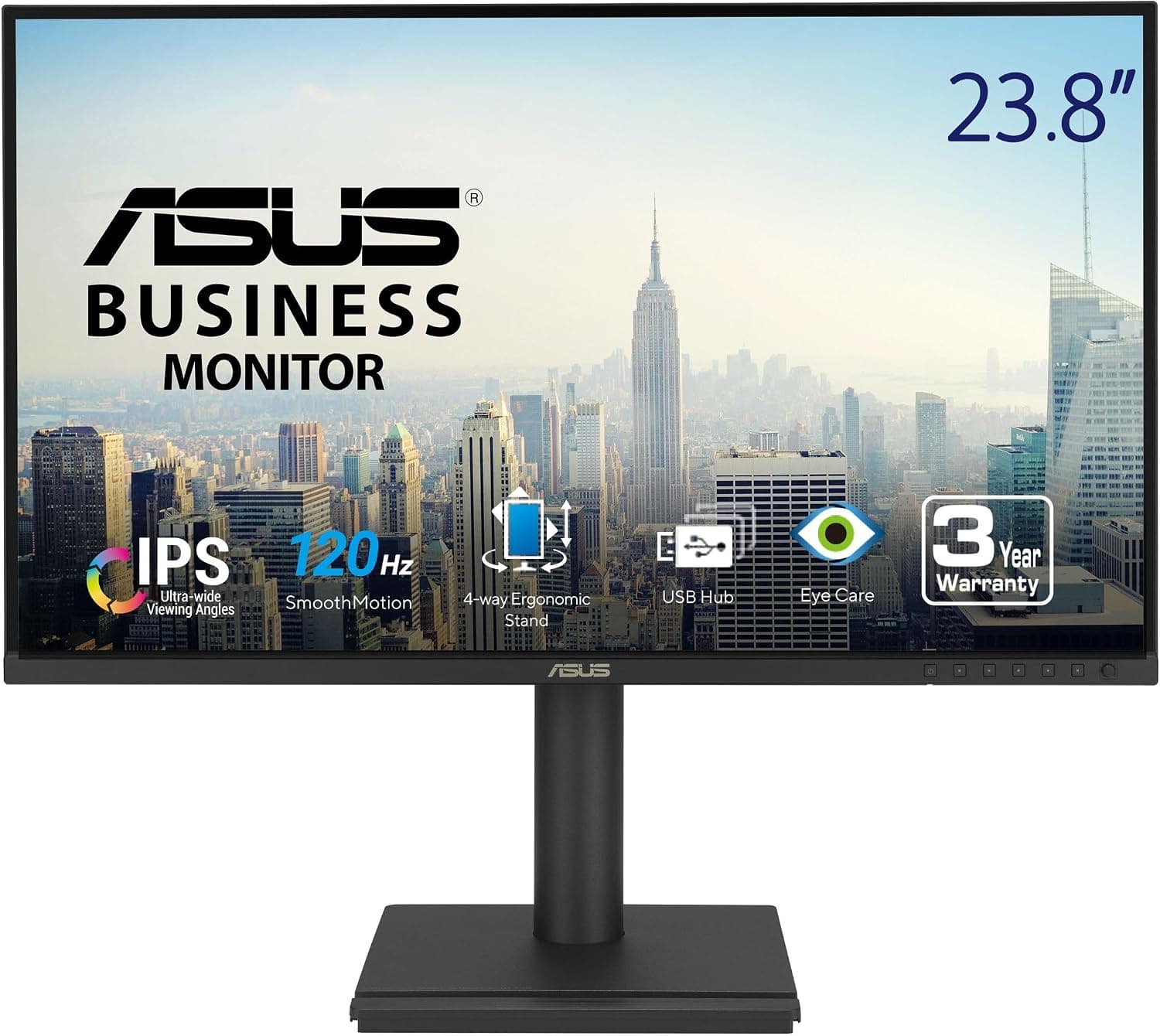
Compared with alternatives in the same price range, the GW2283 gives up screen size and refresh rate. In return, it stands out with eye care and built-in speakers.
| Aspect | BenQ GW2283 | ~24-inch 120Hz IPS models (ASUS VA24EHF2, Acer 23.8-inch, etc.) |
|---|---|---|
| Screen size | 21.5 in | Around 23.8–24 in |
| Refresh rate | Up to 75Hz | 120Hz |
| Text sharpness at FHD | About 102 ppi, crisp | About 92 ppi, slightly coarser |
| Speakers | Built-in 2W×2 | Varies (the Acer 23.8-inch is listed without speakers) |
| Best for | Documents, spreadsheets, study, secondary screen | Work plus light gaming |
If you also play games now and then, a 24-inch-class 120Hz model will probably satisfy you more. If your work is mostly text, your desk is small, or you don't want separate speakers, the GW2283 makes more sense.
If you need a much larger workspace, a 27-inch 4K monitor is worth considering.
Best Use Cases
1. Remote and home-office workers who stare at screens all day Low blue light and flicker-free operation help reduce eye strain over long sessions.
The roughly 102 ppi pixel density keeps text sharp, which suits email and document work. However, multiple windows feel cramped on 21.5 inches.
If you multitask heavily, consider a dual-monitor setup.
2. Budget buyers adding a secondary monitor It works well as a second screen next to your main display for chat, reference material or dashboards.
Wide IPS viewing angles keep colors stable even when it sits at an angle. If you need high refresh rates or fast response for gaming, choose a different product.
3. Families setting up a study monitor for kids or students Eye-care features and built-in speakers make it ready for online classes and homework right away.
Over HDMI, one cable handles both video and audio, so wiring stays simple. If an older PC only has VGA output, get a VGA cable or consider an adapter.
4. People with shallow desks The viewable area is only about 480 mm wide, so eye movement stays small even on a shallow desk.
It also works well beside a laptop to extend the screen.
Before You Buy
The 22-inch in the name is actually 21.5 inches. The product name says 22 inches, but the spec sheet lists 21.5 inches (54.6 cm).
Monitors in this class are customarily marketed as 22-inch, so it is not an error. Still, measure your desk space based on 21.5 inches.
There is no height adjustment. The stand only tilts.
If the top of the screen sits well below eye level, your neck stays bent and fatigue builds. To get the most out of the eye-care features, plan on a riser or monitor arm.
75Hz works only over HDMI. VGA is limited to 60Hz.
Even over HDMI, your PC may default to 60Hz. On Windows, check the refresh rate in advanced display settings.
75Hz is only slightly smoother than 60Hz and is no replacement for a gaming monitor.
There is one HDMI input and one VGA input. Going by the listed ports, you cannot keep a desktop PC and a game console both plugged in over HDMI.
You will need an HDMI switch, or one device on VGA. If the product page seems to list a different number of ports, check BenQ's official spec sheet.
The built-in speakers are a convenience, not a feature. 2W×2 is enough for call audio and video.
For music or movies, it will likely disappoint. Use the headphone output or external speakers if sound matters to you.
Check the specs for color-critical work. Color gamut figures are not in the data we have.
If you plan to use it for photo or design color work, confirm the gamut on the product page first.
Eye care is not a cure-all. Blue light reduction and flicker control ease the strain on your eyes, but they don't remove the fatigue of long sessions.
Take regular breaks and keep the gap between room lighting and screen brightness small.
FAQ
Q. Does it work with a MacBook? A.
Yes. Most MacBooks only have USB-C (Thunderbolt) ports, so you need a USB-C-to-HDMI adapter.
Models with an HDMI port can connect directly.
Q. Can I play on a PS5 or Nintendo Switch? A.
Over HDMI it displays at 1080p. Consoles generally output 60Hz, and with a 5ms (GtG) response time it suits casual play.
For serious competitive gaming, choose a gaming monitor with 120Hz or more.
Q. It won't run at 75Hz. A.
First confirm you are on HDMI (VGA tops out at 60Hz). Then set the refresh rate to 75Hz in your PC's display settings.
If you are using an adapter, check that it supports 75Hz too.
Q. Is it good as a secondary monitor? A.
Yes. Wide IPS viewing angles keep it readable at an angle, and the price is modest.
If your main monitor is a 24- or 27-inch Full HD screen, text size will differ slightly, so adjust OS scaling to match.
Q. Can it go on a wall mount or monitor arm? A.
It supports VESA 100×100 mm mounting, so arms and wall brackets fit. Before buying, check the arm's weight range and screw specs on the product page.
Product Disclosure (Amazon)
- Manufacturer: ベンキュージャパン
- ASIN: B07N5MG9LP
- Note: This article covers a manufacturer-made product based on Amazon listing details.