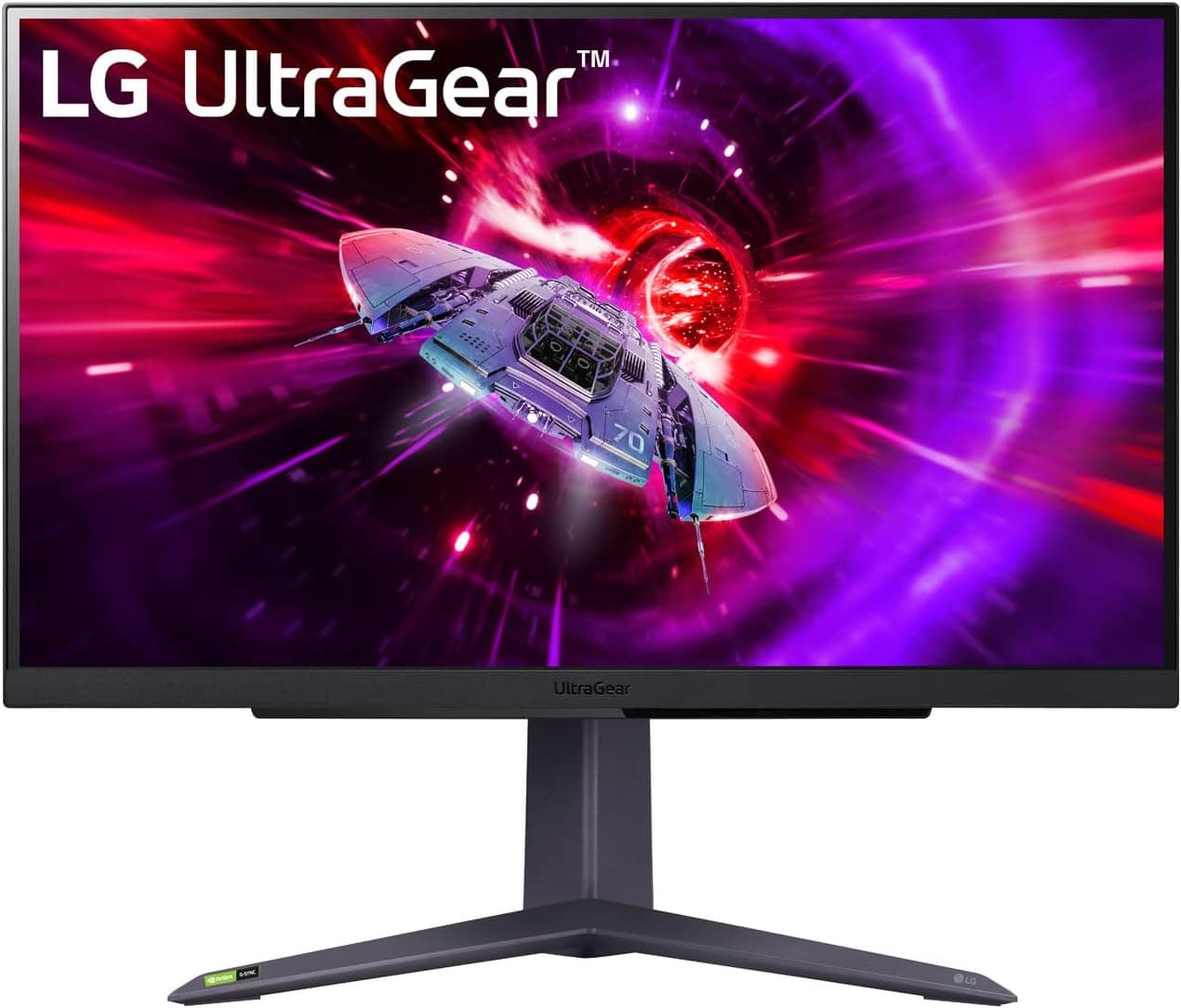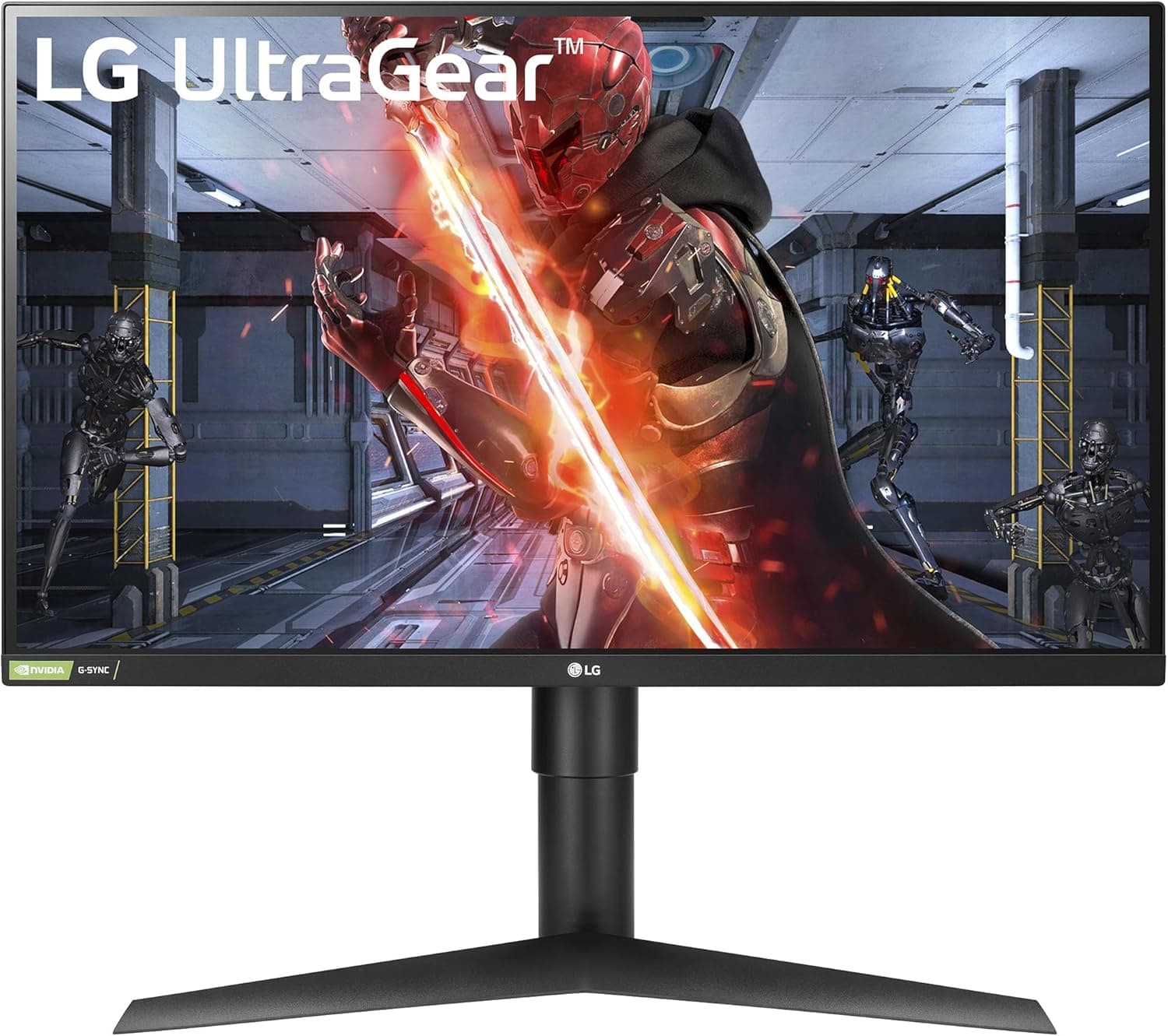
The LG 27GL83A-B 27 Inch Ultragear QHD IPS 1ms NVIDIA G-SYNC Compatible Gaming Monitor packs what is still the standard 1440p gaming spec sheet: 27 inches, 2560x1440, 144Hz, and an IPS panel. It launched back in 2019, yet it has accumulated 12,195 Amazon reviews at 4.6 stars (92 out of 100 on a normalized scale, captured 2026-06-20), which makes its feedback pool more useful than that of many newer models.
This article translates the spec numbers into practical usage, and spells out where the monitor shines and where you have to compromise.
Overview
The short version: this display sits at the intersection of gamers who want 1440p at 144Hz every day, and people who game but still care about color. The IPS panel avoids the washed-out look of TN and the dark-scene smearing of VA, with 1ms GTG response and 99% sRGB coverage.
Because it carries both NVIDIA G-Sync Compatible certification and AMD FreeSync Premium support, variable refresh works whether you run GeForce or Radeon.
Just as clearly, there are three areas this monitor does not target: competitive refresh rates above 240Hz, impressive HDR, and 4K 120Hz from a console. Check the table below to see where you land before reading further.
| Your goal | Fit |
|---|---|
| Daily 1440p gaming at 144Hz | Excellent. Requires DisplayPort |
| Shooters at 240Hz or more | No. 144Hz is the ceiling |
| 4K 120Hz on PS5 / Xbox Series X | No. There is no HDMI 2.1 |
| Secondary display for photo/video | Good. 99% sRGB, but not wide-gamut |
| HDR movies and games | Limited. Keep expectations low |
| Tiling several identical panels | Excellent. Thin three-side bezel |
If you land on either of the two No rows, stop here and shop for a different class of monitor. Everyone else will find the rest of this article useful.
Compatibility Guide
Video inputs are one DisplayPort 1.4 and two HDMI 2.0 ports.
Full 2560x1440 at 144Hz is delivered over DisplayPort; HDMI has less bandwidth, so depending on the resolution and refresh combination, 144Hz may not even appear as an option. If 144Hz is the point of the purchase, use the bundled DisplayPort cable.
Any replacement cable should be rated for DisplayPort 1.4.
Adaptive sync comes with a condition. G-Sync Compatible operates only over DisplayPort; on HDMI you get FreeSync Premium behavior instead.
On GeForce systems, G-SYNC is not always switched on automatically when you plug the panel in, so open the NVIDIA Control Panel G-SYNC page and enable it explicitly for this display. Plenty of users conclude that G-Sync is broken without ever checking that box.
Now the single most common mistake: running a 144Hz monitor at 60Hz forever. Windows does not always select the maximum refresh rate on its own, so open advanced display settings and switch the refresh rate to 144Hz.
Check your games too, since the fullscreen refresh setting is separate. The change in cursor motion is obvious the moment it takes effect.
A word on GPU requirements. QHD carries roughly 1.78x the pixel count of 1080p, and GPU load scales about the same way at identical settings.
Lightweight competitive titles can reach the 144fps range on mid-tier cards, but holding 144fps in a modern AAA game means tuning settings or leaning on upscaling. Remember that variable refresh matters most exactly when frame rates fall short of the cap, so not hitting 144fps constantly is not a wasted purchase.
For placement, the stand supports tilt (-5 to +15 degrees), swivel (+/-20 degrees), height adjustment (up to roughly 110mm), and 90-degree pivot. The VESA pattern is 100x100mm; remove the stand before mounting on an arm, and check the arm load rating, since some rear housings need a spacer.
Note that pivoting into portrait mode tends to expose viewing-angle brightness shifts even on IPS, so treat portrait as a mode for code and text rather than for images.
For consoles, the lack of HDMI 2.1 means 4K 120Hz input is off the table.
PS5 does support 1440p output, but how 120Hz and variable refresh behave depends on system settings and your cable setup. If a console is the main source, a monitor with HDMI 2.1 is the cleaner answer.
Product Info
rmation
In one pass: a 27-inch IPS panel at 2560x1440 (QHD), 144Hz refresh, 1ms GTG response, 99% sRGB coverage, both NVIDIA G-Sync Compatible and AMD FreeSync Premium adaptive sync, one DisplayPort 1.4 plus two HDMI 2.0 inputs, a stand with tilt, swivel, height, and pivot, and a 100x100mm VESA mount.
It is a complete package of gaming features plus the ergonomic adjustments that matter during ordinary desk work.
QHD on a 27-inch diagonal works out to about 109 pixels per inch (calculated from the listed resolution and panel size). Text stays legible at 100% Windows scaling, and the jump from a 24-inch 1080p panel gives a clearly larger workspace without the scaling headaches that come with 4K at this size.
The longer you spend outside games, the more that density pays off.
On pricing, an Amazon Japan listing showed 55,321 yen as of 2026-08-26. On the overseas used and parallel market, an eBay US listing showed $179.95 as of 2026-07-22.
Both are snapshots from those capture dates and move with sales and stock. Overseas listings in particular may be used or returned units without domestic warranty coverage, and power, shipping, and duty terms differ.
Always confirm the current price on the product page before buying.
User feedback stands at 12,195 Amazon reviews and 4.6 stars (92 of 100 normalized, captured 2026-06-20).
A pool above ten thousand reviews is large enough to reveal trends in defect rates and panel lottery outcomes. The warranty is the standard three years, and the box is listed as including a power cable, DisplayPort cable, HDMI cable, stand base, and quick setup guide.
Bundling the DisplayPort cable matters more than it sounds, given the 144Hz setup step above.
Comparison with Alternatives
Direct competitors at this price include the Dell S2721DGF and the ASUS TUF Gaming VG27AQ1A, both 27-inch QHD high-refresh panels with similar raw capability. The 27GL83A-B differentiates through official G-Sync Compatible validation and solid out-of-box sRGB accuracy.
On the other hand, if you want USB hubs, KVM switching, or built-in speakers, rival models often carry more extras.
| Direction | What you gain | What you give up |
|---|---|---|
| 27-inch QHD 144Hz IPS (this model) | Balance of resolution, color, smoothness | 240Hz+, HDR, HDMI 2.1 |
| 27-inch 1080p 144Hz IPS | Lighter GPU load, easier high fps | Visible pixel structure at 27 inches |
| 24-inch 1080p 280Hz TN | Raw competitive responsiveness | Color depth, viewing angles, desk work |
| Ultrawide or OLED | Immersion or true black levels | Price, desk space, ownership care |
The decision axis is simple: decide whether you want more resolution or more frame rate. With a modest GPU, a high-refresh 1080p panel delivers more satisfaction; with GPU headroom, QHD like this pays off directly.
If ranked competitive play is the only goal, trading color for a 240Hz-plus panel is a defensible choice.
Real-World Use and Setup Tips
Treat the 1ms GTG figure as the value at an aggressive overdrive setting. The UltraGear overdrive steps (labels such as Fast and Faster) cut smearing as you raise them, but strong settings can produce overshoot, visible as pale fringes at high-contrast edges.
Step up one level at a time and judge with your own eyes rather than starting at maximum. Menu names and step counts can vary by firmware, so confirm in the actual OSD.
The OSD is driven by a rear joystick and typically includes Black Stabilizer for dark-scene visibility, a crosshair overlay, and Dynamic Action Sync for input latency. These help in competitive titles but look unnatural for film and photo viewing, so save separate presets for gaming and for general use and switch with a single input.
One trait shared by all IPS panels is IPS glow: faint corner brightening on a black screen in a dark room. It is a structural characteristic rather than a defect, and it will not satisfy anyone who wants VA or OLED black levels.
If you play horror or otherwise dark titles in a dark room, accept this before buying.
Plan around the absence of built-in speakers; audio comes from a headset or your PC output. Factory image settings are reasonable out of the box, but for photo or video work the safest approach is to select the sRGB-oriented preset and only lower brightness to match your room lighting.
Best Use Cases
PC gamers. For anyone assembling an affordable 1440p 144Hz setup, this is one of the safest landing spots available.
Wide IPS viewing angles and 1ms GTG keep motion clean in shooters and racers, and dual adaptive-sync support means it survives several GPU upgrade cycles regardless of vendor.
Hobbyist creators. With 99% sRGB coverage, it is genuinely usable for photo retouching or video editing as a secondary display.
It is not suitable for print color matching or work that demands DCI-P3 or Adobe RGB coverage. Think of it as a panel that fails at neither gaming nor work.
Multi-monitor builders. The near-borderless three-side design keeps seams unobtrusive when panels sit side by side, and buying several identical units gives broadly consistent color.
The 100x100mm VESA mount makes arm-based multi-panel layouts straightforward.
Long-term owners. A 2019 design also means abundant supply and documentation, and 12,195 reviews are reassurance in themselves.
The standard three-year warranty fits a buy-and-keep plan well.
Before You Buy
First, the listing data does not line up. This is an LG UltraGear product, but the Amazon listing metadata records a different manufacturer (Samsung), and the ASIN in that metadata does not match the ASIN of the referenced sales page.
This is almost certainly a listing mix-up, but you will see the same inconsistency when you open the page. Confirm with your own eyes that the product image and title clearly say LG 27GL83A-B.
If the model number matches, the product itself is fine.
Pricing looks very different depending on the market. The 55,321 yen figure (captured 2026-08-26) and the $179.95 eBay US figure (captured 2026-07-22) are both snapshots.
New versus used condition, domestic warranty coverage, power standards, shipping, and duties all change the real cost. Do not chase a number in isolation.
Do not buy this for HDR. The selling point is accurate baseline sRGB color, not high brightness or high contrast.
If any HDR labeling appears, check the actual specification on the product page before drawing conclusions. HDR-focused buyers should start in a higher class of display.
The refresh ceiling is a real compromise. 144Hz is comfortable, but after experiencing 240Hz or 360Hz, coming back can feel limiting.
If climbing competitive ranks is the priority, dropping resolution for a faster panel matches the goal better. Conversely, buyers who do not need that speed only add GPU load by chasing it.
Expect panel variance. IPS units differ in backlight uniformity and IPS glow, and dead-pixel policy follows manufacturer rules.
Check with full-screen solid colors soon after delivery so any issue falls inside the return window. Even with more than ten thousand reviews, the panel lottery never disappears entirely.
Finally, the 2019 design shows in the feature set. There is no USB hub, no KVM, no built-in audio.
If you need to switch between multiple PCs or consolidate cabling, a newer model with those features will cost less in the end.
FAQ
Q. Can I get 144Hz over HDMI? A.
Use DisplayPort if 144Hz matters. HDMI 2.0 has limited bandwidth, and certain resolution and refresh combinations simply will not be offered.
A DisplayPort cable is included in the box.
Q. Does it work with PS5 or Xbox Series X? A.
It displays an image, but without HDMI 2.1 there is no 4K 120Hz.
PS5 supports 1440p output, though 120Hz and VRR behavior depends on system settings and cabling. Console-first buyers should look elsewhere.
Q. How do I confirm it is running at 144Hz? A.
Check the refresh rate in Windows advanced display settings and change it from 60Hz to 144Hz. On GeForce, also verify G-SYNC is enabled in the NVIDIA Control Panel.
Skipping this is the most common mistake.
Q. Is it good enough for photo or video editing? A.
With 99% sRGB coverage it is fine for hobby work or as a secondary display. It is not appropriate for print color matching or workflows requiring DCI-P3 or Adobe RGB coverage.
Q. Can I mount it on a monitor arm? A.
Yes, via the 100x100mm VESA pattern. Remove the factory stand and check your arm load rating; some rear housings require a spacer, so review the arm compatibility list first.
Q. How long is the warranty? A.
The standard warranty is listed as three years. Units bought from overseas individual sellers may not qualify for domestic coverage, so confirm the terms with your seller.