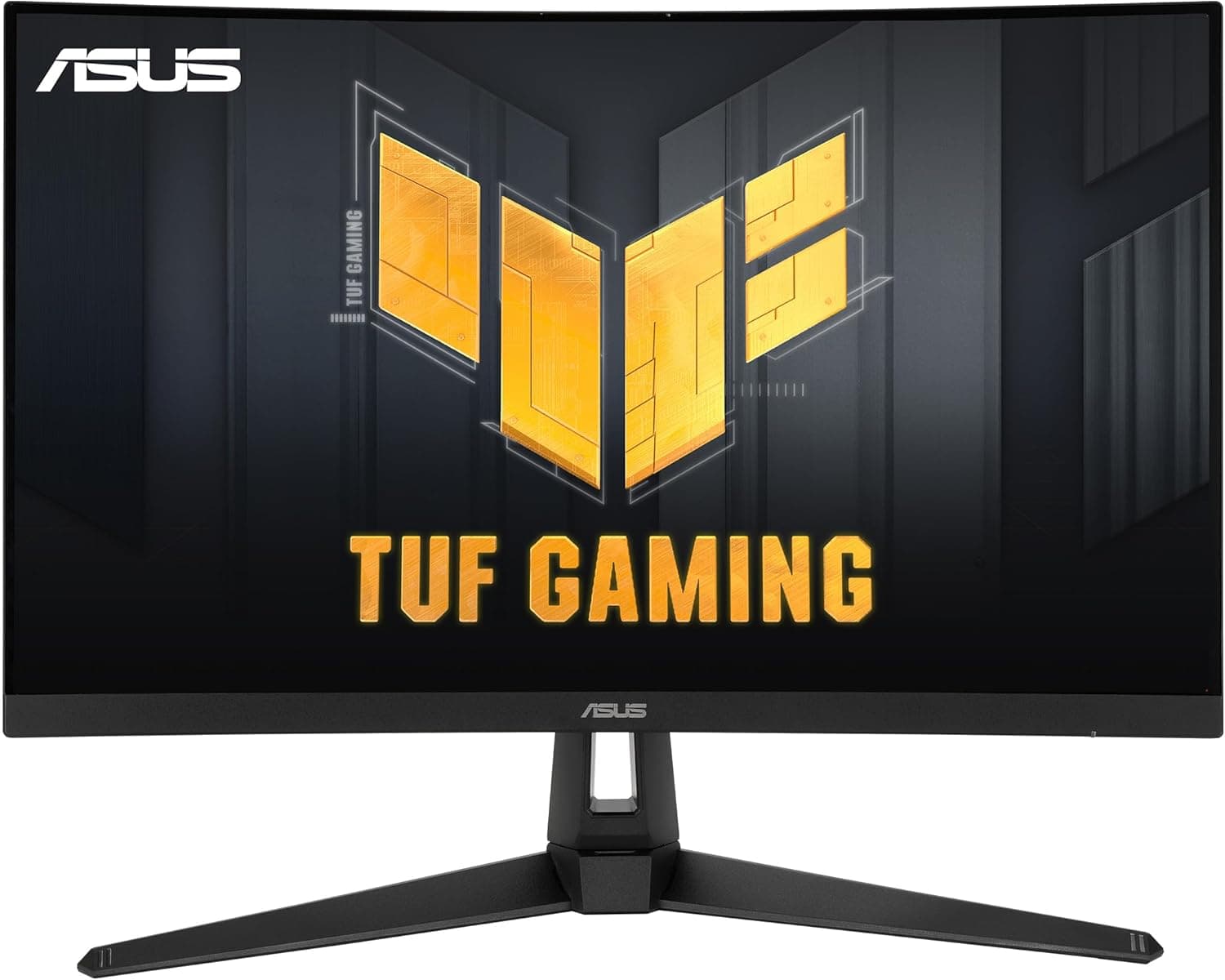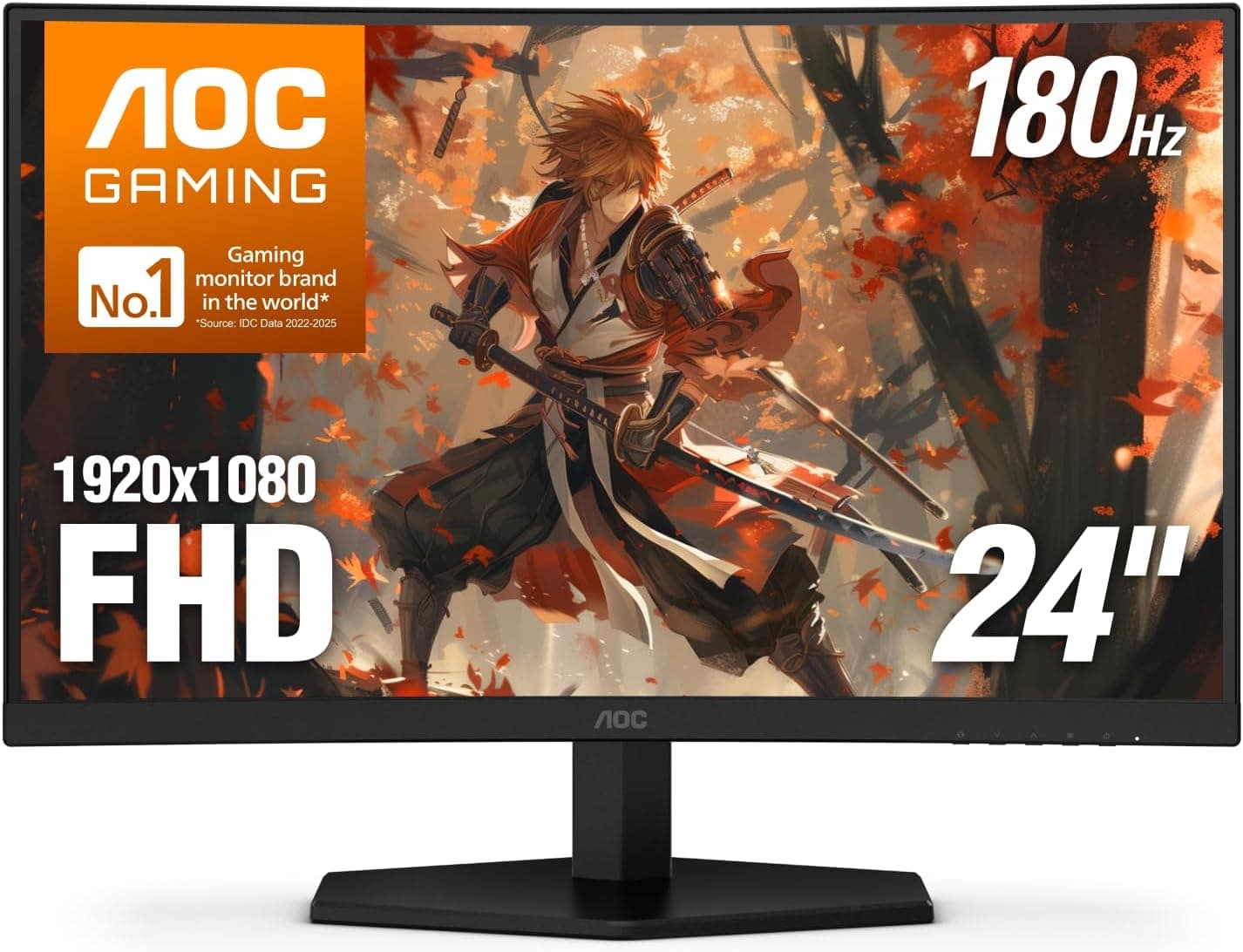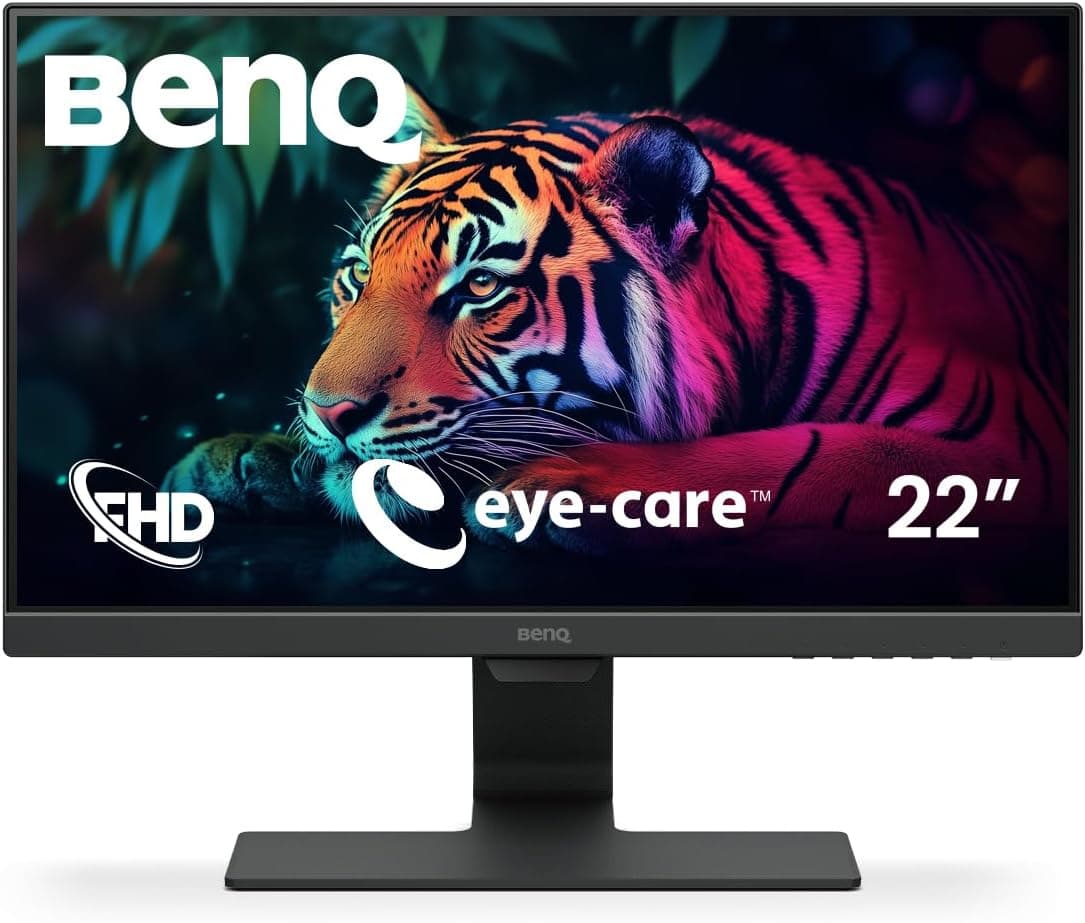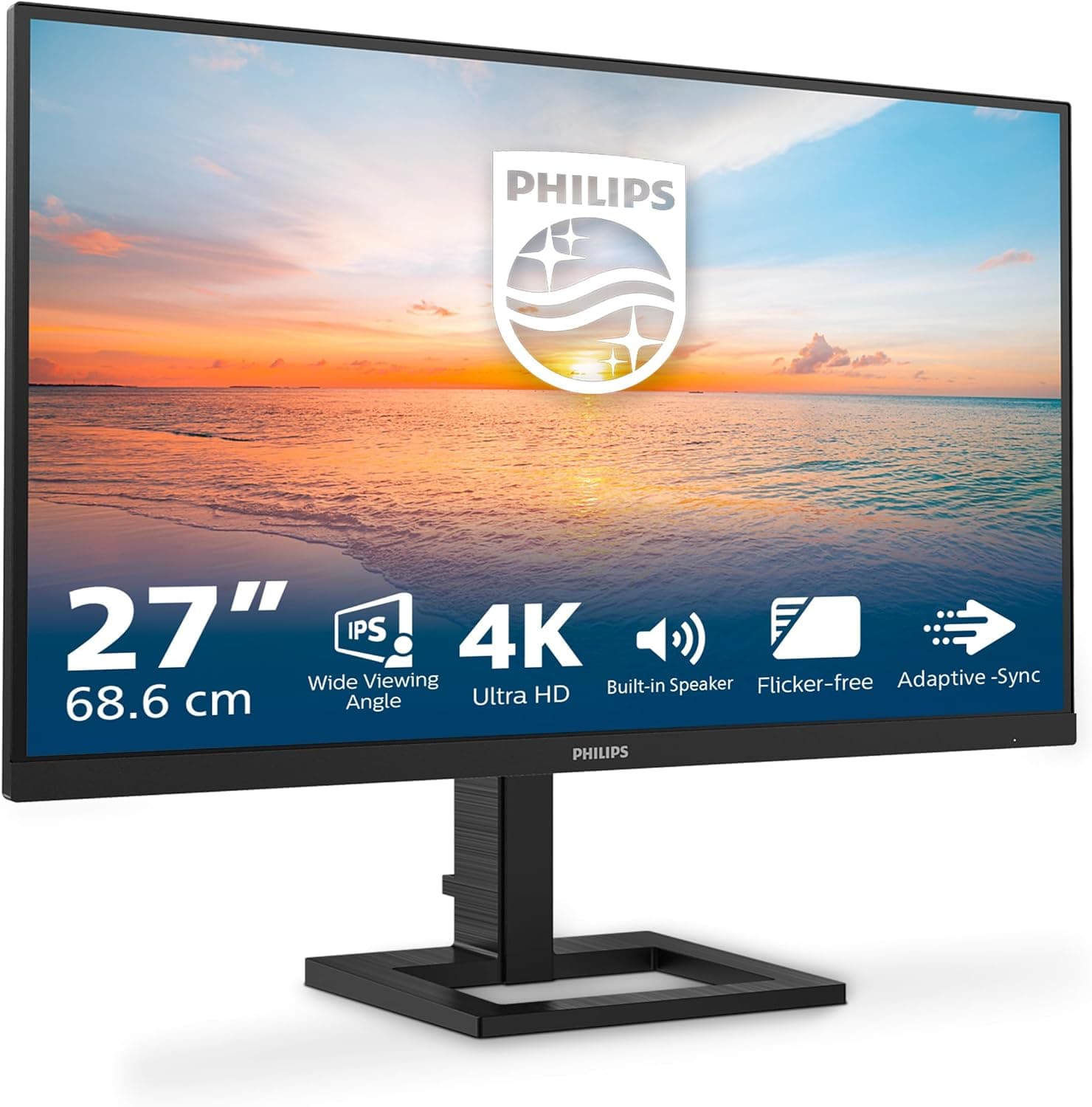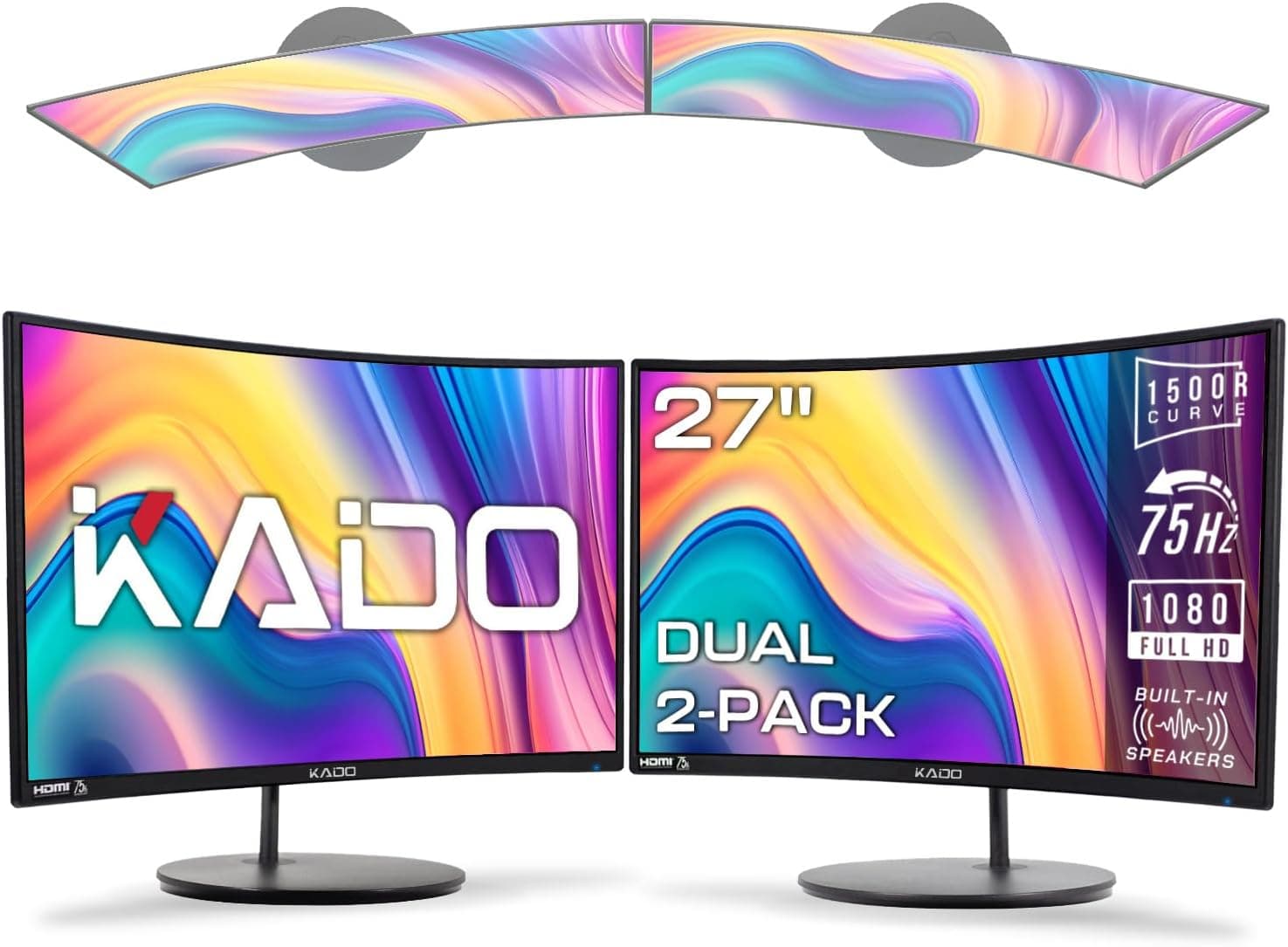
This article covers the Kado デュアルモニターセットアップ (C27X Dual Series), a two-pack of 27-inch curved monitors, including the setup conditions and pitfalls that matter before you order.
Overview
The Kado C27X Dual Monitor Setup bundles two 27-inch curved panels, each running 1920x1080 (Full HD) at 75Hz with a 1500R curvature. The short verdict: this product does not improve the quality of any single screen — it doubles your working area in one purchase.
If you buy it expecting sharpness or gaming performance, you will be disappointed. If you buy it because you want more visible information at once, the value proposition is clear.
The price on Amazon.co.jp was ¥54,771 for the pair as captured on 2026-09-02, which works out to roughly ¥27,400 per panel.
Monitor pricing moves constantly with sales and stock, and this article will not update itself, so always check the product page for the current figure.Check the retailer's page for the latest user reviews.
The spec sheet is unglamorous but complete for its purpose: 100% sRGB coverage, an anti-glare matte finish, a 16:9 aspect ratio, built-in speakers, VESA 100x100mm mounting, and HDMI video input. Nothing here is exotic.
The real value is that you get two matched panels without having to research and source a pair yourself.
Quick Verdict by Use Case
| Use case | Verdict | Why |
|---|---|---|
| Home office / documents | Excellent | Reference and working windows side by side; matte finish cuts glare |
| Video while working | Excellent | 16:9 at 27 inches suits video; built-in speakers keep it simple |
| Casual gaming | Good | 75Hz is slightly smoother than 60Hz, but response time is not published |
| Competitive FPS | No | That world starts at 144Hz |
| Print / photo color work | No | 100% sRGB only, with no factory calibration data listed |
| CAD / drafting | Mixed | A 1500R curve subtly bends straight lines |
| Programming | Good | Plenty of width, but vertical lines are capped at 1080p |
Notice the pattern: everything rated highly is a task where area wins. Everything rated poorly is a task decided by pixel quality or frame speed.
Which side your work falls on flips the verdict on this product entirely.
Compatibility Guide
You need two HDMI outputs. This is the single biggest stumbling block. HDMI is the only video input; there is no DisplayPort.
Desktop GPUs typically ship with one HDMI and several DisplayPort outputs, so most buyers will need one DisplayPort-to-HDMI cable. If the DisplayPort output supports dual mode (DP++), a passive adapter generally handles 1080p at 75Hz; if not, you need an active adapter.
Laptops need more care. Many have a single HDMI port, which means converting from USB-C (DisplayPort Alt Mode) or using a USB-C dock.
A USB-C port does not automatically carry video — check your specific model before ordering. Because there is no DisplayPort, MST daisy-chaining is impossible; both panels get their own cable run.
A DisplayLink USB display adapter is a fallback, but it needs drivers and adds load during video or full-screen games.
75Hz is often not selected automatically. Plenty of users leave a 75Hz monitor running at 60Hz without realizing it, then conclude the refresh rate made no difference.
Set it manually in the OS.
For mounting, VESA 100x100mm lets you swap to an arm or wall bracket. The weight of this model is not listed in the available data. A 27-inch curved panel typically lands somewhere around 4-6kg without its stand, but check the arm's rated capacity against the product page.
For a dual arm, judge by the per-arm rating, not the combined total.
Measure your desk first. The active area of a 27-inch 16:9 panel is about 598 mm wide, so with bezels each unit is roughly 610 mm, and two side by side need about 1220 mm of width.
A desk under 1200 mm simply will not fit them. 1400 mm is far more comfortable, and since curved panels work best angled inward, close to 600 mm of depth helps.
You also need two power outlets or a power strip.
Audio runs over HDMI to the built-in speakers, but you must switch the OS output device to the monitor. Whether there is a headphone jack is not stated in the data, so confirm on the product page if you plan to plug headphones into the monitor.
Consoles such as the PS5, Xbox Series X, and Nintendo Switch connect over HDMI at 1080p, but 120Hz output is not supported, and no VRR support is listed — do not count on it.
What 27-inch 1080p and 1500R Actually Look Like
A 27-inch 1920x1080 panel works out to roughly 81ppi (1920 divided by the roughly 23.5-inch active width).
For reference, 24-inch Full HD is about 92ppi and 27-inch WQHD about 109ppi, so this is roughly 30% coarser than a same-size WQHD screen. Fine rules, small photo detail, and crisp type are not its strength.
That is not purely a drawback. Low pixel density means text is physically large without any scaling.
At a 700-800 mm viewing distance, long document and spreadsheet sessions are genuinely easier on the eyes. If you currently run a high-resolution panel at 125% or 150% scaling, your effective information density may not differ much from this one.
1500R means the curve follows a 1.5m radius — smaller numbers curve harder, so this is more pronounced than a typical 1800R panel.
When you set up two of them, angle them inward by roughly 10-15 degrees. Lined up dead flat, the curves at the seam bend in opposite directions and the transition feels wrong every time your eyes cross it.
This is the most common setup mistake with dual curved panels. Conversely, on line-heavy content such as spreadsheet grids or CAD drawings, straight lines near the edges look faintly bowed.
Expect an adjustment period if you are coming from flat panels.
Setup Steps
Confirm desk width (1220 mm+), depth, and outlet count before ordering.
Connect both panels over HDMI, adding an adapter or dock if you are short an output.
On Windows 11, open Settings > System > Display, choose Extend these displays, and drag the two icons to match their physical arrangement.
In Advanced display settings, change the refresh rate to 75Hz.
Skip this and you are running at 60Hz. 5.
Match brightness and color temperature in each monitor's OSD. Two identical units should be close, but the settings are per-panel.
- Angle them inward and set the top edge at or slightly below eye level.
Stand height adjustment is not documented in the data, so use a riser or arm if the fixed height does not suit you.
Product Info
The Kado C27X Dual Monitor Setup lists a 27-inch screen size per unit, 1920x1080 (FHD) resolution, a 75Hz refresh rate, 1500R curvature, 100% sRGB color gamut, 16:9 aspect ratio, an anti-glare matte surface, built-in speakers, VESA 100x100mm mounting, HDMI video input, and a quantity of two. The official compatibility note is equally blunt: VESA 100x100mm compatible, HDMI input only.
The limited input selection is stated up front rather than hidden.
Check the retailer's page for the latest price.co.jp as of 2026-09-02.
The collected data's overseas price field points to the same domestic listing at the same yen figure, so it is not a usable reference for overseas pricing — check a local retailer instead.
The listing is sold and shipped by メゾンレーヴ, a marketplace seller rather than Amazon itself, so return windows, defect handling, and delivery terms follow that seller's policy. No warranty period appears in the available data, so do not assume a standard one-year term — confirm it on the listing before ordering.
How It Compares
| Option | Total pixels | Approx. ppi | Strength |
|---|---|---|---|
| This set (27in FHD 75Hz x2) | 3840x1080 combined | ~81ppi | Side-by-side window workflows |
| 27in FHD 144Hz x1 | 1920x1080 | ~81ppi | Motion smoothness, no extra area |
| 32in FHD 75Hz x1 | 1920x1080 | ~69ppi | Bigger image, same information |
| 27in WQHD x1 | 2560x1440 | ~109ppi | Text clarity and density in one screen |
An important caveat: two panels do not add up to an ultrawide 4K experience. The combined 3840x1080 matches 4K's horizontal number, but you still only get 1080 rows and there is a bezel seam down the middle.
This is a two-window setup, not a canvas for one enormous window.
The comparison with a single 32-inch Full HD screen is instructive. That option makes the image larger without adding a single pixel, dropping density to about 69ppi while showing exactly as much as one 27-inch FHD panel.
If area is what you want, adding panels is the rational move — which is precisely this product's argument. If sharpness matters most, put the same budget into one 27-inch WQHD.
If motion matters most, buy one 144Hz screen. This product competes on area alone, and knowing that keeps you from choosing wrong.
Best Use Cases
Remote and office workers benefit most. Keeping reference material on one screen and active work on the other cuts window-switching dramatically.
The matte coating keeps room lighting and window reflections manageable, and the large on-screen text at 27-inch Full HD means you can work at 100% scaling comfortably.
First-time dual-monitor buyers are the other natural fit. Sourcing two separate monitors that match in size, height, color, and stand design is harder than it sounds, and people often end up rebuying one of them.
A matched pair removes that failure mode outright, and VESA support leaves room to move to a dual arm later.
People who keep video or a stream running while working get practical value from the built-in speakers — no separate audio gear needed for a secondary screen. Do not expect audiophile sound; expect convenience.
Light gamers are served adequately. 75Hz is marginally smoother than 60Hz and the 1500R curve adds a little immersion.
Anyone playing competitively should look elsewhere.
Before You Buy
1. Confirm you can supply two HDMI signals. This trips up more buyers than anything else.
With no DisplayPort input, a single-HDMI PC means buying an adapter or dock, and USB-C video support varies by laptop model.
2. Several specs are simply absent from the available data. Panel technology (VA, IPS, or otherwise), response time, VRR support, weight, stand height adjustment, and warranty length are not listed.
If any of those decide your purchase, verify them on the product page. Panels in this class and price bracket often trail premium models on viewing angles and response time, but since the figures are not published, this article will not assert what this one does.
3. Listing metadata is sometimes wrong. Manufacturer names, model numbers, and included accessories on Amazon product pages occasionally do not match the physical product, or mix in another item's details.
Verify the product against the title and images before ordering, and expect the price to have moved since it was captured.
4. Ask how a single-panel failure is handled. Two-pack products sometimes carry warranty coverage per set and sometimes per unit.
No warranty terms appear in this data, so contact the seller before purchase if that matters to you.
5. Accept that the configuration is hard to change later. Upgrading only one panel leaves you with mismatched height, color, and curvature, which is often worse than what you started with.
If you expect to move one screen to WQHD or high refresh later, buying separately from the start wastes less money.
6. Curvature is a matter of taste. Coming from flat panels, the first few days can feel odd on line-heavy content.
Seeing a curved display in a store first makes the decision easier.
7. Do not hand-wave the physical requirements. Roughly 1220 mm of width, close to 600 mm of depth, and two outlets.
Miss any of those and the boxes arrive with nowhere to go.
FAQ
Q: Will these work with a PS5 or Xbox Series X? A: Yes, over HDMI at 1080p.
But the panel tops out at 75Hz with no 120Hz support and no 4K, so console high-frame-rate modes go unused. Choose a 120Hz display if that matters.
**Q: My PC has only one HDMI port. A: If your GPU has DisplayPort, a DisplayPort-to-HDMI cable is the simplest second output. On a laptop, convert from USB-C (DisplayPort Alt Mode) or use a dock. Daisy-chaining is not possible here because there is no DisplayPort input.
Q: How do I confirm I'm actually running at 75Hz? A: On Windows 11, check Settings > System > Display > Advanced display settings.
If it reads 60Hz, select 75Hz manually. Many systems default to 60Hz on connection.
Q: Can I use a monitor arm? A: Yes, via the VESA 100x100mm pattern.
Since the weight is not listed in the available data, match the arm's rated capacity (per-arm for dual mounts) against the figures on the product page. Follow the manual for removing the stock stand.
Q: Is this usable for design or photo editing? A: For web-facing work, the 100% sRGB coverage is workable.
But with no factory calibration data and no Adobe RGB or DCI-P3 figures published, it is not suitable for print or video color management. The roughly 81ppi density also works against fine detail work.
Q: Will the two panels match in color?
A: Two identical units match more readily than two different models, but brightness and color temperature are set per panel, so align them manually via the OSD after setup.
Product Disclosure (Amazon)
- Manufacturer: Kado
- Seller: メゾンレーヴ
- Fulfilled by: メゾンレーヴ
- ASIN: B0D9M2LQGJ
- Note: This article covers a manufacturer-made product based on Amazon listing details.