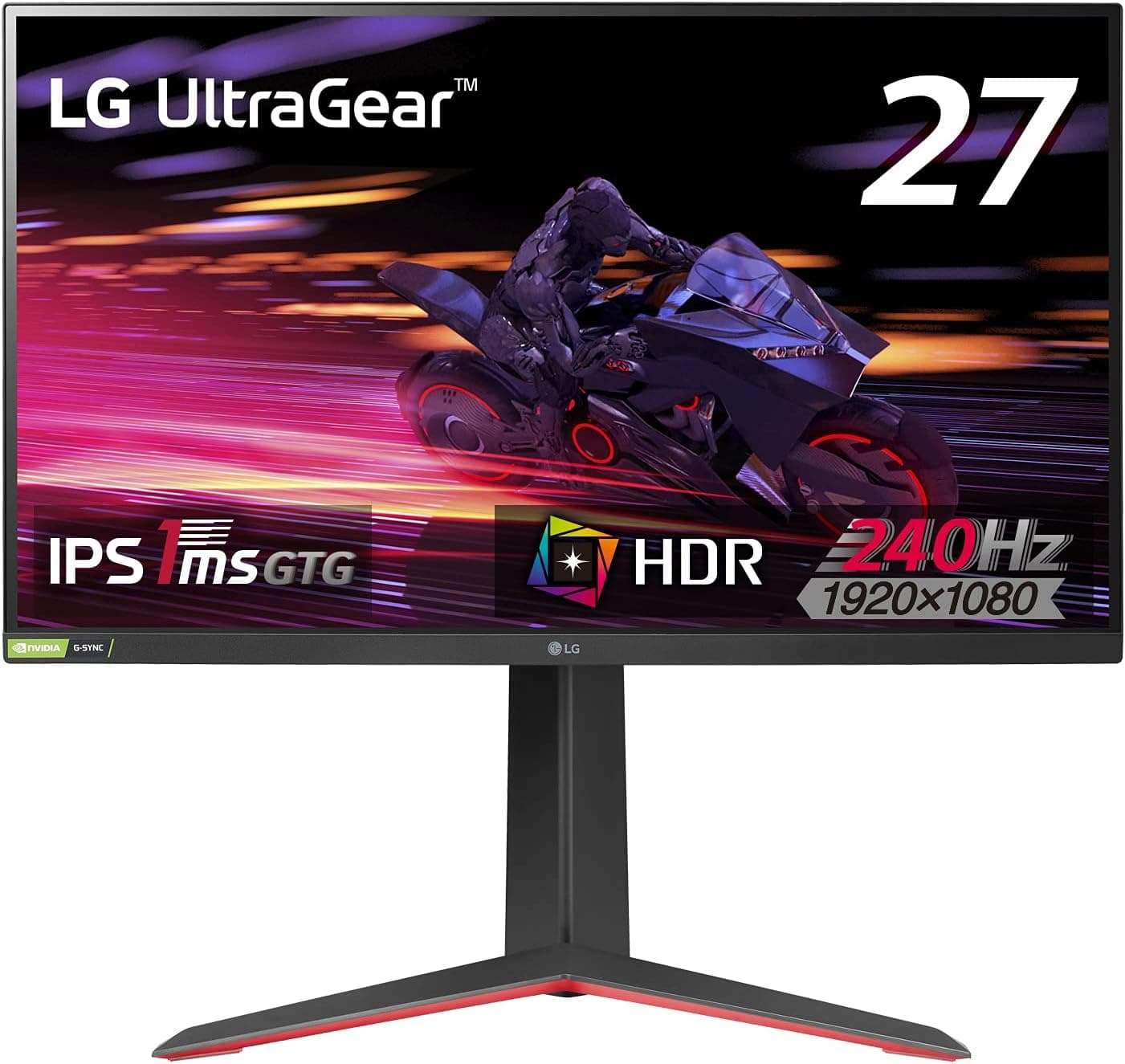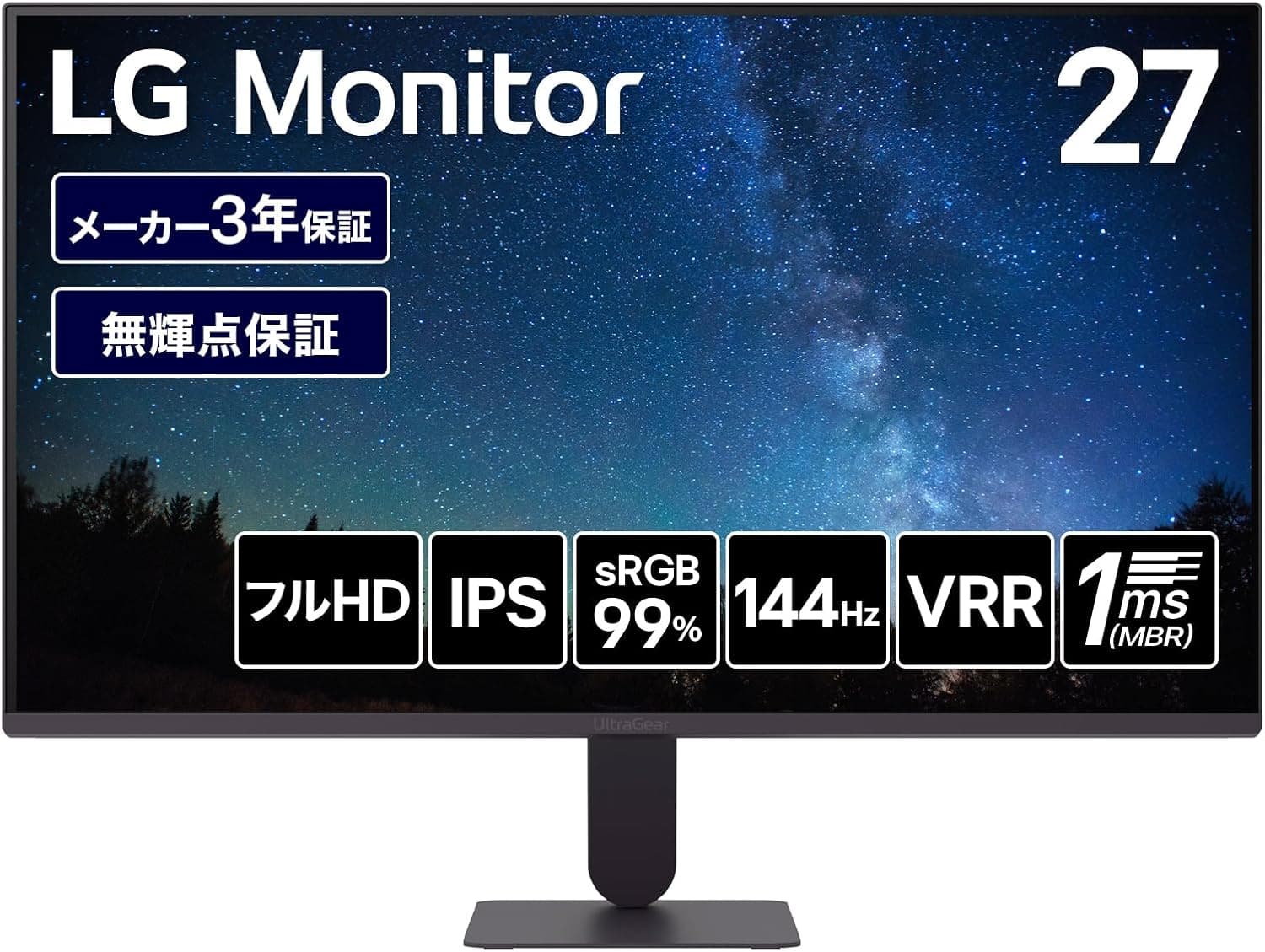
This article covers LG モニター ディスプレイ LG UltraGear 27G411A-B 27インチ, a 27-inch Full HD IPS gaming monitor built on a 120Hz panel that can be overclocked to 144Hz. Instead of restating the spec sheet, this guide focuses on what trips people up after the box is open: what it actually takes to run 144Hz, what consoles can and cannot do with it, how it stacks up against rivals, and who should buy something else.
Overview
The LG UltraGear 27G411A-B is a 27-inch IPS monitor aimed at entry-level gamers. It runs 1920×1080 (Full HD) at 120Hz, with an overclock mode that raises the ceiling to 144Hz.
The IPS panel delivers wide viewing angles (178°/178°) and sRGB 99% coverage, so it handles browsing, office work and light photo editing as comfortably as it handles games.
In numbers: the active display area is 598×336mm, which works out to roughly 82ppi. A 27-inch panel at 1080p means each pixel is larger than on a 24-inch screen (around 92ppi) — text is easy to read, but fine detail looks coarse.
That single trade-off defines the monitor's character.
Response time is rated 5ms (GTG, Faster mode), with 1ms MBR (Motion Blur Reduction) on top. VRR covers both FreeSync and G-Sync Compatible.
HDR is listed, but brightness is 250 cd/m² typical and there is no mention of local dimming, so treat HDR as "accepts the signal" rather than a selling point. The 1500:1 contrast ratio, on the other hand, is above the ~1000:1 typical of IPS panels, which helps dark scenes hold together better than most IPS rivals in this class.
Amazon.co.jp reviews stood at 295 ratings and 4.2 out of 5 stars (84% positive) as of 10 July 2026 — a fair score for the price bracket.
Quick answers
| Question | Answer |
|---|---|
| How to reach 144Hz | DisplayPort connection plus the overclock setting in the OSD |
| HDMI ceiling | 120Hz |
| PS5 / Xbox Series X/S | Works, capped at 1080p/120Hz |
| VRR (FreeSync / G-Sync Compatible) | Enabled over DisplayPort |
| Speakers | None (headphone jack only) |
| Color gamut | sRGB 99% (no DCI-P3 figure given) |
| Skip it if | You grade color, work in a bright room, or need 1440p-class sharpness |
The table is the entry point; the sections below explain why.
Compatibility Guide
Video inputs are one HDMI and one DisplayPort 1.4, plus a headphone output.
If you want 144Hz (OC), DisplayPort is the only route — HDMI tops out at 120Hz, and FreeSync/G-Sync Compatible is enabled over DisplayPort as well. The bundled cable is HDMI, so budget for a DisplayPort cable separately.
This is the single most common reason people report that "144Hz isn't available."
GPU requirements are light. 1920×1080 at 144Hz is not a demanding signal, so any GPU generation with a DisplayPort output has bandwidth to spare.
The real question is whether your GPU can push 144fps in the games you play; the monitor will rarely be the bottleneck. On a laptop that only outputs video over USB-C (DisplayPort Alt Mode), you will need a USB-C to DisplayPort cable or adapter — this monitor has no USB-C input and no power delivery.
Consoles connect over HDMI just like a PC. PlayStation 5 and Xbox Series X/S both output 1080p/120Hz, but because the HDMI input here caps at 120Hz, consoles will never reach 144Hz.
VRR is documented as working over DisplayPort, so do not assume console-side VRR will engage over HDMI. The HDMI version is not stated in the spec sheet, so this guide does not guess at it.
Only two video inputs also matters at setup time. Connect a PC over DisplayPort and a console over HDMI and the monitor is full.
If you plan to switch between three or more sources, budget for an HDMI switch. Since there are no built-in speakers, decide up front how console audio will be routed so you only cable everything once.
Note that VESA mount support and the stand's height, pivot and tilt range are not listed in the available specifications. If you intend to use a monitor arm or run the panel in portrait, confirm this on the product page before buying rather than trusting secondhand descriptions.
Product Info
rmation
Key specifications:
| Item | Value |
|---|---|
| Screen size | 27 inches (active area 598×336mm) |
| Panel | IPS, anti-glare (matte) |
| Resolution | 1920×1080 (16:9) |
| Refresh rate | 120Hz / 144Hz (OC) |
| Response time | 5ms (GTG Faster mode), 1ms MBR |
| Brightness | 250 cd/m² typical |
| Contrast ratio | 1500:1 |
| Colors | ~16.77 million, sRGB 99% |
| Viewing angle | 178°/178° (CR≥10) |
| HDR / VRR | HDR supported / FreeSync, G-Sync Compatible |
The model is relatively new, listed as released around March 2026. Pricing captured from Amazon.co.jp on 26 August 2026 was ¥15,980, down from the roughly ¥18,000 quoted when this article first went up.
Prices move with sales and stock, so read that figure as a snapshot from the capture date and check the product page for the current price before ordering. Warranty is the standard one year from the manufacturer, and the box includes a power cable, an HDMI cable and a quick setup guide.
A price was also captured from an overseas marketplace listing, but the amount was far too low to belong to a 27-inch gaming monitor — clearly a mismatched listing — so it is not quoted here. If an overseas price looks too good, verify that the listing is for the monitor itself and not an accessory.
Setup Notes and Real-World Use
Out of the box, the monitor typically runs at 120Hz. To reach 144Hz you must enable the overclock option in the OSD and then re-select 144Hz in Windows display settings or your GPU driver.
Nearly every "it says 144Hz but only offers 120Hz" case comes down to one of those two steps being skipped, or to using HDMI instead of DisplayPort.
1ms MBR and VRR cannot run at the same time. MBR sharpens motion but costs brightness and disables VRR.
Use MBR in competitive titles where framerate stays high and steady; use VRR in single-player games where framerate fluctuates. If you are unsure, leave VRR on — tearing and stutter are more distracting than residual blur.
Avoid the most aggressive overdrive setting. Pushed too far, IPS panels produce inverse ghosting — a bright halo trailing moving objects.
The 5ms figure refers to the Faster mode, so try the standard and Faster steps and pick whichever looks clean to your eyes.
250 cd/m² is adequate under normal indoor lighting but can feel dim next to a window or under strong lights. The matte finish keeps reflections in check, which helps.
When positioning the monitor, prioritize an angle where no window reflects directly off the panel.
How It Compares
Placing it beside its rivals makes its position clear.
| Model | Size / Resolution | Main draw |
|---|---|---|
| LG UltraGear 27G411A-B (this one) | 27" / FHD | IPS with 1500:1 contrast, sRGB 99%, low price |
| Gigabyte G27F | 27" / FHD | 144Hz IPS claiming DCI-P3 95%, plus USB 3.0 ports |
| MSI MAG 242F | 24" / FHD | 200Hz, built-in speakers, height adjustment and VESA |
| MSI MAG 274F | 27" / FHD | Same 27-inch Full HD bracket |
| BenQ ZOWIE XL2540X+ | 24.1" / FHD | 280Hz TN panel, built purely for competition |
Read it this way: pick the G27F if wider color matters, the MAG 242F if you want speakers and proper ergonomic adjustment, and the XL2540X+ if refresh rate is the only thing you are paying for. The 27G411A-B wins on the combination of 27-inch IPS, above-average contrast and a low price — no headline strength, but few weak spots either.
One note on size: 24-inch versus 27-inch is a viewing-distance question, not a quality one. If your desk only allows about 60cm between eyes and screen, 1080p at 27 inches will look noticeably coarse.
At 70–80cm the larger panel wins on immersion. Measure the distance from where you actually sit before deciding.
Recommended Users
- First-time gaming monitor buyers. Coming from a 60Hz office panel, the jump is obvious even at the same resolution, and the entry cost was around ¥16,000 as captured on 26 August 2026.
- Competitive FPS players on a budget. 120Hz (OC 144Hz) plus 1ms MBR cuts motion blur meaningfully, and light titles such as VALORANT or Overwatch make high framerates easy to hit.
- Anyone mixing games with everyday work. Wide IPS viewing angles and sRGB 99% cover browsing, documents and light photo editing. Larger 1080p pixels also mean larger, easier-to-read text.
- Second-screen buyers. If you already own a 1440p or 4K main display, this works well as a side panel, where the wide viewing angle keeps colors stable at an angle.
- Dark-room single-player gamers. 1500:1 contrast is on the strong side for IPS, which helps in shadow-heavy games.
Before You Buy
Start with the listing data itself. The collected product data for this monitor contained a manufacturer name belonging to an unrelated PC component brand, and an ASIN in the disclosure field that did not match the product page.
Errors like this are not rare. Before ordering, confirm with your own eyes that the images and product title on the page are for the LG UltraGear 27G411A-B.
Also check who the seller and shipper are — official LG distribution versus a third-party marketplace listing changes who handles a dead-on-arrival unit and how the one-year warranty is processed. The contradictory manufacturer block has been removed from this article rather than repeated as fact.
Accept the pixel density before you buy. At roughly 82ppi, small spreadsheet text and 1:1 photo inspection look coarse.
If sharp text and UI matter more than price, a 27-inch 1440p panel will satisfy you more. If you prefer larger text, the same trait becomes an advantage.
Don't buy it for HDR. With 250 cd/m² typical brightness and no local dimming mentioned, HDR support here means little beyond signal compatibility.
If HDR impact is the goal, spend more.
There are no speakers. The headphone jack exists, but the monitor cannot make sound on its own — a problem if you planned to use it as a console TV substitute.
Two more things people discover after purchase: 144Hz is an overclock rather than the default state, and MBR and VRR are mutually exclusive. Neither is a fault; both are by design.
It is not a color-work display. sRGB 99% is fine for web-facing production, but with no DCI-P3 or Adobe RGB figure quoted, print work and video color grading are out of scope, and you should not expect a factory calibration report.
If you plan to use a monitor arm, verify VESA support and hole spacing on the product page first — the specification sheet does not cover it.
FAQ
Q. 144Hz isn't selectable. Is the unit faulty? A.
Almost always a connection or settings issue. Check that you are on DisplayPort (HDMI caps at 120Hz), that the overclock option is enabled in the OSD, and that you re-selected 144Hz in Windows advanced display settings or your GPU driver.
Q. Does it work with PS5 or Xbox Series X/S? A.
Yes, over HDMI, but capped at 1080p/120Hz — never 144Hz. VRR is specified over DisplayPort, so console VRR over HDMI is not guaranteed.
Q. Does G-SYNC work on an NVIDIA GPU? A.
Yes. It is G-Sync Compatible, so connect over DisplayPort and enable G-SYNC Compatible in the NVIDIA Control Panel.
AMD users enable it as FreeSync.
Q. Are there built-in speakers?
A. No. Use the headphone output (3.5mm) for headphones or powered speakers.
Q. Can I edit photos on it? A.
For web-facing work, sRGB 99% is usable. For print or wide-gamut workflows the color space falls short, and for pixel-level inspection a 1440p or higher panel is the better choice.