This article covers Belkin Thunderbolt 4 Dock Pro 有線ブラック W128270927 (ブラック). Beyond the specs, it walks through the compatibility checks worth doing before you buy and the pitfalls buyers tend to discover afterward.
Overview
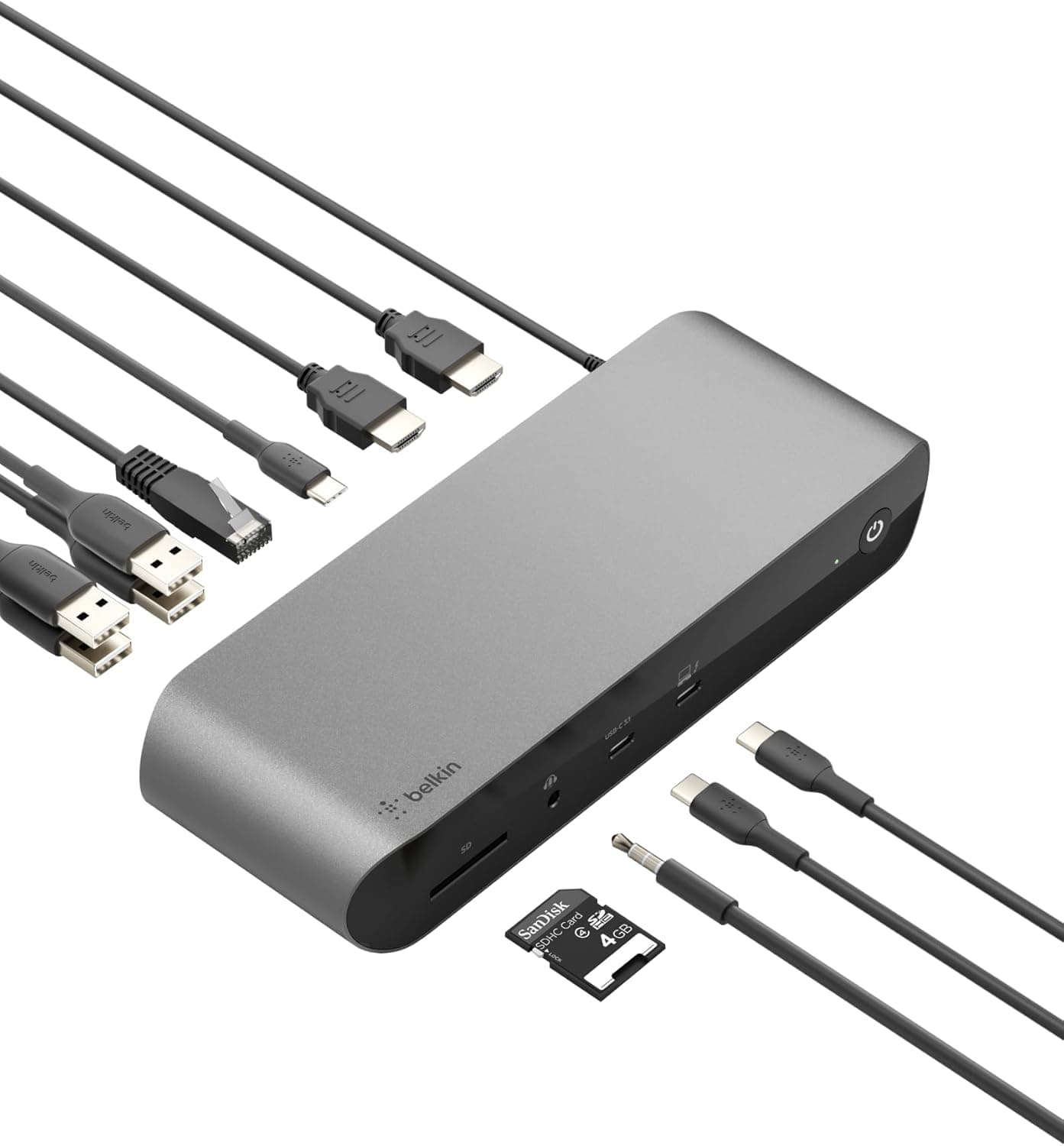
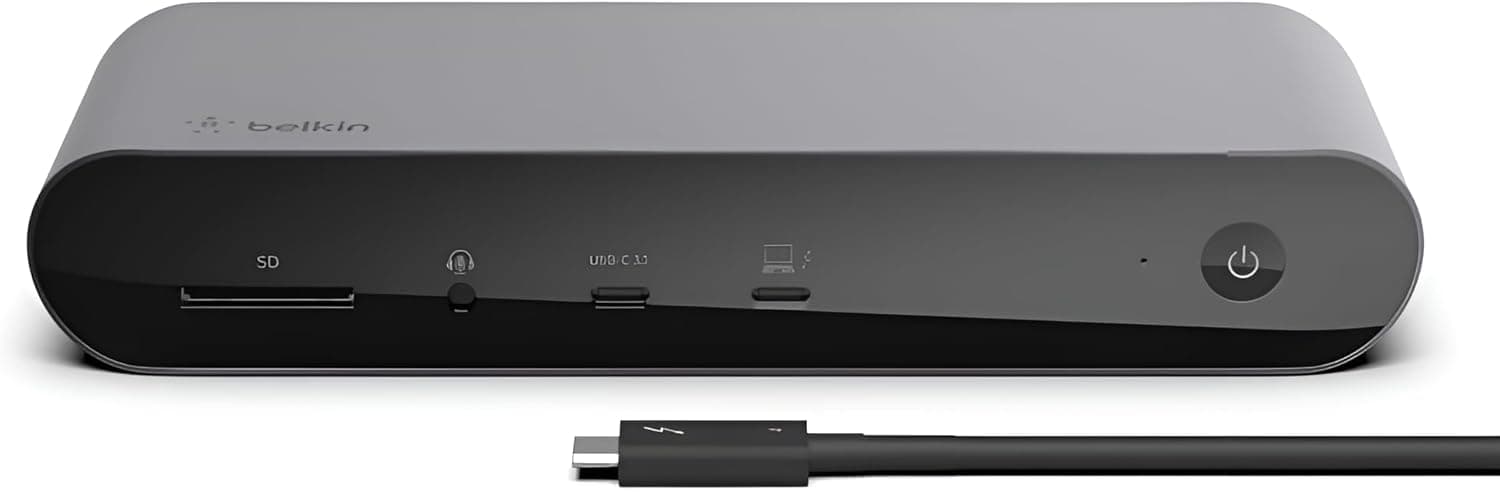
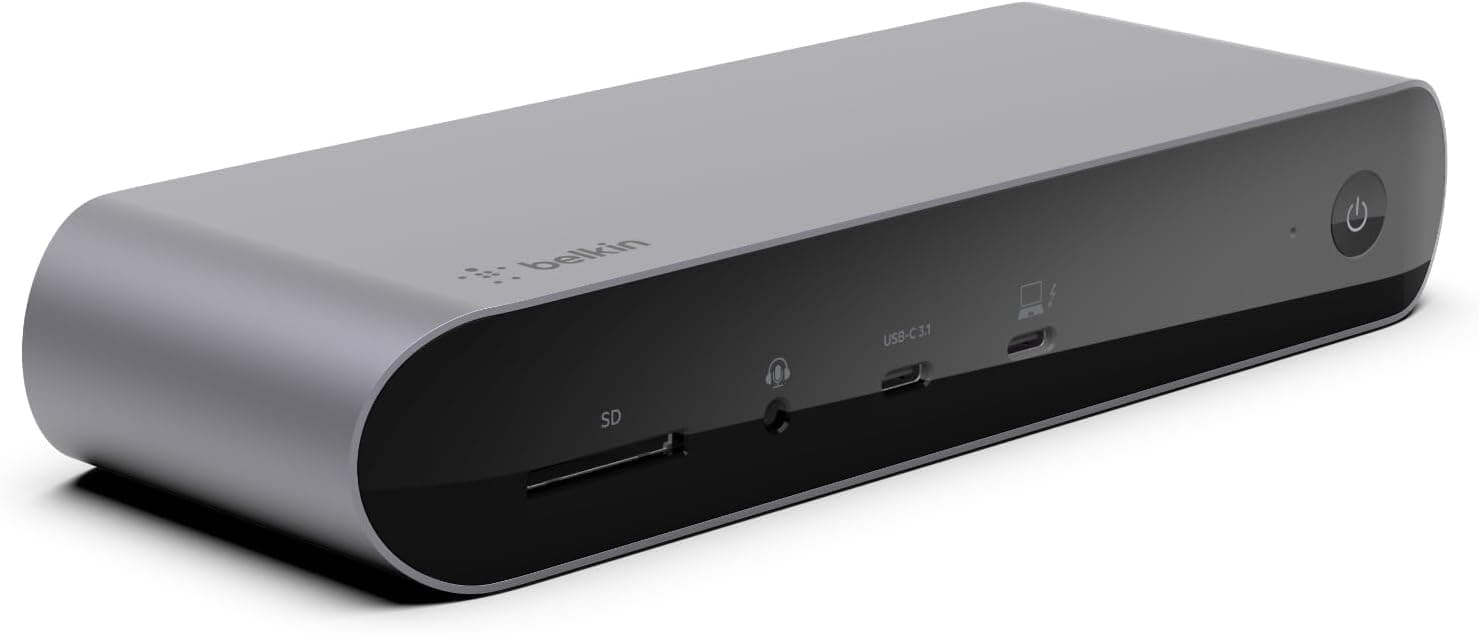
The Belkin Thunderbolt 4 Dock Pro W128270927 (Black) is a desktop docking station that handles video output, data transfer and charging over a single Thunderbolt 4 cable to your laptop. It has 12 ports in total: two HDMI, four USB-A, one USB-C, 2.5G Ethernet, a UHS-II SD card slot, a 3.5mm audio jack, and two Thunderbolt 4 ports (one to connect the host, one for adding devices).
It can charge the host laptop at up to 90W and drive either two 4K displays at 60Hz or one 8K display at 30Hz.
The bottom line: this dock is at its best for people who plug a Thunderbolt 4 or Thunderbolt 3 laptop into the same desk every day. One cable switches on two screens, wired networking, peripherals and charging all at once.
It is much harder to justify if your laptop has plain USB-C without Thunderbolt, needs more than 90W, or is a Mac limited to a single external display.
The black aluminum chassis looks clean and helps dissipate heat. At 246×92×28 mm, it is slightly longer than the short side of an A4 sheet (210 mm).
It is made to sit at the back or side of a desk, not to travel.
Ports and What They Are For
| Port | Count / Spec | Typical use |
|---|---|---|
| Thunderbolt 4 | 2 (1 host / 1 expansion) | Host port for the laptop and 90W charging; expansion port for extra Thunderbolt devices |
| HDMI | 2 | 4K@60Hz ×2 or 8K@30Hz ×1 |
| USB-A | 4 (USB 3.2 Gen 2 / 10Gbps) | External SSDs and HDDs, keyboard, mouse, webcam |
| USB-C | 1 (USB 3.2 Gen 2 / 10Gbps) | USB-C SSDs, phones |
| Ethernet | 2.5 Gbps | Wired LAN, large transfers to a NAS |
| SD card | UHS-II | Offloading camera RAW files and video |
| Audio | 3.5mm | Headsets, speakers |
The biggest difference from budget USB-C hubs is that all four USB-A ports run at 10Gbps. Budget hubs often run some of their USB-A ports at only 5Gbps or 480Mbps.
If you work with several external SSDs at once, you will notice this. The UHS-II SD slot is also a real convenience for anyone who handles photos or video.
The 2.5G Ethernet port only speeds things up if your router, switch or NAS also supports 2.5Gbps or faster.
On a typical 1Gbps router, you will top out at 1Gbps.
Compatibility Guide
Host requirements
The dock works with Windows PCs and Macs that have Thunderbolt 4 or Thunderbolt 3. That includes Intel Evo laptops, Intel Macs and Apple Silicon Macs (M1/M2/M3 series).
Desktops with Thunderbolt on the motherboard or an add-in card also work, although 90W charging is irrelevant there.
First, check that your laptop's USB-C port really is Thunderbolt. A port can have the USB-C shape without supporting Thunderbolt, and on those ports you may get no video or only some working ports.
Look for a lightning-bolt icon next to the port, or 'Thunderbolt 4' or 'Thunderbolt 3' in the manufacturer's spec sheet. USB4 laptops sometimes work too, but check the product pages for both the PC and the dock to see what is officially supported.
How many displays a Mac can drive
'Up to two 4K displays' is the dock's maximum. How many screens actually work depends on the Mac's chip.
According to Apple, MacBook Air and MacBook Pro models with a base M1 or M2 chip support only one external display, so this dock will not give them two screens. The M3 MacBook Air supports two external displays only with the lid closed.
Pro and Max chips in the M1/M2/M3 families, as well as Intel Macs, make a dual-display setup much easier. Check Apple's tech specs page for your exact model.
Is 90W enough?
The dock charges the host at up to 90W. That is plenty for 13-14 inch business laptops and the MacBook Air.
Machines that ship with a charger rated above 90W, such as the 16-inch MacBook Pro and gaming laptops, may drain their battery under heavy load. For those, plan on also plugging in the laptop's own charger.
Video and placement
Running two displays at 4K@60Hz requires monitors that accept 4K@60Hz over HDMI and cables rated for 4K60. Some older Thunderbolt 3 Windows laptops cannot drive a second 4K display at 60Hz because of their own video output limits, so check the PC maker's specs.
Treat 8K@30Hz as a niche option that only works when both the monitor and the host support it.
The included Thunderbolt 4 cable is about 0.8 m long, so the dock has to sit within roughly that distance of your laptop.
Plan your desk layout before you buy.
Product Info
rmation
The Belkin Thunderbolt 4 Dock Pro W128270927 is reported to have launched in November 2021 and is priced in the mid-to-high range for Thunderbolt 4 docks. On Amazon.co.jp it was ¥70,306 when checked on May 27, 2026, and ¥68,050 when checked on August 28, 2026.
Prices change often with sales and stock, so check the product page for the current price before buying.
As of May 2026, Amazon.co.Check the retailer's page for the latest user reviews.
That is a fair number of ratings, but the reviews are not uniformly positive, which suggests satisfaction depends on the setup. The Before You Buy section covers this.
The box contains a Thunderbolt 4 cable (about 0.8 m), a power adapter and a quick-start guide.
The warranty is listed as two years, but who handles warranty claims can depend on the seller, so confirm this when you buy. The Amazon listing we checked is sold and shipped by G-SKY Online Store, not by Belkin directly.
How It Compares
Among Thunderbolt 4 products, the CalDigit Thunderbolt 4 Element Hub and the OWC Thunderbolt 4 Hub are mainly hubs that add more Thunderbolt ports. If you also want wired Ethernet, HDMI and an SD reader in one box, a full dock like the Belkin Thunderbolt 4 Dock Pro means fewer extra devices on your desk.
Cheaper USB-C docks cost less, but they often fall short on USB-A speed, charging power and video stability. They also depend on whether your laptop's USB-C port supports DisplayPort Alt Mode.
If you need two or more monitors on a base M1/M2 Mac, a DisplayLink dock is the usual option. DisplayLink needs a dedicated driver and processes video in software on the host, so video playback and some protected content can be restricted.
Recommended Users
- People who plug a Thunderbolt 4/3 laptop into the same home or office desk every day
- Owners of MacBook Pros with M1/M2/M3 Pro or Max chips, Intel Macs, or Thunderbolt Windows laptops who want two 4K monitors
- Users with several external SSDs who want 10Gbps even on the USB-A ports
- Creators who regularly import photos and video from camera SD cards
- Anyone with a 2.5Gbps NAS or router who wants to make full use of wired networking
Because one cable switches your whole desk setup, the payoff is biggest for people who currently plug in a charger, LAN cable and USB devices every day.
Before You Buy
It is not for PCs without Thunderbolt. Not every USB-C port will work.
If your laptop lacks Thunderbolt, a well-equipped USB-C dock is the better use of the same budget.
Base M1/M2 Macs will not get two screens. This is the most common misunderstanding.
Even though the dock supports dual 4K, a Mac limited to one external display will show only one. If two screens are the goal, check your Mac's chip first.
Laptops that need more than 90W may not charge fast enough. On high-performance laptops, the dock's power alone may not keep up.
You will end up plugging in the original charger as well, which weakens the main benefit of a single cable.
It is not portable. It is a desktop unit that needs its own power adapter and measures 246×92×28 mm.
For travel, a small USB-C hub is more practical.
**The ratings are mixed. Docks in general can fail to wake monitors after sleep or behave badly with specific PCs. Keep your PC's BIOS, Thunderbolt firmware and OS up to date, and check the return policy before you buy.
Check the video ports in the product photos. The spec data lists two HDMI outputs.
If your monitor only has a DisplayPort input, you will need an adapter or a different cable. Listing details sometimes differ from the actual product, so look at the rear ports in the product photos and compare them with your monitor's inputs before you order.
Check the price and the seller. Amazon.co.jp listed the dock at ¥68,050 in August 2026, but overseas marketplaces sometimes show listings far below that.
These may be used units or overseas versions with a different power plug or warranty, so check the item's condition and warranty terms.
FAQ
Q. Will it work with a USB-C laptop that lacks Thunderbolt? A.
It is not guaranteed, and you may get no video or only some working ports. Check your laptop's spec sheet for Thunderbolt 4/3 support.
If it has neither, a USB-C dock is the safer choice.
Q. Can I run two monitors from an M1 MacBook Air? A.
Not with this dock alone. Base M1 and M2 Macs support only one external display.
If you need two or more, consider a DisplayLink dock.
Q. Is 90W of charging enough? A.
It usually is for 13-14 inch laptops and the MacBook Air. Laptops that ship with a charger above 90W may drain their battery under heavy load, so plan on using the original charger as well.
Q. Will 2.5G Ethernet speed up my connection? A.
Transfers on your local network will be faster if your router, switch or NAS supports 2.5Gbps or more.
On 1Gbps equipment, you will top out at 1Gbps. Internet speed is still capped by your internet plan.
Q. What is the expansion Thunderbolt 4 port for? A.
It is for connecting more Thunderbolt devices, such as a Thunderbolt external SSD. Use the host port to connect the dock to your computer.
Product Disclosure (Amazon)
- Manufacturer: Belkin
- Seller: G-SKY Online Store
- Fulfilled by: G-SKY Online Store
- ASIN: B09MR14ZWT
- Note: This article covers a manufacturer-made product based on Amazon listing details.