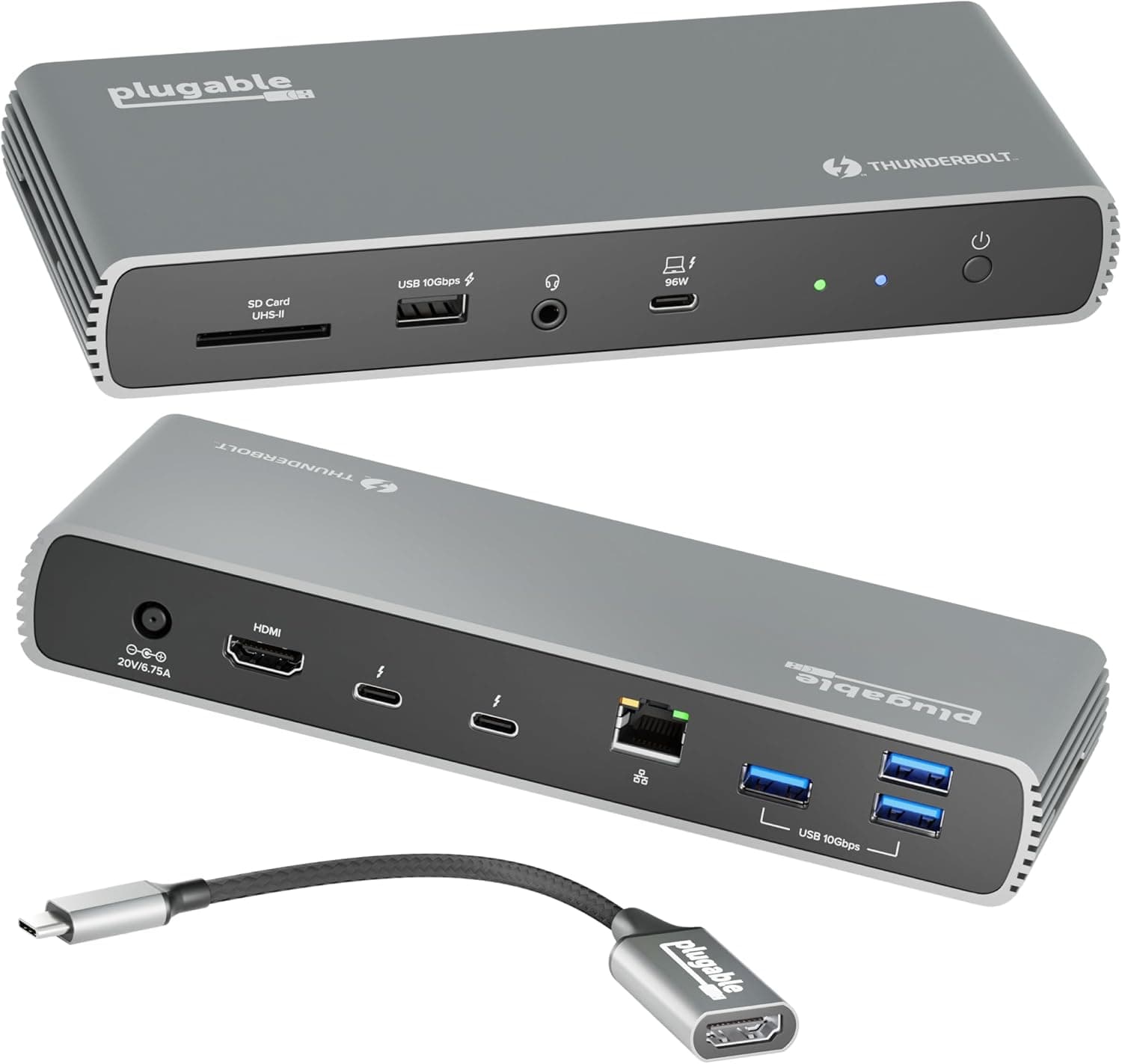
This article covers the Plugable 16-in-1 Thunderbolt 4 Dock with 100W Charging: what it is compatible with, the common mistakes to avoid before buying, and who it suits and who it doesn't.
Overview
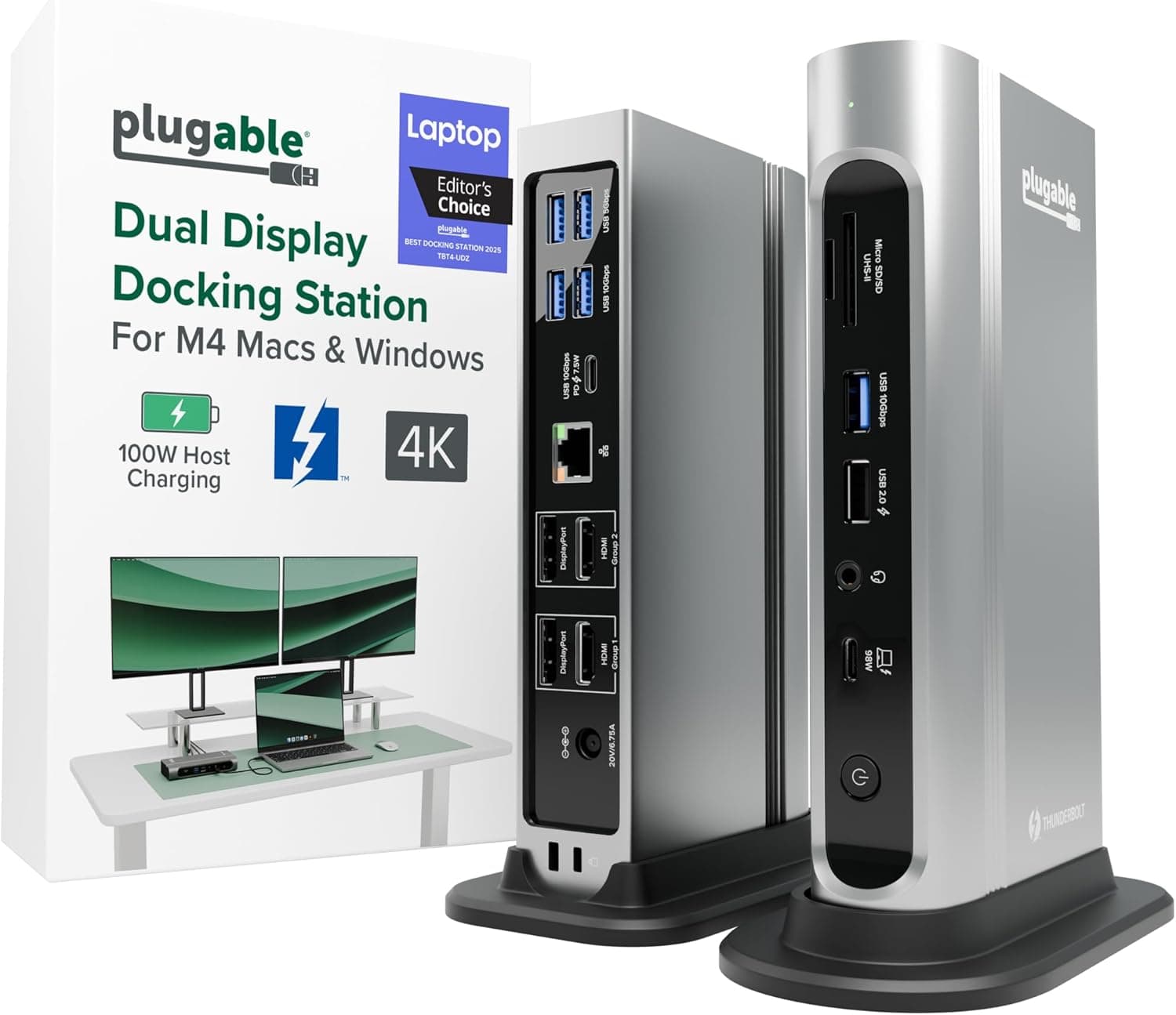
The Plugable 16-in-1 Thunderbolt 4 Dock with 100W Charging is a docking station that handles laptop charging, two external displays, wired Ethernet and USB peripherals through a single Thunderbolt 4 cable. The key specs are 16 ports in total, up to 100W of power delivery to the laptop, and support for two 4K 60Hz displays at the same time.
According to the manufacturer, it won the Laptop Mag 2025 Dock of the Year award.
The short verdict: it is a strong candidate if you have a Windows laptop with Thunderbolt 4 or USB4, or a Pro/Max or newer-generation MacBook, and you want your whole desk setup to connect with one cable. It is not the right choice for base M1/M2 MacBooks when you need two displays, for laptops whose USB-C ports lack Thunderbolt, or for anyone who wants a compact travel hub.
The compatibility guide and the pre-purchase cautions below explain why.
Compatibility Guide
The compatibility data says the host PC needs Thunderbolt 4, and Thunderbolt 5 and USB4 machines are also supported. It works with macOS 11 or later and Windows 10 or later.
The original listing says it has been tested with M4/M5 MacBook Pro/Air, M1 Pro/Max, M2 Pro/Max and M3 Pro/Max, as well as Windows laptops from HP, Dell, Lenovo, ASUS and Acer. No drivers are needed; you plug it in and it works.
| Check | This dock | Common pitfall |
|---|---|---|
| Host link | Thunderbolt 4 (TB5 and USB4 also supported) | A USB-C port without Thunderbolt or USB4 may give limited features or none at all |
| Video | 2x HDMI, 2x DisplayPort (up to two 4K 60Hz) | There are four connectors, but only two displays can run at once |
| Charging | Up to 100W | Laptops that ship with a charger above 100W will charge more slowly |
| Ethernet | 2.5Gbps | Your router or switch must also support 2.5GbE, or you are capped at 1Gbps |
| Card slots | SD / microSD | Check the product page to see whether both work at the same time |
| Cable | Thunderbolt 4, 1m | Longer replacement cables may not reach full speed |
The most common misunderstanding is about video output. There are four connectors in total (two HDMI and two DisplayPort), but only two 4K 60Hz displays can run at the same time.
The four connectors are there so you can match whatever inputs your monitors have. This dock cannot drive three or more displays on its own.
On a Mac, the number of displays you get is decided by the Mac's chip, not by the dock. Apple's specifications limit MacBooks with base M1/M2 chips to one external display, so this dock will not give them two.
Some base M3 and M4-or-later models support two displays under certain conditions. Look up the external display support for your exact model in Apple's tech specs.
Product Info
Published specs: 16 total ports, 7 USB ports, 2 HDMI, 2 DisplayPort, 2.5Gbps Ethernet, up to 100W of power delivery, a Thunderbolt 4 host connection and a 1m cable.
The listed dimensions are 147 x 79 x 295 mm and the weight is 646 g. Those dimensions may be for the box, so if your desk space is tight, check the drawings or photos on the product page for the dock's actual size.
In the box you get a Thunderbolt 4 cable (1m), a power adapter and a quick start guide.
Prices are as of when the data was collected. On Amazon Japan it was 58,030 yen in May 2026 and 59,670 yen in August 2026.
For reference, a listing on eBay US was $199.15 in July 2026.
Prices change a lot with sales and stock, so check the current price before you buy.Check the retailer's page for the latest user reviews.
It costs clearly more than USB-C hubs and DisplayLink docks. What the extra money buys is 100W charging, 2.5GbE and two 4K 60Hz displays over a single cable, plus the bandwidth headroom that comes with a Thunderbolt connection.
If you don't need those, a cheaper option will be enough. The warranty may vary by seller and over time, so confirm it on the official website.
How It Compares to Alternatives
Docks fall into three broad types. The first is Thunderbolt 4/USB4 docks like this one: they combine bandwidth, charging and two displays in one cable, and they are the most stable choice on compatible PCs.
The second is USB-C hub-style docks: they are cheaper and smaller, but they give up something on charging, display count or data speed. The third is DisplayLink docks, which use a dedicated driver to output video, so they can run two or more displays even on base M1/M2 Macs.
The trade-off is that you have to install the driver, and video or fast-moving content can feel laggy.
If you have a base M1/M2 Mac and need two displays, a DisplayLink dock is the most reliable route, not this one. If your PC supports Thunderbolt 4 and you want stable operation without extra drivers, a Thunderbolt dock like this one is the better choice.
Best Use Cases
- Remote workers with a Thunderbolt 4/USB4 Windows laptop who want the whole desk on one cable
- Owners of M1-M3 Pro/Max or M4/M5 MacBooks who want two 4K 60Hz monitors
- Users who move large files to a NAS or transfer video footage often and can use 2.5GbE wired networking
- Creators with many peripherals: mouse, keyboard, webcam, external storage and SD cards
- Productivity-focused users rather than gamers
Before You Buy
Base M1/M2 Macs will not get two displays. This is the most common mistake.
Even though the dock says dual 4K, a MacBook that supports only one external display will not show two screens. You will get either one display or the same image mirrored on both.
If two displays are the goal, check your Mac's chip and its external display limit before you buy.
Having a USB-C port is not enough. A USB-C port without Thunderbolt 4 or USB4 may give no video, charging only, or reduced speeds.
Check for the lightning-bolt icon or a USB4 label next to the port on your Windows laptop, or look at the manufacturer's spec sheet.
100W is not enough for every laptop. Some laptops ship with chargers above 100W, including 16-inch MacBook Pros, gaming laptops and workstation-class notebooks.
On those machines, charging may not keep up under heavy load, and the battery can even drain. If that concerns you, use the original charger alongside the dock.
2.5GbE needs a network that supports it. The dock supports 2.5Gbps, but if your router or switch is 1Gbps, that is the speed you will get.
It is not a travel dock. It weighs 646 g and needs its own power adapter.
For cafes or business trips, a small USB-C hub is more practical. Treat this dock as something that stays on your desk.
Check who is selling it. The Amazon listing shows Plugable as the manufacturer, with a marketplace seller (フレッシュ本舗2号店) handling the sale and shipping.
The seller can change over time, and warranty and defect support depend on who sold it. Check the seller and shipper before you order, and make sure the images and product name match this dock.
FAQ
Q. Can I run two displays on an M2 MacBook Air? A.
No. Apple limits the base M2 MacBook Air to one external display.
For two displays, consider a DisplayLink dock.
Q. Can I connect monitors to all four video ports at once? A.
No. The dock outputs up to two 4K 60Hz displays at the same time, using any two of the 2x HDMI and 2x DisplayPort connectors.
Q. Do I need to install drivers? A.
Normally no; you just plug it in. If it doesn't work properly, update your PC's Thunderbolt firmware and BIOS.
Q. Does it work with Thunderbolt 5 PCs? A.
The compatibility data says yes. The dock itself is Thunderbolt 4, though, so speeds stay within Thunderbolt 4 limits.
Q. Can I use a longer cable than the included one? A.
You can, but depending on the cable, longer ones may make speed or video output unstable. Confirm everything works with the included 1m cable first, and if you replace it, choose a certified Thunderbolt 4 cable.
Product Disclosure (Amazon)
- Manufacturer: Plugable
- Seller: フレッシュ本舗2号店
- Fulfilled by: フレッシュ本舗2号店
- ASIN: B0BQJWKBMF
- Note: This article covers a manufacturer-made product based on Amazon listing details.