Overview
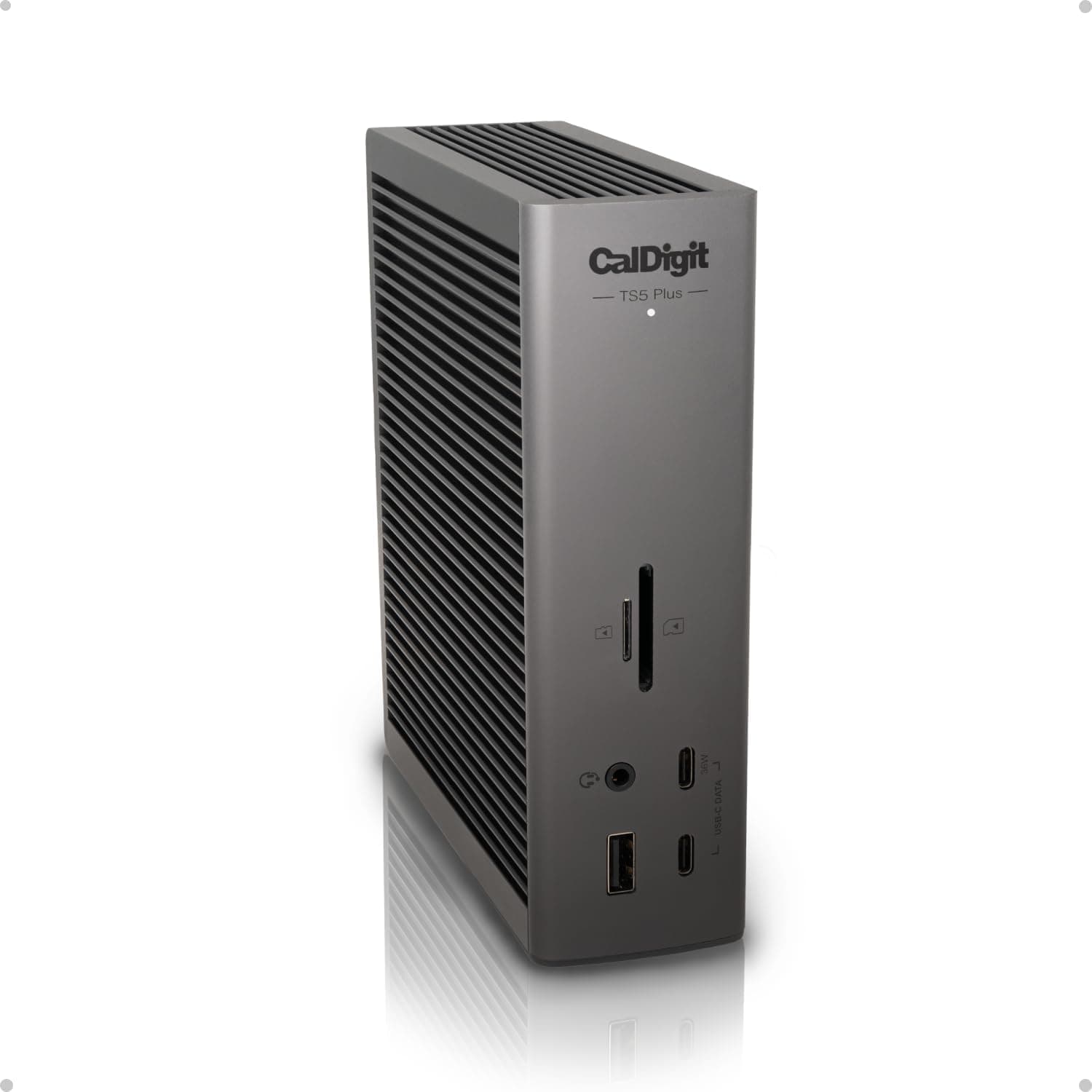
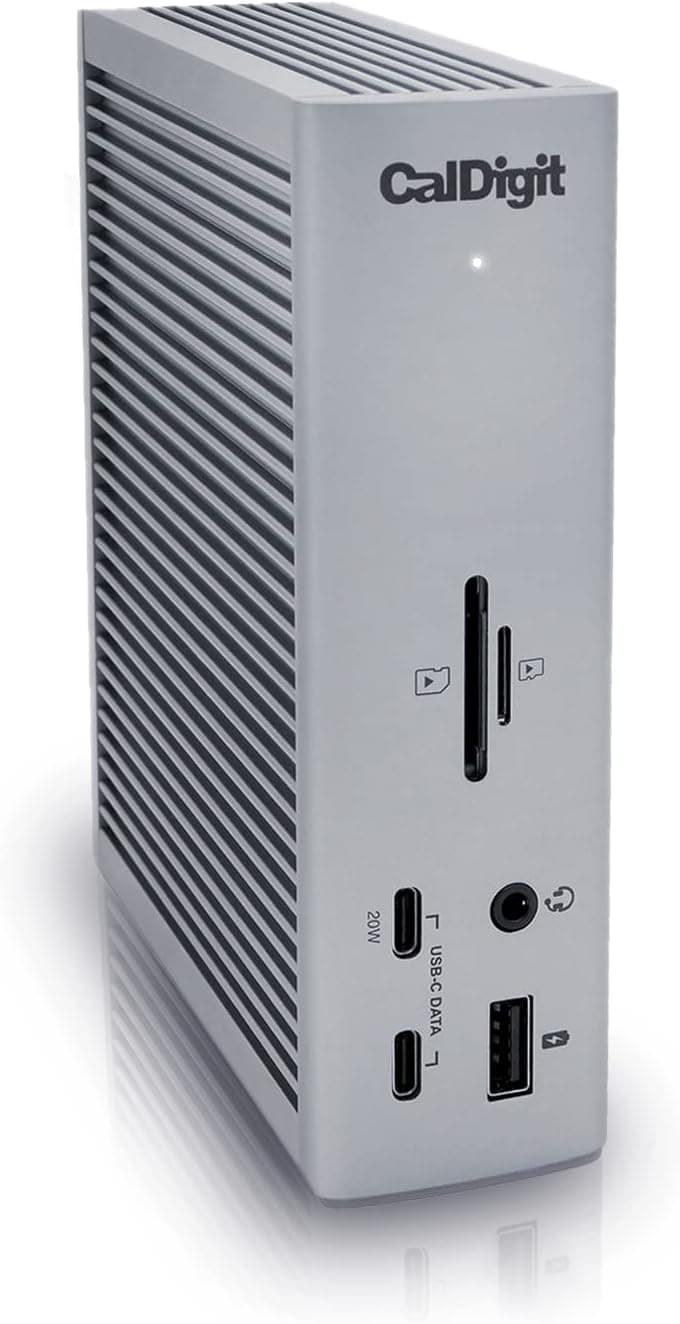
The CalDigit TS4 Thunderbolt Station 4 is a desktop docking station that turns one Thunderbolt cable into charging, external displays, wired networking, external storage and card readers. It has 18 ports in total, up to 98W of charging for the laptop, 2.5GbE Ethernet, and both SD and microSD readers rated UHS-II.
The short verdict: it is a strong choice if you want a Thunderbolt 4 or USB4 laptop to become a full desktop setup the moment you plug in one cable. If you only need a few extra ports, it is clearly more dock than you need.
On Amazon.co.Check the retailer's page for the latest user reviews.
It launched in early 2022, so it is not new. Because it works directly with Thunderbolt 4, Thunderbolt 3 and USB4 laptops, it still holds up with current machines.
Some limits cannot be fixed by any dock, though. Base M1/M2 Macs, for example, support only one external display, so check how the TS4 fits your own computer before buying.
Port Layout
| Type | Count / spec | Typical use |
|---|---|---|
| Thunderbolt 4 (device ports on the dock) | 3 ports (40Gb/s each) | Thunderbolt SSDs, USB-C/Thunderbolt monitors, further hubs |
| USB-C | 5 ports (10Gb/s each) | USB-C SSDs, phones, USB-C accessories |
| USB-A | 3 ports (10Gb/s each) | Keyboard, mouse, webcam, flash drives |
| DisplayPort | 1.4 x1 | External monitor |
| Ethernet | 2.5GbE x1 | Wired LAN, NAS |
| Card readers | SD / microSD (both UHS-II) | Importing footage from cameras and drones |
| Audio | 3.5mm x3 | Headset, microphone, speakers |
| Other | Security lock slot x1 | Anti-theft cable |
For video, the dock as a whole is rated for a single 8K display at 60Hz or two 6K displays at 60Hz. These are upper limits, and they assume the computer supports them too.
How many screens you can actually drive, and at what resolution, depends on your computer's port and chip. As the table shows, there is no HDMI port.
An HDMI-only monitor needs a DisplayPort-to-HDMI cable, or a USB-C-to-HDMI adapter on one of the Thunderbolt 4 ports.
All eight USB ports run at 10Gb/s, with no slowed-down ports. That removes a common worry with cheaper hubs, where the rear USB-A ports often turn out to be slow.
Note that some listings swap the USB-C and USB-A counts. If you need a specific number of each type, check CalDigit's official spec sheet before buying.
Compatibility Guide
The TS4 connects to Thunderbolt 4/3, USB4 and USB-C computers. It is listed as working with Windows PCs, Macs, Chrome OS devices and iPads.
Connecting, however, is not the same as getting every feature. Here is roughly what to expect from each type of port on your computer.
| Port on your computer | What to expect |
|---|---|
| Thunderbolt 4 / USB4 | Full performance. Charging, multiple displays and the dock's Thunderbolt 4 ports can all be used |
| Thunderbolt 3 | Supported. Display count and bandwidth depend on the computer |
| USB-C (no Thunderbolt) | Connects, but display count and speed are limited by that USB-C port, such as whether it supports video output |
Using it with a Mac
Macs with a base M1 or M2 chip support only one external display. This is a Mac limit, so a Thunderbolt dock such as the TS4 will not add a second screen.
To run two displays from a MacBook Air (M1/M2), look at a DisplayLink dock, which sends video through driver software. Some Macs with higher-end chips, such as the M1 Pro and M1 Max, support several external displays.
Check your model's display support in Apple's tech specs.
Using it with a Windows PC
The most common mistake on Windows is assuming that any USB-C port can run a Thunderbolt dock. Many budget laptops have USB-C ports that only transfer data and cannot output video or accept charging.
Look for a lightning-bolt icon next to the port, or 'Thunderbolt 4' or 'USB4' in the spec sheet. Without either, most of the TS4's capability goes unused.
Using it with an iPad or Chrome OS
USB-C and Thunderbolt iPads and Chromebooks are listed as supported. Which accessories actually work depends on the operating system, though.
On an iPad, card readers, wired networking and external displays behave the way iPadOS allows, which may not match a computer.
Charging and placement
The dock charges the laptop at up to 98W. That is enough for most 13- to 14-inch laptops.
Machines that ship with adapters above 100W, such as larger MacBook Pros and high-performance laptops, may charge slowly or even lose battery under heavy load. The dock measures 113 x 42 x 141 mm (W x D x H) and weighs 600 g, so it stands like a thin slab and takes little desk space.
The weight also keeps it steady with many cables plugged in.
Product Info
The CalDigit TS4 Thunderbolt Station 4 is a Thunderbolt 4 dock from CalDigit that launched in early 2022. It comes with a 0.8m Thunderbolt 4 cable and a 2-year warranty.
Bundled items and warranty terms can vary by seller, so confirm them on the product page.
| Item | Detail |
|---|---|
| Total ports | 18 |
| Power delivery | 98W |
| Dimensions (W x D x H) | 113 x 42 x 141 mm |
| Weight | 600 g |
The price changed a lot depending on when it was checked. On Amazon.co.jp it was ¥58,300 as of May 27, 2026 and ¥31,990 as of August 28, 2026.
That is a gap of more than ¥26,000 on the same listing within three months. On eBay US, a listing was $320.00 as of July 9, 2026.
Marketplace listings may differ in condition (new or used) and seller terms. All of these prices move with sales and stock, so check the current price before buying.
With a gap that large, whether the TS4 is worth it depends heavily on what you pay. In the ¥50,000s it is a premium purchase for port count and reliability.Check the retailer's page for the latest price.
If you are not in a hurry, waiting for a price drop is a reasonable strategy.
How It Differs from Other Docks
The biggest difference from USB-C docks around ¥10,000 is the three Thunderbolt 4 ports. You can connect Thunderbolt SSDs and monitors to the dock instead of using up the laptop's own ports.
The 2.5GbE port, UHS-II card readers and 10Gb/s USB ports are also rare on budget docks.
The TS4 does not always win on display count, though. A second screen on a base M1/M2 Mac is possible only with a DisplayLink dock.
macOS also does not support MST, the method that sends separate images to several screens over one cable. So on a Mac, USB-C docks advertised as supporting three displays may only show the same image on each screen.
On Windows, if all you want is more screens, a USB-C dock with several HDMI and DisplayPort outputs can cost less.
Recommended Users
- People who want to connect a Thunderbolt 4 or USB4 laptop to monitors, wired LAN, external SSDs and accessories with one cable
- MacBook Pro or XPS owners who carry the laptop around but want a desktop-style setup at home or at work
- Photographers and video editors who import from SD or microSD every day and can use UHS-II speeds
- Creators and engineers with a 2.5GbE NAS or router who move large files over a wired network
- People who already own several Thunderbolt devices, such as Thunderbolt SSDs or monitors
Before You Buy
If you want two displays on a base M1/M2 Mac, this dock cannot do it. This is the most common surprise after purchase.
The Mac's chip sets the number of external displays, and a more expensive dock will not raise it. If two screens are the goal, choose a DisplayLink dock.
Check the port on your computer. A USB-C port without Thunderbolt or USB4 cannot use the TS4's main strengths, the 40Gb/s Thunderbolt 4 ports and multi-display output.
If your computer has only plain USB-C, the TS4's price is hard to justify.
98W is not enough for every laptop. Large laptops and gaming laptops that use adapters above 100W may not keep up under heavy load on the TS4's power alone.
Check your original adapter's wattage. If it is above 98W, plan to keep using the original adapter alongside the dock.
There is no HDMI port, and the included cable is only 0.8m. HDMI monitors need an adapter, and the dock has to sit near the laptop.
If you swap in a longer cable, choose a certified Thunderbolt 4 cable, or speed and video output may drop. The dock draws power from its own AC adapter, so you also need a power outlet nearby.
2.5GbE and UHS-II only help if the other side supports them too. If your router or switch tops out at 1Gbps, networking stays at 1Gbps.
UHS-I SD cards also read only at UHS-I speeds. If these two features are why you want the TS4, check that your gear supports them first.
**The price swings a lot. Buying at the high end can feel overpriced, so compare prices before you buy.
FAQ
Q. Can a MacBook Air (M1/M2) run two external monitors through it? A.
No. Macs with a base M1 or M2 chip support only one external display, and the TS4 does not change that.
For two screens, consider a DisplayLink dock.
Q. Does it work with a Windows laptop that only has USB-C? A.
It is listed as working, but the display count and speed are limited by that USB-C port. To get performance that matches the price, you need a laptop with Thunderbolt 4 or USB4.
Q. Can I connect an HDMI monitor? A.
There is no HDMI port. Use a DisplayPort-to-HDMI cable, or a USB-C-to-HDMI adapter on one of the Thunderbolt 4 ports.
If you want a high refresh rate, check which resolutions and refresh rates the adapter supports.
Q. Can it charge a 16-inch laptop? A.
Yes, at up to 98W. Laptops whose original adapter is above 98W may not keep up under heavy load, though.
If you often do heavy work such as video exports, plan to use the original adapter as well.
Q. Will 2.5GbE make my internet faster? A.
Not unless your internet line and router support 2.5Gbps.
The benefit shows most when moving large files to and from a 2.5GbE NAS.
Product Disclosure (Amazon)
- Manufacturer: CalDigit
- Seller: CalDigit Japan
- Fulfilled by: Amazon
- ASIN: B09GJRPQPW
- Note: This article covers a manufacturer-made product based on Amazon listing details.