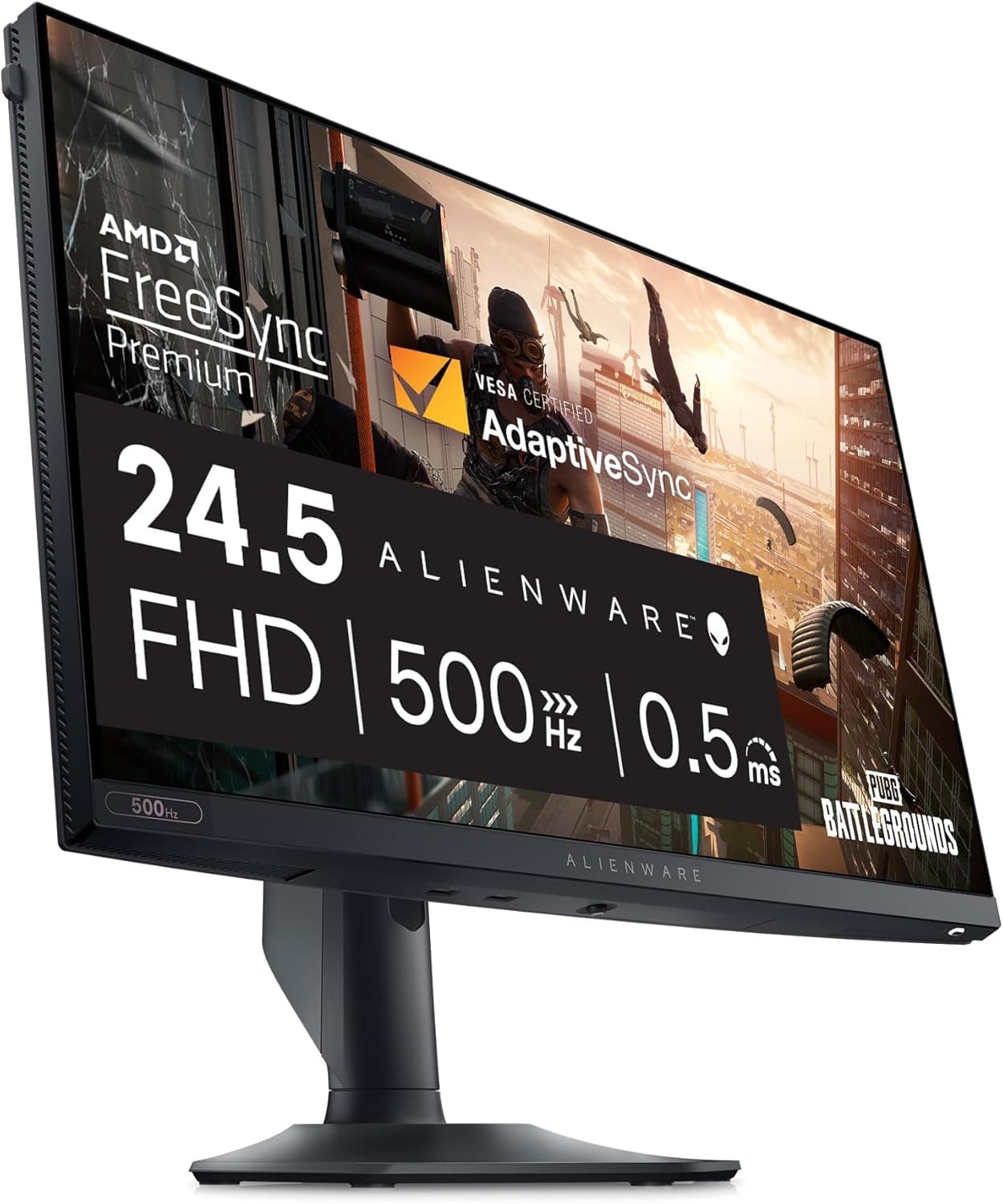
Overview
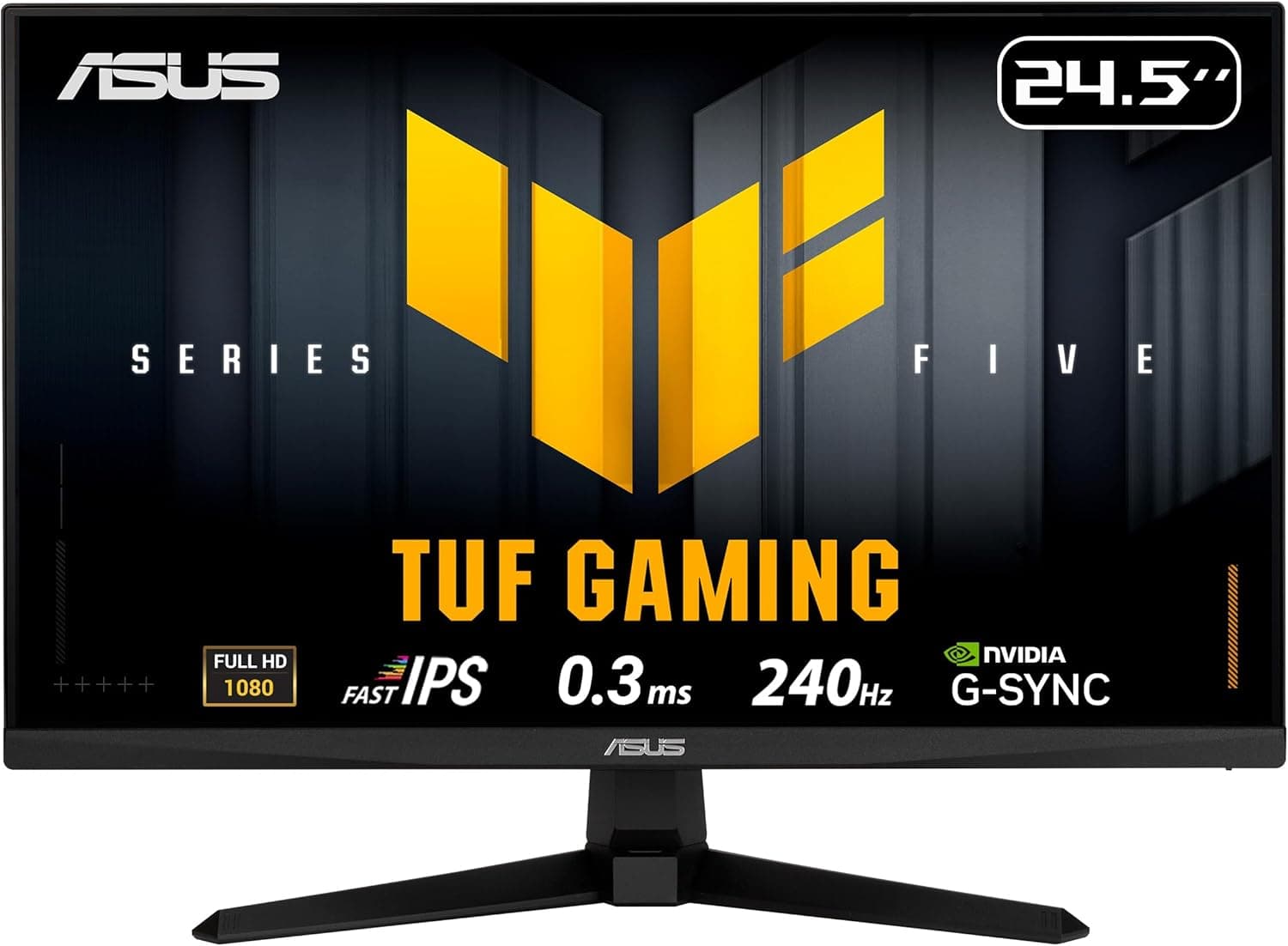
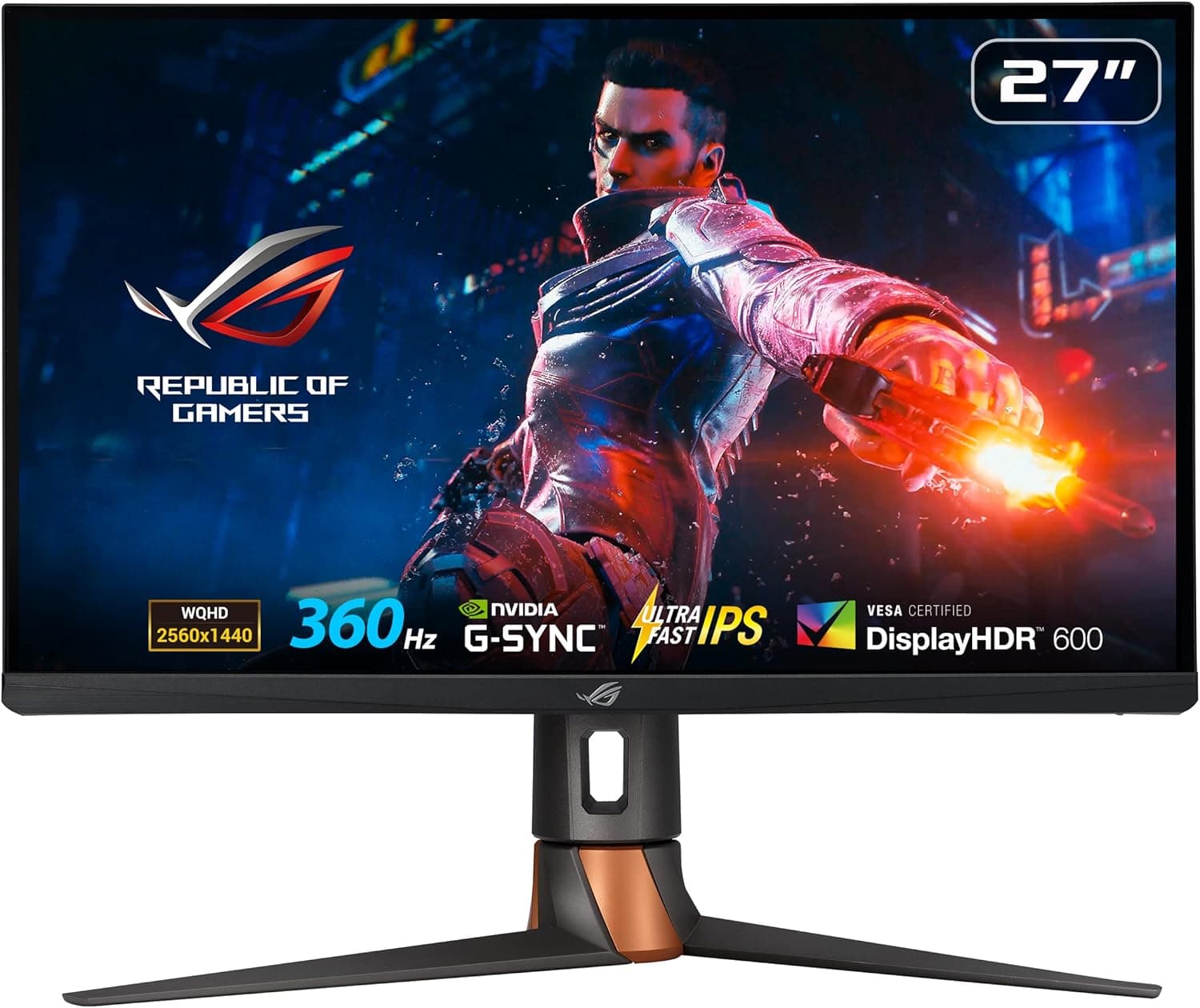
The ASUS ROG Swift 360Hz PG259QNR is a competitive gaming monitor with a 24.5-inch Full HD (1920x1080) Fast IPS panel.
It runs at up to 360Hz with a 1ms (GTG) response time. A built-in NVIDIA G-SYNC processor reduces tearing and stutter.
Its standout feature is the NVIDIA Reflex Latency Analyzer, which lets the monitor itself measure the delay between a mouse click and the change on screen.
The short version: this monitor shines for players who use a GeForce PC, run competitive shooters at very high frame rates, and connect over DisplayPort. It is a poor fit if you care most about image quality, HDR, or screen space for work.
It is also a weak value if you mainly play on a PS5 or another console, or if you use an AMD Radeon GPU. Below we explain the conditions you need to make 360Hz worthwhile and the pitfalls to check before buying.
Compatibility Guide
The most important compatibility point is the video input. There is one DisplayPort 1.4 and one HDMI 2.0 port, and 360Hz is only available over DisplayPort.
HDMI 2.0 tops out at 240Hz.
Plugging into the HDMI port on your graphics card will not give you 360Hz, so always use a DisplayPort cable. Then open Advanced display settings in Windows and set the refresh rate to 360Hz.
Leaving a new high-refresh monitor running at 60Hz is the most common mistake with this kind of display.
| Item | Requirement | Notes |
|---|---|---|
| 360Hz | DisplayPort 1.4 | The bundled DP cable is the safe choice |
| HDMI | Up to 240Hz | Limit of HDMI 2.0 |
| G-SYNC / Reflex Analyzer | NVIDIA GeForce | Check NVIDIA for supported GPUs and drivers |
| USB hub | USB 3.0 x2 | Needs the USB cable connected to the PC |
| Mounting | VESA 100x100mm | Bundled desk mount kit clamps to a desk edge |
| Power | External power adapter | Plan a spot for the power brick, such as under the desk |
Your graphics card matters too. This monitor uses a dedicated G-SYNC processor (module), and both variable refresh rate and the Reflex Analyzer are designed around NVIDIA GeForce cards.
An AMD Radeon card will still display an image. However, variable refresh may be unavailable or limited, and the Reflex Analyzer is an NVIDIA feature, so Radeon users cannot use it.
If you use Radeon, check ASUS's product page for support details before buying.
Treat your PC's performance as part of compatibility as well. To get the most from 360Hz, your games need to run at a steady 300-360 fps or so.
Even at 1080p, the CPU has a big effect at these frame rates. Plan on at least a mid-range CPU and GPU, even if you play esports titles on low-to-medium settings.
If your PC only reaches around 150 fps, the difference from a 165Hz or 240Hz monitor gets small.
The USB hub (USB 3.0 x2) and the Reflex Analyzer only work once the bundled USB cable connects the monitor to your PC.
If you plug in only DisplayPort, you may find that the USB ports do nothing and the Analyzer does not respond. Remember the USB cable when you wire things up.
Product Info
The Amazon listing title is ASUS ROG Swift 360Hz PG259QNR 24.5 HDR 1080P HD Fast IPS 1ms G-SYNC ULMB NVIDIA Reflex HDMI DisplayPort USB VESA HDR10.
The monitor launched in the second half of 2020, and its 360Hz refresh rate and Reflex Analyzer put it at the top of the competitive monitor market at the time.
Key specs: 24.5 inches, 1920x1080 (Full HD), 360Hz, 1ms (GTG) response time, Fast IPS panel, 1000:1 contrast ratio, and HDR10 support.
Ports are DisplayPort 1.4, HDMI 2.0, and USB 3.0 x2, and it supports VESA 100x100mm mounting.
At 24.5 inches and 1080p, pixel density is about 90 ppi.
Text and fine detail look coarser than on a 27-inch WQHD screen. On the other hand, you can take in the whole screen without moving your eyes much, which is why competitive FPS players like this size.
In the box: HDMI cable, DisplayPort cable, USB cable, power adapter, ROG desk mount kit, color calibration report, and ROG stickers, among other items. The standard manufacturer warranty is listed as three years.
If you buy from a third-party marketplace seller, ask how warranty claims are handled and what proof of purchase you need.
On pricing, Amazon.co.jp listed it at ¥246,362 as of September 30, 2026.
This is an older model, and marketplace prices can change a lot. Check the product page for the current price before buying, and compare it with newer 1080p high-refresh models to make sure the price is not far above the going rate.
On Amazon, the monitor was rated 4.4 out of 5 stars (220 ratings, 88% on a percentage scale) as of September 30, 2026.
That score is high, but 220 ratings is not a large sample. Read the low-star reviews too, for issues such as early defects, dead pixels, or seller problems.
How It Compares
People considering the PG259QNR usually ask two questions: is 240Hz enough, and would OLED be better? Here is a quick guide.
| If you... | Look at |
|---|---|
| Use GeForce and can run esports titles above 300 fps | A 360Hz-class monitor like the PG259QNR |
| Top out around 200 fps | A 240Hz-class monitor is usually enough |
| Also want to enjoy non-competitive games and video | WQHD, 4K, or OLED models |
| Want high refresh on a tighter budget | 1080p models at 165-240Hz |
For example, a 27-inch Full HD 240Hz model such as the MSI MAG 272F X24 gives you a bigger screen but an even lower pixel density. Competitive players who prefer the 24-25 inch size can also compare it with similar Full HD gaming monitors in that size, such as the Samsung Odyssey G4 G40H series.
If deep blacks and HDR matter to you, a 26.7-inch OLED such as the Dell AW2725Q will likely satisfy you more.
The PG259QNR is built for one goal: less motion blur and higher frame rates. Choose it knowing that higher-end models beat it on overall image quality.
Setup Tips
Check these settings first:
- Set Windows to 360Hz: The monitor may run at a lower refresh rate out of the box.
- Enable G-SYNC in the NVIDIA Control Panel: You can confirm it is active through the monitor's on-screen menu or display status.
- Turn on NVIDIA Reflex in supported games: Titles such as Valorant, Overwatch 2, and Apex Legends have a Reflex option in their settings.
- Adjust overdrive step by step: Overdrive speeds up pixel response, but setting it too high usually adds bright halos around moving objects (overshoot). Tune it while watching for artifacts.
The Reflex Analyzer works by connecting your mouse to a USB port on the monitor and timing how long it takes from a click until the screen changes. Check the manual and NVIDIA's guidance for which port to use, the measurement steps, and what you need to include mouse latency in the result.
Because you can compare numbers after every change, the feature suits players who want to tune settings based on evidence rather than feel.
Best For
- Competitive FPS players on GeForce: The smoothness of 360Hz plus G-SYNC matters most in shooters, where a split-second reaction decides the fight. Tuning settings while checking latency numbers with the Reflex Analyzer is a strength unique to this monitor.
- People whose PC already runs above 300 fps: The more CPU and GPU headroom you have, the clearer the gap over 240Hz models.
- Players who prefer 24-25 inch screens: This size lets you see the whole screen without moving your eyes much, which is why it is standard in competitive play.
- People who want to measure latency: It suits anyone who wants to compare changes to their mouse or in-game settings with measurements instead of impressions.
- Competitive players who also stream: It helps you play more precisely. However, viewers see your stream at the stream's frame rate (often around 60 fps), so they do not see the 360Hz smoothness you do.
Before You Buy
HDMI will not give you 360Hz. HDMI 2.0 tops out at 240Hz.
If your graphics card's DisplayPort outputs are already used by other monitors, you will need to rethink your cabling.
A 24.5-inch 1080p screen is not great for work. At about 90 ppi, text sharpness and how much fits on screen fall well short of WQHD or 4K monitors.
If one screen has to handle both gaming and work, add a second monitor or consider a different resolution.
Keep HDR expectations low. The monitor accepts HDR10 signals, but it is an IPS panel with a 1000:1 contrast ratio.
Do not expect HDR like an OLED or a bright monitor with local dimming. In dark scenes, raised blacks and IPS glow (light bleed visible at an angle) can be noticeable.
Consoles get little benefit. A PS5 or Nintendo Switch connects over HDMI and has its own output limits, so you will not see 360Hz.
If you mainly play on a console, a model with HDMI 2.1 makes more sense.
It is a weaker value on AMD Radeon. As explained in the Compatibility Guide, the G-SYNC module and the Reflex Analyzer are designed for NVIDIA systems.
Do not rely on the listing title alone. The title mentions ULMB, a backlight strobing mode that reduces motion blur, but the data for this article does not show which refresh rates it works at.
If ULMB matters to you, check the specs on ASUS's product page. The listing title is also packed with search keywords.
Before buying, make sure the model number in the images and the description reads PG259QNR.
Check the seller and the price. When we captured the data, the item was sold and shipped by a third-party marketplace seller, not by Amazon itself.
Prices change a lot, and warranty handling can depend on where you buy, so check the seller and the current price before you order.
FAQ
Q. Can I get 360Hz over HDMI?
A. No. 360Hz works only over DisplayPort. HDMI 2.0 is limited to 240Hz.
Q. Is it worth connecting a PS5 or Switch? A.
They will display a picture, but because of the consoles' output limits, you lose the monitor's main strengths: 360Hz, G-SYNC, and the Reflex Analyzer. If you mainly play on a console, another model is a better choice.
Q. Does it work with Radeon? A.
Yes, it displays an image. However, because it uses a G-SYNC processor, variable refresh may be unavailable or limited, and the Reflex Analyzer will not work.
Check ASUS's product page for support details.
Q. Is it pointless if my PC cannot reach 360 fps? A.
Not pointless, but if your PC tops out around 200 fps, the difference from a 240Hz monitor is small. First check how many fps your PC gets in the games you play.
Q. Can I clamp it to my desk? A.
Yes, with the included ROG desk mount kit, which clamps to the edge of a desk. Check the manual for limits such as the supported desk thickness.
You can also use a VESA 100x100mm monitor arm.
Product Disclosure (Amazon)
- Manufacturer: ASUS
- Seller: AZ SHOP03【インボイス発行可能】
- Fulfilled by: AZ SHOP03【インボイス発行可能】
- ASIN: B08LCNJGMP
- Note: This article covers a manufacturer-made product based on Amazon listing details.