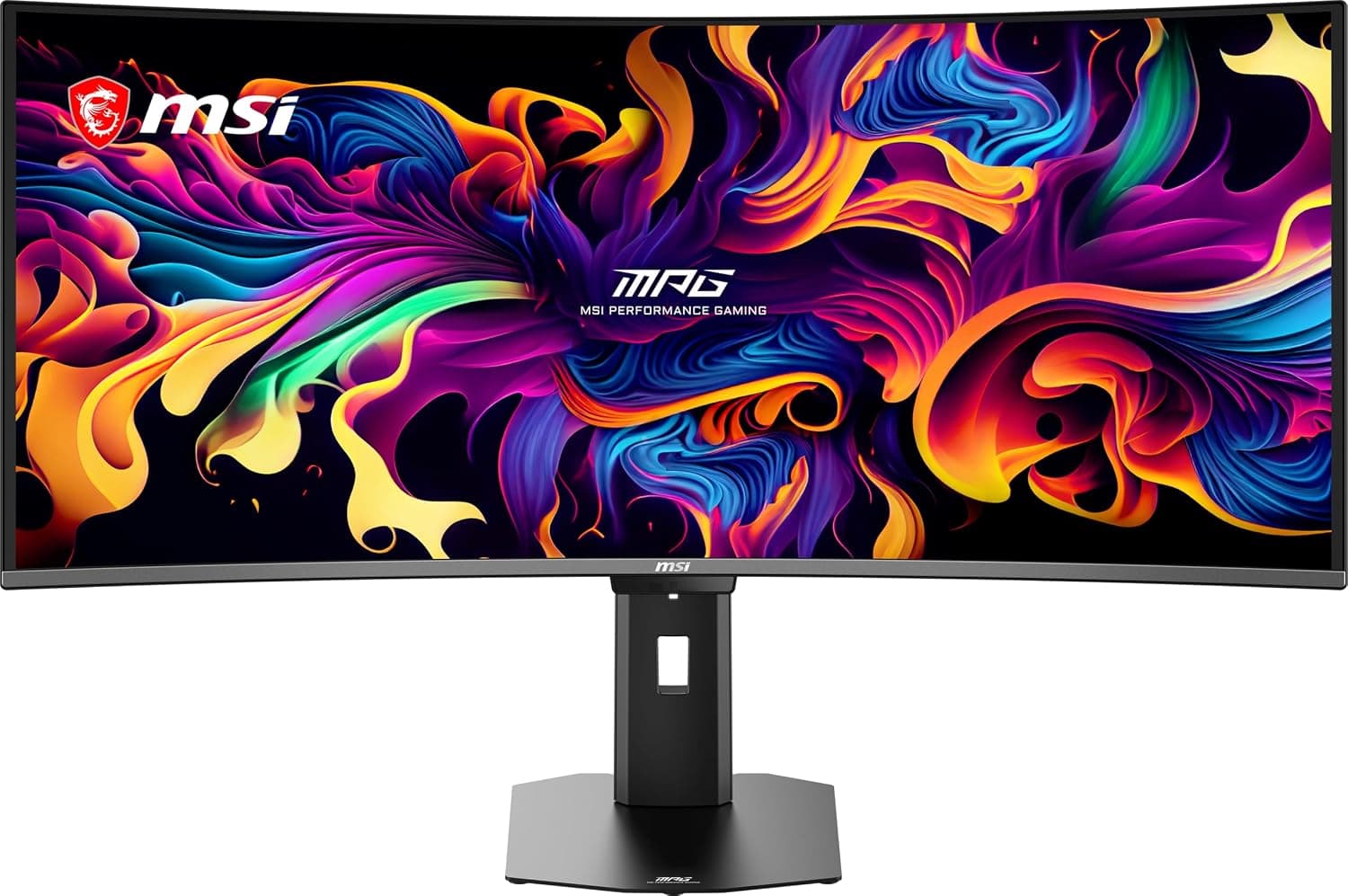
This article looks at MSI QD-OLED ゲーミングモニター MPG 321URX QD-OLED 31.5インチ from the angle that actually matters: will it work in your room, with your GPU, and what do you have to give up?
Overview
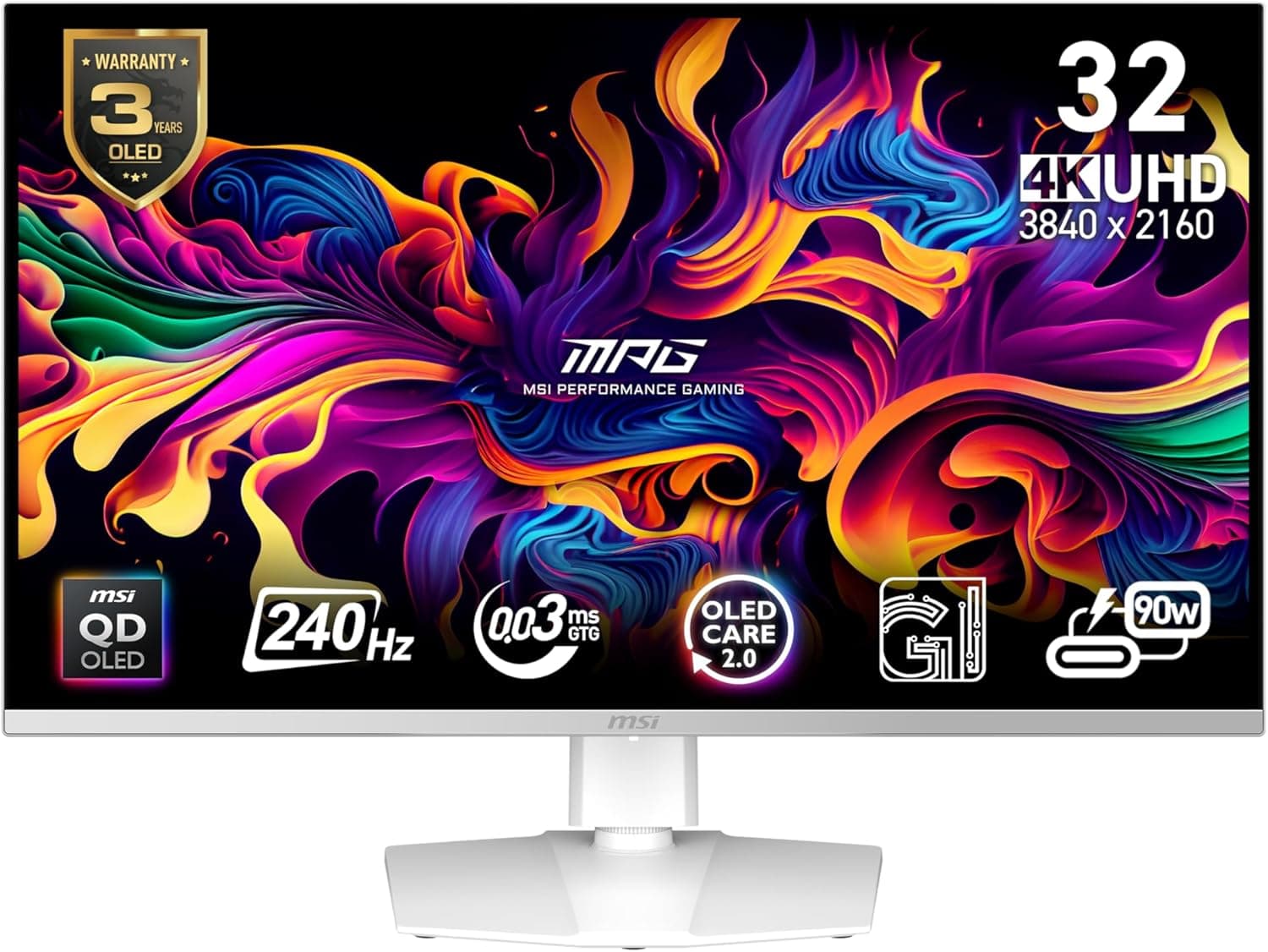
The MSI MPG 321URX QD-OLED pairs a 31.5-inch 4K UHD (3840×2160) QD-OLED panel with a 240Hz refresh rate and a 0.03ms (GTG) response time, placing it at the top of the gaming monitor market.
The short verdict: it is for people who want 4K sharpness and 240Hz speed in a single panel. If you only need one of the two, it is clearly more monitor than you require.
DisplayHDR True Black 400 certification, a wide gamut (DCI-P3 99% / AdobeRGB 97% / sRGB 100%), USB Type-C with up to 90W power delivery and a built-in KVM round out a spec sheet aimed at consolidating a console, a desktop and a laptop onto one screen.
4K on a 31.5-inch panel works out to roughly 140 PPI.
That is visibly denser than 27-inch 1440p (about 109 PPI) or 32-inch 1440p (about 93 PPI), and the extra density helps mask the text fringing that QD-OLED subpixel layouts can produce. The 31.5-inch plus 4K combination is a sensible pairing rather than a spec-sheet flex.
Here is the short answer by use case.
| Use case | Fit | Why |
|---|---|---|
| Cinematic single-player games | Excellent | Self-emissive blacks and contrast are the main draw |
| Competitive shooters at max frame rate | Mixed | 240Hz helps, but 4K is expensive to drive |
| Photo and video editing | Good | Wide gamut is ample; watch reflections |
| Bright living room or daytime window light | Poor | Glossy surface, raised blacks, brightness limiting |
| Laptop dock duty | Good | 90W USB-C and KVM collapse the cable count |
| All-day static dashboards | Poor | Burn-in becomes something you must manage |
Check the retailer's page for the latest user reviews. That is a strong score, but 59 samples is too small to reveal unit-to-unit patterns.
Treat it as a light signal and decide using the compatibility and caveat sections below.
Compatibility Guide
Connectivity is two HDMI 2.1 ports, one DisplayPort 1.4a, and one USB Type-C with DisplayPort Alternate Mode and up to 90W of power delivery, plus a USB hub (2× USB-A, 1× USB-B), a KVM switch, and VESA 100mm mounting.
The failure points are rarely the port count. They are these.
4K 240Hz only exists because of compression. DisplayPort 1.4a (HBR3) does not have the bandwidth to carry 4K at 240Hz and 10-bit uncompressed, so Display Stream Compression (DSC) is assumed.
As a rule of thumb, DSC support starts at GeForce RTX 20 series, Radeon RX 5000 series and Intel Arc. Older GPUs will either fall short of 240Hz or force you to drop color depth or chroma.
Keep GPU drivers current, since DSC-based setups can behave differently across driver and OS combinations.
Do not cheap out on cables. Use a VESA-certified DisplayPort cable or an Ultra High Speed certified HDMI cable.
The box includes DisplayPort, HDMI, USB and power cables, so start with those and only buy longer certified cables if your desk layout demands it. An underspecified cable rarely fails outright; it quietly removes 240Hz from the refresh rate list or causes intermittent flicker.
Consoles top out at 4K 120Hz. PS5 and Xbox Series X output a maximum of 4K at 120Hz over HDMI 2.1.
Treat 240Hz as a PC-only figure. The upside is that two HDMI 2.1 inputs let you leave two consoles permanently connected alongside your PC.
USB Type-C is capped at 90W. A thin-and-light laptop can run video, data and charging over one cable.
A gaming laptop or mobile workstation with a discrete GPU can exceed 100W under load, so the battery may drain even while connected. Keep the bundled AC adapter in that case.
The KVM needs the USB-B upstream cable. Connecting only the video cable and wondering why the KVM does nothing is the most common first-day mistake with this class of monitor.
Plug your keyboard and mouse into the monitor's USB-A ports and run USB-B to the desktop before you start switching sources.
Check arm load ratings first. VESA 100mm mounting is supported, but a 31.5-inch panel is not light.
Physical dimensions and weight are not included in the data behind this article, so confirm them on the product page alongside your arm's weight rating.
The GPU may cost more than the monitor. Sustained 4K 240fps is realistic in light competitive titles, older games, or with frame generation.
Pinning a heavyweight modern title to 240fps at 4K maximum settings is not. The real benefit of a high refresh ceiling is not saturating it; it is that smoothness degrades gracefully when frame rates fluctuate.
Product Info
Key figures and what each one means in daily use:
| Item | Value | What it means |
|---|---|---|
| Screen size | 31.5 inch | About 140 PPI with 4K; 125-150% scaling works well |
| Resolution | 3840×2160 (4K UHD) | Roomy desktop, but ~2.25× the render load of 1440p |
| Refresh rate | 240Hz | Needs DSC and a strong GPU to be used fully |
| Response time | 0.03ms (GTG) | No overdrive tuning headaches |
| Panel type | QD-OLED | Self-emissive blacks; glossy surface and burn-in care |
| Color gamut | DCI-P3 99% / AdobeRGB 97% / sRGB 100% | Wide enough for color-critical work |
| HDR certification | DisplayHDR True Black 400 | A strict black-level tier, not a peak-brightness guarantee |
| USB-C power delivery | Up to 90W | Fine for ultrabooks, often short for gaming laptops |
Check the retailer's page for the latest price. Note also that one captured price entry is labeled Amazon US while carrying a yen-denominated domestic price, which is a collection-side inconsistency.
OLED monitor pricing moves with sales and exchange rates, so always confirm the current figure on the product page.
The model arrived in 2024 and carries a 3-year manufacturer warranty registered through a digital warranty card. In the box are DisplayPort, HDMI, USB and power cables plus a quick start guide, so you can reach the maximum refresh rate on day one.
What QD-OLED Actually Changes
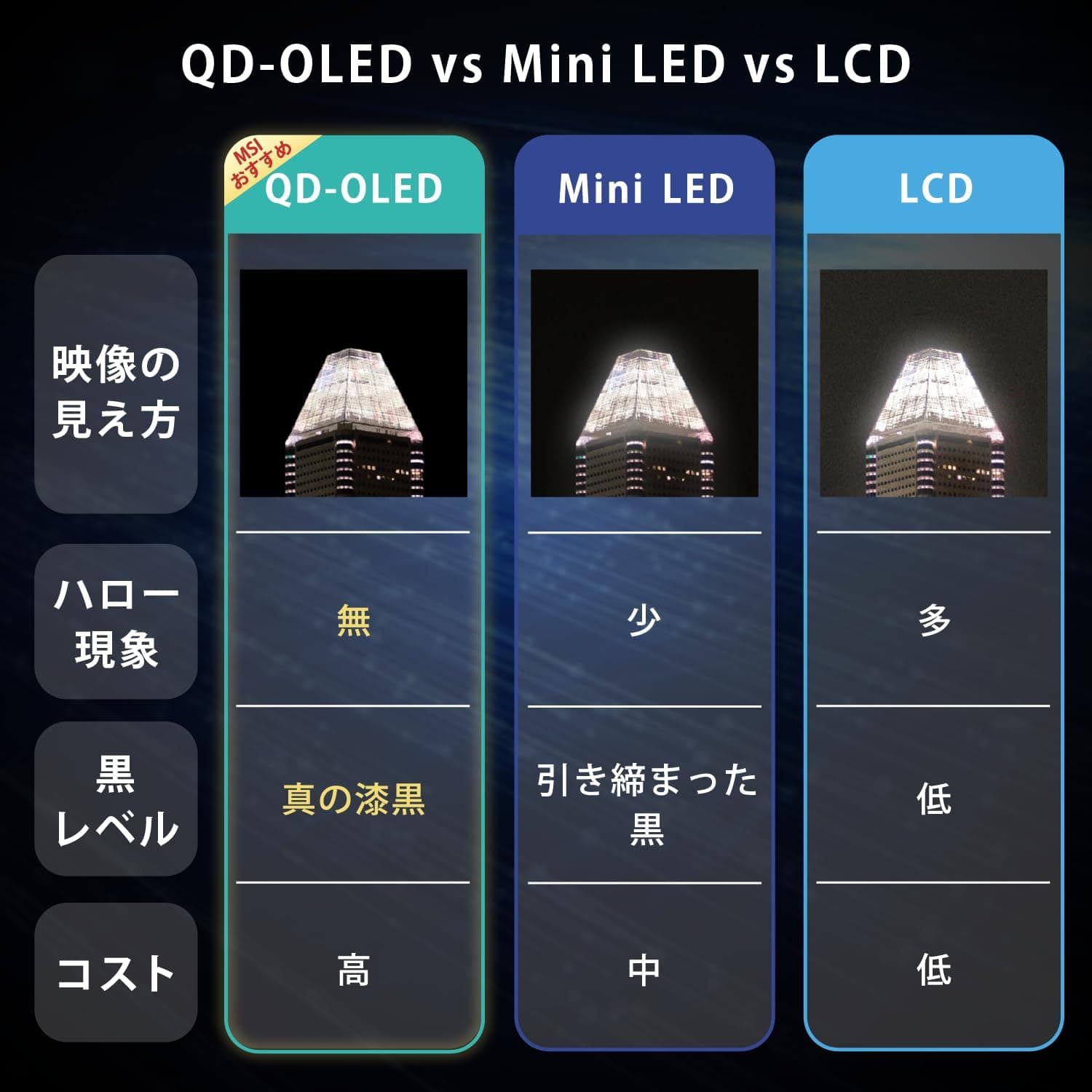
Black level is the headline. With no backlight, dark scenes do not lift into grey, and in a dim room the gap versus an LCD is more obvious than the numbers suggest.
DisplayHDR True Black 400 certifies exactly that strict black performance; it is not a promise of high peak brightness, and reading it that way leads to disappointment.
The flip side is common to all OLEDs: when a large share of the screen is white, brightness is automatically limited. In a dark room you will not notice.
Spending all day on white documents and spreadsheets in a bright room is where a high-brightness LCD still feels better.
The other quirk is subpixel layout. QD-OLED arranges subpixels differently from typical LCDs, so thin text can show slight color fringing at the edges.
At roughly 140 PPI the effect here is mild, but if it bothers you, tune Windows scaling and ClearType. The surface is on the glossy side, so reflections from lamps and windows are part of the placement decision.
How It Compares
Several vendors ship 4K 240Hz QD-OLED monitors built on a shared panel generation, so image character alone rarely separates them. The real differences are ports, USB-C power budget, KVM availability and warranty terms.
The MPG 321URX stands out by combining two HDMI 2.1 inputs with 90W USB-C and a KVM, which suits anyone consolidating several machines onto one display.
Spending the same money on a 4K 144-160Hz IPS or VA panel buys higher sustained brightness and complete freedom from burn-in worry. For bright rooms and long work sessions, that is often the more satisfying choice.
Going the other way, a 1440p high-refresh panel is far easier to drive to high frame rates and makes more sense for competitive play. Think of this monitor as the answer to a greedy requirement: cinematic darkness and 4K desktop space in one panel.
Best Use Cases
Competitive and fast-paced gamers benefit most from the 240Hz refresh rate and 0.03ms response, which keep motion clean and smearing minimal.
Players who care about cinematic single-player titles in a darkened room get the clearest return of all, because contrast and black depth are where this panel is genuinely different rather than incrementally better.
Creators working in photo and video will appreciate DCI-P3 99%, AdobeRGB 97% and sRGB 100% coverage, which is ample for color-critical work. If you are grading seriously, control the ambient light and recalibrate periodically rather than trusting factory settings forever.
The third fit is laptop users. A single USB Type-C cable carries video and up to 90W of charging, and the KVM lets a desktop share the same keyboard and mouse.
If you switch between a work laptop and a personal gaming PC, that alone can justify the platform.
Before You Buy
Burn-in is managed, not eliminated. Static elements such as taskbars, game HUDs and streaming overlays are the risk.
Auto-hide the taskbar, prefer dark themes, use a short sleep timer, and let the panel run its maintenance cycles instead of pulling power immediately after use. Warranty coverage for burn-in varies, so read the terms before purchase.
Do not plan on a bright room. A glossy surface plus brightness limiting on large white areas is a real weakness in daytime living rooms.
If you must sit with a window behind you, this panel may disappoint regardless of price. That is panel physics, not a defect.
4K 240Hz needs three things at once: a DSC-capable GPU, a certified cable, and enough rendering power to produce high frame rates at 4K. Buying this with a mid-range GPU means living at 4K 60-100fps, which wastes most of what you paid for.
Often the GPU deserves the upgrade first.
Variable refresh rate support is not stated in the spec data. If adaptive sync matters to you, confirm G-SYNC Compatible or FreeSync certification on the product page or the manufacturer's official specifications.
It cannot be confirmed from the data behind this article.
Listing metadata can disagree with reality. In this data set one price entry was labeled Amazon US while carrying a yen price.
Retail pages sometimes register the wrong manufacturer, model number or seller, so verify from the product images and title that you are buying the 31.5-inch 4K 240Hz MPG 321URX, and check that the seller is an authorized channel.
Prices change frequently too.
Do not over-read 0.03ms and 240Hz. Response time is where OLED genuinely shines, but perceived latency is often dominated by input devices, game-side processing and network conditions.
A monitor upgrade is not a ranking upgrade.
FAQ
Q. Can PS5 or Xbox Series X run at 240Hz? A.
No. Both cap at 4K 120Hz over HDMI 2.1.
The 240Hz figure is for PC. The benefit of two HDMI 2.1 inputs is that two consoles can stay connected permanently.
Q. What do I need for 4K 240Hz? A.
A DSC-capable GPU (RTX 20 series or newer, RX 5000 series or newer, Intel Arc as a guide), a VESA-certified DisplayPort or Ultra High Speed HDMI cable, and enough rendering power. Start with the bundled cables and check whether 240Hz appears in display settings.
**Q. I am worried about burn-in. A. Yes, with habits: auto-hide the taskbar, use dark themes, and sleep the display when you step away. For dashboards that sit unchanged for hours, an LCD remains the safer tool.
Q. Can I run my laptop over one cable? A.
Yes, if its USB Type-C port supports DisplayPort Alternate Mode; you also get up to 90W of charging. Gaming laptops drawing more than 90W should keep their own AC adapter attached.
Q. Is text sharp enough for productivity? A.
QD-OLED subpixel layout can add slight color fringing to thin text, but roughly 140 PPI keeps it mild. Set Windows scaling to 125-150% and tune ClearType and it largely disappears in practice.
Q. Can I mount it on a monitor arm? A.
It supports VESA 100mm mounting, but a 31.5-inch panel is heavy.
Confirm your arm's weight rating and size range, and check the exact dimensions and weight on the product page.
Product Disclosure (Amazon)
- Manufacturer: MSI
- Seller: Amazon.co.jp
- Fulfilled by: Amazon.co.jp
- ASIN: B0DF74463S
- Note: This article covers a manufacturer-made product based on Amazon listing details.