Overview
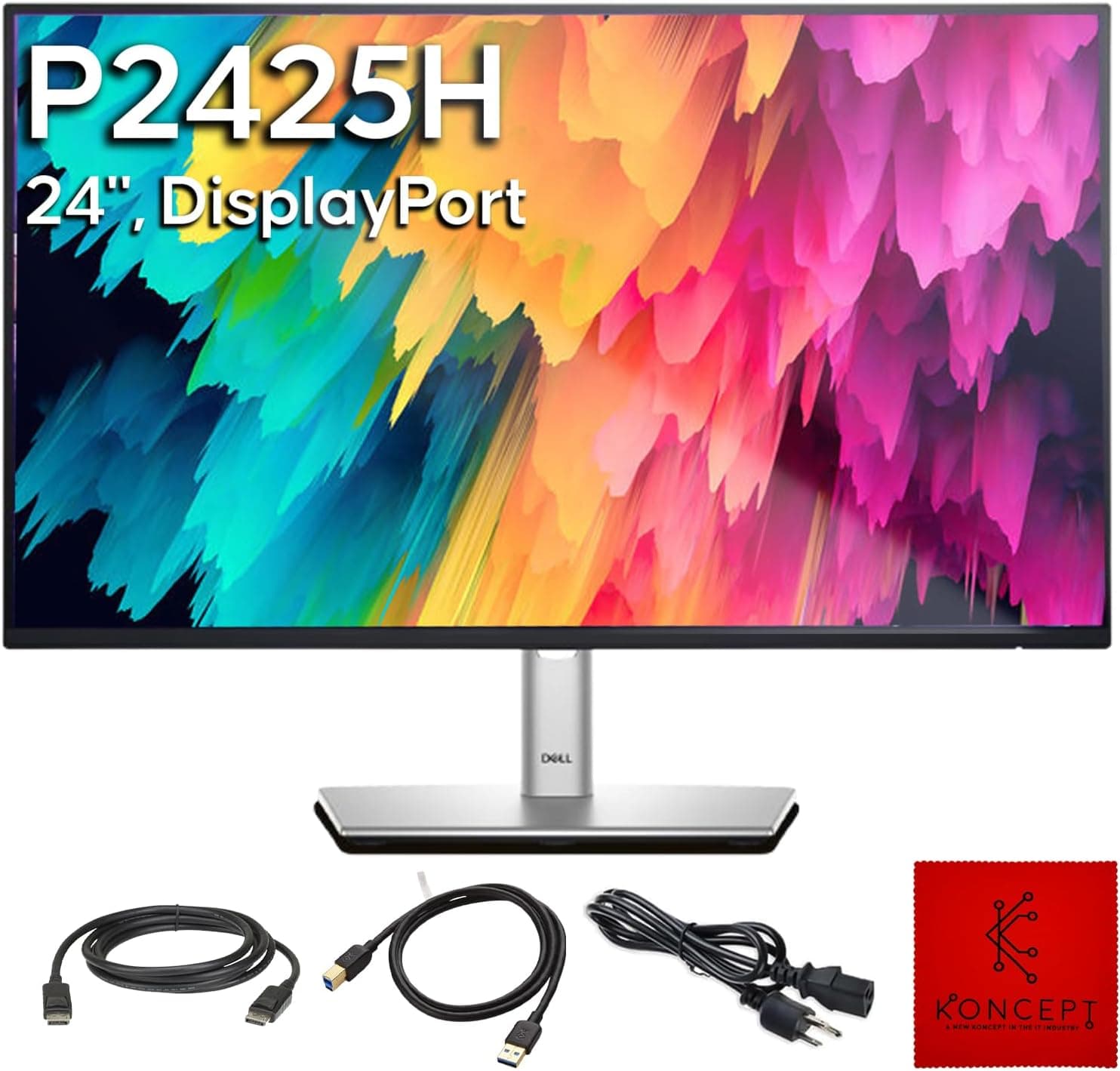
The Koncept P2425H — 24-inch Full HD IPS Monitor for Dell Replacement pairs a 1920×1080 IPS panel with a 100Hz refresh rate. It is not a monitor you buy for gaming or color accuracy.
It is an office and home-office display built around a stand that adjusts for height and pivot, plus a four-port USB 3.0 hub.
It is aimed at people whose Dell 24-inch monitor has failed, or who want to replace one and keep the same everyday handling.
The long Amazon product name comes down to six points: 24-inch 16:9, IPS, Full HD, 100Hz, a DisplayPort cable and a USB 3.0 upstream cable in the box, and a 1-year warranty.
Video inputs are HDMI 1.4, DisplayPort 1.2 and VGA.
Response time is 5ms, viewing angles are 178°/178°, and it takes a 100×100mm VESA mount.
USB Type-C input, HDR and adaptive sync are not listed in the specs. Those gaps matter as much as the features when you decide whether to buy it.
Compatibility Guide
PCs: use DisplayPort or HDMI for 100Hz
To get 100Hz, connect over DisplayPort 1.2 or HDMI 1.4.
Both have plenty of bandwidth for 1920×1080 at 100Hz. VGA is an analog legacy input and is best kept for older PCs and office machines.
Over VGA you will often be stuck at 60Hz, so a PC that only has VGA output won't get much from the 100Hz panel.
After connecting, you may need to set the refresh rate to 100Hz yourself in the OS display settings. Plugging it in and staying at 60Hz without noticing is a common mistake.
Laptops and Macs
There is no USB-C input. Laptops and MacBooks with only USB-C video output need a USB-C to DisplayPort or USB-C to HDMI cable or adapter.
To use the USB hub you also have to run the USB-B upstream cable to the laptop. One cable for video, USB and charging is not possible.
Game consoles
PS5, Xbox Series X and Nintendo Switch connect over HDMI. Consoles usually output at 60Hz or 120Hz, so if yours has no 100Hz mode, expect it to run at 60Hz.
A 4K console signal will be scaled down to Full HD.
How the USB hub works
The hub (four USB 3.0 Type-A ports) only serves the one PC connected through the Type-B upstream cable.
No KVM function is listed, so switching video inputs does not move your keyboard and mouse to the other machine. If two PCs need to share a keyboard, get a separate KVM switch.
Stand and monitor arms
The included stand adjusts for height, tilt, swivel and pivot. With 100×100mm VESA, most third-party monitor arms will fit.
The compatibility notes do warn that, despite the Dell replacement label, the stand mount and screw positions may differ from Dell originals. If you plan to reuse a Dell stand or a Dell-branded arm, check your current monitor's back panel and mount pattern first.
Product Info
| Item | Detail |
|---|---|
| Screen size | 24-inch (16:9) |
| Resolution | 1920×1080 (FHD) |
| Panel | IPS |
| Refresh rate | 100Hz |
| Response time | 5ms |
| Viewing angle | 178°/178° |
| Video inputs | HDMI 1.4 / DisplayPort 1.2 / VGA |
| USB hub | USB 3.0 Type-A ×4 (downstream), USB Type-B ×1 (upstream) |
| VESA mount | 100×100mm |
| Stand adjustment | Height, tilt, swivel, pivot |
| Warranty | 1 year |
The panel is standard for a 24-inch Full HD IPS monitor. Pixel density is about 92ppi, so text is a little soft but easy to read at 100% Windows scaling.
What sets this model apart is how it works on a desk, with the stand and USB hub, rather than the panel itself.
According to the product name and the original listing, the box contains a DisplayPort cable, a USB 3.0 upstream cable, a power cable and a cleaning cloth.
No HDMI cable is mentioned, so have one ready if you plan to use HDMI. The power supply is described as internal, so there is no external power brick under the desk.
The listing also mentions an audio line-out. No built-in speakers are listed, so you will need speakers or headphones for sound.
The name says new model, but check the product page for the actual release date. As of August 2026, Amazon Japan listed it at ¥49,932.
Prices move a lot with sales and stock, so check the product page before buying.Check the retailer's page for the latest user reviews.
The rating is strong, but there are too few reviews to judge quality consistency.
Comparison: Is It Worth the Price?
24-inch Full HD IPS monitors at 100-120Hz are one of the most crowded classes on the market. Many models with a tilt-only stand and no USB hub sell for well under half of this listing's August 2026 price.
On panel performance alone, this one looks expensive.
The height and pivot stand, the four-port USB hub and the three inputs including VGA are what close the gap. If you were going to buy a monitor arm and a USB hub anyway, this saves that money and some desk clutter.
If a tilt-only stand is enough and your USB devices plug into the PC, there is little reason to pay extra.
| Priority | Does the Koncept P2425H fit? |
|---|---|
| Height-adjustable, rotating stand | Yes |
| USB devices plugged into the monitor | Yes |
| Keeping an old PC's VGA output | Yes |
| Lowest price | No (many cheaper options in this class) |
| Competitive gaming at 144Hz+ | No |
| HDR or wide-gamut photo/video work | No (not listed) |
| Single USB-C cable to a laptop | No (no USB-C input) |
Setup Tips
Pivot lets you turn the screen to a 1080×1920 portrait layout. You see many more lines at once when reading long documents, web pages or code.
A landscape main screen next to a portrait second screen works especially well. Raise the stand to its highest point before rotating so the corner doesn't hit the desk.
To use the hub, first connect the USB-B upstream cable between the monitor and the PC. Then plug your keyboard, mouse, flash drives or webcam into the monitor instead of reaching behind the PC.
If power-hungry devices such as external hard drives act up, plug them straight into the PC.
Who It's For
- People replacing a failed Dell 24-inch monitor: You keep height adjustment, pivot and a USB hub. Check stand and mount compatibility first.
- Home-office users with a desktop and a laptop on one screen: HDMI, DisplayPort and VGA inputs let you switch between devices.
- People who want precise screen positioning: Height, tilt, swivel and pivot are all there, so you may not need a monitor arm.
- Users with legacy business PCs that only have VGA: Newer monitors with VGA input are getting rare.
It is not for creators who need wide color gamut or HDR, competitive gamers who want 144Hz or more, or anyone who wants one USB-C cable to a laptop.
Before You Buy
**The price is high for its class.Check the retailer's page for the latest price. Whether it is worth it depends on how much the stand and USB hub matter to you, so compare similar models first.
Dell replacement does not mean identical to Dell. The compatibility notes say the stand mount and screw positions may differ from Dell originals.
If you plan to reuse a Dell stand, a Dell arm or a wall mount, make sure it fits a 100×100mm VESA pattern.
100Hz may not turn on by itself. Check the refresh rate in your OS settings after connecting.
VGA and some adapters may not offer 100Hz at all.
USB-C, HDR and adaptive sync are not listed. If you need any of them, choose a different model.
**There are still only a few reviews. Check for dead pixels and uneven backlighting as soon as it arrives, while you can still return it.
The product page details don't match. The Amazon listing names Koncept in the title but lists Dell as the manufacturer and Amazon US as the seller and shipper.
Because of this mismatch, this article does not state who manufactures the product. On the product page, confirm the item from the photos, title and model number, and check whether the seller or the manufacturer handles warranty claims.
FAQ
Q. Which input should I use for 100Hz? A.
DisplayPort 1.2 or HDMI 1.4.
You may need to select 100Hz in your OS display settings. VGA often can't do 100Hz.
Q. Does it work with a MacBook or USB-C laptop? A.
There is no USB-C input, so you need a USB-C to HDMI or USB-C to DisplayPort cable. The USB hub also needs the USB-B cable connected.
Q. Can I mount it on a monitor arm? A.
Yes, it supports 100×100mm VESA. Check the monitor's weight on the product page and pick an arm rated for it.
Q. Can I use it in portrait mode? A.
Yes. The stand pivots, giving a 1080×1920 portrait view.
Set the display orientation to portrait in your OS too.
Q. Can I connect a PS5 or Switch? A.
Yes, over HDMI. If the console has no 100Hz mode it will run at 60Hz, and resolution tops out at Full HD.