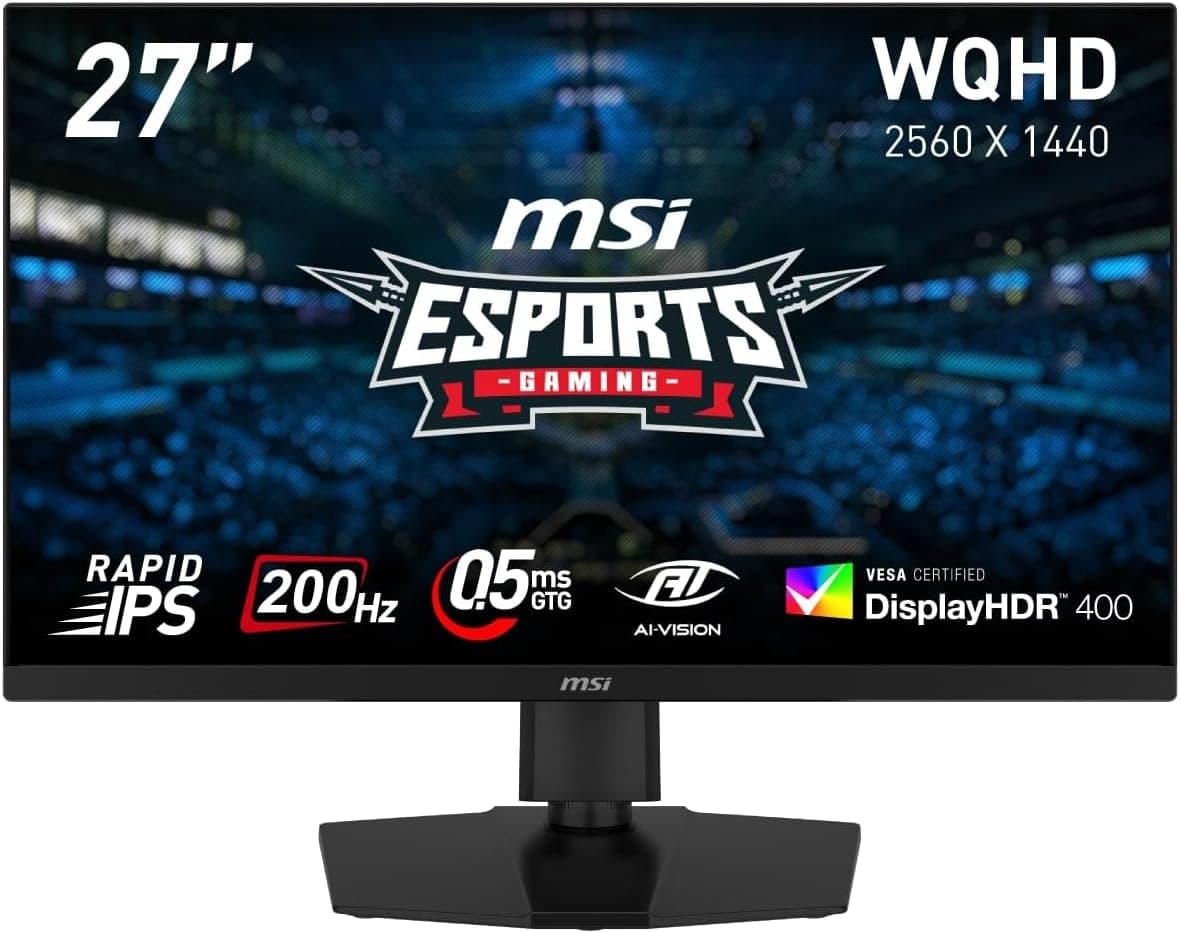
This article takes a close look at the MSI MAG 274QPF E20 — 27-inch WQHD 200Hz Rapid IPS Gaming Display. It focuses on how the spec-sheet numbers affect real use, and on the problems buyers most often discover only after the monitor arrives.
Overview
The MSI MAG 274QPF E20 is a 27-inch WQHD (2560×1440) gaming monitor. It uses a Rapid IPS panel with a 200Hz refresh rate and a 0.5ms (GTG, minimum) response time, which puts it in the midrange.
The short verdict: if 1080p looks too soft to you but 4K or OLED is beyond your budget, this is one of the safest setups you can pick. It handles both competitive shooters and graphics-heavy RPGs.
On color, it covers 100% sRGB and 95% DCI-P3, displays about 1.07 billion colors, and is DisplayHDR 400 certified.
Viewing angles are 178° in both directions, so colors hold up well from off-axis, as you'd expect from IPS. It suits people who want one screen for gaming plus light photo and video editing more than it suits pure esports use.
For placement, it has a VESA 100×100mm mount. According to listing information, the stand adjusts for height, swivel, pivot and tilt, and there is a USB-C input as well.
Some things are easy to misread on the spec sheet, though: which connection you need for 200Hz, how good the HDR really is, and how much power the USB-C port delivers. The sections below cover each one.
Reading the Specs
27 inches at 1440p is a sweet spot
At 27 inches, 2560×1440 works out to about 109 ppi. Text and edges look clearly sharper than on a 24-inch 1080p screen (about 92 ppi), yet the density is still just low enough to run Windows at 100% scaling.
You get more workspace and sharper detail without the GPU load of a 27-inch 4K panel (about 163 ppi).
200Hz only matters if your GPU can feed it
200Hz is a ceiling: the most frames the screen can show per second. Holding around 200fps at 1440p is realistic mainly in lighter competitive titles such as Valorant or Counter-Strike 2.
Demanding new releases often stay near 100fps even on high-end GPUs.
The extra headroom still helps. Adaptive-Sync (variable refresh rate) reduces tearing and stutter even when frame rates fall below 200.
A realistic way to think about it: light games run at the full 200Hz, and heavy games stay smooth through variable refresh.
0.5ms is a best-case figure
The 0.5ms rating is the minimum GTG (gray-to-gray) time, not the speed of every color transition.
Setting overdrive (the feature that speeds up pixel response) too high can cause bright halos behind moving objects, called inverse ghosting. Start with a middle overdrive level and adjust until motion looks clean.
Treat DisplayHDR 400 as entry-level HDR
DisplayHDR 400 is VESA's entry-level HDR tier. Monitors in this class usually get little benefit from local dimming (brightening and darkening parts of the screen separately).
You won't get the true blacks and intense highlights of OLED or bright Mini LED screens. Think of HDR here as a nice extra, with the monitor's real strength being its SDR color.
Compatibility Guide
PC connection: use DisplayPort for 200Hz
According to listing information, the inputs are two HDMI 2.0b ports, one DisplayPort 1.4a port, and one USB-C port with DP Alt Mode.
Full 1440p at 200Hz needs DisplayPort; HDMI 2.0b is reported to top out around 1440p at 144Hz.
Most 'can't select 200Hz' problems happen because the monitor is connected over HDMI. Use a DisplayPort cable to your PC.
Check the product page for the latest port list and limits before you buy.
Windows often stays at 60Hz after you plug the monitor in. Set 200Hz under Advanced display settings, then turn on variable refresh rate (G-SYNC Compatible or FreeSync) in your NVIDIA or AMD driver.
Laptops and USB-C
The USB-C input is said to support DP Alt Mode, but it only shows a picture if your laptop's USB-C port can output video. Plenty of laptops have USB-C ports that only handle charging and data.
Check your laptop's specs for DisplayPort output (DP Alt Mode) or Thunderbolt.
Power delivery is only estimated at around 15W; we could not confirm an official figure. If it really is about 15W, it probably can't keep a laptop charged while you use it.
Plan on using the laptop's own charger.
Game consoles
PS5 and Xbox Series X are said to work at 1440p 120Hz with HDR. Consoles connect over HDMI, so they run at up to 120Hz, not 200Hz.
With HDMI 2.0b, features that require HDMI 2.1, such as 4K 120Hz input, are also unavailable.
If you want everything your console can do, an HDMI 2.1 monitor is a better fit.
Placement: size, weight and monitor arms
The monitor measures 614×407×228mm and weighs about 6.8kg.
With a 228mm-deep stand on a 600 mm-deep desk, the screen can end up too close to your eyes. For a 27-inch screen, 600-800 mm is a comfortable viewing distance, so consider a monitor arm if your desk is shallow.
The VESA 100×100mm mount works with standard monitor arms. Check whether the 6.8kg figure includes the stand, and pick an arm rated comfortably above that weight.
A gas-spring arm near its limit may slowly let the screen sag.
Compatibility checklist
| What to check | Guideline |
|---|---|
| Running at 200Hz | Connect over DisplayPort; your GPU must support 1440p at 200Hz |
| Laptop over USB-C | Laptop's USB-C port must support DP Alt Mode or Thunderbolt |
| Game consoles | HDMI at 1440p, up to 120Hz; no HDMI 2.1-only features |
| Monitor arm | VESA 100×100mm; weight rating well above about 6.8kg |
| Power | Built-in power supply; no external adapter |
Don't treat the table as a pass/fail list. Start with the row that matters most for your setup.
Laptop users should look at the USB-C row, and console players should check the HDMI row first.
Product Info
Key specifications
| Item | Value |
|---|---|
| Panel | Rapid IPS |
| Screen size | 27 inches |
| Resolution | WQHD (2560×1440) |
| Refresh rate | 200Hz |
| Response time | 0.5ms (GTG, minimum) |
| Color gamut | sRGB 100%, DCI-P3 95% |
| HDR | DisplayHDR 400 |
| Viewing angle | 178°/178° |
| Colors | About 1.07 billion |
| Dimensions | 614×407×228mm |
| Weight | About 6.8kg |
| VESA | 100×100mm |
Taken together, these numbers show where the monitor fits: a fast monitor with good color and wide viewing angles. It isn't a speed-first esports model or a factory-calibrated creator display.
It sits in between as a balanced all-rounder.
Price
When we checked in August 2026, Amazon Japan listed it at ¥29,800. Prices change a lot with sales and stock, so check the product page for the current price.
For a 1440p 200Hz IPS monitor, around ¥30,000 is typical or slightly below average for the class.
Ratings
Check the retailer's page for the latest user reviews. That is too few to judge quality.
If you read reviews, look past the stars for specifics, such as which connection people used and whether they report dead pixels or backlight bleed.
Warranty and accessories
Listing information says the monitor has a 3-year manufacturer warranty in Japan. The listed accessories include a power cable, DisplayPort cable, USB upstream cable and quick start guide.
Warranty terms and included items can differ between official domestic stock and parallel imports, so confirm them on the seller's page before you buy.
Competitor Comparison
Competitors in the same price range include the ASUS TUF Gaming VG27AQ3A and the LG 27GP850-B. All are 27-inch 1440p high-refresh IPS-type monitors with similar image quality, so the details decide it.
The MSI's advantages are its USB-C input and a stand that adjusts for height, swivel, pivot and tilt. If you plan to connect a laptop or want to use the screen in portrait mode, those two features make a real difference.
If HDR impact and deep blacks matter most to you, the money is better spent on an OLED model. If you mainly play on consoles and need 4K 120Hz or HDMI 2.1, you should be shopping in a different class altogether.
Best Use Cases
- PC gamers upgrading from 1080p: You get sharper 27-inch 1440p and smooth 200Hz motion together. In light competitive games like Valorant or Counter-Strike 2, you can actually reach 200Hz much of the time.
- People who game and work on one screen: 100% sRGB, 95% DCI-P3 and 178° viewing angles help with photo sorting, light video editing and everyday browsing.
- Laptop users: If your laptop's USB-C port outputs video, one cable carries the picture (but don't rely on it for charging, as noted above).
- Anyone who wants a flexible setup: The adjustable stand and VESA mount make it easy to fit the monitor to your desk.
Before You Buy
First, who should skip it. This monitor isn't for people who want 4K, OLED-level blacks, bright HDR, or 4K 120Hz from a console.
If your GPU can't reach high frame rates at 1440p (entry-level or integrated graphics), you won't get much out of 200Hz, and upgrading the GPU first will likely make you happier.
Know the IPS trade-offs. IPS panels generally have lower contrast than VA or OLED.
In a dark room, blacks can look slightly gray and the corners may glow faintly (IPS glow). This is how the panel works, not a defect, but it matters if you mostly play horror games or watch films with the lights off.
Don't lose performance to the wrong cable. As noted above, HDMI can't reach 200Hz.
Make sure the included cable is DisplayPort and plug it into your GPU's DisplayPort output. USB-C power delivery is only an estimate, so don't buy this monitor expecting it to charge your laptop.
The Amazon listing data is inconsistent. An earlier version of this article ended with an Amazon product disclosure that named ASUS as the manufacturer.
This monitor is made by MSI, and the ASIN in that block didn't match the product page we took the price from. The Amazon listing probably mixed in another product's data, so we removed that block.
When you buy, check the product photos and title to confirm the model is 'MAG 274QPF E20', not a similar model with a different suffix. If the seller isn't MSI or an authorized distributor, warranty coverage may also differ.
**Take the rating count with a grain of salt. That isn't enough to spot trends such as early failures or dead pixels, so check the retailer's return and exchange policy before ordering.
FAQ
Q. Can it run at 200Hz over HDMI?
A. Listing information says HDMI 2.0b tops out around 1440p at 144Hz. You need DisplayPort for 200Hz.
Q. Does it work with a PS5? A.
It is said to support 1440p 120Hz with HDR. Features that require HDMI 2.1, such as 4K 120Hz, are not available.
Q. Can it charge my laptop over USB-C? A.
Power delivery is only estimated at around 15W, with no confirmed official figure. That likely isn't enough to keep a laptop charged while in use, so plan to use your laptop's own charger.
Q. Can I use a monitor arm?
A. Yes. It supports VESA 100×100mm. It weighs about 6.8kg, so choose an arm rated comfortably above that.
Q. Is it good for photo editing? A.
With 100% sRGB and 95% DCI-P3 coverage, it's well suited to hobby photo editing. We couldn't confirm whether it is factory calibrated, so if you need colors to match print exactly, use a calibration device.