Overview
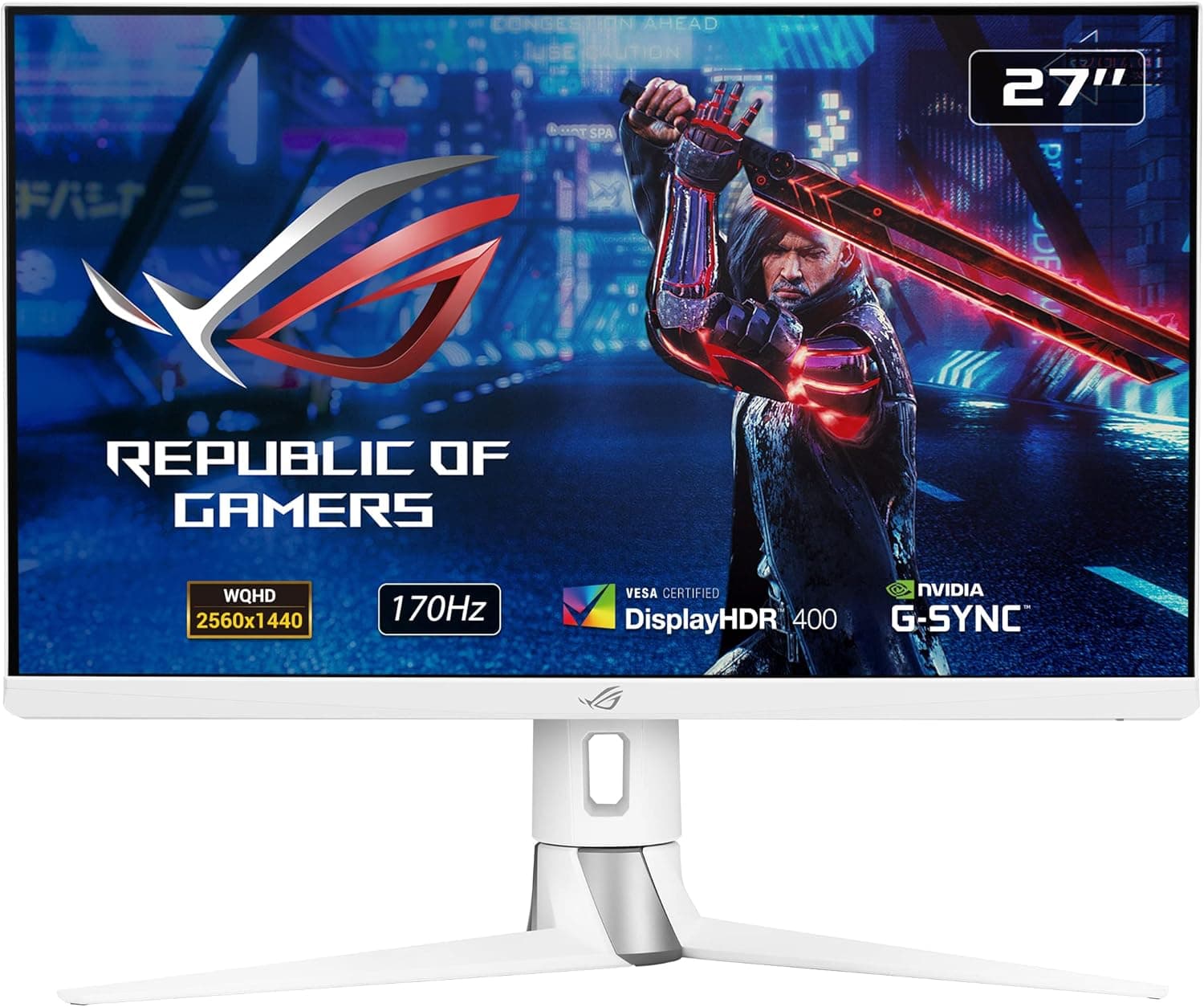
The ASUS ROG Strix XG27AQ-W is a 27-inch WQHD (2560x1440) IPS gaming monitor in a white chassis. It is listed on Amazon under the long product name ASUS Rog Strix Xg27Aq-W 68.6 Cm (27インチ) 2560 X 1440 ピクセルワイド, where 68.6 cm is simply the 27-inch diagonal converted to centimetres — it is the same product.
The short verdict: if you can connect it over DisplayPort, this is close to the balanced, do-everything answer for resolution, speed and colour.
If you only have HDMI free, if you chase 240Hz-plus frame rates at 1080p, or if you need serious HDR and colour-managed work, its strengths do not apply to you. Here is what to check first.
| Decision point | What this monitor gives you |
|---|---|
| Size / resolution | 27 inches / 2560x1440 (16:9) |
| Max refresh rate | 170Hz over DisplayPort 1.2, 144Hz over HDMI 2.0 |
| Response time figure | 1ms MPRT — not a GtG number |
| Panel | IPS: excellent viewing angles, weaker black depth than VA or OLED |
| Mounting | 8.6kg including stand, VESA 100x100mm |
| User rating | 4.5 of 5 stars from 45 reviews (captured 17 May 2026) |
The two figures people misread are 170Hz and 1ms. Both are conditional, so the next section unpacks them.
Key Features
and How to Read the Spec Sheet
WQHD (2560x1440) carries about 1.78 times the pixels of Full HD.
At 27 inches the pixel pitch lands in a comfortable place: text stays readable at 100% scaling, distant enemies keep their outlines in shooters, and two windows side by side both stay usable. The trade-off is a rendering load roughly 1.8 times that of 1080p, which is exactly how people end up unable to reach the refresh rate they paid for.
170Hz applies to DisplayPort only. The specification states 170Hz (DisplayPort), 144Hz (HDMI); the two HDMI 2.0 inputs top out at 144Hz.
Only a DisplayPort cable is included in the box, which is a hint: use it for your PC.
The 1ms figure is MPRT. Moving Picture Response Time is generally measured with a backlight-strobing blur-reduction mode active (the ELMB family of features on ASUS displays), which is a different measurement from GtG (grey-to-grey) pixel transitions.
Strobing costs brightness, and whether it can run alongside variable refresh rate depends on the model and firmware. Judge it with your own eyes in the OSD rather than trusting the number.
The IPS panel holds colour and contrast across 178 degrees, which matters if people watch over your shoulder or if you want uniform colour to the screen edges. ASUS adds Dynamic Shadow Boost, GamePlus (crosshair, timer) and GameVisual presets, all handled in the OSD with no extra software.
The stand covers height (up to ~120mm), tilt (-5° to +20°), swivel (±50°) and 90° clockwise pivot — full pivot is still uncommon at this price.
Compatibility Guide
Inputs are one DisplayPort 1.2 and two HDMI 2.0, plus three USB 3.0 downstream ports, one upstream port, a 3.5mm headphone output and a VESA 100x100mm mounting pattern.
Sync support covers NVIDIA G-SYNC Compatible over DisplayPort and Adaptive-Sync, so frame-rate swings do not produce tearing.
GPU requirements come first. Light competitive titles can approach 170fps at 1440p on a current mid-range card, but heavyweight AAA games will not get there without dropping settings.
Because variable refresh rate is supported, the realistic use is smooth output across a fluctuating frame rate rather than a permanently pinned 170fps. Decide up front whether you want maximum settings near 60fps or reduced settings at high frame rates.
Cabling and setup order matter. A DisplayPort cable is included; an HDMI cable is not.
Select DisplayPort in the OSD, then set 170Hz manually in the Windows advanced display settings — first boot frequently leaves you at 60Hz, and plenty of people judge the monitor without ever leaving that state.
Consoles connect over HDMI 2.0. PlayStation 5 and Xbox Series X support 1440p output, but which refresh rates they actually offer over HDMI 2.0 depends on console firmware and settings, so verify in the console video menu after connecting.
Audio arrives over HDMI, so headphones in the 3.5mm jack work directly.
For monitor arms, note that the 8.6kg spec includes the stand.
Arm load ratings should be matched against panel-only weight, and it is safest to pick an arm rated well above the real load so it does not sag over time. There is no USB-C video input, so a laptop with only USB-C output needs an adapter, and whether 170Hz survives that conversion depends on the adapter.
A viewing distance of roughly 60–70cm suits a 27-inch WQHD panel.
Product Info
The essentials: ASUS brand, 27-inch screen, 2560x1440 WQHD resolution, IPS panel, 170Hz over DisplayPort and 144Hz over HDMI, 1ms MPRT response figure, 16:9 aspect ratio, 8.6kg with stand, one DisplayPort 1.2 and two HDMI 2.0 inputs, three downstream plus one upstream USB 3.0 port, and VESA 100x100mm.
The XG27AQ-W is the white variant of the black XG27AQ.
User ratings stood at 4.5 of 5 stars from 45 reviews (90% positive) when captured on 17 May 2026.
The score is strong, but 45 reviews is a small sample that a handful of poor ratings could move, and it says nothing reliable about unit-to-unit quality.
The collected price data is partly unreliable. The figure captured on the Amazon side is orders of magnitude away from what a 27-inch WQHD monitor costs, so it looks like a collection error and this article does not quote it.
On the marketplace side, an eBay US listing showed $203.99 when captured on 1 June 2026 — an individual overseas listing that may be used, parallel-imported or missing accessories.
Japanese street pricing has generally sat in the upper-50,000 to 70,000 yen range. Prices move constantly, so check the current price and seller on the product page before buying.
Warranty is generally three years from the manufacturer, though whether you get domestic warranty service depends on where you buy. A latching DisplayPort cable is included; an HDMI cable is not.
Availability spans the ASUS store, major electronics retailers (Yodobashi Camera, Bic Camera, Tsukumo) and online marketplaces.
How It Compares
Against 27-inch Full HD 144Hz panels such as the Gigabyte G27F or MSI MAG 274F, the difference is pixel density versus GPU load. Full HD stretched over 27 inches looks coarse for desktop work; if your GPU is mid-range or better, WQHD is the better long-term buy.
Against fast 24-inch models such as the MSI MAG 242F (200Hz) or BenQ ZOWIE XL2540X+ (280Hz TN), the goals differ. Those are built for pure competitive response, with the whole frame inside your field of view.
The XG27AQ-W trades some of that for versatility: competent in shooters, enjoyable in story games, usable for work.
Within the ROG Strix family, the 24.5-inch models suit shallow desks better, while ultrawide or 39-inch OLED panels win on immersion but demand more GPU power and more desk space.
Living With It: Setup Tips
Do three things on day one. Connect with the bundled DisplayPort cable and lock the input to DisplayPort in the OSD; set 170Hz manually in Windows display settings; and, on NVIDIA hardware, enable G-SYNC Compatible in the control panel.
Skip these and you will run the monitor at a fraction of its capability.
Do not simply max out overdrive. Pushing it too hard produces overshoot — bright trails behind moving edges — so step up one level at a time and stop just before artefacts appear.
GameVisual presets tend to boost saturation, so start from a neutral mode and adjust brightness for your room if colour accuracy matters. 125% scaling is easier on the eyes for long sessions; keep games at native 2560x1440 and cut shadows or reflections first when you need frames.
Best Use Cases
- Gamers who want both competition and visuals — 170Hz plus variable refresh for shooters, IPS colour for story-driven games. One monitor for both.
- White-themed builds and desks — white gaming monitors remain rare, and the finish is a legitimate reason to choose this one.
- People mixing work and play — WQHD workspace, pivot support, a USB hub and three video inputs for a PC plus a console or work laptop.
- Arm-mount setups — standard VESA 100x100mm keeps your mounting options wide open.
Before You Buy
Do not read 1ms as a GtG figure. It is MPRT, measured with blur reduction active, which costs brightness and may conflict with variable refresh depending on settings.
If raw competitive response is your only priority, a genuinely fast TN panel will satisfy you more.
HDMI caps at 144Hz. Confirm you have a free DisplayPort output before buying; if your card's DisplayPort is already occupied by another display, the headline feature is unavailable to you.
Temper expectations for black levels and HDR. Like most IPS panels without backlight zones, blacks lift in a dark room and IPS glow appears at the corners.
For horror games or films in a dark room, VA or OLED suits better, and HDR here should be treated as a checkbox rather than a transformation.
Speakers are not listed in the specification. Plan on headphones or external speakers; console audio arriving over HDMI can be routed out of the 3.5mm jack.
Verify the listing yourself. The Amazon listing shows a third-party seller and shipper (Good Value Online Store), so domestic warranty handling varies by seller.
The captured price data also contained a figure inconsistent with this product class. Listing metadata — price, seller, model number — is sometimes wrong, so match the product images and title against what you expect before ordering, and treat overseas marketplace listings as potentially used or parallel imports.
White chassis can discolour over years, so avoid direct sunlight, and consider matching cable colours if you care about how the desk looks.
FAQ
Q. Does it work with a PS5 or Xbox Series X? A.
Yes, via the two HDMI 2.0 inputs, but the monitor caps HDMI at 144Hz and what the console actually offers depends on its own settings.
Check the console video output menu after connecting.
Q. Why can I not select 170Hz? A.
Check that you are on DisplayPort, not HDMI, then set the refresh rate manually in Windows advanced display settings. It often defaults to 60Hz.
Q. What GPU do I need for 1440p at 170Hz? A.
It depends on the title. Light competitive games can approach it on current mid-range cards; heavy AAA titles usually cannot, even with reduced settings.
Variable refresh keeps fluctuating frame rates smooth.
Q. Can I use a monitor arm? A.
Yes, VESA 100x100mm. Remember the 8.6kg spec includes the stand, so size the arm against panel-only weight with headroom.
Q. Is it usable for photo editing or work? A.
Fine for everyday editing and productivity thanks to IPS colour consistency. For print-critical colour management, choose a creator display with calibration support.
Product Disclosure (Amazon)
- Manufacturer: ASUS
- Seller: Good Value Online Store
- Fulfilled by: Good Value Online Store
- ASIN: B0B2SJJQPH
- Note: This article covers a manufacturer-made product based on Amazon listing details.