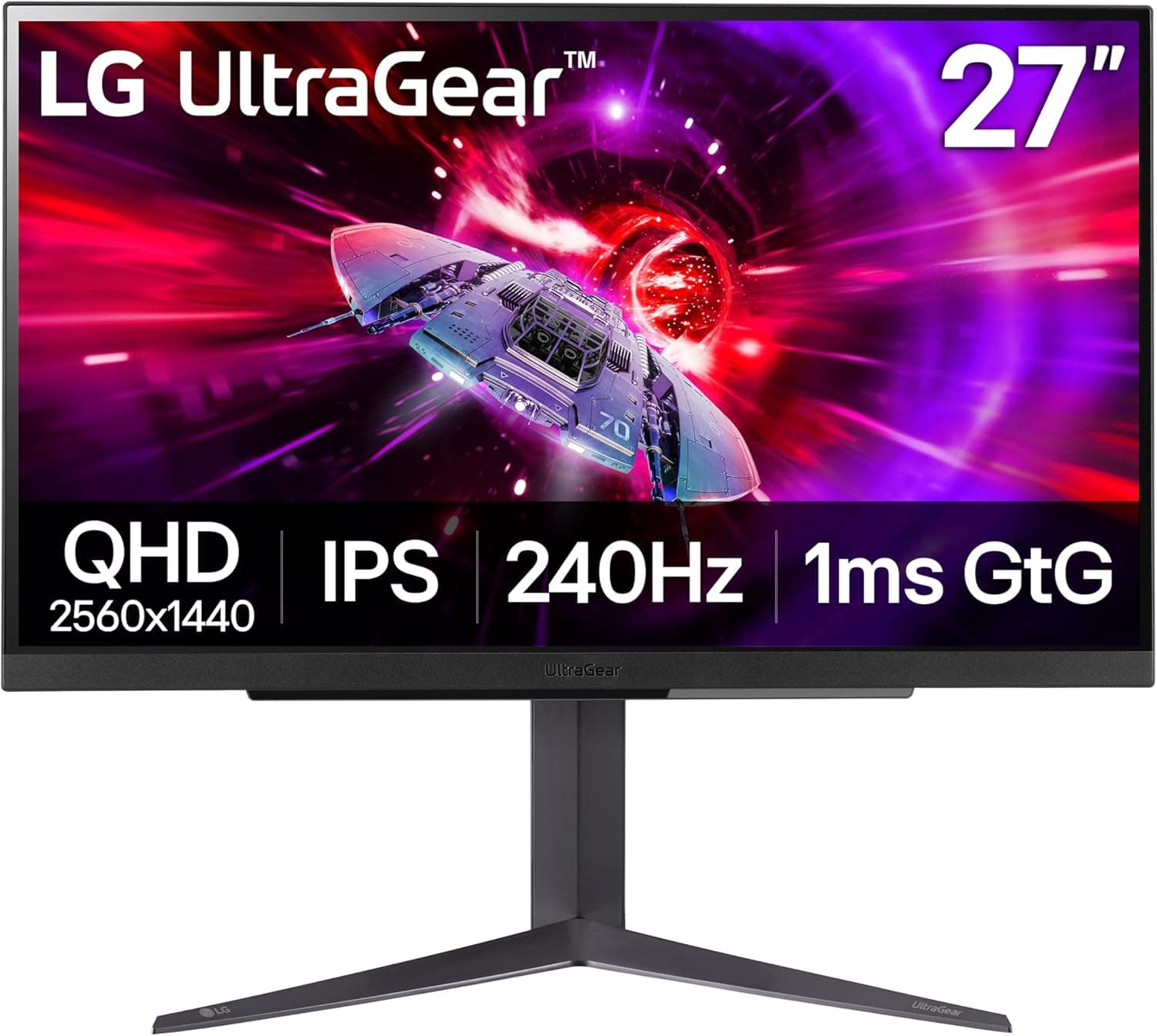
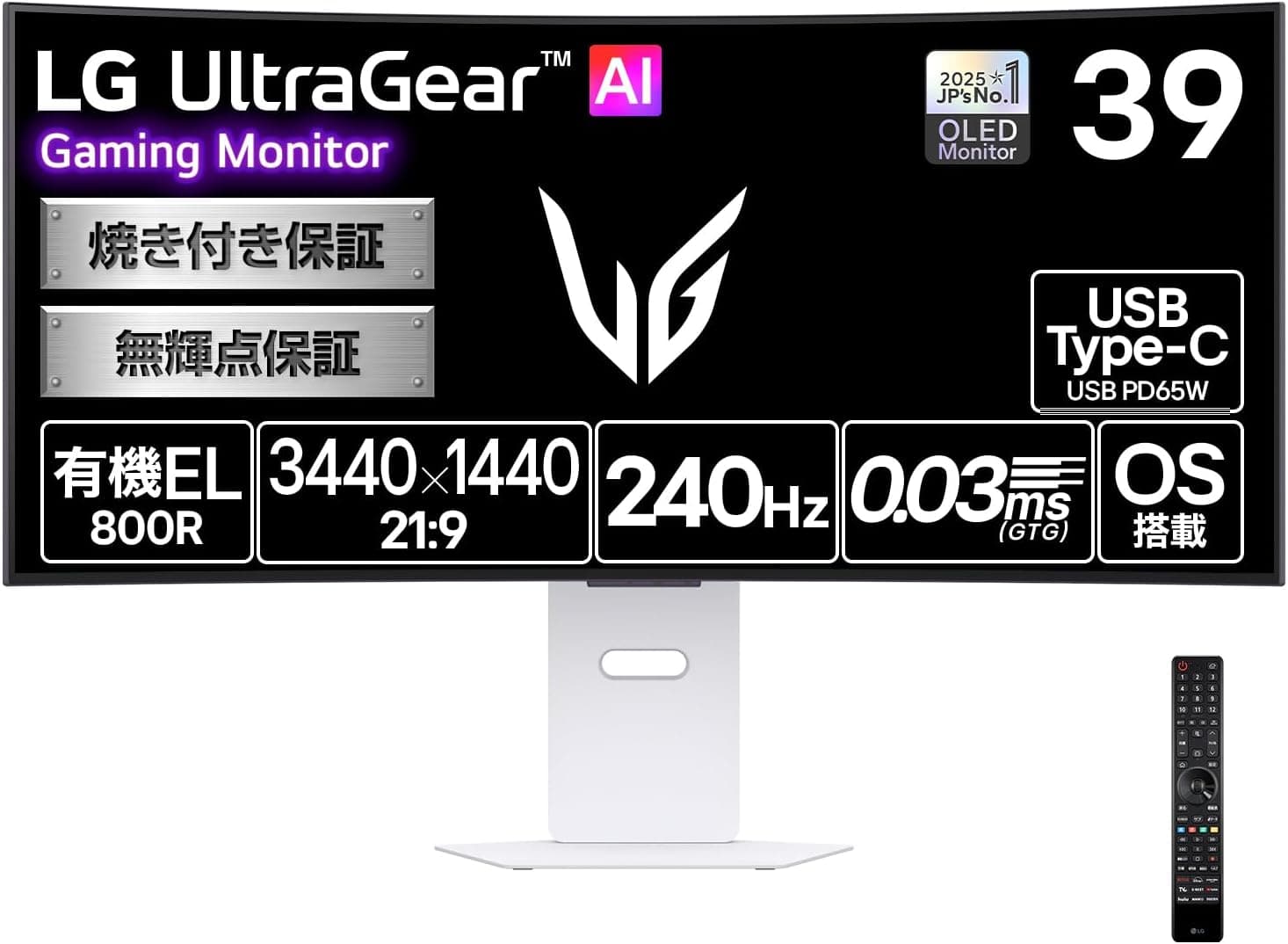
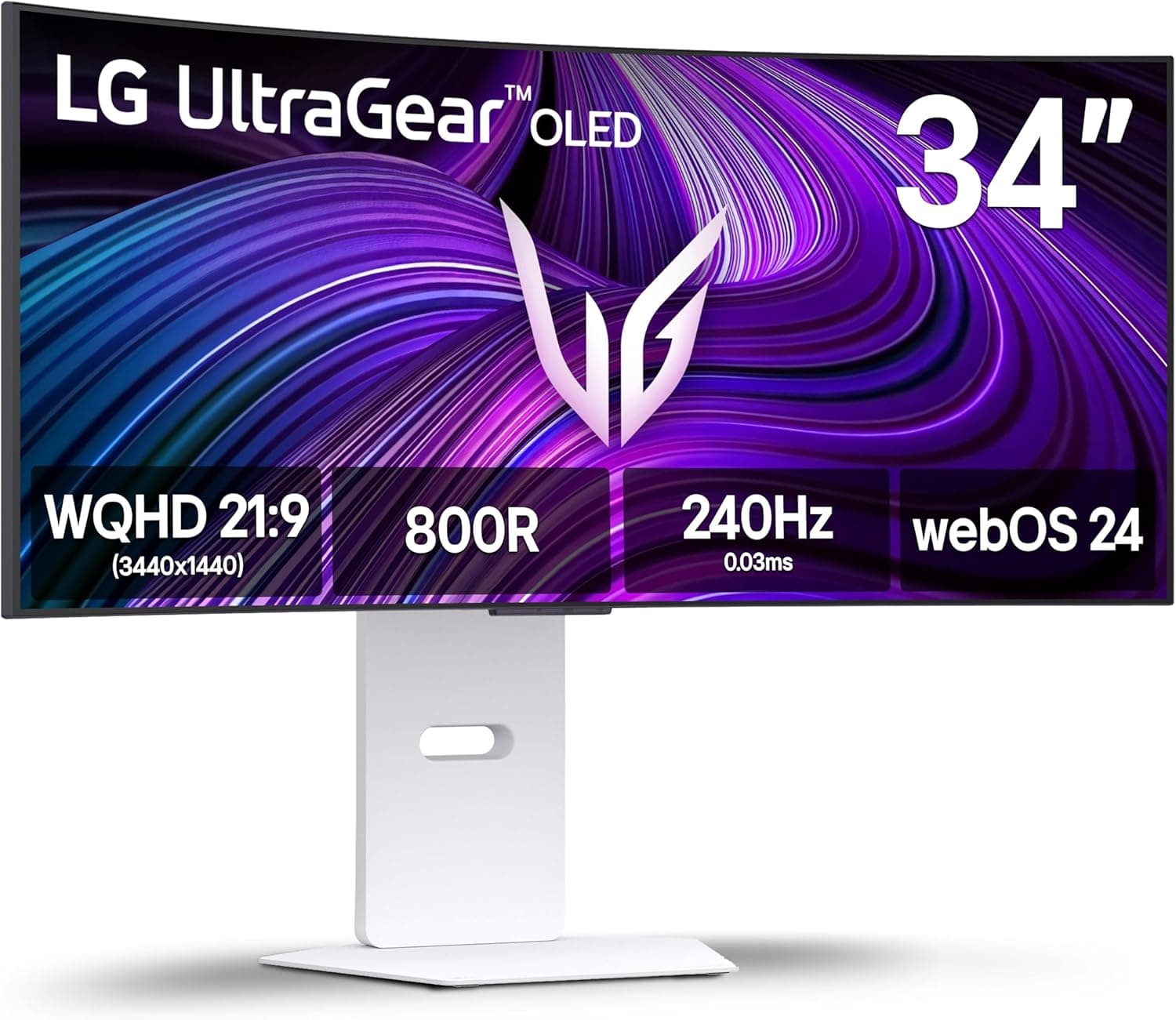
This article covers the LG 32GS95UE — 32-inch UltraGear OLED Gaming Monitor with 4K 240Hz. Beyond the spec sheet, it looks at three questions:
- Can your PC actually drive it?
- Where do you have to compromise?
- Who should skip it?
Overview
The LG 32GS95UE is a 31.5-inch (32-class) OLED gaming monitor from LG's UltraGear line.
The short answer: it is a high-end monitor for people who want 4K sharpness and very high refresh rates on one screen, and it assumes you have GPU headroom. Coming from a 1080p 60-144Hz monitor, both the performance and the demands on your PC go up considerably.
Its headline feature is dual mode. You choose between 4K UHD (3840×2160) at 240Hz or Full HD (1920×1080) at 480Hz.
Use 4K 240Hz for detailed single-player games and FHD 480Hz for esports titles where frame rate and input speed decide matches.
The OLED panel is rated at a 1,500,000:1 contrast ratio, is DisplayHDR True Black 400 certified, and has a stated 0.03ms (GtG) response time.
OLED has no backlight: each pixel lights up or switches off on its own, so blacks stay deep. Bright objects on dark backgrounds show little halo, which is a key advantage.
It supports both AMD FreeSync Premium Pro and NVIDIA G-SYNC Compatible, so tearing and stutter are reduced regardless of GPU brand. The stand adjusts for tilt, height, and swivel.
Compatibility Guide
The most common stumbling block is not the monitor itself. It is whether your GPU and cables can handle 4K 240Hz. With monitors in this class, you often see a picture but find that 240Hz does not appear in your display settings.
Inputs and Bandwidth
The listed video inputs are one HDMI 2.1 and one DisplayPort 1.4.
4K 240Hz needs a lot of bandwidth, so DisplayPort 1.4 requires DSC (Display Stream Compression, a way of compressing the video signal) to reach it.
Over HDMI 2.1, your GPU must also support high-bandwidth HDMI 2.1 output.
As a rough guide, most NVIDIA GeForce RTX 20 series and newer cards and AMD Radeon RX 5000 series and newer cards support DSC. Laptops and some individual cards differ, so check your GPU or PC maker's specs for DSC and HDMI 2.1 support.
Without them, you may be capped at 4K 120Hz or 60Hz.
Cables
If cables come in the box, use those. If you use your own, pick Ultra High Speed certified HDMI cables and DisplayPort cables rated for DP 1.4 bandwidth.
Older or lower-rated cables can cause brief blackouts or missing refresh rate options, which is easy to mistake for a faulty monitor.
What to Check by Use Case
| Use case | Requirement | What to check |
|---|---|---|
| PC at 4K 240Hz | HDMI 2.1, or DisplayPort 1.4 with DSC | Does your GPU support DSC or HDMI 2.1? |
| PC at FHD 480Hz | Switch via dual mode | Can your CPU, GPU, and game reach close to 480 fps? |
| Variable refresh rate | FreeSync Premium Pro / G-SYNC Compatible | Is it enabled in your GPU driver? |
| Game consoles | HDMI 2.1 | Console output limit (generally up to 120Hz) |
As the table shows, 240Hz and 480Hz mostly benefit PC users. Consoles will work, but they generally output at most around 120Hz, so much of this monitor's refresh rate goes unused.
With only two video inputs, connecting a PC and a console fills every port.
Desk Space and Scaling
4K at 31.5 inches is about 140 pixels per inch.
Text is small at 100% Windows scaling, and many people use 125-150%. In FHD 480Hz mode, the same screen drops to about 70 PPI, which looks coarser than a 24-inch 1080p monitor.
A viewing distance of about 60-80cm is a reasonable guide, and a shallow desk makes it hard to take in the whole screen. If you plan to use a monitor arm, check the VESA mount spec and weight rating on the product page.
Product Info
Key specifications:
| Item | Value |
|---|---|
| Screen size | 31.5 inches (32-class) |
| Panel | OLED |
| Resolution | 3840×2160 (4K UHD) |
| Refresh rate | 240Hz at 4K / 480Hz at FHD |
| Response time | 0.03ms (GtG) |
| Contrast ratio | 1,500,000:1 |
| HDR | DisplayHDR True Black 400 |
| Video inputs | HDMI 2.1 ×1, DisplayPort 1.4 ×1 |
| Variable refresh rate | AMD FreeSync Premium Pro, NVIDIA G-SYNC Compatible |
| Speakers | Pixel Sound (2ch + woofer, DTS Virtual:X) |
| Stand | Tilt / height / swivel |
The built-in Pixel Sound speakers project sound forward from the screen. They use a 2ch + woofer setup with DTS Virtual:X virtual surround.
That is a thoughtful design for monitor speakers, but if you need to hear exact footstep directions in shooters, a separate headset is the safer choice.
On Amazon.co.jp, the listing showed ¥529,779 as of September 23, 2026.
The seller and shipper was a marketplace seller, not Amazon itself. That is a high price for a 32-inch 4K OLED gaming monitor and may reflect low stock at the time.
Prices change often and vary during sales, so compare other retailers and sellers before buying.
On the same page, reviews stood at 229 ratings with 4.1 out of 5 stars (about 82% satisfaction) as of September 2026.
That is a reasonable score, but OLED traits such as burn-in only show up after long use. Read the Before You Buy section below rather than relying only on early-impression reviews.
Compared with Alternatives
Several brands sell 32-inch 4K 240Hz OLED gaming monitors that use QD-OLED panels. The MSI MPG 321URXW covered on this site is one of them.
The main points to weigh:
- Dual mode: The 32GS95UE's biggest differentiator is the FHD 480Hz option. QD-OLED 4K 240Hz models generally do not offer it. If you will never use 480Hz, this advantage does not matter to you.
- Panel type: LG OLED monitors mostly use white OLED (WOLED) panels from LG Display. As a general tendency, QD-OLED is known for color vividness, while WOLED tends to hold blacks better in bright rooms. How much that matters depends on your room lighting.
- Text rendering: Subpixel layouts differ between panel types, so whether text edges show color fringing varies from person to person. If you do a lot of office work, try to see one in person first.
If you want OLED on a bigger screen, OLED TVs such as the LG C3 series are an option. However, TVs mostly top out at 120Hz and usually start at 42 inches.
They are a different kind of product from a desk gaming monitor.
Recommended Users
- High-end GPU owners who want 4K visuals: Deep OLED blacks and DisplayHDR True Black 400 make dark horror and adventure games very immersive. You still get up to 240Hz at 4K, so detail and smoothness come together.
- Players who want competitive FPS and single-player on one screen: You can switch between 4K 240Hz and FHD 480Hz per game. One monitor doing both jobs is a big advantage over running two.
- People who can actually reach very high frame rates: FHD 480Hz only pays off if your CPU and GPU can push close to 480 fps in light competitive titles.
- Gamers in dark rooms: OLED shines at night or with the lights down, where its deep blacks stand out most.
Before You Buy
Burn-in is a risk with all OLED panels. Static elements such as the taskbar or game HUDs (health, ammo, and other always-on displays) can leave lasting marks if shown for long periods.
OLED monitors generally include protection features to reduce it, but these cannot eliminate it. Check the manufacturer's and seller's warranty terms to see whether burn-in is covered.
FHD 480Hz is still Full HD. At 31.5 inches, 1080p drops to about 70 PPI, and pixels become visible.
Only lighter competitive titles can hold close to 480 fps, so demanding games will not use 480Hz. If you expect 480Hz to make everything smooth, you will be disappointed.
Brightness is modest. DisplayHDR True Black 400 prioritizes black depth, not peak brightness.
OLED also tends to dim automatically when most of the screen is white. For office work in a bright room or browsing white web pages, an LCD may feel easier to read.
Ports are minimal. The spec list shows only HDMI and DisplayPort as video inputs, with no USB-C video or charging listed.
If you want to connect a laptop with a single cable that also charges it, choose a different monitor.
Watch the seller and price. The price above came from a marketplace seller and was quite high when captured.
Before buying, confirm on the product page that it is a domestic retail unit covered by warranty. Also check the images and title to make sure the model is the 32GS95UE.
Who should skip it:
- People who mainly play on consoles
- People whose GPU cannot drive 4K 240Hz
- People who mostly do office work with the same windows open for hours
- People on a tight budget
If any of these apply, a 4K LCD or a more affordable gaming monitor will likely suit you better.
FAQ
Q. Can a PS5 or Xbox use 480Hz or 240Hz? A.
No. Consoles generally output at most around 120Hz.
Over HDMI 2.1 you can aim for 4K 120Hz, but this monitor's strengths mainly benefit PCs.
Q. Can a midrange GPU run 4K 240Hz? A.
If the GPU supports DSC or HDMI 2.1, it can send a 4K 240Hz signal.
Actually reaching 240 fps at 4K in demanding games is another matter and requires heavy settings cuts. Match resolution and refresh rate to what your GPU can deliver.
Q. How worried should I be about burn-in? A.
It depends on your usage. Constantly moving content such as games and video is considered relatively low risk.
If you keep the same windows or taskbar visible for long periods, use auto-hide and screen savers, and check the warranty terms.
Q. How do I switch dual mode? A.
Use the on-screen display (OSD) menu, opened with the monitor's control button. You have to switch manually when changing games, which can feel like a chore if you switch often.
Q. Is it good for work? A.
The 4K workspace is roomy, so it can do the job. Given the burn-in risk and the mixed opinions on text edges, though, an LCD is the more carefree choice if work is your main use.
Product Disclosure (Amazon)
- Manufacturer: LG
- Seller: イーストヒル
- Fulfilled by: イーストヒル
- ASIN: B0CV1Y7NLT
- Note: This article covers a manufacturer-made product based on Amazon listing details.