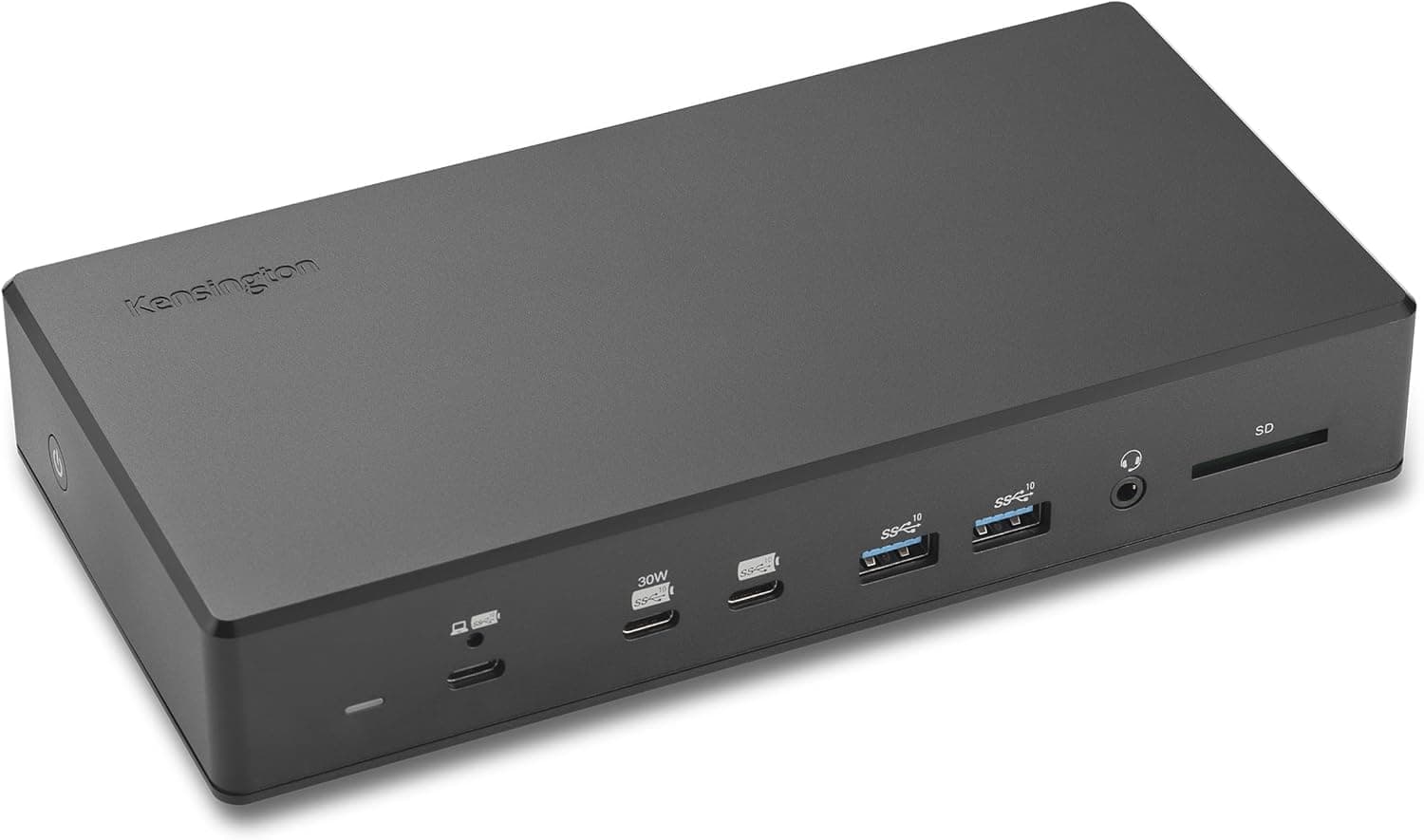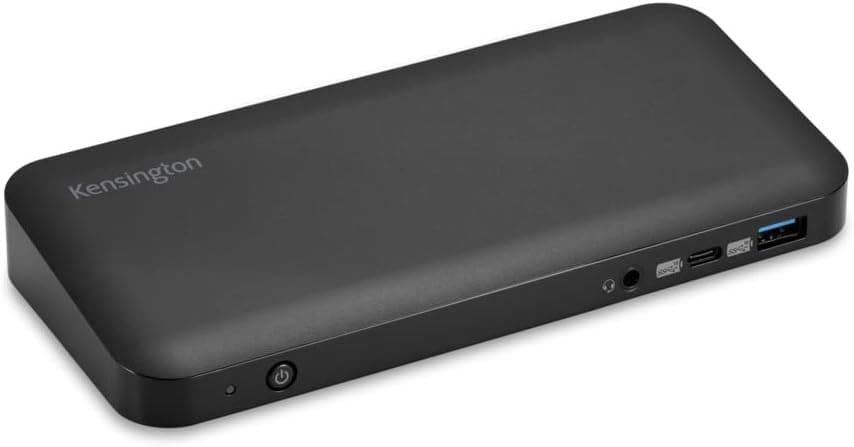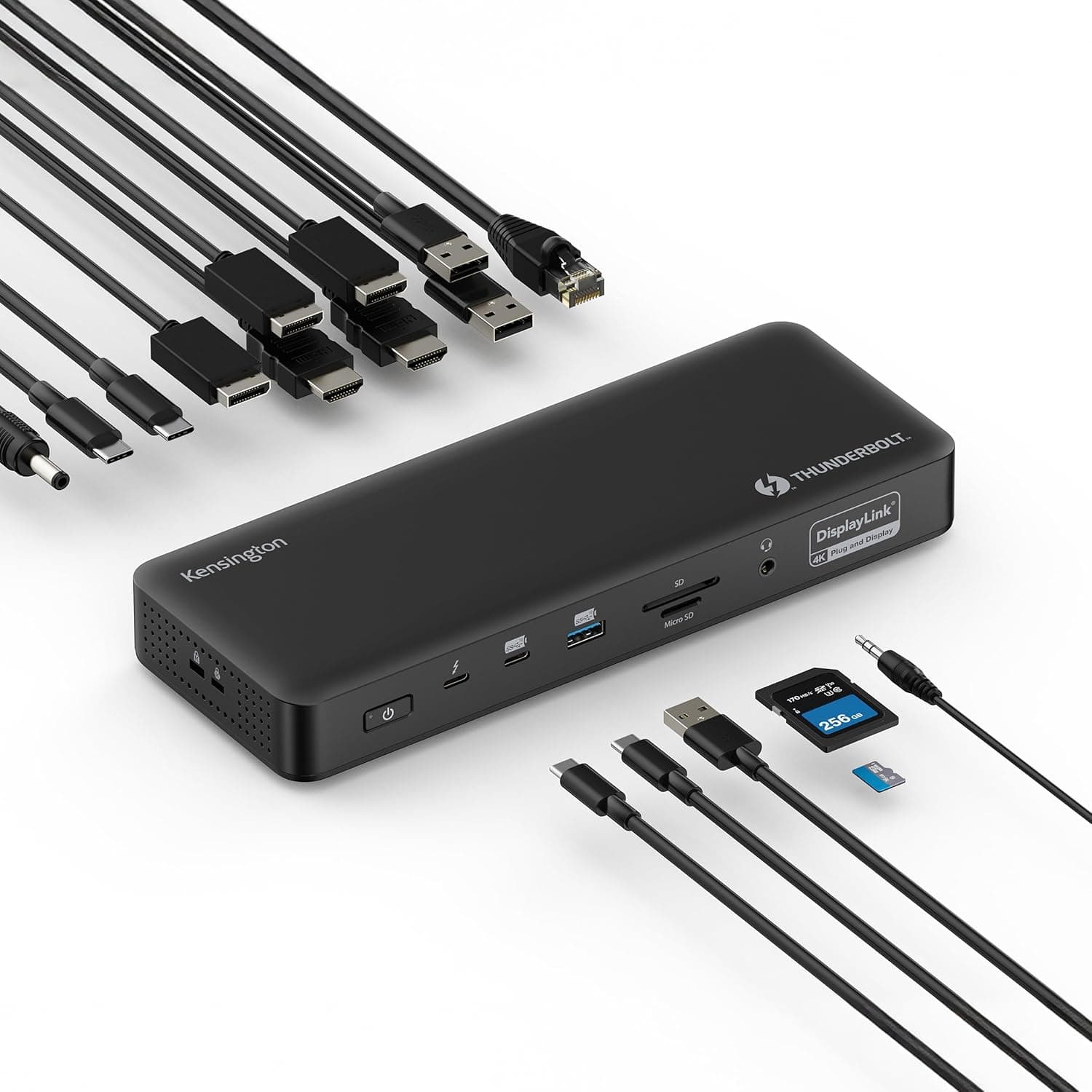
This article covers the Kensington SD5910T — Thunderbolt 4 Quad 4K Docking Station for MacBook Pro, explaining how to read its specs and the pitfalls to know before buying.
Overview
In short, the Kensington SD5910T is for people who want to connect three or four external monitors to an Apple silicon MacBook or a Thunderbolt 4 laptop through a single cable. It is a hybrid dock that combines native Thunderbolt 4 video output with DisplayLink video output.
According to its specs, it drives up to four 4K@60Hz displays on M1/M2/M3/M4 Pro and Max machines, and up to three on base M1/M2 machines. It charges the host laptop at up to 100W (96W certified) and has 16 ports in total.
The trade-off is that DisplayLink requires a driver. It also compresses the video it sends, so it is a poor fit for gaming or color-critical work.
That makes the dock a strong choice if you want more screens for office work, coding, or reading documents. It is an expensive choice with little benefit if you mainly game or watch movies on external monitors.
This article explains where that line falls.
For security, the dock supports Intel VT-d DMA protection. Off-host charging keeps connected devices powered even when the laptop is unplugged.
Kensington's 3-year warranty and lifetime technical support are reassuring for a dock you plan to keep on your desk for years.
What "Hybrid" Means: How DisplayLink Works
On a typical Thunderbolt 4 dock, video output is native: the host GPU drives the signal directly. Latency is low and image quality does not degrade, but the host chip decides how many screens you can connect.
For example, MacBook Air models with a base M1 or M2 are well known to support only one external display natively.
DisplayLink compresses video as data, sends it over USB to a chip inside the dock, and converts it back into a monitor signal there. Its biggest advantage is that it adds screens outside the host's display limit.
This is why the SD5910T can offer three screens even on a base M1/M2. In return, a driver has to run on the host at all times, and the compression puts some load on the CPU and GPU.
The SD5910T puts both methods in one box. Check the manual or the connection diagram on the product page to see which video ports are native and which go through DisplayLink.
Then connect motion-heavy screens (such as a video editing preview) to the native outputs, and static content such as chat or documents to the DisplayLink outputs.
Compatibility Guide
The listed port layout is as follows.
| Group | Port | Spec |
|---|---|---|
| Host | Thunderbolt 4 × 1 | 40Gbps, up to 100W to the host (96W certified) |
| Downstream | Thunderbolt 4 × 2 | 40Gbps, 5V/3A each |
| Downstream | USB-C 3.2 Gen2 × 1 | 10Gbps, 5V/3A |
| Downstream | USB-A 3.2 Gen2 × 2 | 10Gbps, 5V/1.5A |
| Downstream | USB-A 3.2 Gen1 × 1 | 5Gbps, 5V/0.9A |
| Video | HDMI 2.0 × 2, DisplayPort 1.4 × 2 | Up to 4K@60Hz per display |
| Network | Ethernet × 1 | 2.5Gbps |
| Other | 3.5mm combo jack, SD and microSD readers | — |
There are four video ports in total, but the original product description says one DisplayPort is shared with HDMI. Before buying, check which HDMI and DisplayPort combinations work for four screens against the inputs on your monitors.
Adapters in the chain can prevent 4K@60Hz, so direct cables that match the monitor's input are the safest choice.
MacBook (Apple silicon). The specs list four screens on M1/M2/M3/M4 Pro and Max chips, and three on base M1/M2 chips.
For the base M3, the original description says four screens are possible in clamshell mode (lid closed). This may change with macOS or driver versions, so base M3 and M4 owners should check Kensington's latest compatibility chart before buying.
Windows laptops. The dock is listed as working with Thunderbolt 4 or USB-C laptops.
How many screens run natively depends on the laptop's GPU and port specs, and DisplayLink fills in the rest. If the laptop's USB-C port lacks Thunderbolt, video output (DP Alt Mode), or PD charging, native screens or charging may not work.
Check the port icons and features in your laptop's spec sheet first.
Other platforms. The compatibility data lists only macOS and Windows.
If you plan to use another OS such as Linux, check DisplayLink driver support separately.
Footprint. The listed dimensions are 254 x 102 x 127 mm.
This figure may include packaging, so if your space is tight (for example, next to a monitor arm base), confirm the unit's own size on the product page.
Product Info
rmation
The Kensington SD5910T (model K35233NA) is a mid-to-high-tier dock that appeared in late 2024. Its defining feature is a DisplayLink chip inside a Thunderbolt 4 dock, which lets it reach four screens even beyond the host's display limit.
It has 16 ports, including six USB ports (2× Thunderbolt 4, 1× USB-C 3.2 Gen2, 3× USB-A).
Prices are as captured and will change. On Amazon Japan it was ¥47,261 in June 2026 and ¥52,731 in August 2026.Check the retailer's page for the latest price.
An eBay listing showed $249.99 in July 2026, but overseas listings can differ in shipping, import duties, plug type, and warranty coverage.
Check the retailer's page for the latest user reviews. The score is good, but the sample is small, so do not rely on it alone.
The box is listed as including a Thunderbolt 4 cable (about 0.8m) and a power adapter.
The dock also supports Kensington's own under-desk mount (K34050WW, sold separately).
How It Compares: Which Dock Type to Choose
| Type | What limits screen count | Best for | Weakness |
|---|---|---|---|
| Standard Thunderbolt 4 dock | Host chip (base M1/M2: one external) | One or two screens, best quality and latency | Cannot exceed the host limit |
| DisplayLink-only USB dock | Driver adds screens | Adding screens cheaply | Often limited bandwidth, data speed, and charging |
| Kensington SD5910T | Native plus DisplayLink combined | Thunderbolt 4 speed and four screens in one box | Expensive, and inherits DisplayLink's limits |
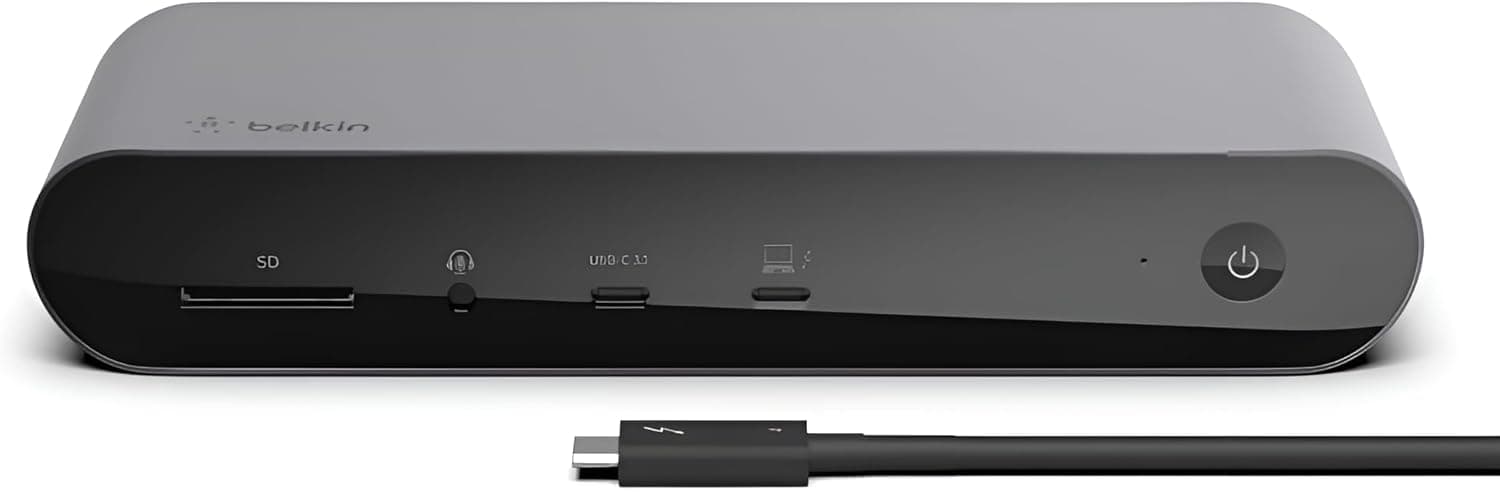
Standard Thunderbolt 4 docks such as the CalDigit TS4 use native video only, so a base M1/M2 MacBook Air stays at one external monitor. On the other hand, if two external screens are enough on a Pro or Max MacBook, a dock without DisplayLink has the edge: no driver to manage and better image quality.
The SD5910T makes sense when you need both three or more screens and Thunderbolt 4's 40Gbps, 2.5GbE, and 100W charging.
If you only need more screens, a cheaper DisplayLink dock will get you there. If you only need fast peripherals, a standard Thunderbolt 4 dock is enough.
The deciding question is whether you want both in one box.
Recommended Users
- Base M1/M2 MacBook owners who want two or more external monitors. Getting past the one-screen native limit through DisplayLink is this dock's clearest benefit.
- Developers, traders, and office workers building a three- or four-screen desk around a Pro or Max MacBook Pro. Laying out code, documents, chat, and dashboards is a use case where DisplayLink's weaknesses rarely show.
- People who swap between a work Windows laptop and a personal Mac at the same desk. Because it supports both Thunderbolt 4 and USB-C, one cable swap moves your monitors and peripherals together (as long as you can install the driver on the Windows machine).
- People who move large files to a NAS or office server. Paired with a 2.5Gbps router or switch, the 2.5GbE port can cut transfer times compared with 1Gbps Ethernet.
Before You Buy
DisplayLink screens require a driver. On a Mac you install DisplayLink Manager and grant it Screen Recording permission; on Windows you install a driver as well.
On a managed work PC without admin rights, you may not be able to install it, and the DisplayLink screens will not work. Check your IT department's rules first.
Copy-protected video may not play on DisplayLink screens. HDCP-protected content, such as some streaming services, can show a black screen or refuse to play on DisplayLink outputs.
Put your video-watching screen on a native output.
It is a poor fit for gaming or high-refresh monitors. The spec ceiling is 4K@60Hz per display, and the DisplayLink outputs can add slight latency or show quality changes in fast motion.
If you want a 144Hz gaming monitor to perform as designed, connect it directly to the host or choose a native-output dock. Color-critical photo and video finishing is also safer on a native screen.
100W is not enough for every laptop. Host charging tops out at 100W (96W certified).
Laptops that ship with a larger charger, such as bigger MacBook Pro models or high-performance Windows laptops, can slowly drain under long heavy loads. If you often export video or run builds, check your stock charger's wattage.
Be careful after major OS updates. Because DisplayLink relies on a driver, DisplayLink screens can temporarily stop working right after a major macOS or Windows update.
On a work machine, check driver support before you update.
Power differs by USB port. The USB-A 3.2 Gen1 port supplies 5V/0.9A and is not suited to fast-charging phones.
Use the 5V/3A USB-C or Thunderbolt 4 ports for devices you want to charge.
Check the seller and model number. The pricing data is labeled "Amazon US" but links to Amazon Japan, and the disclosure block also lists the seller and fulfiller as Amazon US.
The "NA" suffix in the model number may indicate a North American version. When buying, check the seller, whether it is a parallel import, the power adapter's voltage range and plug type, and whether the warranty is honored in your country.
Listing details can also differ from the actual product, so confirm it is the right item by the images and title.
FAQ
Q. Can a base M1 MacBook Air run three screens? A.
The specs say base M1/M2 chips support up to three screens. That is one native output plus DisplayLink screens, so installing the DisplayLink driver is required.
Q. Does it work without the driver? A.
Native video, USB, and Ethernet work as Thunderbolt 4 features of the host, but DisplayLink screens will not display without the driver. If you want four screens, treat the driver as mandatory.
Q. Can I connect a gaming monitor? A.
It will display, but the ceiling is 4K@60Hz per screen, and DisplayLink outputs can show latency or quality changes. Not recommended if gaming matters to you.
Q. Will it charge a 16-inch MacBook Pro? A.
Yes, at up to 100W (96W certified). If that is less than your stock charger, the battery may drain during long heavy workloads.
Q. Can it power USB devices while the laptop is unplugged? A.
Yes. It is listed as supporting off-host charging, so devices such as phones can charge while the laptop is disconnected.
Product Disclosure (Amazon)
- Manufacturer: Kensington
- Seller: Amazon US
- Fulfilled by: Amazon US
- ASIN: B0DLP38RZM
- Note: This article covers a manufacturer-made product based on Amazon listing details.