Overview
The Wavlink USBC — Dual 5K 18-in-1 USB-C Universal Docking Station is an 18-in-1 USB-C dock built on DisplayLink technology. In short, it is a desk dock for people who want three or four monitors from one laptop when the laptop's USB-C port can't drive that many screens.
It puts screen count and port variety ahead of motion smoothness.
On paper, it supports up to four video outputs at up to 5120×1440 @60Hz per display. It has four DisplayPort++ and four HDMI ports.
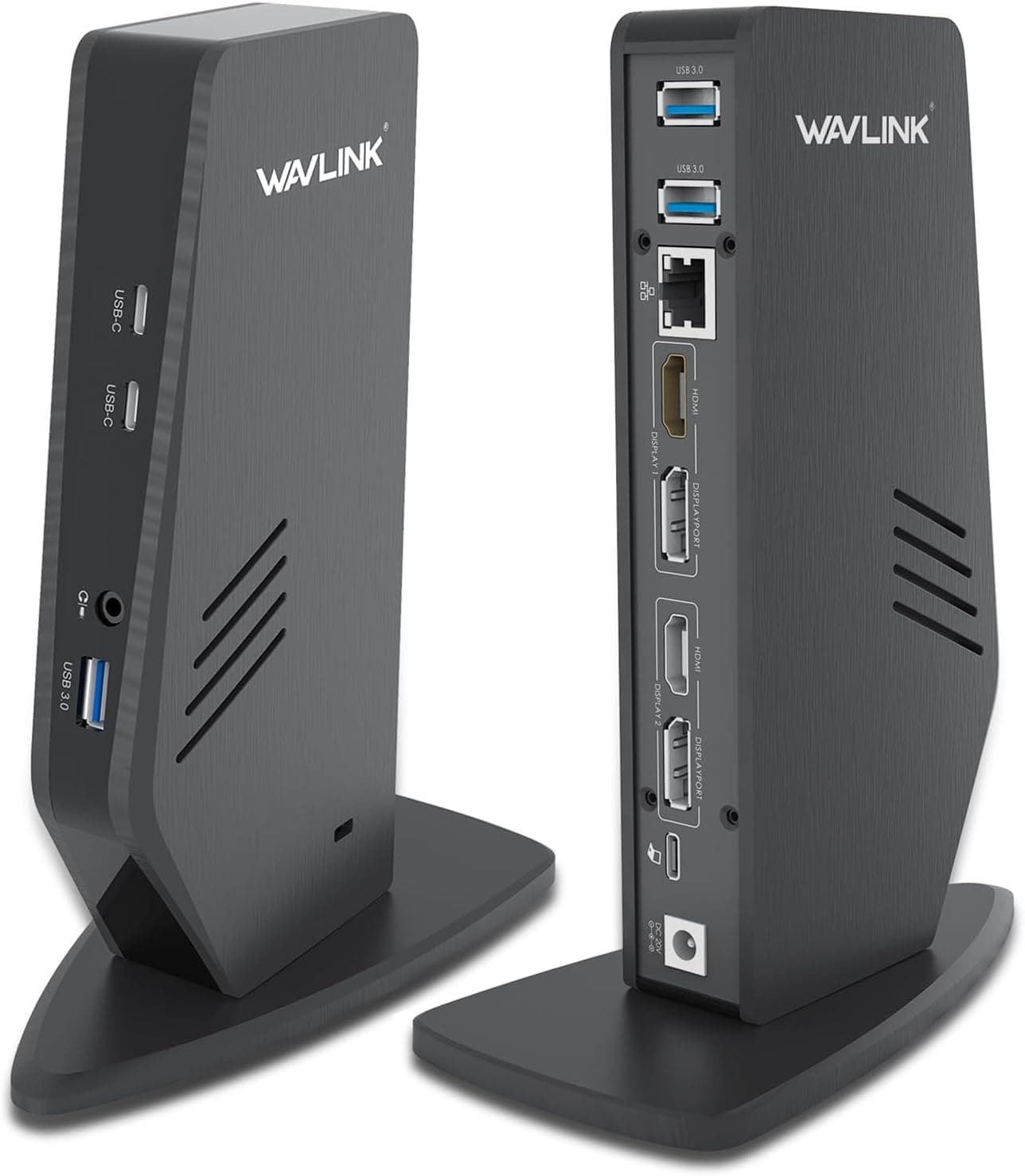
It also has 2.5Gbps Ethernet, three USB 3.0 ports, one USB 3.1 (10Gbps) port, SD/TF card slots, an audio/mic combo jack, 100W PD charging for the host, and a front 30W PD USB-C port that only charges.
The included 180W power adapter lets a single USB-C cable handle both laptop charging and power for your peripherals.
The catch is that video travels as USB data through the DisplayLink driver. That makes the driver mandatory and the dock a poor fit for fast motion or gaming.
At 1350g, it is heavy for a dock and is meant to stay on the desk rather than travel.
What 5K Actually Means Here
The Dual 5K in the name is easy to misread. The listed maximum resolution is 5120×1440.
That is two 27-inch WQHD panels (2560×1440) side by side, which is the 32:9 super-ultrawide format. A 5120×2880 5K display has exactly twice as many pixels, so it is a different class of screen.
If you buy this dock expecting to run a 5120×2880 high-density monitor, you will be disappointed. It is better described as a dock for a super-ultrawide monitor or for several displays at 4K or below.
The product name says Dual 5K, while the spec sheet says up to four displays. The listing doesn't make clear how many screens can run at 5120×1440 at once, or what resolution each screen gets when all four are in use.
If you plan to drive four high-resolution panels, check the exact combinations on the product page and in Wavlink's spec sheet before buying.
Compatibility Guide
The dock connects to the host over USB-C (Thunderbolt 3 compatible). Listed OS support covers Windows 7/8/8.1/10/11, macOS 10.8 through 12.x and later, Chrome OS, Android, and Ubuntu.
You must install the official DisplayLink driver before all features work, including video output. Older OS versions may be listed but no longer covered by the latest DisplayLink drivers.
If you plan to use Windows 7 or 8, check the driver download page first.
| Checkpoint | Detail | Common mistake |
|---|---|---|
| Host port | USB-C (Thunderbolt 3 compatible) | It won't work with a PC that only has USB-A ports |
| Video method | DisplayLink (driver required) | No picture until the driver is installed |
| Video ports | 4x DP++, 4x HDMI | The DP and HDMI ports in one group can't both be used at once |
| Host charging | Up to 100W | Laptops that draw more than 100W will be underpowered |
| Front USB-C | 30W PD, charging only | It does not transfer data |
What DisplayLink Means
Most USB-C hubs output video through the laptop's DisplayPort Alternate Mode (Alt Mode). With Alt Mode, the laptop's GPU and port set the limit.
For example, MacBooks with a base M1 or M2 chip generally support only one external display. DisplayLink compresses the image, sends it as USB data, and the dock's chip turns it back into a video signal.
That is how it gets around those host-side limits.
The trade-off is that compression uses the laptop's CPU and GPU, and the load grows with each added screen. Office apps, browsers, and trading charts are fine.
Content where the whole screen moves quickly, like video editing previews or games, can drop frames or lag.
Video Port Group Limits
Each video stream group can use only one port at a time, either DP++ or HDMI. Having eight ports does not mean eight screens; you get one display per group.
Every group has one DP and one HDMI port, so an all-HDMI or all-DP set of monitors still works. If you plug into both ports of the same group, though, only one of them will show a picture.
Using It on macOS
On macOS, you normally install the DisplayLink Manager app and grant it screen recording permission. HDCP-protected video may not play on screens connected through DisplayLink.
Some macOS versions have had reported DisplayLink issues, so check driver support before a major OS update.
Bandwidth
Video and peripheral data share the single USB-C link to the host. Running several high-resolution screens while copying large files to a 10Gbps SSD and transferring over 2.5Gbps Ethernet at the same time may slow something down.
Thunderbolt 3 or higher is recommended on the host side. A USB 3.2 Gen 1 (5Gbps) port may struggle with high-resolution multi-monitor setups.
Product Info
| Item | Spec |
|---|---|
| Port count | 18 |
| Video outputs | 4x DisplayPort++, 4x HDMI (up to 4 displays) |
| Max resolution | 5120×1440 @60Hz |
| Ethernet | 2.5Gbps RJ45 (10/100/1000Mbps compatible) |
| USB-A | 3x USB 3.0 (5Gbps), 1x USB 3.1 (10Gbps) |
| USB-C | 1x PD 100W (host), 1x PD 30W (charging only, no data) |
| Card reader | SD/TF, up to 312MB/s |
| Audio | Audio/mic combo jack |
| Power | 180W adapter included |
| Weight | 1350g |
This dock has been on sale since around 2022 and sits in the mid-to-high tier of USB-C docks. It was ¥35,808 on Amazon Japan as of August 2026.
Prices change with sales and stock, so check the product page for the current price. The listing includes a 180W power adapter.
Check the listing or the documents in the box for other contents and the warranty period.
On Amazon Japan, it was rated 4.0 out of 5 as of June 2026, but from only five reviews.
That is too few to judge the product. Checking the specs against your own laptop and monitors will tell you more.
The 312MB/s card reader figure is the UHS-II speed range. UHS-I cards will only reach their own limits.
Likewise, the 2.5Gbps Ethernet port drops to 1Gbps unless your router or NAS also supports 2.5GbE.
The maximum numbers only appear when the other end supports them too.
In the market, it offers more video outputs than a basic USB-C hub without DisplayLink and costs less than a Thunderbolt 4 dock. For users who need four or more monitors, it is good value.
Compared With Alternatives
| Type | How video is sent | Best for |
|---|---|---|
| This dock (DisplayLink) | As USB data, beyond the laptop's native display limit | Three or four screens, or base M1/M2 Macs that need two or more |
| Alt Mode USB-C hubs and docks | Uses the laptop's own USB-C video output | One or two screens, no drivers |
| Thunderbolt docks | Video and data over Thunderbolt bandwidth | Thunderbolt laptops where low latency and compatibility matter |
If two screens are enough, a driver-free Alt Mode dock is easier to set up and shows video and games without issue. This dock makes sense when you need three or more screens, or when you need to get past your laptop's external display limit.
Wavlink also sells a three-monitor DisplayLink dock and a dual 4K dock, so pick the one that matches the number of screens you need.
Best For
- Traders and financial analysts: People who keep charts and news open across three or four screens all day. Mostly static screens are where DisplayLink does well.
- Remote and office workers: People building a three- or four-monitor home setup around one laptop. 100W PD charging keeps cables to a minimum.
- Base Apple Silicon Mac users: People who need to get around the external display limit.
- Photographers: People who import RAW files through the 312MB/s SD/TF reader and browse or edit them across several monitors.
Who Should Skip It
- Gamers: DisplayLink compresses and decompresses the image, which can cause lag and dropped frames. Competitive games are a particularly bad fit. Connect your monitor directly to the laptop or GPU for gaming.
- Video editors who need smooth previews: Plan to keep the editing interface on DisplayLink screens and the playback preview on a directly connected display.
- Travelers: At 1350g plus a power brick, this dock is meant to stay on a desk.
- Gaming laptops that draw more than 100W: Host charging tops out at 100W, so the battery may drain under load. Use the laptop's own charger as well.
- Locked-down work PCs: If you can't install software on your machine, check with your IT department first.
Things to Consider
Remember that the DisplayLink driver is mandatory. First-time setup means downloading it from the official site, and major OS updates can require a driver update.
Some macOS releases have had DisplayLink compatibility issues, so check your OS version before buying.
The front USB-C port is for 30W PD charging only. A USB-C SSD or phone plugged in there will not transfer data.
Use the rear USB-A ports (three at 5Gbps, one at 10Gbps) for data, with a USB-C to USB-A adapter for USB-C devices.
The 5K label refers to 5120×1440, not a 5120×2880 5K monitor. Also, Dual 5K in the name and up to four displays in the specs may describe different resolution and screen-count combinations.
Confirm the setup you need on the product page.
For four or more displays, make sure your laptop's USB-C port has enough bandwidth (Thunderbolt 3 or higher recommended). A USB 3.2 Gen 1 (5Gbps) port may struggle at high resolutions across multiple monitors.
Each extra screen also adds CPU and GPU load, which a low-power laptop may feel.
The product name is long and has no model number, so it is easy to confuse with other Wavlink DisplayLink docks. When you buy, check the ASIN (B09ZQTJGQ9) and the port layout (4x DP++, 4x HDMI, front USB-C) against the product photos.
FAQ
Q. Does it work without the driver? A.
You need the DisplayLink driver for all features, including video output. Without it, the dock can't do its main job.
Q. Can a base M1/M2 MacBook Air run three screens with it? A.
DisplayLink gets around the host's external display limit, which is why people often use it with base Apple Silicon Macs. Check that DisplayLink Manager supports your macOS version, and expect that HDCP-protected video may not display.
Q. Can I use a 5120×2880 5K monitor? A.
The listed maximum is 5120×1440 @60Hz. The dock is not designed to run a 5120×2880 panel at full resolution.
Q. Is it good for gaming?
A. Compression can cause lag and dropped frames. Connect your gaming display directly to the laptop.
Q. Will it fully charge my laptop? A.
Host charging is up to 100W. Laptops that draw 100W or less can run on one cable; for anything above that, also use the original charger.
Summary
The Wavlink USBC — Dual 5K 18-in-1 USB-C Universal Docking Station is a desk dock that gets past your laptop's display limit and builds a setup of up to four screens from one cable. It is worth buying if you accept three things: its 5K is really 5120×1440, the DisplayLink driver is required, and it is not suited to gaming or smooth video.
Product Disclosure (Amazon)
- Manufacturer: WAVLINK
- Seller: Wavlink direct store
- Fulfilled by: Amazon
- ASIN: B09ZQTJGQ9
- Note: This article covers a manufacturer-made product based on Amazon listing details.