Overview
The UGREEN Revodok Pro 7 in 1 USB C ドッキングステーション splits a single USB-C port on your laptop into two video outputs, four data ports and one charging input, all in a 91g body. The short version: it suits Windows laptop users who want two extended displays from one cable, and anyone who carries a dock rather than leaving it on a desk.
It does not suit people who want two independent desktops on a MacBook, or who are counting on wired Ethernet and an SD card reader.
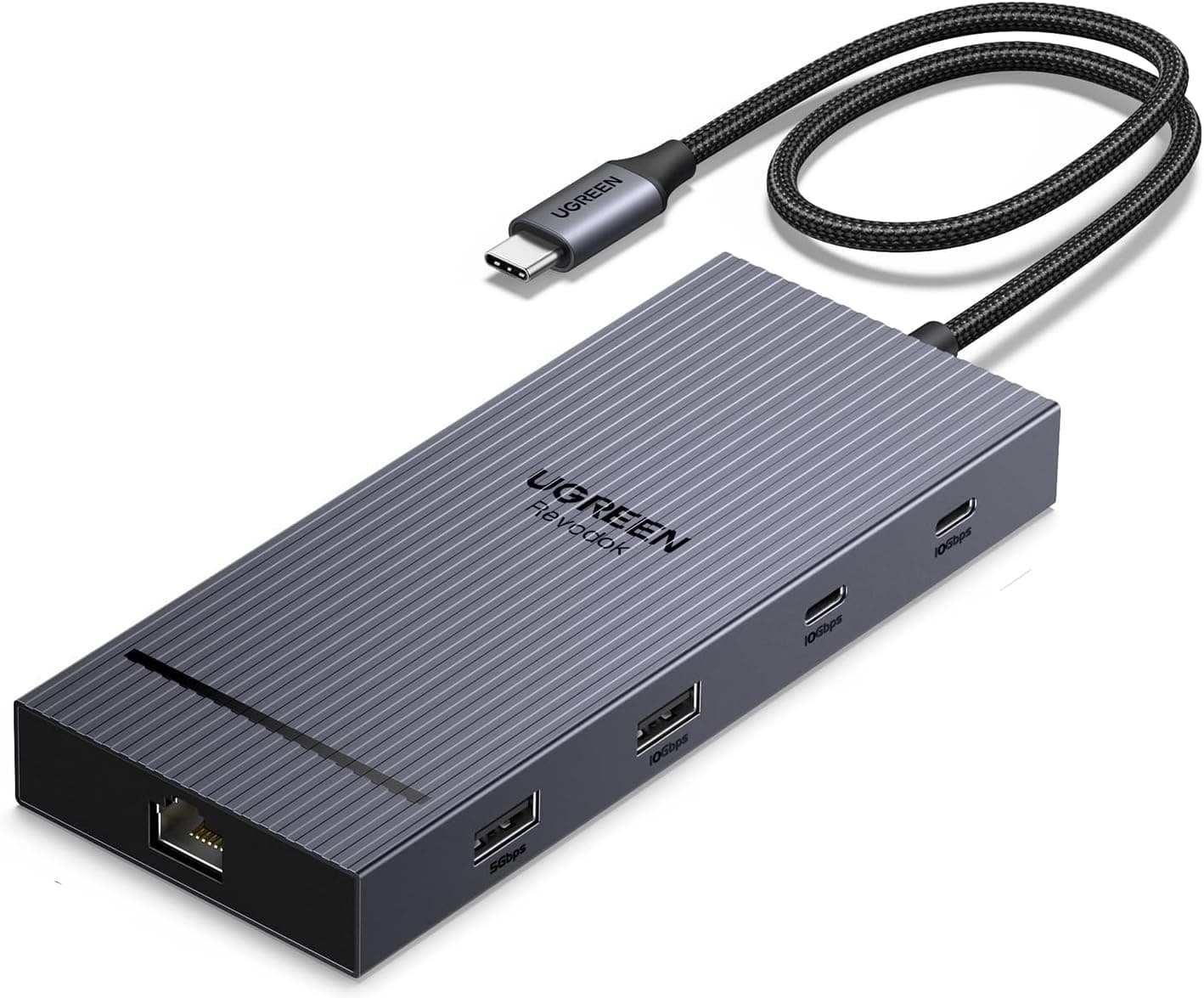
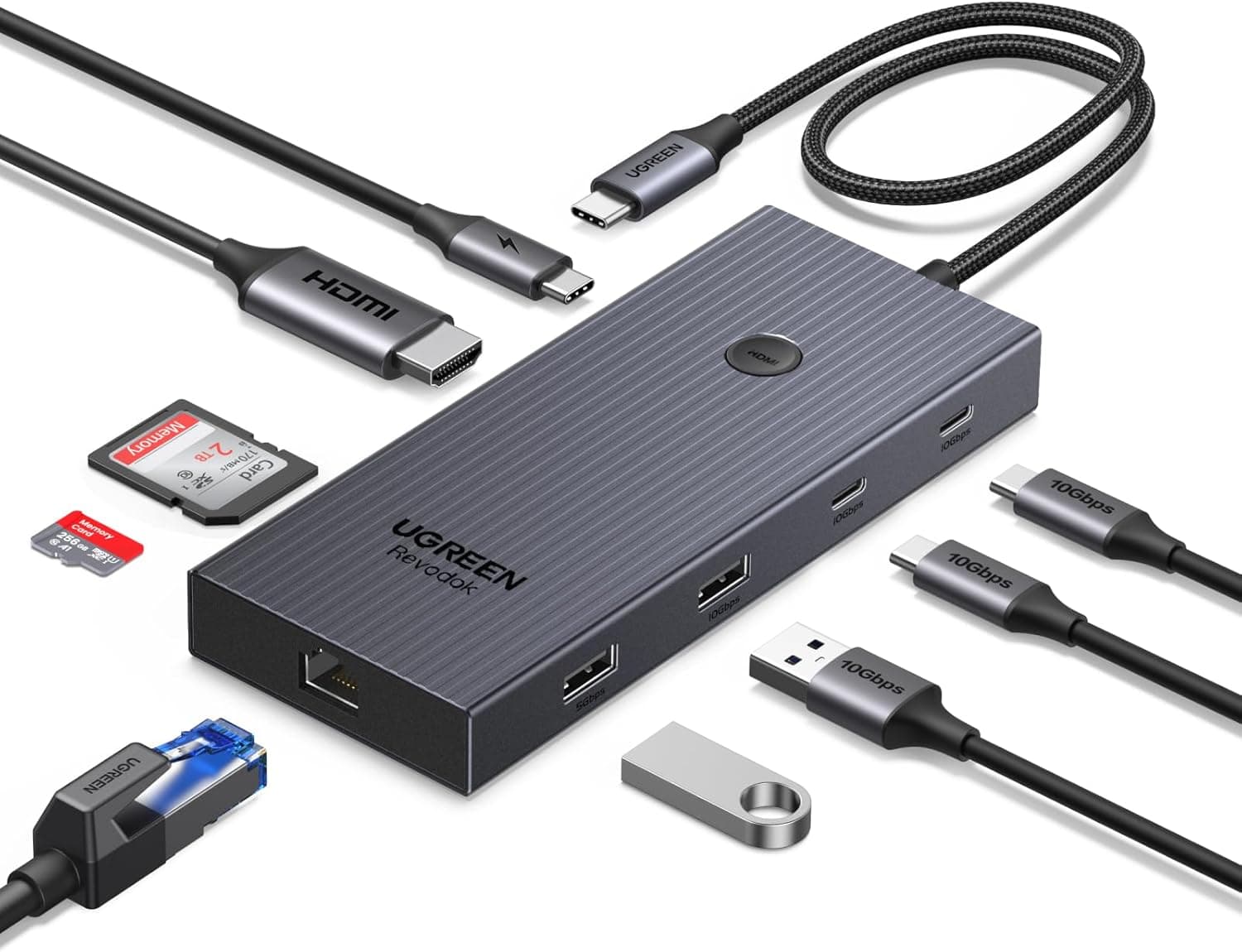
The seven ports break down as 2x HDMI, 2x USB-A, 2x USB-C for data (10Gbps) and 1x USB-C for Power Delivery input. The charge-only port counts toward the "7 in 1" figure, so you really have four ports for peripherals — worth knowing before you plan your desk.
All data ports run USB 3.2 Gen2 at 10Gbps, which leaves enough headroom for an external SSD to work at a usable speed.
Check the retailer's page for the latest user reviews. That is a large sample for this price class, and the score is steady rather than polarised.
Position in the market: entry-to-mid tier, built around dual HDMI and 10Gbps data at a low weight and a low price.
Compatibility Guide
It connects to a host USB-C port and is compatible with Thunderbolt 4/3. Supported systems are Windows 10 or newer and macOS 10.15 Catalina or newer.
The first thing people get wrong is assuming any USB-C port carries video. Hub video output depends on DP Alt Mode (DisplayPort Alternate Mode); if your laptop's USB-C port is data-and-charge only, the HDMI outputs stay blank.
Look for the small display icon next to the port before you buy.
| Item | Detail |
|---|---|
| Video output | HDMI x2 only; no video over USB-A or USB-C |
| Max resolution | 4K@60Hz |
| Requirement for 4K@60Hz | 11th-gen Intel Core or equivalent graphics on the host |
| Windows | Extended dual-screen supported |
| macOS | Mirror mode only (no extended display) |
Mirror-only behaviour on macOS is not a shortcut taken by this hub: macOS does not support MST (Multi-Stream Transport), so one DP Alt Mode stream cannot be split into two independent screens. Base Apple Silicon chips (M1/M2 without Pro/Max) are also known to cap how many external displays can be attached at all.
If you need two separate desktops on a Mac, this design cannot get you there; a DisplayLink dock, which pushes video over USB with its own driver, is the realistic workaround.
On power: the hub accepts up to 100W of PD input and passes up to 85W through to the host. The remaining watts feed the hub and the attached peripherals, so use a charger rated at least as high as your laptop's original adapter.
The charging port is charge-only — SSDs and mice plugged into it simply will not appear. No USB-C cable or power adapter is included.
Product Info
rmation
All prices below are values captured on the dates shown, and they move with sales and exchange rates.
| Seller | Price | Captured |
|---|---|---|
| Amazon (Japan) | ¥4,134 | 29 May 2026 |
| Amazon (Japan) | ¥3,849 | 27 Aug 2026 |
| eBay (marketplace) | $26.08 | 9 Jul 2026 |
The Japanese listing drifted down by roughly 7% across three months, so there is little penalty in watching the price for a few days if you are not in a hurry. The eBay listing ships from overseas, where shipping cost and delivery time usually cancel out the difference.
The Amazon listing is sold by "Ugreen Japan Co., Ltd", which keeps the manufacturer warranty and domestic support intact.
Specs in brief: seven ports, up to 4K@60Hz, 10Gbps USB 3.2 Gen2 data, 100W PD input with 85W pass-through, 91g.
The box contains the hub only. The product has been on the market since around 2024.
How It Compares
Docks that look alike differ sharply in character. Three comparisons put this one in context.
- 13-in-1 / 14-in-1 desktop docks — they add Ethernet, an SD card reader, DisplayPort and a 3.5mm jack, at the cost of weight and money. If you never carry the dock anywhere, they remove more cables in the end.
- Thunderbolt docks — more bandwidth and steadier behaviour with external displays, but your host needs Thunderbolt and the price sits a tier higher.
- DisplayLink docks — they solve the one thing this hub structurally cannot: extended multi-monitor on macOS. The trade-off is a driver install and higher CPU load during video playback.
Check the retailer's page for the latest price. Optimise for any single one of those and something above it wins.
Setup Without Surprises
- Plug the hub directly into a DP Alt Mode USB-C port.
Extension cables and daisy-chained hubs are a common cause of "no picture" and of data speeds well below 10Gbps. 2.
Connect the PD charger to the charge-only port first, so you are not short of power once peripherals are attached. 3.
Connect the HDMI cables. For 4K@60Hz, use cables rated for 18Gbps (Premium High Speed class) or better; older 4K@30Hz-era cables become the ceiling here.
- On Windows, check Settings > System > Display for extended mode and refresh rate.
If 60Hz is not selectable, the cause is almost always the host GPU generation or the cable.
Who It's For
- Windows laptop users moving between home and office — one cable brings two screens and charging; one pull disconnects everything. At 91g it is no burden to carry daily.
- Anyone presenting often — two HDMI outputs let you drive a projector and a confidence monitor at the same time.
- External SSD users — four 10Gbps ports make large transfers noticeably shorter.
- People decluttering a desk — roughly ¥4,000 at time of capture tidies the cabling without buying a permanent dock.
- Mac users who only need mirroring — for presentations or signage, the display limitation never comes up.
Before You Buy
There is no Ethernet, no SD card reader and no 3.5mm audio jack. Count the seven ports and you can see where the budget went: video and 10Gbps data.
If a site visit requires wired LAN, or you read camera cards daily, buy a multi-function dock from the start. Adding adapters on the USB-A side works, but then you are recounting free ports again.
The charger and USB-C cable are sold separately. Most "my laptop isn't charging" complaints start here.
Check the wattage of the PD charger you already own and match or exceed your laptop's original adapter. Remember too that data devices in the charge-only port will never enumerate.
Resolution in dual-display mode depends on your host. 4K@60Hz is a ceiling, not a promise: machines below the stated requirement may fall back to 30Hz or refuse the mode with both screens attached.
Treat "11th-gen Intel Core or equivalent" as the benchmark it is. When something fails, test one monitor alone first — that separates a host problem from a cable problem in a minute.
Extended display on macOS cannot be fixed by this product. It is an OS-level limitation, so no firmware update or setting changes it.
Misreading this point is the single most likely reason to return the unit.
Listing metadata is sometimes inconsistent. In the data behind this article, one price block was labelled "Amazon US" while the link actually pointed at Amazon Japan.
Country, price and model-number fields can drift like this, so confirm the product image and title on the page before ordering, and treat every figure here as a snapshot from its capture date.
Expect warmth, as with any compact hub. A 91g housing handling 4K output, 10Gbps transfers and 85W of pass-through power will run noticeably warm.
Avoid using it buried in a bag or on fabric for long sessions.
FAQ
Q. Can I show different content on two monitors with a MacBook? A.
No. macOS supports mirroring only here.
For extended displays, look at a DisplayLink dock.
Q. Can the USB-C or USB-A ports drive a monitor?
A. No. Video comes out of the two HDMI ports only; the others are data-only.
Q. Is a charger included?
A. No. Supply your own PD USB-C charger and cable. Pass-through to the host is up to 85W.
Q. Is there wired Ethernet?
A. Not built in. You would attach a LAN adapter to a USB-A or USB-C port, which costs you one free port.
**Q. I can't get 4K@60Hz. A. In order: the host CPU/GPU generation (11th-gen Intel Core or equivalent), HDMI cable bandwidth (18Gbps class or better), then the monitor's input and refresh-rate settings. Testing a single monitor narrows it down fastest.
Q. Can I charge while transferring data and driving displays? A.
Yes — that is the point of pass-through charging. The more devices attached, the less power reaches the host, so pick a charger with margin.
Product Disclosure (Amazon)
- Manufacturer: UGREEN
- Seller: Ugreen Japan Co., Ltd
- Fulfilled by: Amazon
- ASIN: B0D1XSKZRJ
- Note: This article covers a manufacturer-made product based on Amazon listing details.