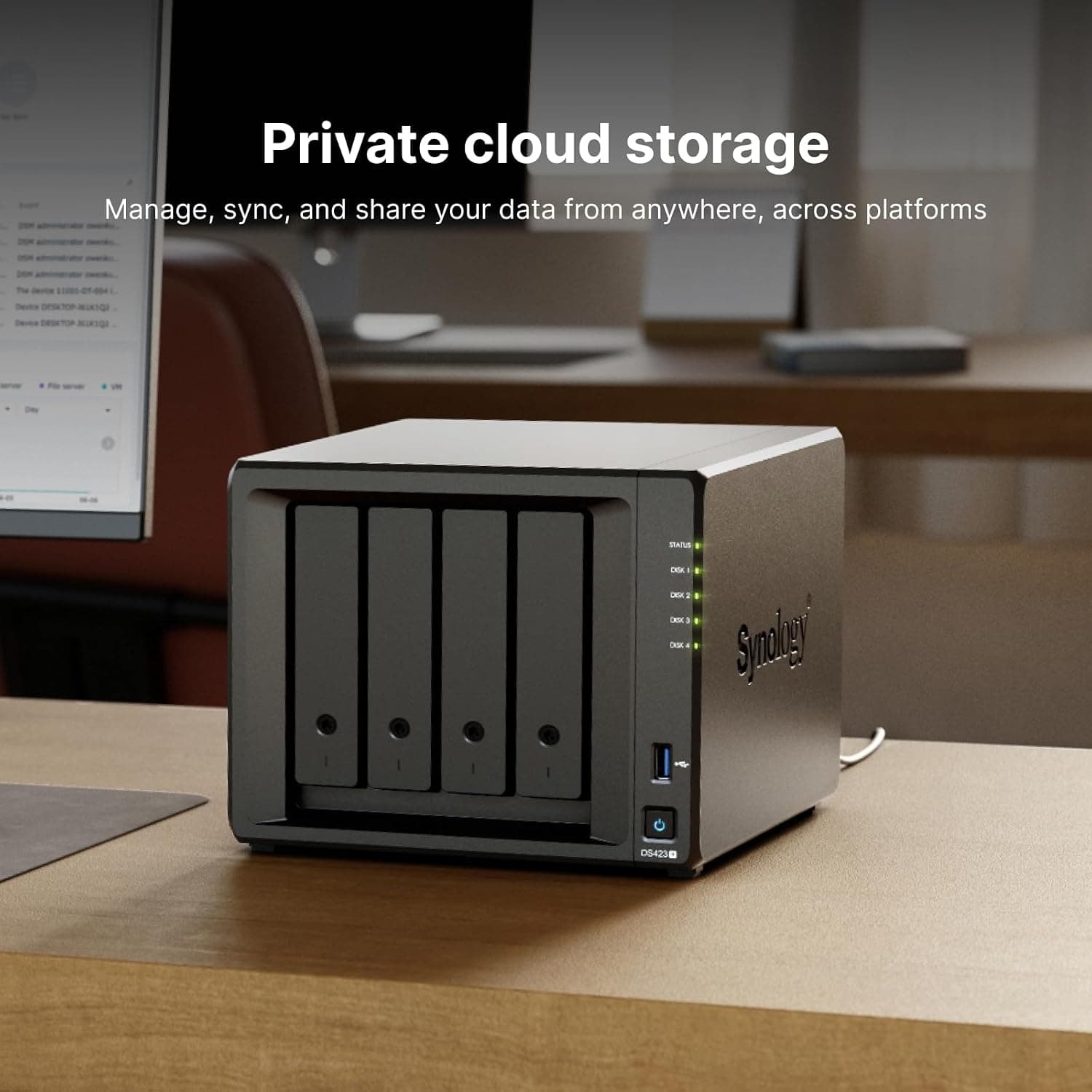
This article covers the DS423+ — 4-Bay NAS Kit with Quad-Core CPU for Home Users, sold in Japan as the Synology DiskStation DS423+ (Japanese distributor version with phone support). It explains what the spec-sheet numbers mean once the unit is on your network.
NAS buyers often find out too late that transfers are slower than expected, that drives cost more than planned, or that their 'backup' was never really a backup. This guide covers those points before you buy.
Overview
In short, the DS423+ is a 4-bay standard NAS. It suits people who want one box for family photo and video storage, PC backups, and small-office file sharing.
It has a quad-core Intel Celeron CPU, 2GB of RAM, and two 1GbE LAN ports. It runs Synology's DiskStation Manager (DSM), which includes first-party apps for file sharing, backup, photo management, and camera recording.
It is less suited to fast single-PC transfers over 2.5GbE or 10GbE, or to running many virtual machines or Docker containers.
The four bays accept 3.5-inch SATA HDDs and 2.5-inch SATA SSDs.
The listed maximum raw capacity is 72TB (18TB × 4), and the sequential throughput is 226 MB/s read and 224 MB/s write. The chassis measures 223 × 199 × 166 mm, which is compact for a 4-bay unit.
The Japanese distributor version comes with a 3-year warranty and phone support, which helps first-time NAS owners.
On Amazon.co.Check the retailer's page for the latest user reviews.
That is not a large number of reviews, but the rating is high. Ratings change over time, so check the current figures before you buy.
Spec Summary
| Item | DS423+ | What it means |
|---|---|---|
| Drive bays | 4 (3.5-inch SATA HDD / 2.5-inch SATA SSD) | Enough for RAID 5, RAID 6, RAID 10, or SHR |
| CPU | Intel Celeron (4 cores) | Fine for file sharing and backup; weak for heavy virtualization |
| Memory | 2GB | Enough for the core apps; tight once you add Docker |
| LAN | 1GbE × 2 | A single PC is capped at 1GbE |
| Max capacity | 72TB (18TB × 4) | The listed upper limit |
| Sequential read / write | 226 MB/s / 224 MB/s | Best read as a two-port, multi-client figure |
| USB | USB 3.2 Gen 1 × 2 | For external backup drives and data import |
| Dimensions | 223 × 199 × 166 mm | Compact for a 4-bay unit |
| Warranty | 3 years (Japanese distributor) | Phone support included |
On paper, '4 cores, 226 MB/s' sounds fast. In practice, NAS speed depends mostly on the network, not the box.
The next two sections explain where the limit is.
Compatibility Guide
Drives: The unit takes 3.5-inch and 2.5-inch SATA drives, both sold separately.
It is designed mainly for 3.5-inch HDDs; a 2.5-inch SSD may need to be screwed to the tray or fitted with a bracket.
Synology publishes a compatibility list of tested drives, so check that your planned model is on it. Drives that are not listed usually still work, but DSM may show warnings, and support may not cover them.
Choosing HDDs: Pick NAS-grade drives and generally avoid SMR (shingled) models. SMR drives tend to rebuild a RAID slowly, which raises the risk of a second drive failing during the rebuild.
If you build a RAID, use drives of the same capacity. Synology's SHR handles mixed sizes with less wasted space, but matching drives make planning simpler at first.
M.2 slots: Synology's official specs list two M.2 2280 NVMe slots on the DS423+.
They are mainly used as an SSD cache. A cache helps workloads with many small files, but you may notice little difference if you mostly save large photos or videos in sequence.
Whether the slots can also hold a storage pool depends on the DSM version and the SSD model, so check Synology's official information.
Network: The unit has two 1GbE ports. To combine them with link aggregation, your switch must also support aggregation such as IEEE 802.3ad (LACP).
Many cheap home switches do not, so check the switch if you plan to use both ports.
Clients and file systems: You can use the NAS from Windows, macOS, and Linux, and from iOS and Android through Synology's apps. File systems are Btrfs and ext4.
Choose Btrfs if you want snapshots. Power comes from the included adapter.
| Check | Common mistake | Fix |
|---|---|---|
| Drives | Buying SMR HDDs | Check the recording method and the compatibility list |
| Switch | No link aggregation support | Use an LACP-capable switch if you plan to use both ports |
| File system | Choosing ext4 and losing snapshots | Select Btrfs during setup |
| 2.5-inch SSD | It will not mount securely | Check the screw holes and brackets |
Real-World Speed (the 1GbE × 2 reality)
Speed is the most misunderstood part of the DS423+. The listed 226 MB/s is higher than the theoretical 1GbE limit (about 125 MB/s).
It is best read as a figure for two aggregated ports serving several clients at once. When one PC copies a large file, the traffic travels over a single 1GbE link.
Expect a ceiling of roughly 100-something MB/s.
Four 3.5-inch HDDs in RAID can read and write faster than 1GbE allows.
So on the DS423+, the network is the bottleneck, not the disks. This does not matter for phone photo backups or for a few people sharing Office files.
It does matter if you want to edit 4K footage directly from the NAS.
If you need faster single-PC transfers, buy a model with 2.5GbE or faster networking.
The DS425+ on this site lists a 2.5GbE NIC in its product name.
The DS923+ can take a 10GbE card in its expansion slot. In either case, your PC's network port and your switch must also run at 2.5GbE or faster.
Product Info
The DS423+ is a 4-bay NAS that Synology released in 2023 as part of its Plus series for standard users. This listing is the Japanese distributor version, with a 3-year warranty and phone and email support.
The box includes a power adapter, LAN cables, and a quick installation guide. Drives are not included and must be bought separately.
Prices change often, so check the product page for the current price. On a NAS, the drives often cost as much as the unit or more.
If you fill all four bays and use RAID 5 or SHR, one drive's worth of space goes to redundancy, leaving the capacity of three drives. A realistic budget covers the unit, four drives, and ideally an external backup target.
The DS423+ sits between Synology's entry-level and mid-range models. It has a Celeron CPU and only 2GB of RAM, but it runs DSM's main apps, including Snapshot Replication, Hyper Backup, Active Backup for Business, Synology Photos, and Surveillance Station.
If you plan to run virtual machines or containers, look at models with more memory, such as the DS723+ or the Ryzen-based DS923+.
Comparison with Alternatives
| Model | Bays | CPU / base RAM | LAN | Best for |
|---|---|---|---|---|
| DS423+ | 4 | Intel Celeron 4-core / 2GB | 1GbE × 2 | Capacity and redundancy, where 1GbE speed is enough |
| DS425+ | 4 | Quad-core / 2GB | Includes 2.5GbE | Faster single-PC transfers in a 4-bay unit |
| DS923+ | 4 | AMD Ryzen R1600 (2C/4T) / 4GB | 1GbE × 2 (10GbE optional) | Docker, VMs, and a path to 10GbE |
| DS225+ | 2 | Intel Celeron J4125 / see product page | See product page | Smaller capacity, tighter space and budget |
The DS423+ and DS425+ are similar: four bays, a quad-core CPU, and 2GB of RAM. The main difference is that the DS425+ has 2.5GbE.
If your PC and switch can run at 2.5GbE, the DS425+ will feel faster.
On a 1GbE home network, the two will perform about the same.
The DS923+ has only two cores and four threads, but it comes with 4GB of RAM and can add 10GbE through its expansion slot. For several Docker services, virtual machines, or editing straight from the NAS, it has more headroom.
The 2-bay DS225+ is effectively limited to RAID 1 (mirroring), so you can use the capacity of only one drive. That is enough for photos and documents if your data will not grow much.
If it will keep growing, starting with the 4-bay DS423+ means fewer drive swaps later.
Setup (in an order that avoids mistakes)
Decide on use cases and capacity: Plan for your current data plus several years of growth.
Choose HDDs from the compatibility list: Use NAS-grade, non-SMR drives of matching capacity.
Install the drives and connect the cables: Mount the drives in the trays, then connect the LAN cable and power.
Install DSM from a browser: From a PC on the same network, open Synology's setup page and follow the steps.
Create a storage pool: Choose SHR or RAID 5, and use Btrfs as the file system.
Create shared folders and users: Set permissions for each person, and schedule snapshots.
Back up outside the NAS: Use Hyper Backup to copy data to a USB drive or a cloud service on a schedule.
RAID alone is not a backup. 8.
Plan for power outages: Connect a UPS over USB so the NAS can shut down safely.
Step 7 is the one people skip most often. Buying a NAS can feel like the job is done, but RAID does not protect against accidental deletion or ransomware encryption.
Best For
- Families organizing photos and videos: Synology Photos backs up smartphone photos automatically and sorts them with face recognition and albums. Each family member can have their own account and permissions, so sharing does not cost privacy.
- People who need a PC or Mac backup target: Active Backup for Business and Hyper Backup can back up several Windows PCs automatically, and Macs can use the NAS as a Time Machine destination. Restores are simple, and the built-in snapshots help against ransomware.
- Small offices that need a file server: The DS423+ supports user management, storage quotas, Windows ACLs, WebDAV, and FTP. Synology does not publish a maximum number of concurrent users, but 20–30 users is a reasonable estimate for Office-file sharing.
- People who need to record security cameras: Surveillance Station can record network cameras.
The DS423+ is not the right choice for 4K Plex transcoding, heavy Docker use, or fast single-PC transfers. For those, look at higher-end models such as the DS723+, DS923+, or DS1522+, or a model with 2.5GbE.
Before You Buy
RAID is not a backup. A 4-bay RAID survives a single drive failure.
It does not protect against accidental deletion, ransomware, a failed NAS, or a lightning strike. Budget for snapshots plus regular copies outside the NAS, on a USB drive or a cloud service.
1GbE is the speed ceiling. As explained above, expect roughly 100-something MB/s to a single PC.
If you are used to external SSDs or an NVMe drive inside your PC, it will feel slow. If speed is your goal, choose a different model.
The memory specs disagree. This article's spec data lists the memory as '2GB (non-expandable)'.
Synology's official specs, however, list one free slot and a maximum of 6GB (2GB + 4GB). Check Synology's official spec page before you buy.
If you upgrade, Synology recommends its own memory modules; others may trigger warnings or fall outside support.
2GB covers the core apps. File sharing, backup, and photo management run fine on 2GB.
Several Docker containers, or photo indexing at the same time as a backup, will use up the headroom. Whether you can add memory depends on the check above.
Expect limits for video playback and transcoding. Synology reportedly stopped providing its Video Station app from DSM 7.2.2.
You can use Plex or Jellyfin instead, but real-time 4K transcoding on a Celeron gets harder with every extra stream. Plan to play files that need no transcoding.
Check the price and the seller. The price collected for this article looked too low for a 4-bay NAS in this class, so it is not shown here.
On the product page, check the price, the seller, whether the unit is new or used, and whether it is the Japanese distributor version or a grey import. The 3-year warranty and phone support depend on the distributor version.
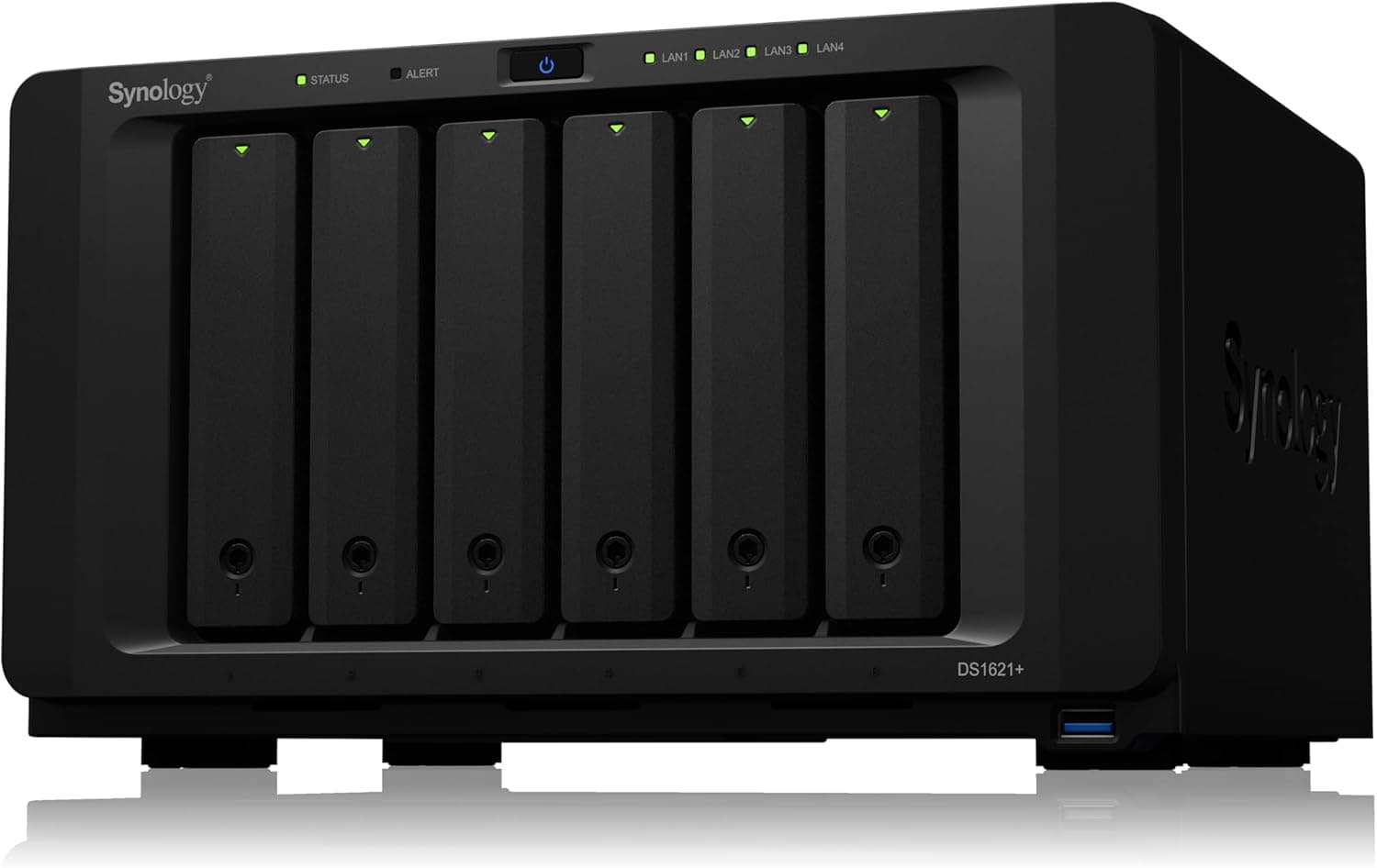
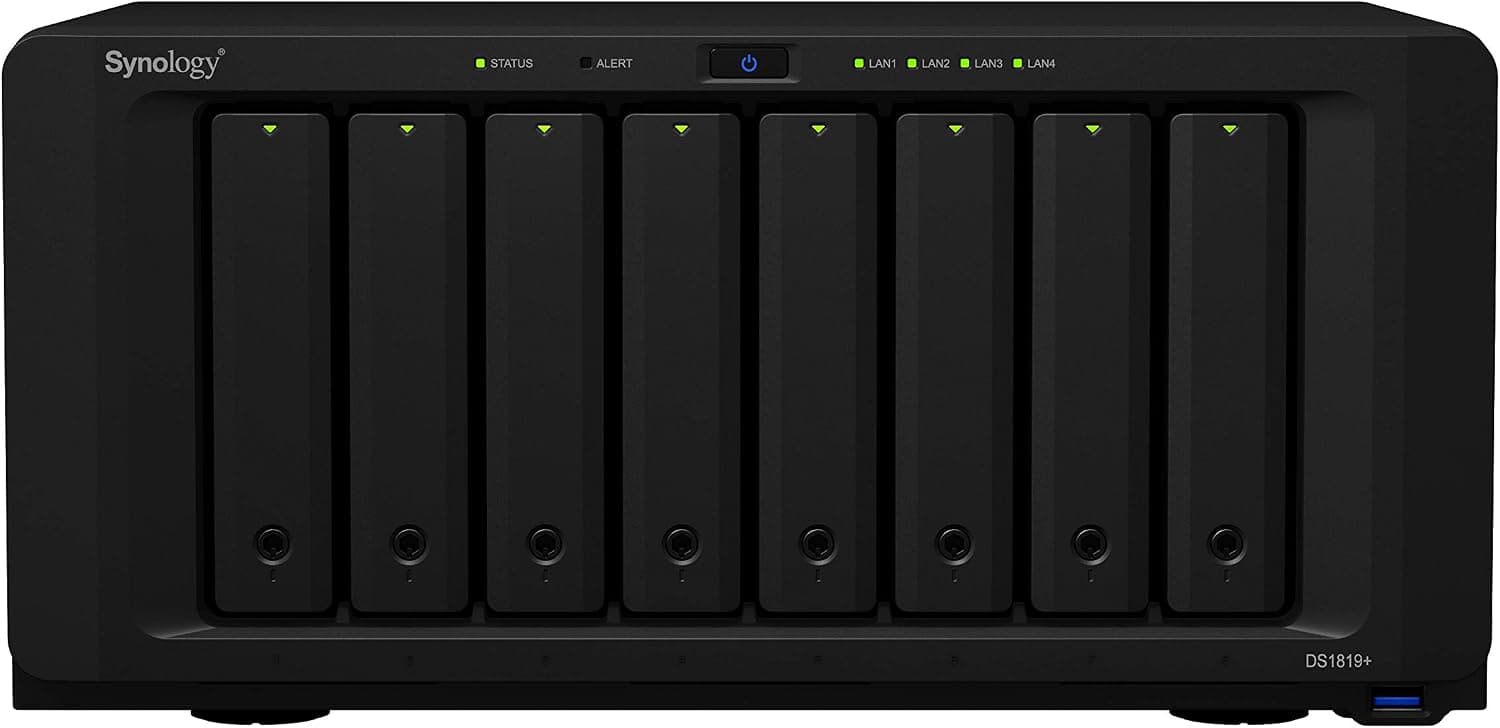
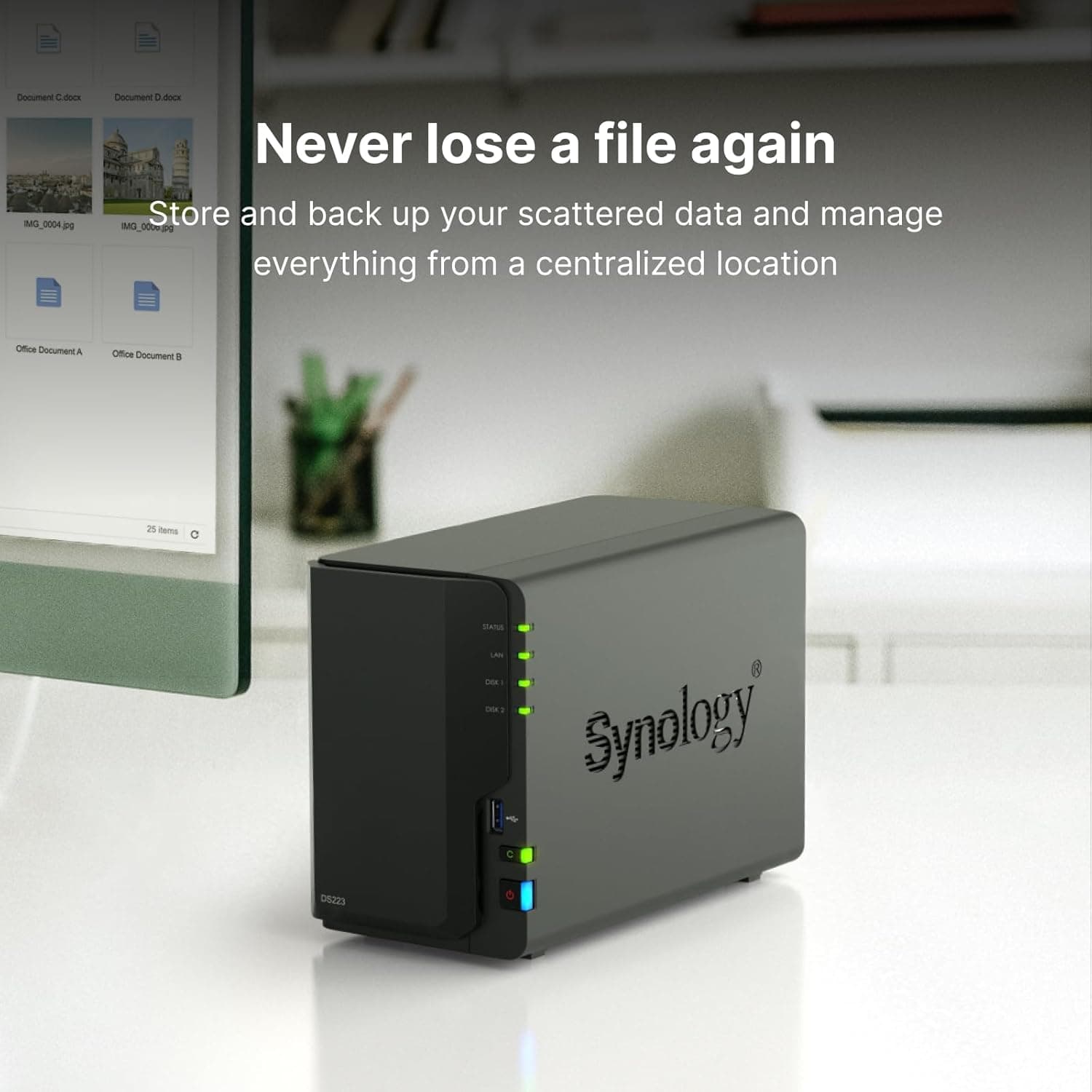
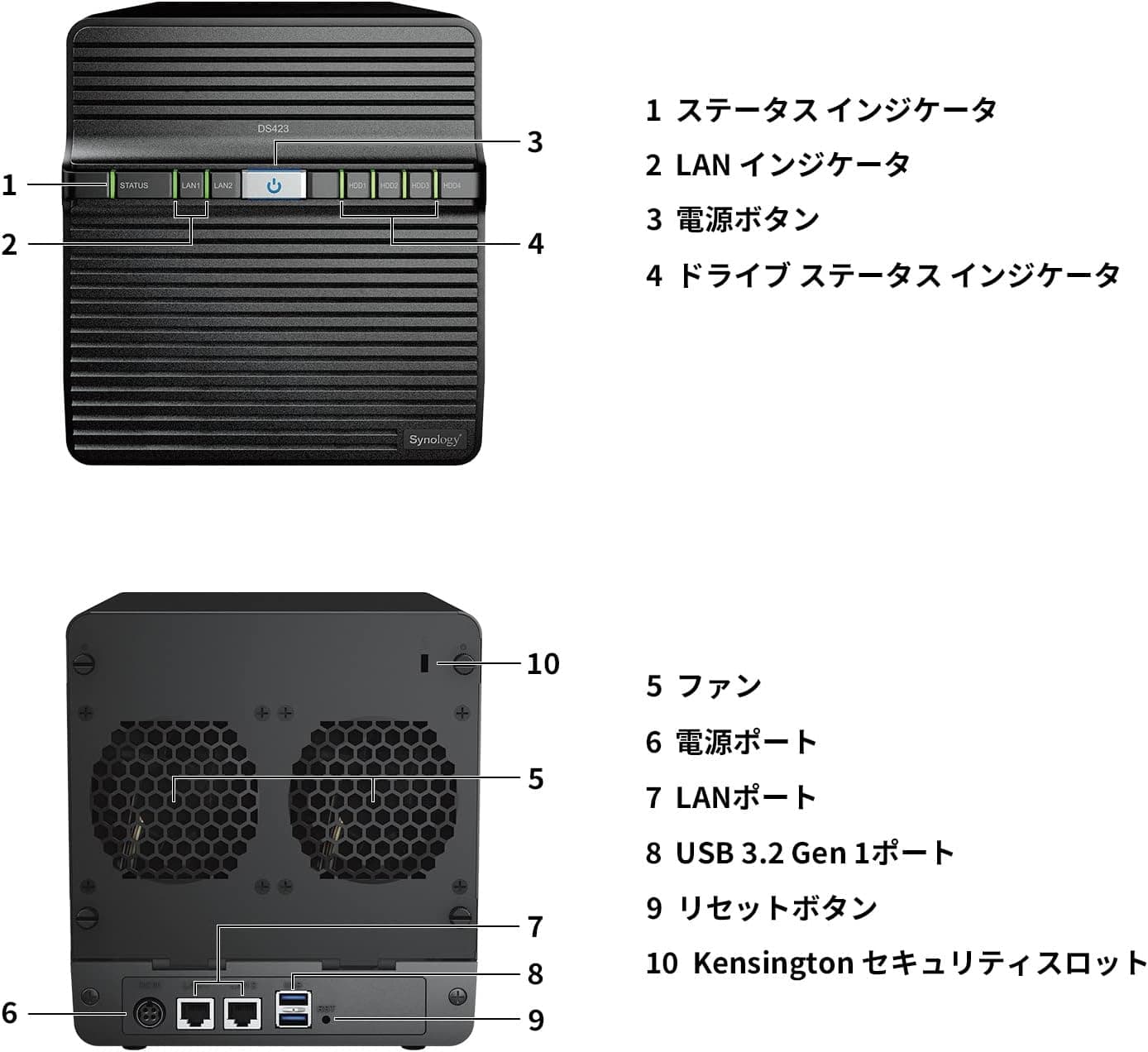
Listing details are sometimes wrong, so use the photos and title to confirm the item is the DS423+ itself.
Consider noise and placement. With four HDDs installed, you will hear drive spin, seek noise, and the fan.
Some people will notice it next to a bed or a quiet desk. Leave space behind the unit so heat can escape.
FAQ
Q. How fast are transfers to a single PC? A.
With 1GbE, expect roughly 100-something MB/s. The listed 226 MB/s applies to two aggregated ports serving several clients at once.
Q. Can I add memory? A.
This article's spec data says no, but Synology's official specs list one free slot and up to 6GB. Check the official page first, and use Synology memory if you upgrade.
Q. Can I build it with SSDs only? A.
Yes, it supports 2.5-inch SATA SSDs.
But 1GbE caps the speed gain, and the cost per terabyte rises sharply. For bulk storage, HDDs make more sense.
Q. Does Plex work? A.
Yes. Direct play runs smoothly, but real-time 4K transcoding to several devices is a weak point.
If streaming is your main use, look at a higher-end model.
Q. Should I choose 2 bays or 4? A.
Two bays are enough for photos and documents that will not grow much. If your data will keep growing, the 4-bay DS423+ with RAID 5 or SHR gives you both better capacity use and redundancy.
Product Disclosure (Amazon)
- Manufacturer: Synology
- ASIN: B0BXMS9GFF
- Note: This article covers a manufacturer-made product based on Amazon listing details.