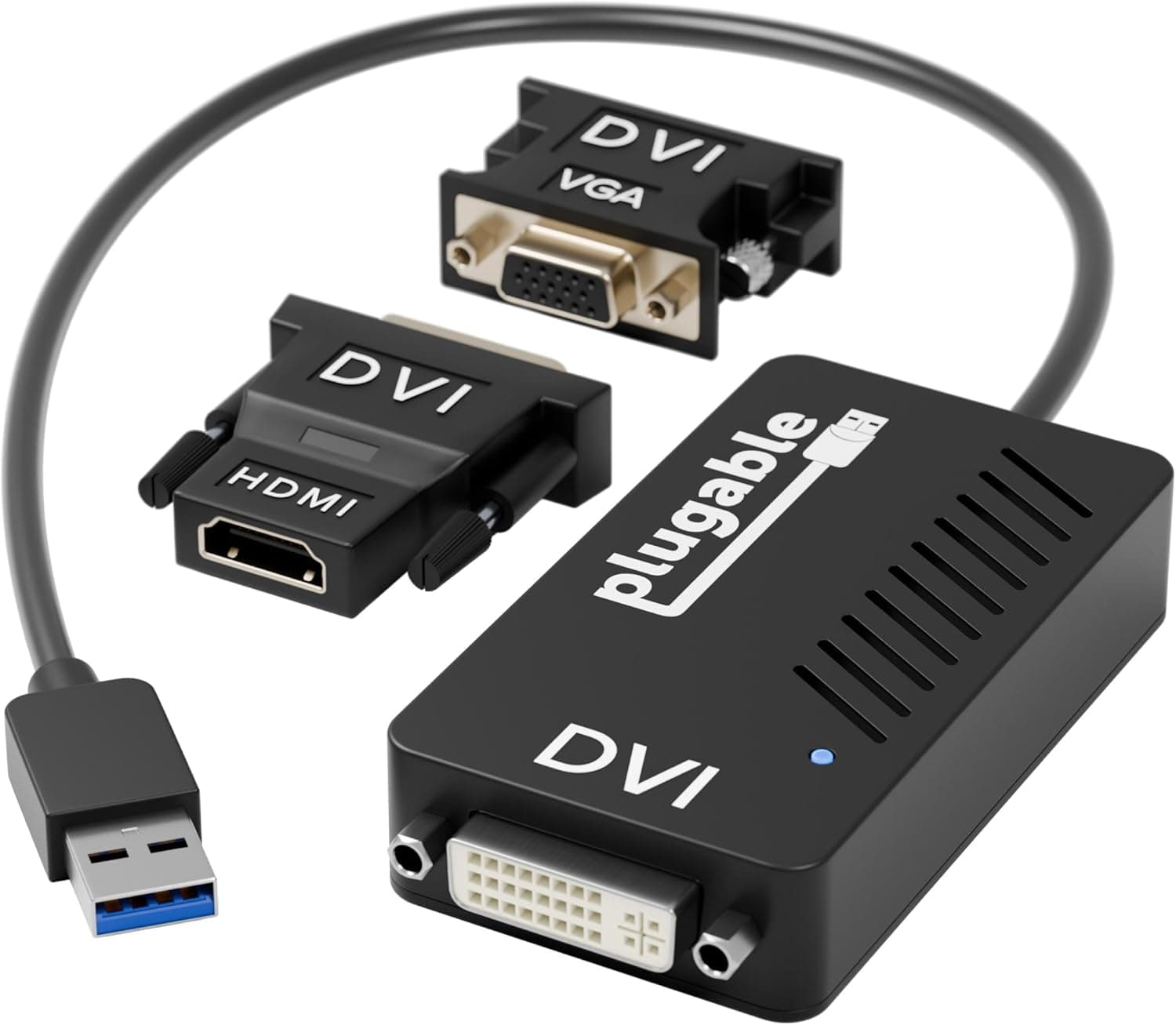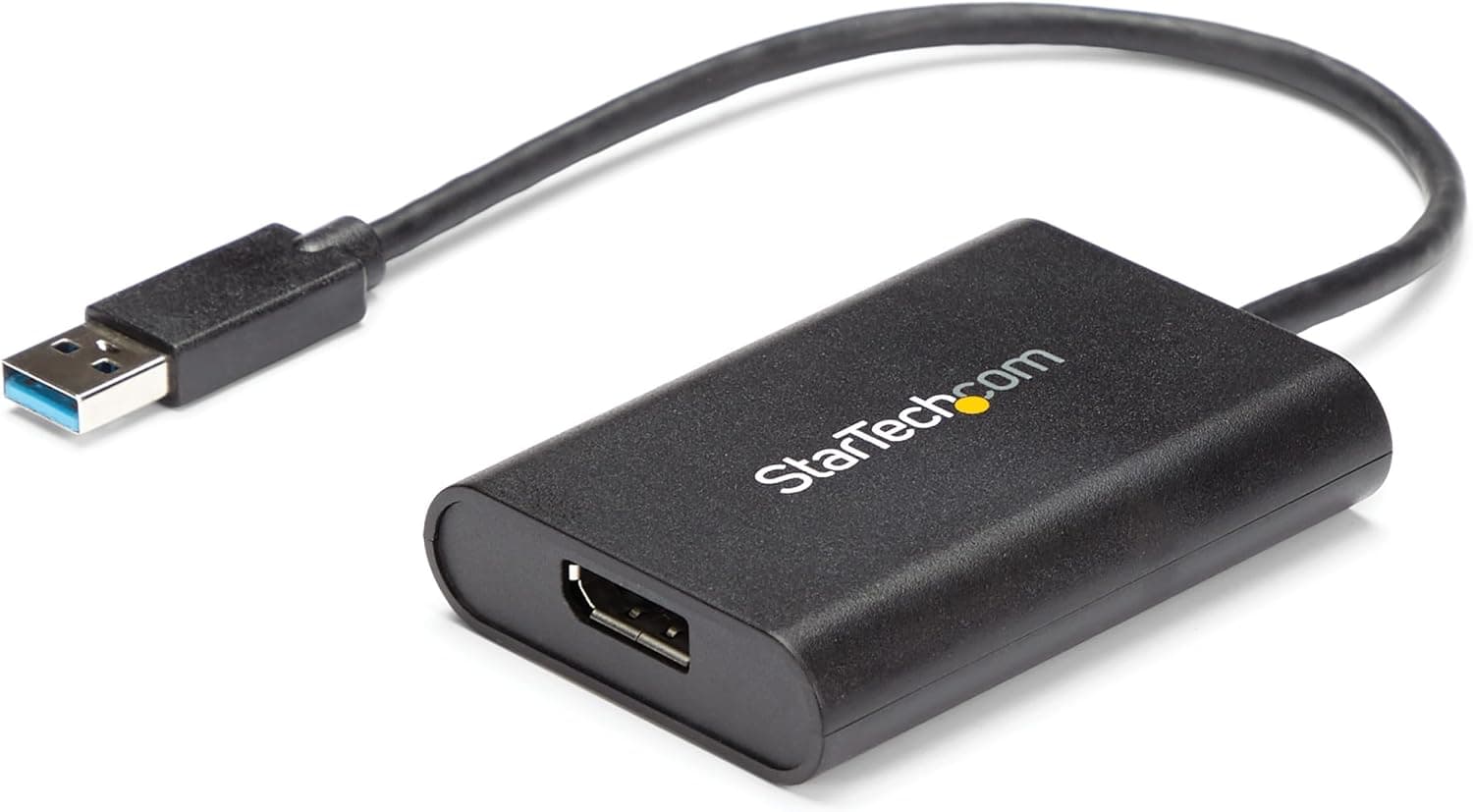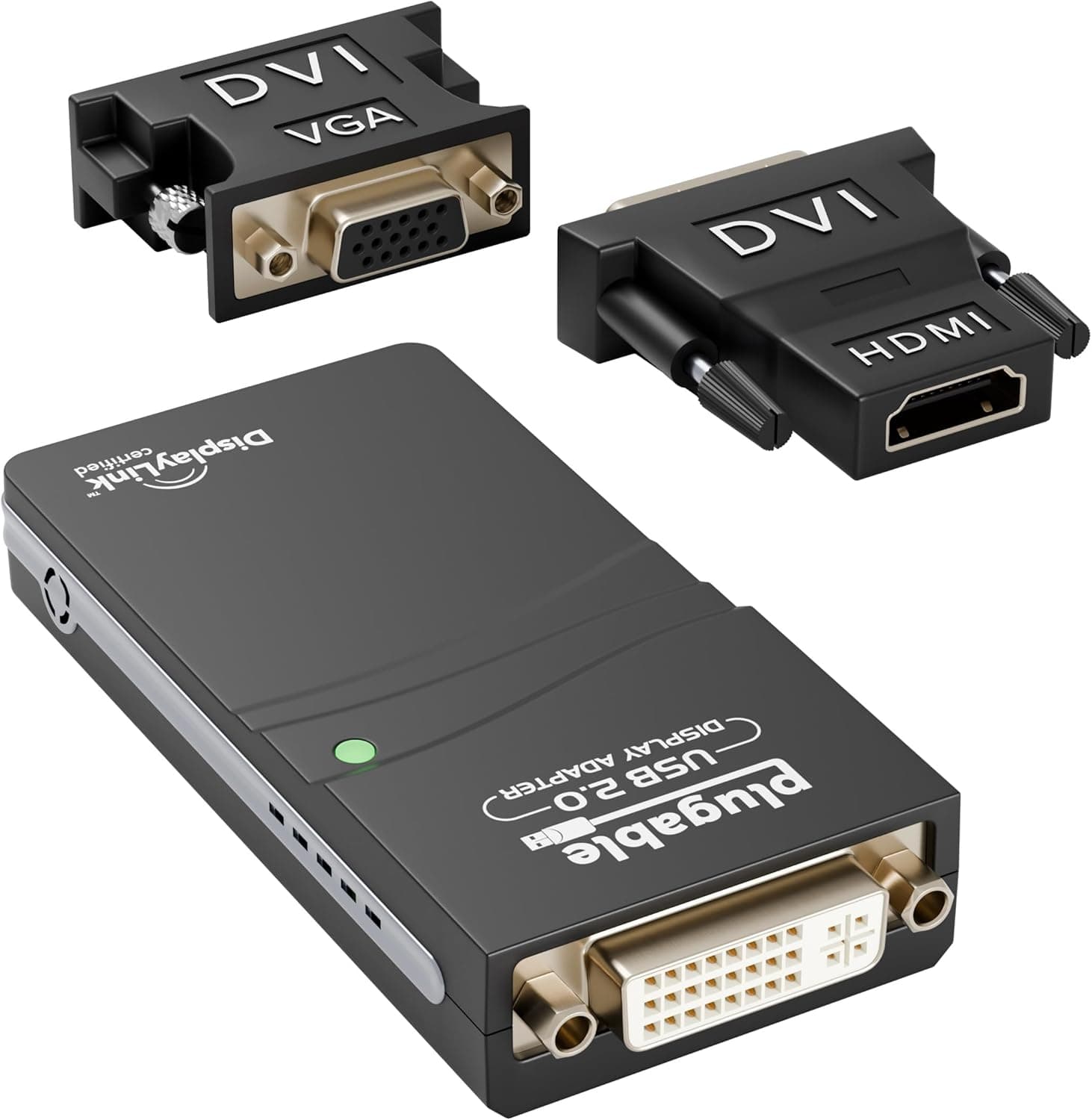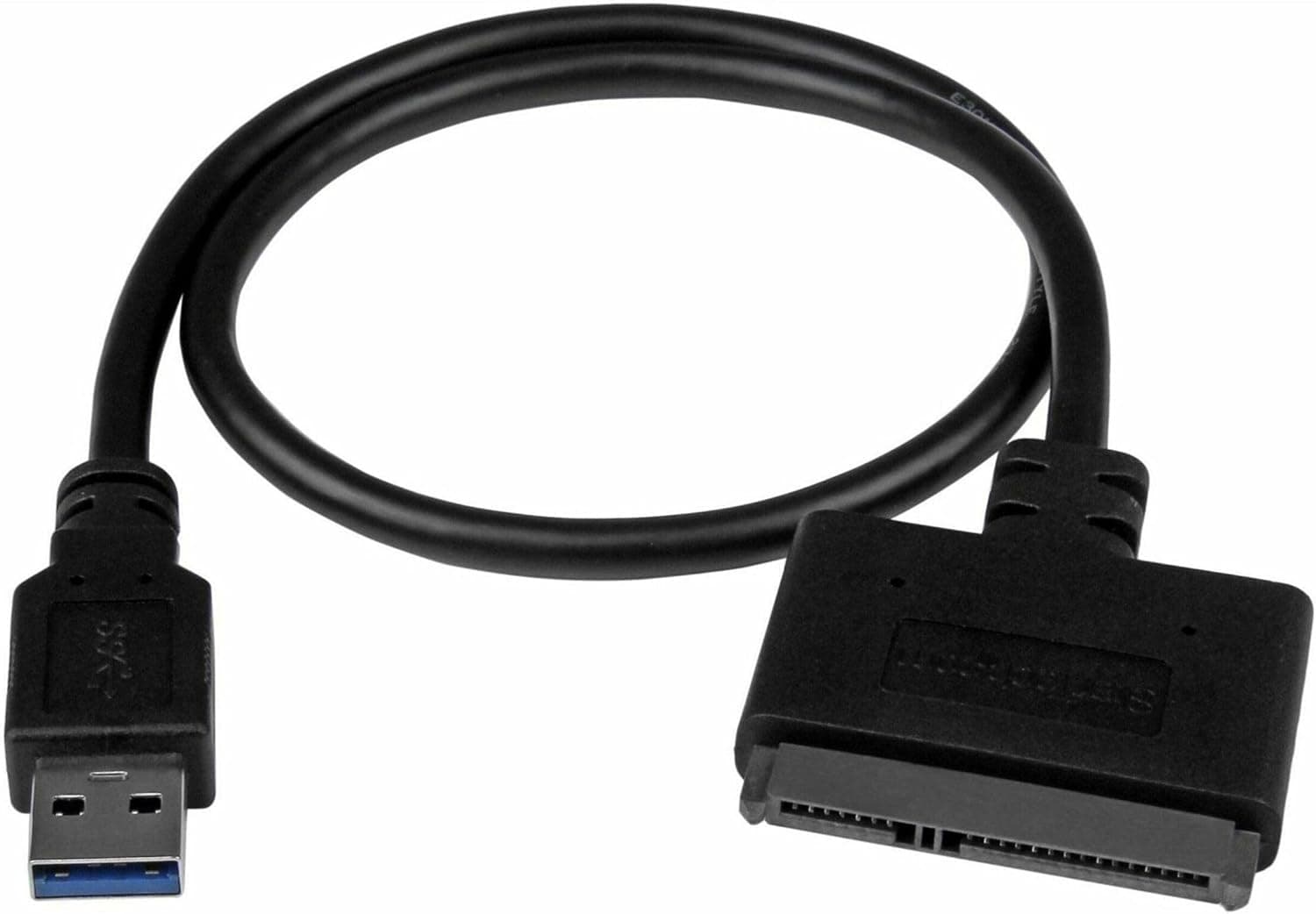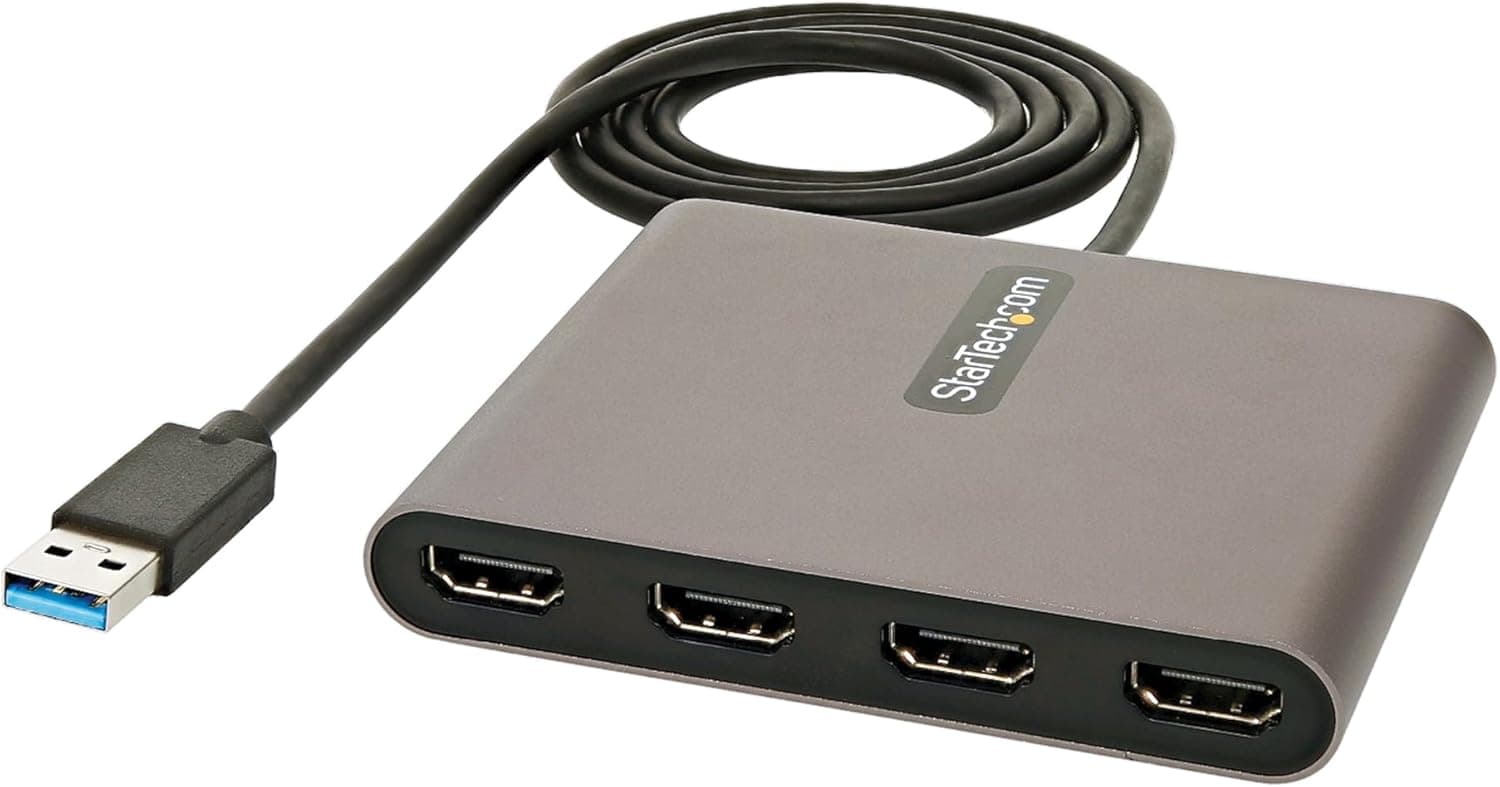
The StarTech USB32HD4 adds up to four HDMI displays from a single USB-A port — five screens total including a laptop's built-in panel. It exists for machines where you cannot add a graphics card.
On Amazon.co.Check the retailer's page for the latest user reviews.
Overview
This is a product for Windows users who want more 1080p work surfaces, not better ones. Each display tops out at 1920×1080 at 60Hz, so 4K or high-refresh use cases are off the table from the start.
The mechanism matters. USB display adapters of this class do not add GPU outputs; they process the screen image on the CPU side and push it over USB.
Static-heavy content — text, spreadsheets, browsers, trading charts — feels fine. Full-screen video and 3D, where every frame redraws entirely, is where latency and dropped frames appear.
Buy it understanding that and you will be happy; buy it expecting a graphics card and you will call it slow.
The unit is palm-sized at 102 x 81 x 15 mm with a captive 1 m USB-A cable, bus-powered so no AC adapter is needed. Colour is space grey.
Reading the Key Specs
| Item | Value | What it means in practice |
|---|---|---|
| Interface | USB 3.2 Gen 1 (USB-A) | A USB 2.0 port lacks the bandwidth |
| Max resolution | 1920×1080 @ 60Hz per display | Not an option for 4K or WQHD |
| Max displays | 4 (up to 5 with the laptop panel) | All four share one 5Gbps link |
| Audio | 2-channel HDMI | Feeds monitor speakers |
| Power | USB bus-powered | Depends on the host port |
| Cable | 1 m, captive | Not replaceable |
| OS support | Windows X86/X64/ARM, Copilot+ PC (Snapdragon X) | No macOS / ChromeOS / Linux |
Row three is the one to internalise: with four monitors attached, four video streams share a single USB 3.0 connection.
Playing video on all four at once is outside the design intent.
Compatibility Guide
Windows only. Beyond X86 and X64, it covers Windows on ARM and Snapdragon X Copilot+ PCs — genuinely uncommon at this price, and a real advantage since ARM Windows machines often lack peripheral drivers.
But macOS, ChromeOS and Linux are unsupported. If you planned to use a MacBook, stop here.
You need a USB 3.2 Gen 1 (USB 3.0) or better Type-A port — look for the blue insert or the SS marking.
On USB-C-only laptops you can add a C-to-A adapter, but if that adapter is only USB 2.0 class, you will get no picture or a stuttering one.
That is the single most common failure with devices like this.
Driver installation requires administrator rights. On a locked-down corporate laptop, plugging it in will do nothing.
Check with IT before buying. Mirror and extend modes are handled by the standard Windows display settings, and the Multi-Monitor Assistant utility is a download.
Because it is bus-powered, host port quality matters. Plug it directly into the PC; bus-powered hubs in between are a common source of instability.
If a hub is unavoidable, use a self-powered one.
Product Info
Check the retailer's page for the latest price.co.jp (ASIN B09BJWGPXR).
Prices move, especially during sales, so confirm the current figure on the product page. Note that the reference data lists the same yen figure under an "Amazon US" label — that looks like a duplicated domestic price rather than a US one, so check a local storefront for dollar pricing.
Few adapters accumulate that many reviews, which at minimum rules out a product plagued by dead-on-arrival units. StarTech.com is a Canadian connectivity manufacturer with a long track record in business-oriented peripherals.
Nothing ships in the box beyond the adapter itself; the software is a download. Whether mid-¥10,000s is expensive depends on the alternative — for a laptop that cannot take a graphics card, there is barely one.
Comparing the Alternatives
- USB display adapter (this product): works on almost any Windows PC, capped at 1080p/60Hz, poor at video and games.
- USB-C / Thunderbolt dock: better image pipeline, but needs DisplayPort Alt Mode on the host and usually tops out at two displays; four-display docks cost more.
- Graphics card outputs: best quality and latency, desktop only.
- DisplayPort MST daisy-chaining: requires monitors that support it, and few do.
Only the USB adapter satisfies all of "laptop", "no monitor-side requirements" and "four displays at once" simultaneously. Relax any one of those and another route gives you better image quality and lower latency.
Best Use Cases
- Remote and information-heavy office work: browser, documents, chat and mail each on their own panel. Text work rarely suffers at 1080p.
- Traders and monitoring desks: multiple charts and feeds side by side is exactly what this device is good at — low redraw volume, and screen count converts directly into productivity.
- ARM Windows / Copilot+ PC owners: few multi-display adapters claim ARM support, which alone justifies a look.
- Meeting rooms and classrooms: bus-powered, captive cable, fast to set up, fine for mirroring to several HDTVs.
- Video editing side panels: good for timelines and tool palettes; keep preview and colour work on a GPU-connected display.
Things to Check Before Buying
Do not buy this for video or gaming. The 60Hz ceiling plus the USB transfer method means latency and dropped frames on constantly-moving content.
Even "full-screen YouTube on a side monitor while I work" may disappoint depending on the machine. Gaming is out of the question.
Windows-only is a heavier constraint than it looks. You may be on Windows now, but if your next machine is a MacBook, this adapter becomes scrap.
Factor that into a multi-year purchase. Likewise, no admin rights means no installation at all.
CPU load is not negligible. Frame processing happens on the CPU, so driving four displays on a low-power laptop chip means more fan noise and shorter battery life.
On the road, use only the panels you actually need.
Reconsider whether 1080p×4 is really the setup you want. One 4K or ultrawide WQHD panel often beats four 1080p ones — no bezels splitting your work, no added latency, driven straight from the GPU.
Unless screen count is the requirement (monitoring, trading, many always-on apps), look at that first.
The 1 m captive cable cannot be swapped. Depending on desk layout it may not reach, or the slack may be a nuisance.
Extend only with a genuine USB 3.0 extension, and keep it short.
One note on the listing itself: Amazon product pages sometimes carry manufacturer, model or compatibility metadata that does not match the actual item. This one is the StarTech.com USB32HD4, but confirm via the product photo and the model number in the title, and verify the OS support list against the manufacturer's own product page before ordering.
FAQ
Q. Will it work with a MacBook?
A. No. macOS, ChromeOS and Linux are all explicitly unsupported. Look elsewhere for Mac multi-display.
Q. Can I connect 4K monitors? A.
They may light up, but output is capped at 1920×1080 / 60Hz per display. If you want to use a 4K panel's resolution, this is not the product.
Q. Can all four screens show different content? A.
Yes. Set extended mode in Windows display settings and each panel becomes an independent desktop.
Mirroring is also available.
Q. Can I game on it? A.
Not practically — both the 60Hz cap and USB transfer latency work against you. Connect gaming displays directly to the GPU.
**Q. My laptop only has USB-C. A. Physically yes with a C-to-A adapter, but that adapter must support USB 3.0 (5Gbps). Cheap USB 2.0-class converters will not work properly.
Q. Do I need a power adapter?
A. No, it is bus-powered. For stability, plug straight into the PC rather than through a bus-powered hub.
Q. Are drivers mandatory?
A. Yes, and installation needs administrator rights. Restricted corporate machines may not allow it.