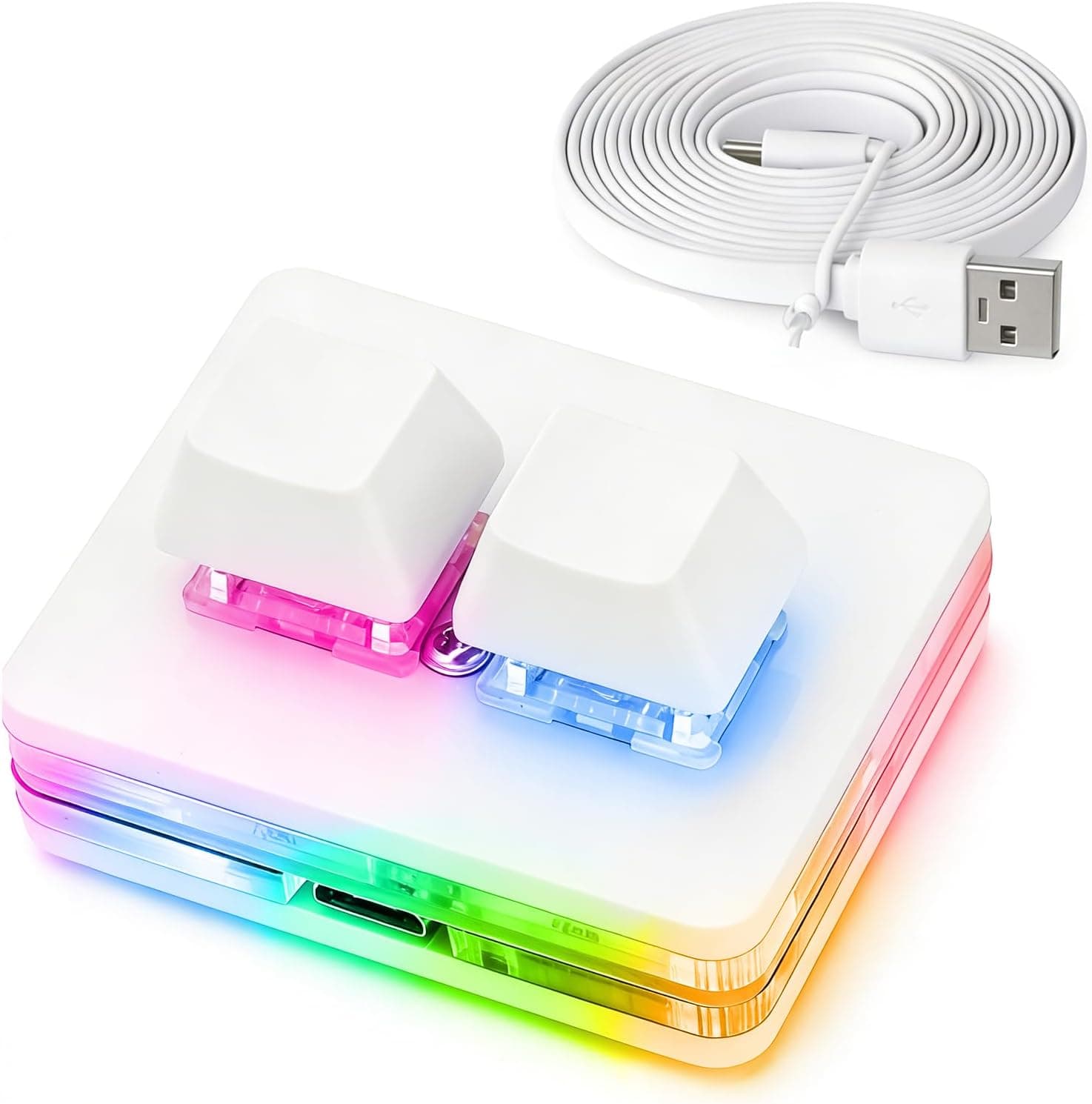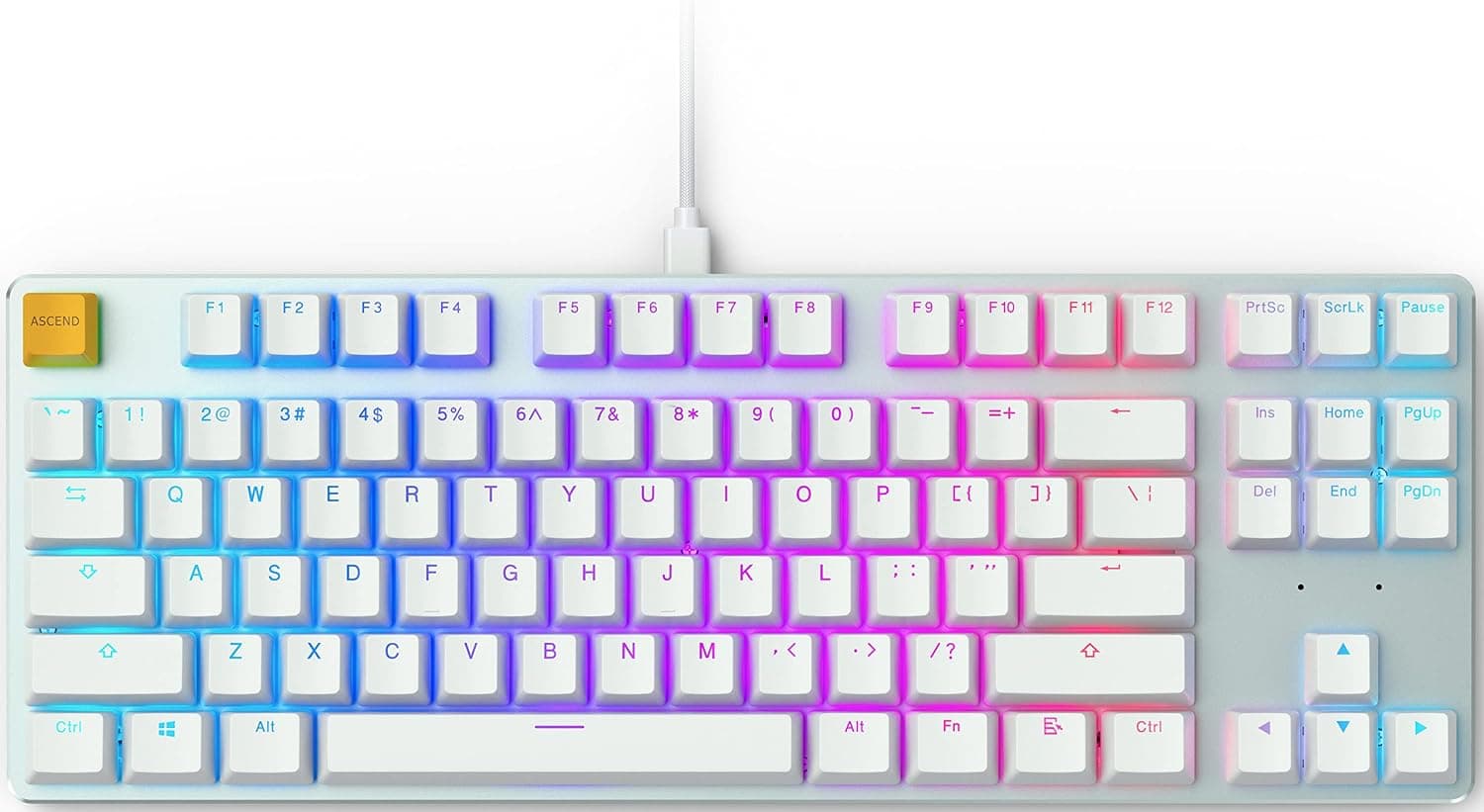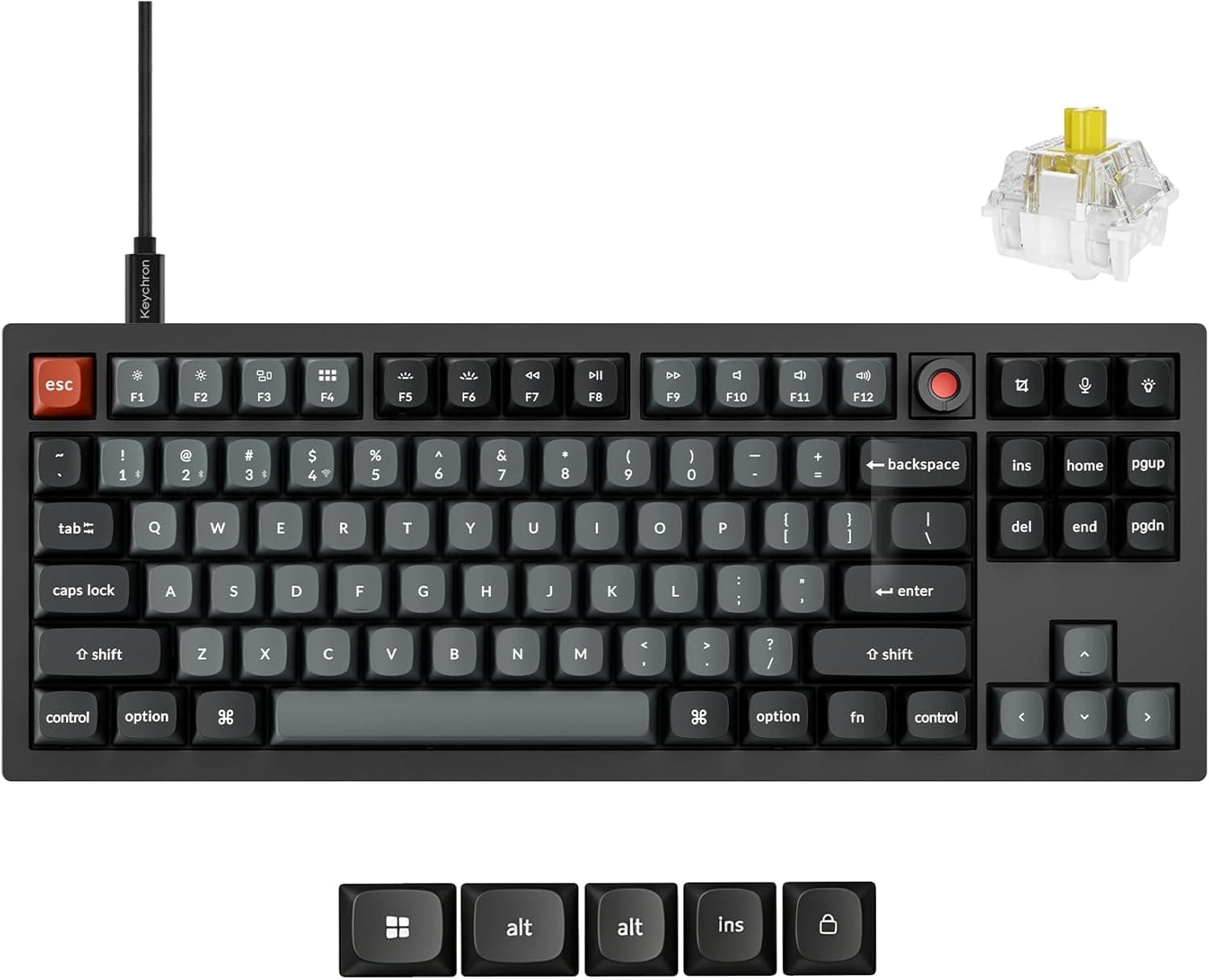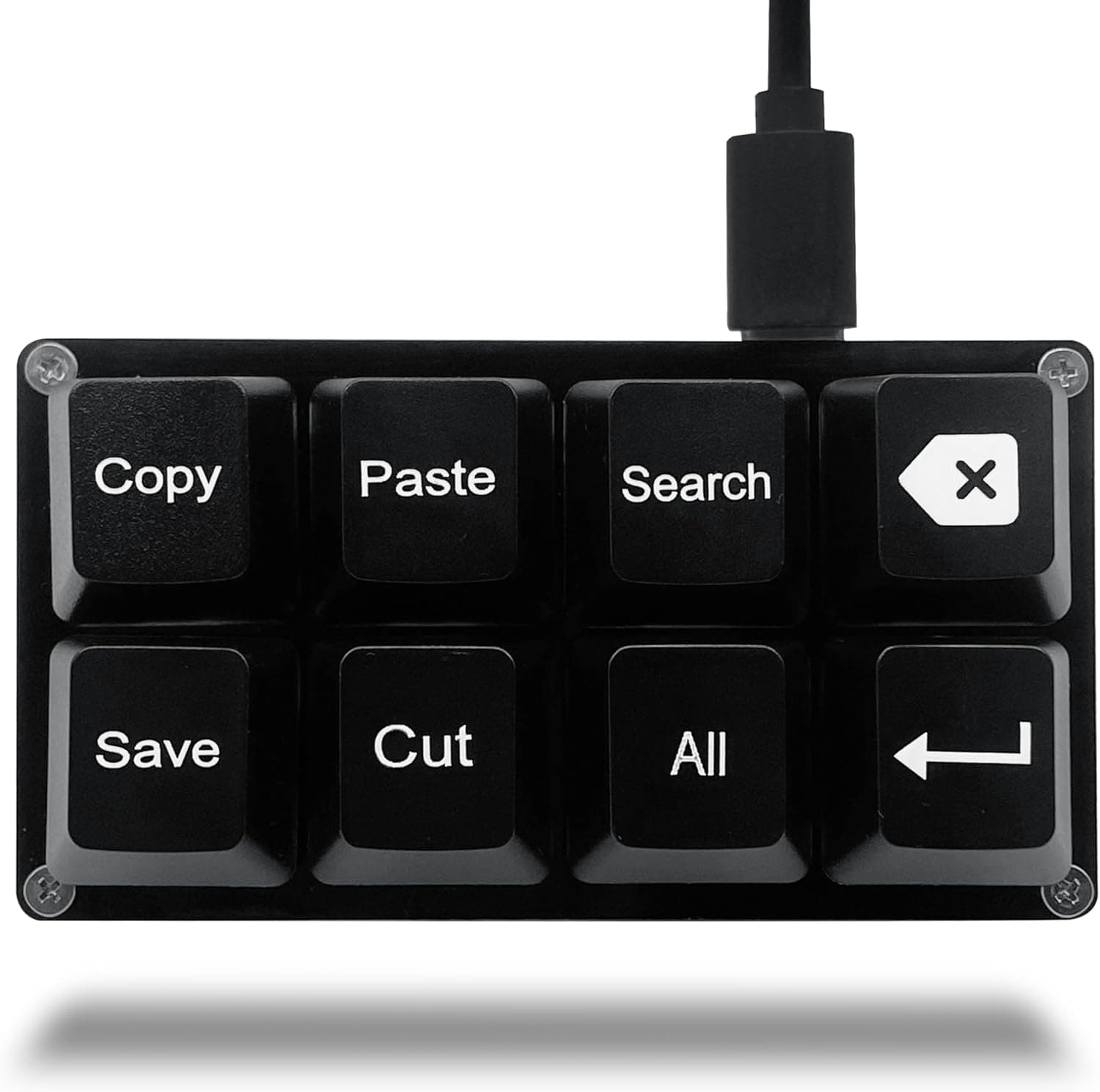
This article is a hands-on buying guide to the Sayodevice OSU キーパッド 8 キー USB コピーペースト 赤軸メカニカルキーボード, including the parts most listings leave out.
Overview
The short version: this is eight extra buttons that live next to your main keyboard. It is meant as a dedicated input device for rhythm games such as OSU!, or as a shortcut pad for copy, paste, save and search — not as a keyboard replacement.
At roughly 81 x 46 x 30 mm it fits in a palm and can sit permanently beside a mouse pad without stealing desk space.
The switches are linear reds. There is no tactile bump or click, so travel is smooth from top to bottom, which suits fast repeated taps on the same key.
The board is hot-swappable, so if the feel is wrong you can change switches without soldering. Hot-swap at this price is unusual and is the single most practical feature here.
Connection is USB-C with a USB-A adapter cable included, and no driver install is required. RGB backlighting is adjustable through a browser-based configuration tool, and the pad ships with common shortcuts already mapped, so it does something useful the moment you plug it in.
Compatibility Guide
Windows, macOS and Linux are all supported. The pad enumerates as a standard HID keyboard, so it is plug-and-play and will not conflict with your existing full-size keyboard — you keep typing normally and reassign only these eight keys.
The friction point is configuration, not connection. Remapping happens only through the manufacturer's web-based tool, with Chrome or Edge recommended.
That restriction is typical of tools built on browser HID/USB APIs; Safari and Firefox may simply fail to see the device. Mac owners who try to configure it in the default browser and conclude the pad is faulty are usually hitting exactly this.
Watch the cable too. The USB-C port is detachable, but a charge-only cable with no data lines will light the LEDs while passing no keystrokes at all.
If it stops working after you swapped cables, put the bundled one back first. Hubs work fine for daily use, but plug directly into the PC when writing keymaps or firmware.
Settings are stored on the device itself. Move the pad to another machine and your layout comes with it — genuinely useful if you cannot install software on a work or shared computer, and a clear advantage over pads that need a resident driver.
Product Info
| Item | Detail |
|---|---|
| Keys | 8 |
| Switch type | Red, linear |
| Hot-swap | Yes |
| Connection | USB-C (USB-A adapter included) |
| Backlight | RGB (single-colour mode available) |
| Dimensions | 81 x 46 x 30 mm |
| OS support | Windows / macOS / Linux |
The captured price on Amazon.co.jp was ¥4,199 as of September 2026.
Prices move with stock and sales, so check the product page for the current figure — the number here is a snapshot, not a promise. Note that the international price field in our source data carries the same yen figure, so effectively only the Japanese price is verifiable.
Check the retailer's page for the latest user reviews. That is a small sample by keyboard standards but enough to read a trend, and the average is high.
With under a hundred reviews, however, unit variance and bad batches hide easily inside the average — read two or three of the negative reviews before deciding, not just the star count.
In the box: a detachable USB-C cable and a quick-start guide. Official warranty terms are thin, so in practice you rely on the retailer's return policy.
Test every key and reseat a switch or two on arrival, while a return is still straightforward.
How It Compares
Three axes matter when choosing a pad: key count, switch technology, and how you configure it. This one is eight keys, mechanical linear reds, browser configuration.
The current competitive alternative is Hall-effect magnetic switches with rapid trigger, which release input the instant the key rises and therefore reset faster. Those cost more and usually drop to two to four keys.
So the niche here is people who do not need rapid trigger but do want eight freely assignable physical keys — usable for macros, shortcuts and stream-deck duties as well as rhythm games. If you are chasing competitive ranks and care most about reset speed, look at a magnetic-switch pad instead.
Best Use Cases
- Entry to mid-level rhythm gamers — linear reds handle repeated taps well, and eight keys cover the usual layouts. A sane price for finding out whether a dedicated pad suits you.
- Office users — offloading copy, paste, save and search means one hand never leaves the mouse, and the default mapping works with zero setup.
- Programmers and creators — build, commit, export or brush switching on one key each; on-device storage helps if you move between machines.
- Streamers — record, mute and scene switching on physical keys cuts live mis-clicks noticeably.
- TKL keyboard owners — usable as a partial numpad, but numbers are not mapped by default and you must configure them.
Things to Check Before Buying
Verify the listing details yourself. In the source Amazon data, the manufacturer and seller fields named a company different from the brand in the title.
Rebadged listings of the same hardware are common in this category, and listing metadata does sometimes contradict the actual product. Rather than print a manufacturer claim we cannot stand behind, we removed that block from this article.
Compare the product photos, title and key layout against what you actually want before ordering.
Web configuration needs an internet connection. No network, no remapping.
Write your layout before travelling, and if the page will not detect the pad, switch to Chrome or Edge before assuming hardware failure.
Light linear switches are easy to trigger by accident. That helps in rhythm games and hurts for shortcuts.
Keep destructive actions like delete off the keys your palm brushes, or use the hot-swap sockets to fit heavier switches.
Eight keys fill up faster than you expect. Piling on layers is the classic failure mode — you forget what is where and stop using the pad.
Map four or five, live with it for a few weeks, then add more.
It is not a keyboard replacement. No text entry, no wireless, and one more cable on the desk.
If your desk has no room to add a device, skip it.
FAQ
Q. Do I need to install software? A.
No. Plug in the USB-C cable and the preset shortcuts work immediately.
A browser is needed only to remap.
Q. Do settings follow the device to another PC? A.
Yes — the layout is stored on the pad itself, so it works the same on a machine where you cannot install anything.
Q. Can I really swap switches myself? A.
Yes, no soldering. Pull the keycap, pull the switch, press in the replacement, and check the pins are straight before seating it.
Q. Does it work on a Mac?
A. It does. The configuration page prefers Chrome or Edge, though, and Safari may not detect it.
Q. Can it replace a numpad? A.
Not fully — eight keys cannot hold 0–9. Mapping a few frequently used digits is realistic; heavy numeric entry deserves a real numpad.
Q. How is it rated?
A. Small sample, so read the negative reviews too.