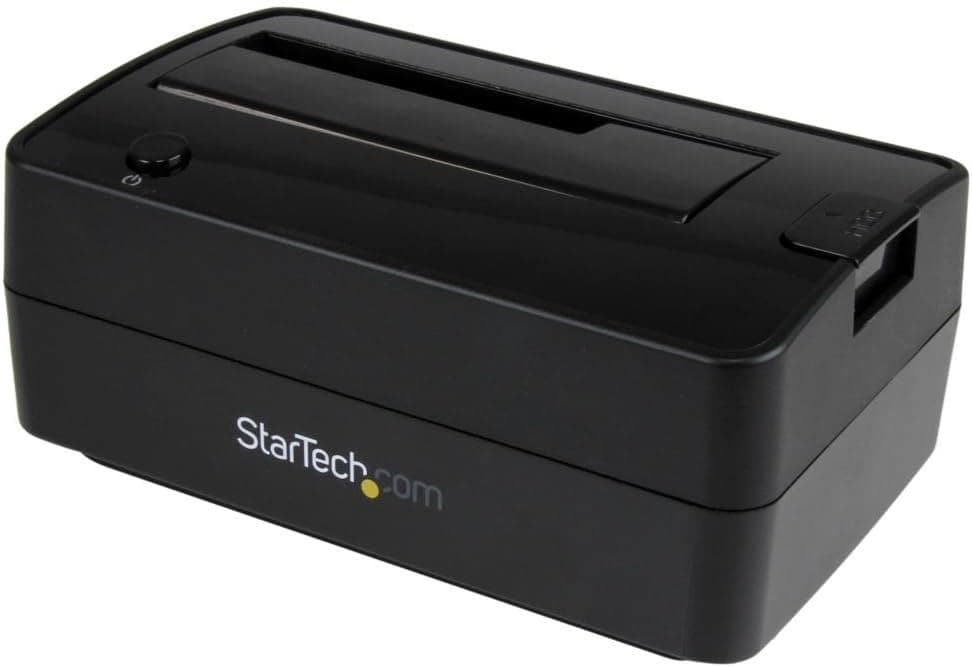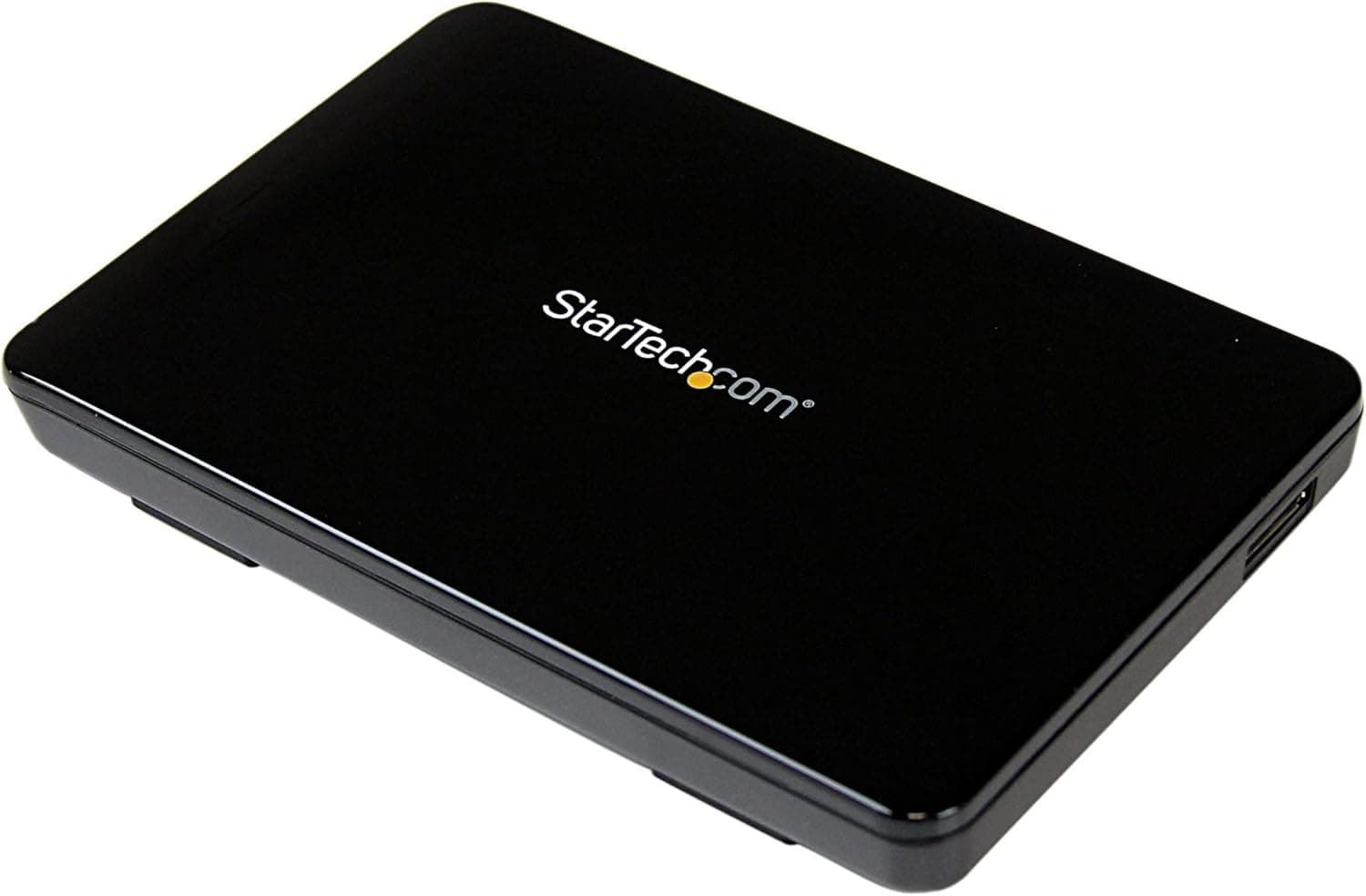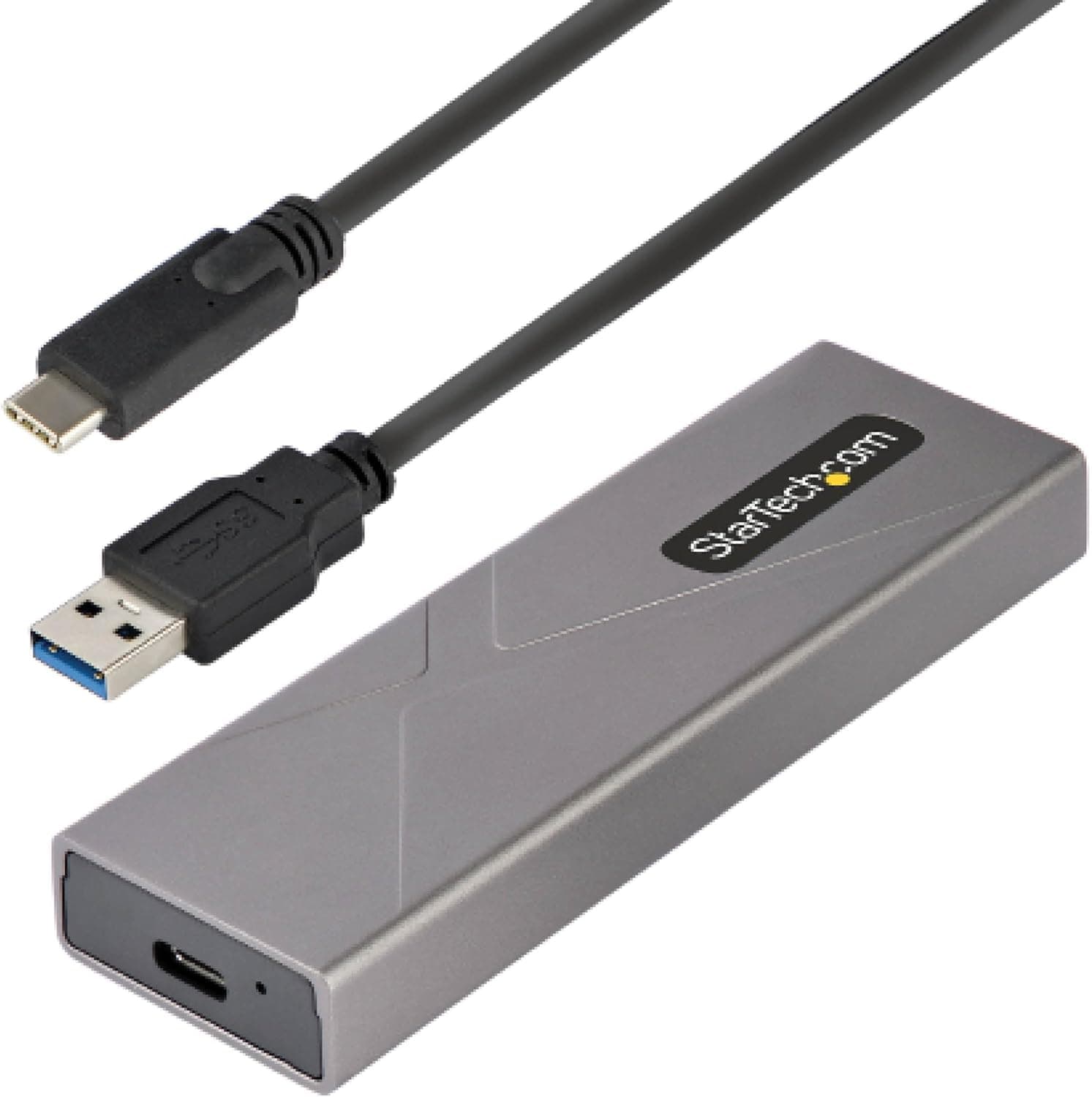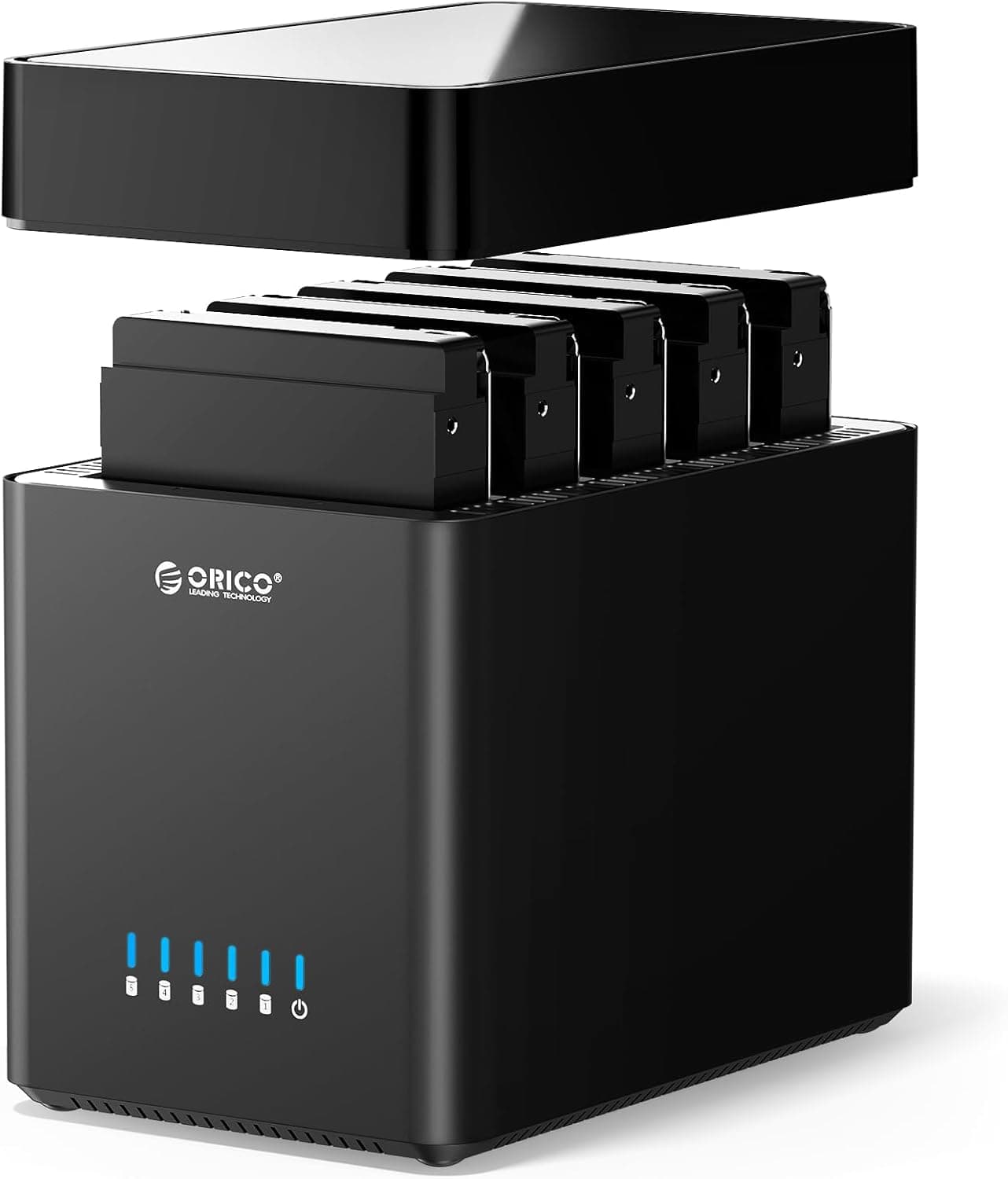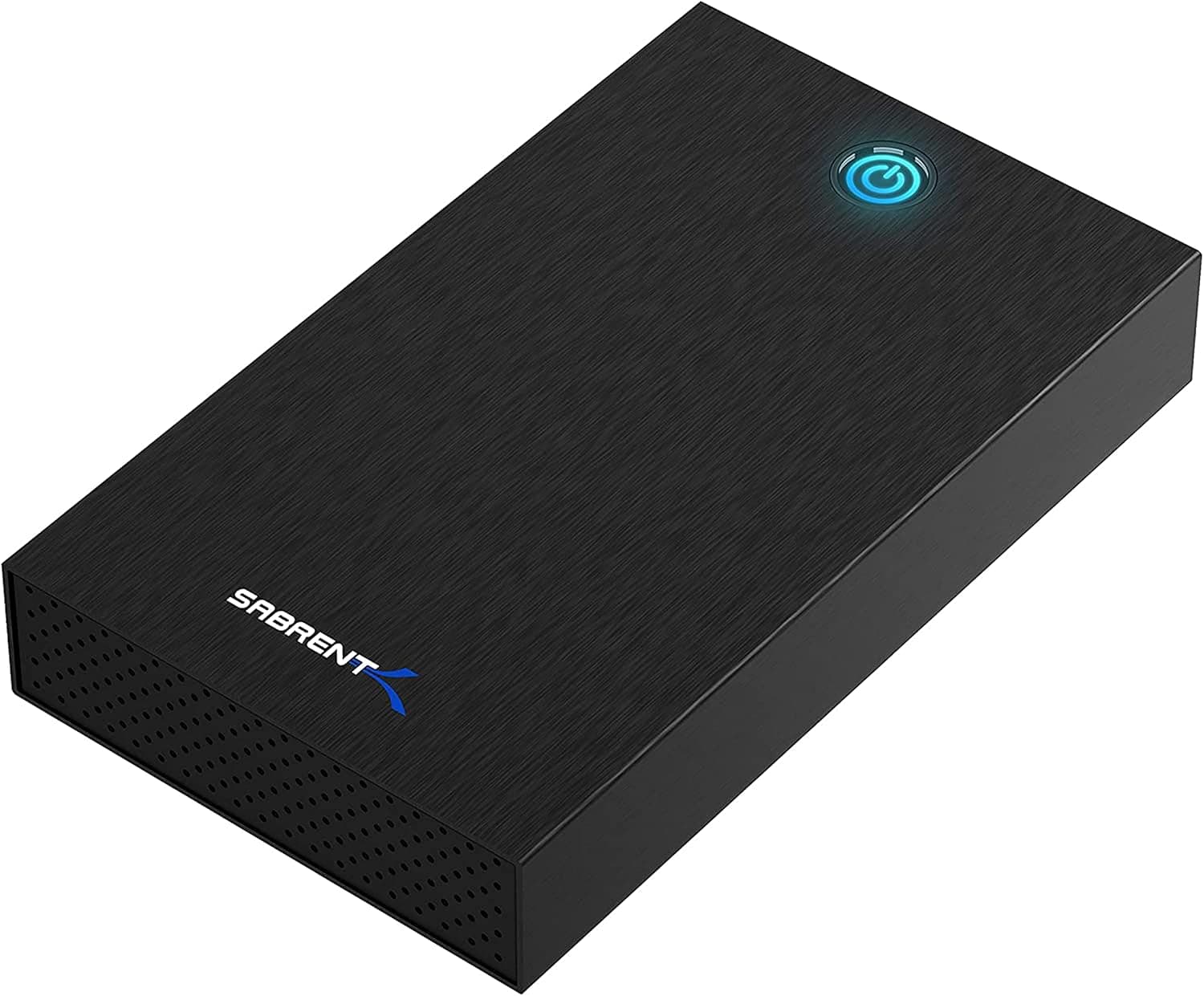
SABRENT HDD・SSD外付けケース 3.5 (model EC-KSL3) is a tool for turning a spare internal drive into external storage.
This article covers what fits and what does not, where the speed ceiling actually sits, and the pitfalls people only notice after buying.
Overview
The SABRENT EC-KSL3 is a desktop enclosure that converts 2.5-inch and 3.5-inch SATA internal drives into USB 3.0 external storage.
An aluminium shell is paired with a shock-absorbing ABS disk tray, and the push-button lid means drives go in and out without tools. No driver installation is needed: Windows, macOS and Linux all recognise it through the USB mass storage class.
Its position is clear. This is not a replacement for buying a new portable SSD; it is a way to get value out of a drive you already own.
On Amazon.co.Check the retailer's page for the latest user reviews.
Prices move with sales and stock, so check the listing before ordering.
| Use case | Fit | Why |
|---|---|---|
| Pulling data off a removed internal HDD | Excellent | The enclosure is the only added cost |
| Weekly or monthly backups | Excellent | Power it on only when you use it |
| Running a SATA SSD at full speed | Fair | USB 3.0 hits its ceiling first |
| Always-on shared storage | Poor | No active cooling, no networking |
| Housing an M.2 NVMe SSD | Poor | SATA drives only |
As the table shows, the value here is not speed. It is getting one more drive bay for very little money.
Frame it that way and the satisfaction-per-yen is high.
Compatibility Guide
It accepts 2.5-inch and 3.5-inch SATA III internal drives, and older SATA I/II drives work through backward compatibility.
Maximum supported capacity is 20TB. The link is USB 3.0 SuperSpeed; USB 2.0/1.1 ports will still mount the drive, but throughput collapses (USB 2.0 tops out near 60MB/s in theory, under a tenth of USB 3.0).
Power is the first physical thing to check. A 3.5-inch drive needs 12V to spin its motor, so the bundled AC adapter is mandatory.
A 2.5-inch drive normally runs on USB bus power, but a thirsty unit, a hub, or a long extension cable can starve it into unstable detection.
Plug straight into the PC, or add the adapter, if that happens.
Three drive-side gotchas are easy to miss:
- Initialise anything over 2TB as GPT. Left as MBR, the volume stops at 2TB and the remainder sits unallocated. Watch the partition style when you initialise in Windows Disk Management.
- 15mm-thick 2.5-inch drives may not fit. The 2.5-inch format comes in 7mm, 9.5mm and 15mm heights, and the 15mm bodies common to high-capacity models can be too tall for the tray. Measure before you buy.
- White-label drives shucked from external HDDs need care. Some of them treat pin 3 (3.3V) of the SATA power connector differently and will not spin up in a generic enclosure. Check first if your drive came out of a retail external case.
All three operating systems work driver-free, but the file system choice depends on use. NTFS for Windows only, APFS or HFS+ for Mac only, exFAT if both must read and write.
macOS mounts NTFS read-only by default, which catches people out when they carry a Windows-formatted drive over to a Mac.
Product Info
The headline specs: USB 3.0 SuperSpeed interface (USB 2.0/1.1 compatible), up to 625MB/s transfer depending on the drive, support for 2.5-inch and 3.5-inch SATA HDDs and SSDs, a 20TB capacity ceiling, an aluminium chassis with an ABS disk tray, tool-free push-button installation, and driver-free operation on Windows, Linux and macOS.
In the box are a USB cable, the power adapter used for 3.5-inch drives, and a manual.
Check the retailer's page for the latest price.co.jp as of 2026-05-27.
Excluding the drive itself, that is the entire outlay, an order of magnitude below buying a finished external HDD or portable SSD of the same capacity. That is a large sample for an accessory at this price, and it reads less like a lottery on build quality and more like a product whose rating depends on whether the buyer's use case matched it.
Warranty terms vary by seller and date, so read the listing.
One caution: overseas marketplace listings sometimes carry figures that do not line up with the domestic price at all. Those entries often point at a different product or a bundle even when the model number looks identical, so treat the domestic listing as your price reference.
Where The Speed Ceiling Sits
The quoted 625MB/s is simply USB 3.0 (5Gbps) converted to bytes.
Protocol overhead means you never see that number in practice. What matters more is that the bottleneck usually sits in the drive, not the bus.
A 3.5-inch HDD sustains roughly 150-250MB/s on its outer tracks.
So long as you put a hard drive in, USB 3.0 almost never gets in the way.
Put a SATA SSD in (typically rated around 550MB/s) and the bus hits its ceiling before the drive does, so you will not match internal performance. That does not make it pointless, as random access, silence and shock resistance all improve, but going in expecting SSD-class sequential numbers leads to disappointment.
File layout matters just as much for perceived speed. Copying hundreds of thousands of small files to a hard drive drops throughput to single-digit MB/s because of seek time.
That is almost always the reason a photo or document backup appears stalled, and packing the files into an archive first changes the elapsed time dramatically.
Alternatives Compared
- A finished portable SSD — Choose this if you need portability, shock resistance, a warranty and a cable in one package. It costs more, but there is no compatibility homework.
- An M.2 NVMe enclosure — If your spare drive is an M.2 SSD, this product physically cannot take it. You need an NVMe enclosure instead.
- A NAS or NAS expansion unit — If the requirement is always-on operation, multiple drives or redundancy, an external enclosure will not stretch that far. A NAS is safer and cheaper in the end.
- A two-bay docking station — If you want two drives mounted at once for cloning, step up to a dock. This one holds a single drive.
Setup Steps
- If the drive already holds data, confirm what you need off it first.
A mistaken initialise is not reversible. 2.
Open the tray and seat the SATA connector fully. Never force it in at an angle.
For a 3.5-inch drive, connect the AC adapter, then run the USB cable to a USB 3.0 port (look for the blue connector or the SS marking).
For a blank drive, bring it online in Windows Disk Management, initialise as GPT, then create a partition.
On macOS, use Disk Utility. 5.
Always eject or unmount before cutting power. Pulling power mid-write is a direct route to a corrupted file system.
Recommended Users
- Anyone with a spare internal HDD or SSD — The enclosure alone adds a drive to your setup. As a second life for the drive left over after a PC upgrade, nothing beats it on cost.
- Anyone doing weekly or monthly backups — Powering the drive only when in use also keeps it out of reach of ransomware and host-side failures that hit permanently connected storage.
- Anyone who swaps drives often — The tool-free push-button lid suits testing, sorting and repeated swaps.
Before You Buy
Do not use it as always-on storage. There is no fan; cooling relies on passive dissipation through the aluminium shell.
Leave a 7200rpm high-capacity HDD powered through a hot summer and it will spin for long stretches at a higher temperature than it would inside a PC. For backup work, powering up only when needed matches how the product is designed.
SMART and TRIM may not pass over USB. Depending on the USB-to-SATA bridge, health tools cannot read temperature or power-on count.
The same applies to TRIM on an SSD. If you need rigorous long-term health management, use an internal connection or an enclosure that explicitly advertises TRIM support.
How far this unit passes through cannot be determined from the published specs, so no guarantee is possible.
The AC adapter is a lifeline. For 3.5-inch use, losing it takes the whole enclosure out of service.
Substituting a generic adapter with the wrong voltage, polarity or current rating can destroy a drive, so verify the specification carefully if you ever need a replacement.
One enclosure is not a backup strategy. Original and copy sitting on the same shelf in the same house are lost together in a fire, a theft or a fall.
Keep a second copy on another medium or in the cloud. Drives left in long-term storage should also be powered up a few times a year to confirm they still read.
Listing details do not always match the product. Manufacturer fields, model numbers and overseas marketplace prices are not always consistent with what actually ships.
Before ordering, confirm the product image, the title and the stated drive sizes (2.5/3.5-inch) yourself.
A 3.5-inch-only model and a dual-size model are different products, so this check is worth the ten seconds.
FAQ
Q. Can I install an M.2 NVMe SSD?
A. No. It takes SATA 2.5-inch and 3.5-inch drives only. An M.2 SSD needs a dedicated NVMe enclosure.
Q. Can a 3.5-inch HDD run on the USB cable alone? A.
No. The bundled AC adapter is required for 3.5-inch drives.
A 2.5-inch drive normally runs on USB bus power.
Q. Does it work on a Mac? A.
Yes, with no drivers. But macOS cannot write to NTFS by default, so format as exFAT if the Mac needs write access, or APFS/HFS+ for Mac-only use.
Q. Will it recognise an 8TB or 16TB drive? A.
The spec supports up to 20TB. Initialise anything above 2TB as GPT, or you will only be able to use 2TB of it.
Q. Can I move the drive back inside a PC later? A.
Yes, for a normal format with no hardware encryption involved. Being able to recover the data even if the enclosure dies is a real advantage of this approach.
Product Disclosure (Amazon)
- Manufacturer: SABRENT
- ASIN: B08J5SLTJX
- Note: This article covers a manufacturer-made product based on Amazon listing details.