This article reviews the Phone USB Memory 128GB — 4-in-1 Flash Drive for iOS, Android, PC & Mac (Japanese listing title: Phone用USBメモリ128GB【アプリ不要】4in1 外付けメモリ USB3.0写真・動画保存 iOS・Android・PC・Mac対応銀).
It covers the real speed of each connector, how to use the drive on iPhone and Android, and the pitfalls worth knowing before you buy.
Overview
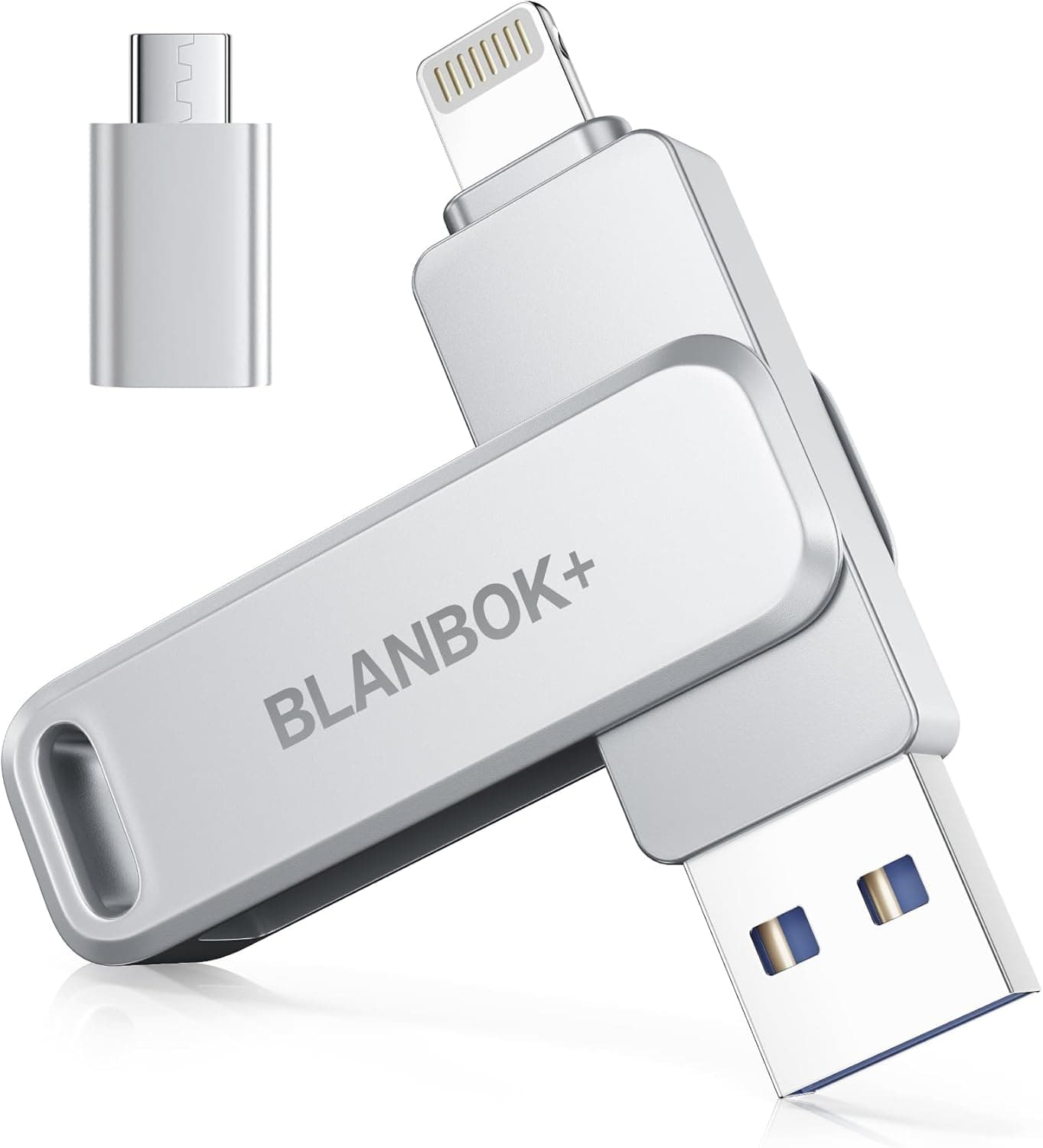
The Lijunga Phone USB Memory 128GB is a flash drive with four connectors in one body: Type-C, USB-A, Lightning, and Micro USB. It offers 128GB of storage over a USB 3.0 interface.
Its main selling point is moving files between iPhones, Android phones, and PCs without installing a dedicated app. The housing is metal, and the listed warranty is 18 months.
In short, this drive is worth buying because it plugs straight into almost anything, not because it is fast. It suits households that mix Lightning and USB-C devices, people who swap photos between a phone and a PC, and anyone who wants to free up phone storage without paying for more cloud space.
However, the claimed read speed is questionable, and some connectors limit the drive to USB 2.0 speed.
That makes it a poor fit for moving large batches of 4K video often.
Because files move directly without the cloud, you do not need to worry about network coverage or mobile data usage. The sections below explain which connector works with which device and where you will have to compromise.
Compatibility Guide
The four built-in connectors let you plug into many devices without adapters. According to the product data, it supports the iPhone 15/16/17 series, iPad, Android phones, Windows PCs, and Macs.
The Lightning plug is for iPhone 14 and earlier, Micro USB is for some Android devices, and the drive ships formatted as exFAT.
The key point is that real transfer speed depends heavily on which connector you use. You only get USB 3.0 speed when the host device also supports USB 3.0 or faster.
| Connector | Typical hosts | Expected speed |
|---|---|---|
| Type-C | iPhone 15/16/17, iPad, Android phones, Mac, Windows laptops | Depends on the host; standard iPhone 15/16 models run at USB 2.0 speed |
| USB-A | Desktop PCs, laptops | Up to 5 Gbps (theoretical) on a USB 3.0 port |
| Lightning | iPhone 14 and earlier, older iPads | USB 2.0 class (480 Mbps theoretical max) |
| Micro USB | Some Android phones, tablets, e-readers | Usually USB 2.0 class |
The iPhone's Lightning port only supports USB 2.0 speed.
So even though the drive is USB 3.0, the phone's port sets the speed limit whenever you use Lightning.
Among USB-C iPhones, the standard iPhone 15 and 16 models also run at USB 2.0 speed; only the Pro models support USB 3 speed.
On a PC, you need a USB 3.0 port (often blue inside) to get the faster speed.
File System (exFAT) Compatibility
Windows, macOS, iOS/iPadOS, and recent Android versions can all read and write exFAT, and it handles video files larger than 4GB. However, older Android devices, e-readers, and some home appliances or game consoles may not support exFAT.
Reformatting to FAT32 may make the drive readable on them, but FAT32 limits each file to 4GB. Remember that reformatting erases everything on the drive.
Android Requirement: USB OTG
To use the drive on Android, your phone must support USB OTG, the feature that lets a phone recognize connected accessories. Nearly all recent phones support it.
On some brands, though, you must turn OTG on in settings, and it switches itself off again after a period of inactivity. If nothing happens when you plug the drive in, check this setting first.
How to Read the 5 GB/s Claim
The product data lists a claimed read speed of 5 GB/s. But USB 3.0 (USB 3.2 Gen 1) tops out at 5 Gbps, meaning 5 gigabits per second, which works out to about 625 MB/s in theory.
A speed of 5 GB/s (gigabytes per second) is roughly eight times that ceiling, so no drive using this standard can reach it.
Most likely, the interface's 5 Gbps maximum was copied in as the read speed. The listing does not reveal the actual read and write speeds.
Budget multi-connector drives in this price range usually run well below the interface limit. If speed matters to you, check whether reviews on the product page report measured speeds.
In everyday use, a few hundred photos or short clips transfer quickly enough even over Lightning at USB 2.0 speed.
The speed gap only starts to matter when you move tens of gigabytes of video at once.
Product Info
As of September 23, 2026, the price on Amazon.co.jp was ¥3,699.
Prices change with sales and stock levels, so check the product page for the current price before buying. That is a typical entry-level price for a 128GB drive with four connectors.
On the same date, the drive had 19 Amazon reviews with a 5.0-out-of-5 rating.
The score is perfect, but 19 reviews is too few to judge durability or unit-to-unit variation. Until more long-term reviews appear, treat the rating as a sign that early buyers are happy, nothing more.
| Item | Detail |
|---|---|
| Capacity | 128GB |
| Interface | USB 3.0 |
| Connectors | Type-C, USB-A, Lightning, Micro USB |
| Read speed (claimed) | 5 GB/s (questionable, see above) |
| Housing | Metal |
| Warranty | 18 months |
| Factory format | exFAT |
The listing says a storage case and a Japanese instruction manual are included. Package contents can change over time, so confirm them on the product page.
This is an entry-level multi-connector USB drive for smartphone users. Because you can use it directly from the iPhone Files app or an Android file manager without extra software, it is easy to start with even if you are not tech-savvy.
How to Use It (iPhone, Android, PC)
iPhone and iPad
When you plug the drive in, it appears under Locations in the built-in Files app. To save photos, select them in the Photos app, open the share menu, choose Save to Files, and pick the drive.
To bring files back to the iPhone, open the image or video in Files and choose Save Image or Save Video from the share menu.
Selecting thousands of photos at once can take a long time and may look as if it has frozen. Moving a few hundred at a time, by month or by album, is more reliable.
Also, iPhone photos are saved as HEIC by default, and Windows may need an extension to open them.
Android
When you plug it in, a USB drive notification appears, and you can read and write files with a file manager such as Files by Google. If nothing happens, check the OTG setting described above.
PC and Mac
Plug in using either USB-A or Type-C, and the drive is recognized as a normal USB stick. For better speed, use a USB 3.0 or faster port.
Removing the Drive Safely
On any device, pulling the drive out before copying finishes can corrupt files or make the whole drive unreadable. On a PC, eject the drive before unplugging it.
On a phone, wait until the copy is confirmed as complete.
Comparison with Alternatives
A 512GB version of the same 4-in-1 phone USB drive is also available. If the connectors are the same, the only difference is capacity.
Heavy video shooters, or anyone planning to move a whole photo library when switching phones, may outgrow 128GB. On an iPhone, check how much space Photos uses under Settings > General > iPhone Storage, and choose a drive with plenty of room to spare.
If reliable Lightning use matters most, consider a Lightning USB drive that claims Apple MFi certification. This drive's listing does not mention MFi certification, so it is worth comparing if iOS compatibility is your top concern.
If speed is your top priority, look at USB-C-only solid-state flash drives that advertise high speeds. They offer fewer connectors, but they are a better fit for moving large videos between USB-C PCs and iPhone Pro models.
Recommended Users
- People running out of phone storage: Good for heavy photo and video shooters who want to offload files without upgrading a paid cloud plan. It helps you save iCloud or Google Photos space.
- People about to switch phones: When moving from an older Lightning iPhone to an iPhone 15 or later or an Android phone, one drive can carry your photos, videos, and documents. Unlike the cloud, it uses no mobile data.
- People who move between several devices: If you pass files between a work Windows PC, a home Mac, and your phone, not having to carry adapters is a real advantage.
- Households with mixed devices: Even with an old Lightning iPhone, a USB-C Android phone, and a Micro USB tablet in the same home, one drive can share photos across all of them.
Before You Buy
Do not expect high speeds. As explained above, the claimed 5 GB/s exceeds what USB 3.0 can deliver and is unlikely to reflect real performance.
Lightning and Micro USB connections are also capped at USB 2.0 speed.
If you regularly move tens of gigabytes of video or need very fast transfers, choose a different product.
128GB fills up fast. 4K video can take several gigabytes in just a few minutes.
Your computer or phone will also show only about 119GB. That is because manufacturers count 1GB as 1 billion bytes while operating systems count it as about 1.07 billion bytes, so it is not a defect.
If you need 512GB or more, look at the larger version or another product.
No MFi certification is listed. The product data does not mention Apple MFi certification.
In general, uncertified Lightning accessories can trigger an 'This accessory may not be supported' warning or work unreliably after an iOS update. If Lightning is your main use, buy with that in mind.
Some buyers also report that how snugly the Lightning plug fits varies between units, so if you rely on it long term, check now and then that your files still open correctly.
Phone case interference. The thick base of the connector may stop it from fully seating in bulky cases or cases with narrow port openings, so the phone may not detect it.
If it does not fit well, try again with the case removed.
Contacts and app data do not transfer this way. A USB drive can carry files such as photos, videos, and documents.
You can move contacts by exporting them as vCard files, but it takes effort, and chat histories and app data cannot be moved this way. For iPhone-to-iPhone upgrades, also use Apple's official Quick Start migration.
Do not make it your only backup. USB drives can be lost, can fail, or can be damaged when plugged and unplugged, and they are not suited to long-term storage.
Keep a second copy of important photos on a PC or in the cloud. Cheap drives sometimes cannot actually store their full stated capacity, so it is worth filling the whole drive once with a capacity-testing tool (such as H2testw on Windows) when it arrives.
Check the seller. According to the product page, the manufacturer is Lijunga, the seller is XIANGSONGKJ, and Amazon handles shipping.
Several similar-looking products with similar names are listed, so check the photos, capacity, and color (silver) before ordering to make sure you are getting the right one.
FAQ
Q. It is a 128GB drive, but my PC shows about 119GB. Is it faulty? A.
No. The difference comes from how capacity is counted, and a 128GB drive normally shows about 119GB in the operating system.
Q. Can it store videos larger than 4GB? A.
Yes, as long as you keep the factory exFAT format. Reformatting to FAT32 limits each file to 4GB, so only do that if a device you need to use cannot read exFAT.
Q. Nothing happens when I plug it into my iPhone. A.
The drive does not open an app automatically. Open the Files app and check whether the drive appears under Locations.
If it does not, remove the case and push the plug all the way in.
Q. My Android phone does not detect it. A.
Check that your phone supports USB OTG and that OTG is turned on in settings. Older phones may also not support exFAT.
Q. Is this drive enough as my only phone backup?
A. No. To protect against loss or failure, keep another copy on a PC or in the cloud.
Product Disclosure (Amazon)
- Manufacturer: Lijunga
- Seller: XIANGSONGKJ
- Fulfilled by: Amazon
- ASIN: B0HCZHR44L
- Note: This article covers a manufacturer-made product based on Amazon listing details.