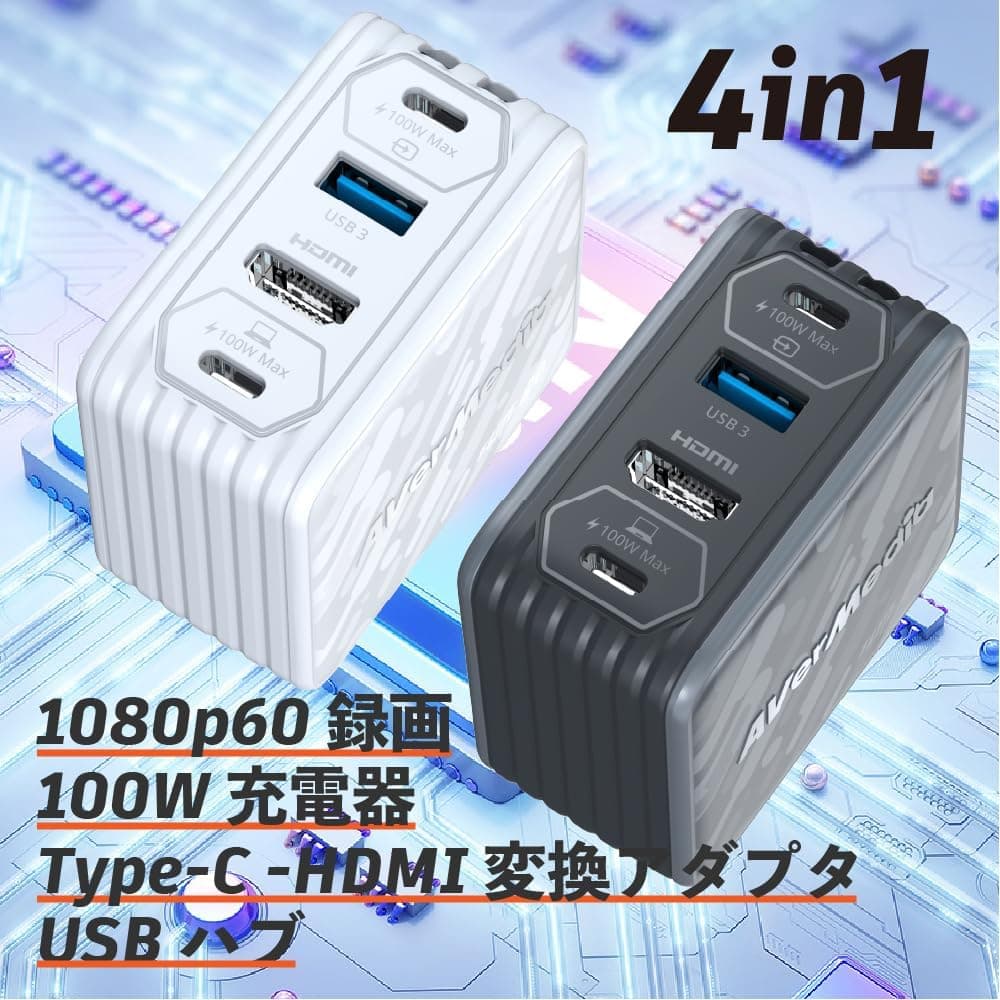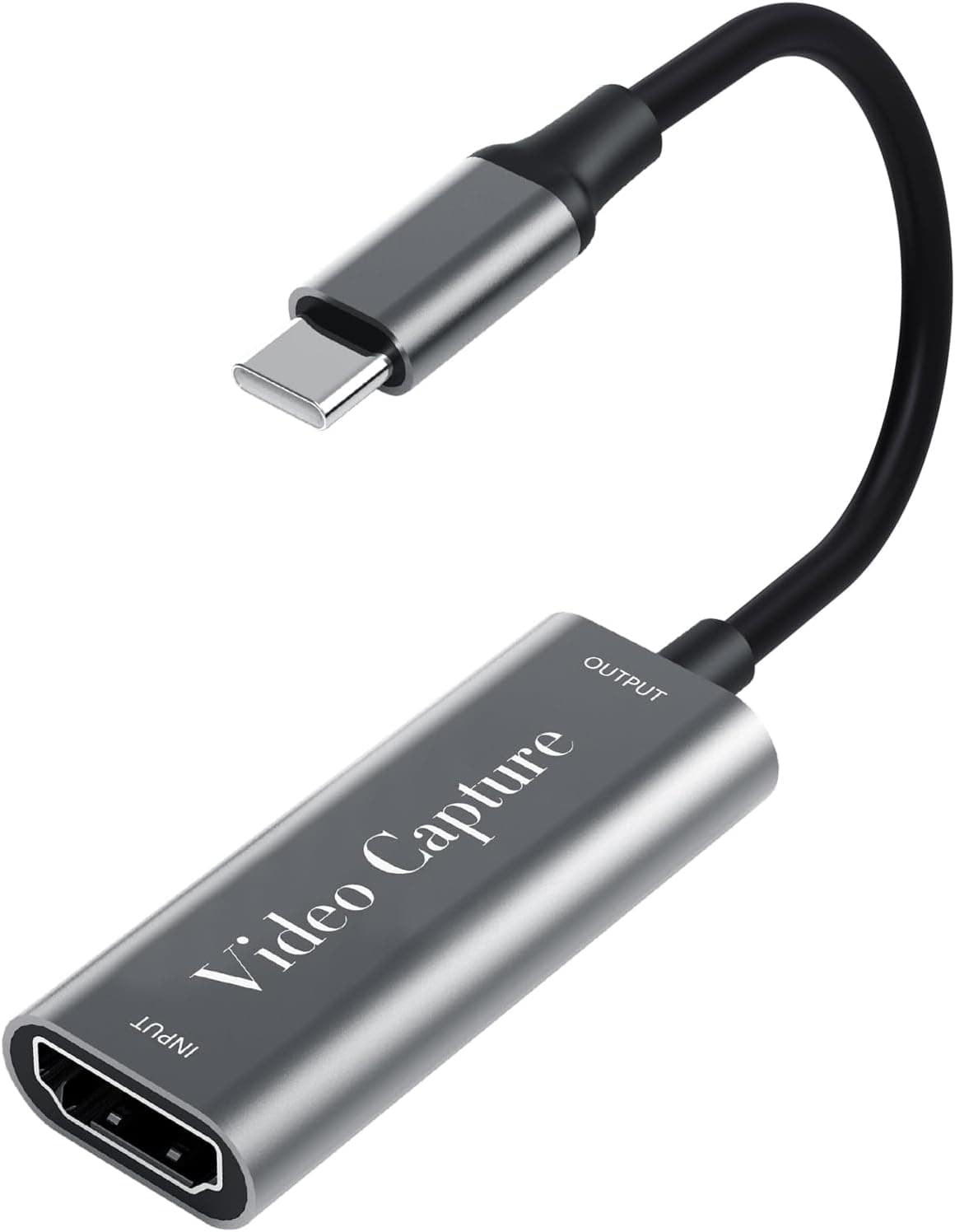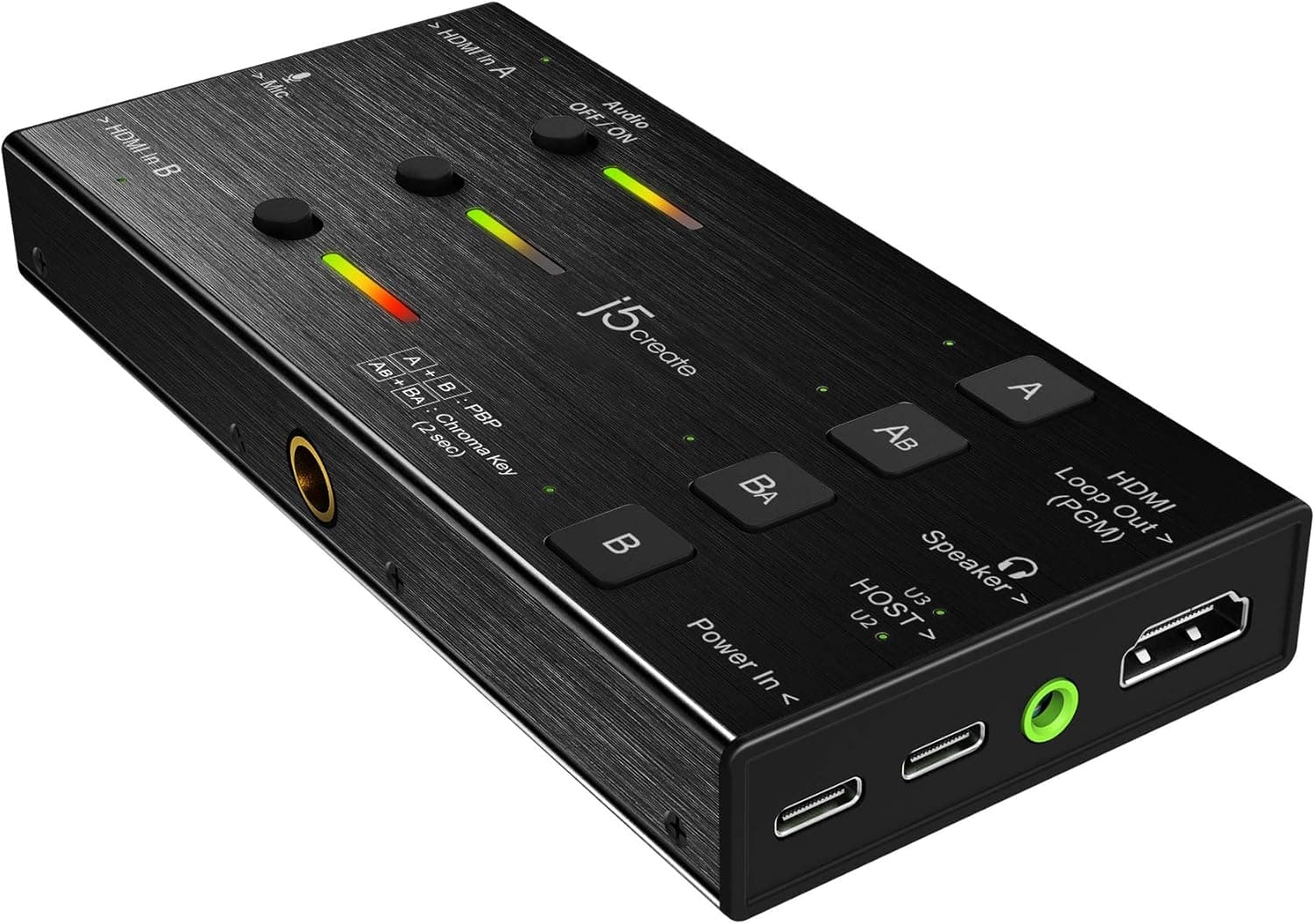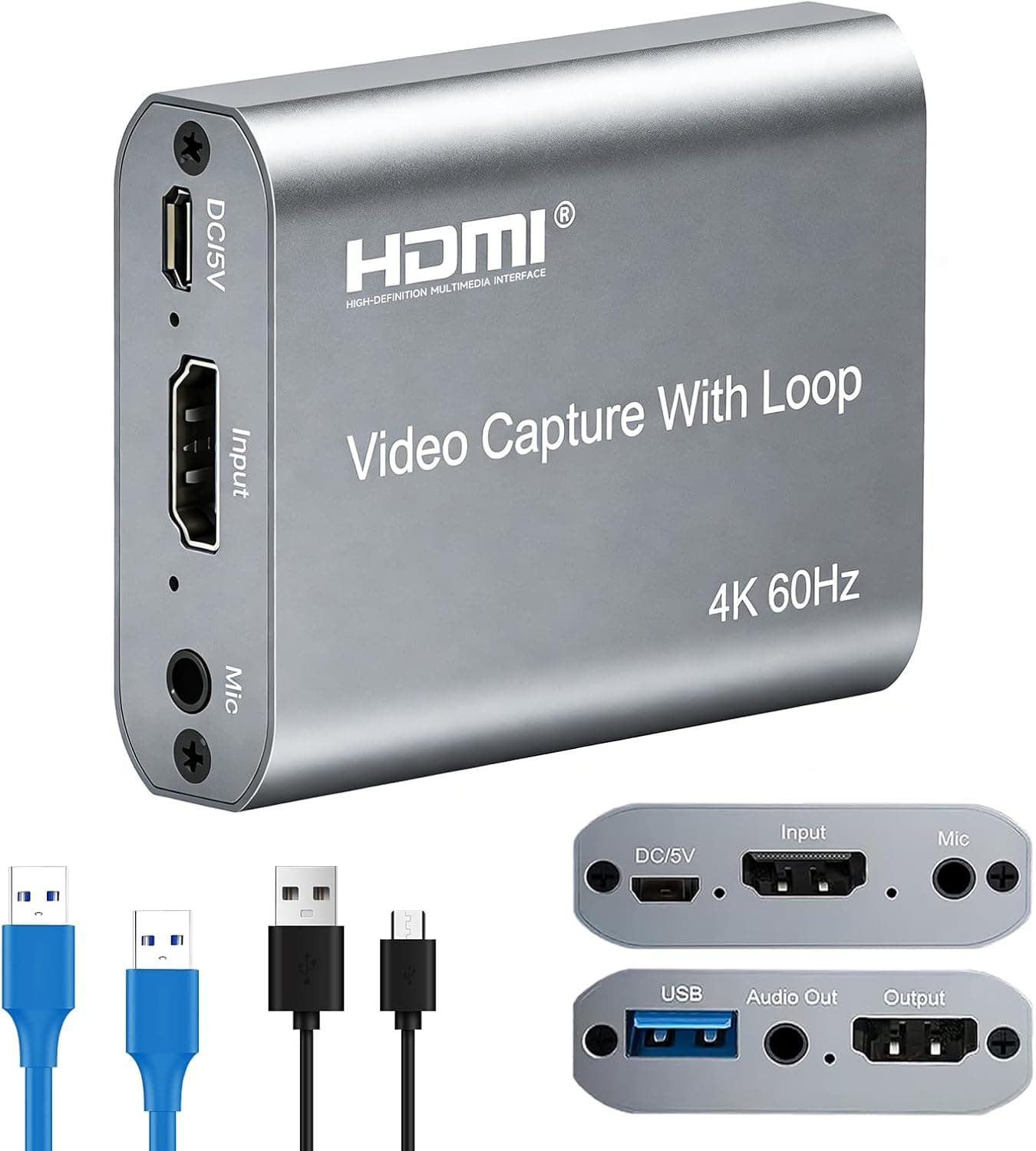
This article takes a closer look at the AVerMedia Live Gamer Ultra GC553 [ 4K]パススルー対応 ゲームキャプチャーボックス Full HD 1080p 60fps usb3.1 Ultra-Low[Latency] [グローバルバージョン輸入品] (GC553), using its published specs and real listing data.
If your goal is "play in 4K, record in 1080p," it still makes sense today.
Overview
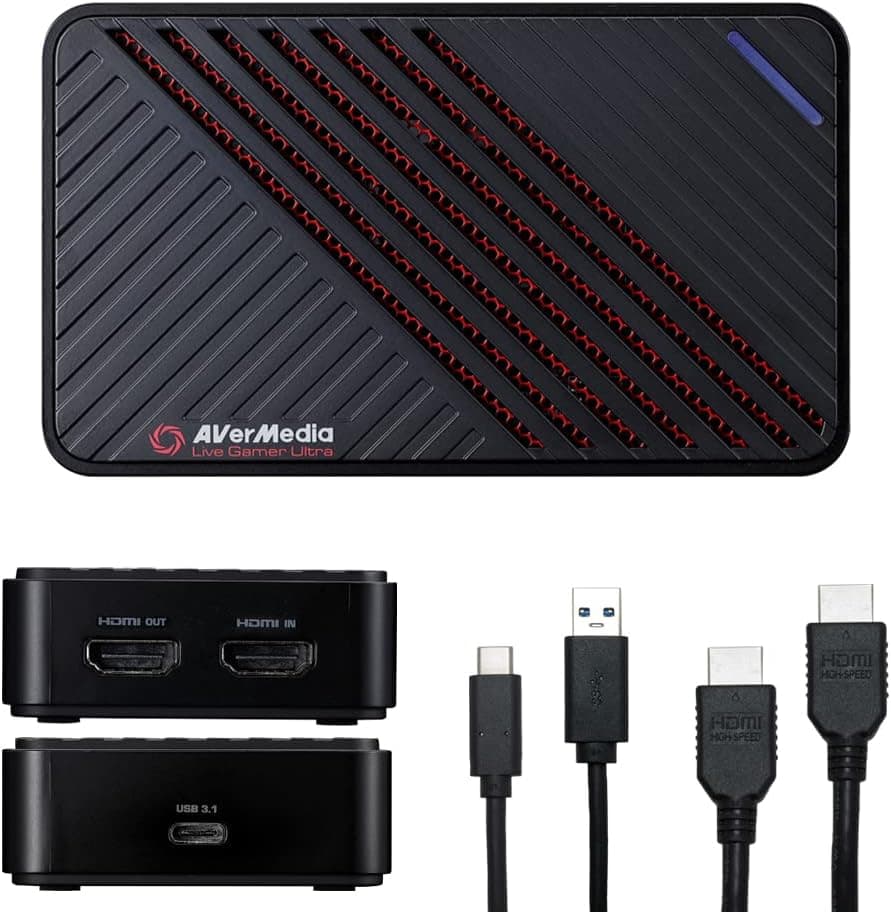
The AVerMedia Live Gamer Ultra GC553 is an external game capture box that connects over USB 3.1 Type-C.
It passes the HDMI signal through to your monitor at up to 4K while sending the capture PC a stream capped at 1080p60. That split is the product's whole design philosophy: a high-resolution experience in your hands, a manageable Full HD file for your audience.
The target user is someone capturing a PS5, Xbox Series X|S, Nintendo Switch, or a gaming PC. Being external, it needs no case opening and works with laptops.
The flip side is that its reliability is tied to your USB port quality, which is where most complaints originate.
On Amazon.co.jp it holds a 4.4 out of 5 average across 532 reviews (88% when converted to a positive rate).
That is a stable record for a product this old. Negative reviews cluster around detection and port issues rather than image quality, so checking your own setup beforehand is worth the time.
Connectivity & Compatibility
The stated requirement is a USB 3.1 Type-C port, with HDMI in and HDMI out.
The most common mistake is judging by the connector shape alone. Type-C describes the plug, not the speed.
A USB 2.0-class Type-C port, or a shared hub, causes failed detection, dropped frames, or intermittent video.
Plug directly into a dedicated USB 3.x port on the machine itself.
Keep using the bundled Type-C cable. Many spare cables carry only USB 2.0 data lines, and that single detail explains a large share of reported problems.
If you need extra length, use an active or explicitly rated cable rather than a generic extension.
| Item | Requirement | Common pitfall |
|---|---|---|
| Connection | USB 3.1 Type-C | Same shape, but a USB 2.0 port won't work |
| Input | HDMI | HDCP-protected sources cannot be captured |
| Passthrough | HDMI, 4K | Recording is still capped at 1080p60 |
| OS | Windows / macOS / Linux | Utility feature coverage varies by OS |
Windows, macOS, and Linux are all supported, and OBS Studio or XSplit treat the unit as a standard capture device. Companion-utility support differs per OS, so check the manufacturer's current compatibility table if you depend on a specific software feature.
On Linux, assume UVC-level functionality.
One more overlooked point: passthrough and capture are governed separately. Leaving the console at 4K is fine, but the PC still receives a downscaled 1080p feed.
With HDR enabled, your monitor gets HDR while the recording is handled as SDR. Washed-out or crushed colors in a stream almost always trace back to this, so disabling HDR on the console gives more predictable recordings.
Competitive Comparison
Newer USB devices such as the NZXT Signal HD60 occupy the same 1080p60-with-passthrough bracket. What actually separates them is passthrough ceiling, latency, and driver stability rather than headline numbers.
The GC553's advantage is offering 4K passthrough while deliberately keeping the capture stream at 1080p, which avoids straining the USB link.
If you want to record natively at 1440p or 4K, this unit is out of contention from the start. A newer capture device with 4K input, or an internal PCI Express card, suits that job better.
Broadcast work needing SDI or multiple inputs belongs to a different category altogether, such as Blackmagic Design's DeckLink line.
Compared with sub-$30 HDMI-to-USB dongles, the practical difference shows up as "does it survive a long stream." Cheap adapters are not automatically bad, but heat, audio drift, and driver quality separate them over multi-hour sessions.
That is what the price gap buys.
Product Info
Key specs: 1080p capture resolution, 60fps capture frame rate, 4K passthrough, USB 3.1 Type-C interface, and Windows / macOS / Linux support.
The numbers are not flashy, but delivering that combination in an external USB box is the point.
As of the 27 August 2026 capture, the Amazon.co.jp listing showed ¥23,040; the same page read ¥23,980 on 9 June 2026.
That is under ¥1,000 of movement in roughly three months — steady for this category, though sales shift it. Both figures are snapshots from those dates and likely differ from today's street price, so confirm on the product page before buying.
Marketplace listings vary more, as this is an import-version unit.
Note that one price entry is labeled "Amazon US" yet points to a yen-denominated Japanese listing. Trust the currency and seller shown on the page you actually open, not the label.
The review sample is 532 entries averaging 4.4 as of the June 2026 capture — large enough to be meaningful.
Since the split in opinion centers on connection environment, read the cautions below before deciding.
Setup and Real-World Use
Setup is simple: console HDMI out to the GC553 input, GC553 HDMI out to your monitor, and the unit into a USB 3.x port on the PC.
In OBS Studio, add it as a video capture device and explicitly set 1920x1080 at 60 FPS. Leaving it on "device default" can silently lock you to 30fps or a lower resolution.
Audio arrives bundled over HDMI, so if you want game audio and microphone on separate tracks, split the sources in your streaming software. Skipping that step makes it impossible to lower just the background music in post.
Ten minutes of setup saves hours of editing later.
The ultra-low latency claim holds for the passthrough path: playing while watching your monitor feels essentially direct. The preview inside your capture software, however, always lags — an unavoidable consequence of USB transfer plus software processing, not a defect.
Judging the product by its preview delay is the single most common misunderstanding.
Best Use Cases
First, anyone starting console streaming. Sending 4K to your monitor while broadcasting 1080p60 is the pragmatic way to stream without degrading your own gameplay.
Second, creators producing Let's Play or tutorial content. 1080p60 remains the mainstream delivery resolution on YouTube and Twitch; going higher often just inflates file size and encode time.
USB connectivity also means it travels with a laptop.
Third, anyone who does not want to open a case or lacks a free PCI Express slot. For small-form-factor or laptop-centric setups, being external is itself the deciding factor.
Purchase Cautions
It is wrong for native 1440p or 4K recording. 4K passthrough and 4K capture are different things.
Buy it expecting the latter and the device works exactly as specified while completely missing your goal.
USB port quality is the real risk. Hubs, front-panel headers, and bandwidth-sharing ports cause detection failures and glitched video.
Use the bundled cable into a rear USB 3.x port and most reported issues disappear.
On laptops, verify the Type-C port is not display- or charge-only.
HDCP-protected content cannot be captured. Streaming services and some console menus block recording by design.
On PS5 you can disable HDCP in settings, though some apps then refuse to launch.
This is an import (global version) unit. Manual language, warranty handling, and support coverage may differ from a domestic retail unit.
Warranty is roughly one to two years as a guideline, but terms vary by seller, so read the listing's warranty section first.
Listing metadata is not always accurate. As the mismatched price label shows, storefront data can be inconsistent.
Cross-check manufacturer, model number, and price against the product images, title, and seller name — and make sure an older model or different series is not sharing the same page.
Heat during long sessions. The metal housing gets noticeably warm in use.
That is normal, but avoid stacking it on other gear or burying it in a closed shelf.
FAQ
Q. Can it record 4K/60fps?
A. No. 4K is passthrough only; the PC receives a maximum of 1080p60. That is the design boundary.
Q. Can I stream with a single PC? A.
Yes. Capture the console on one PC and stream from the same machine.
A two-PC setup only helps when you want to offload encoding from a gaming PC.
Q. Does it work on a Mac? A.
macOS is listed as supported and OBS Studio is the usual route. Utility feature coverage differs by OS, so check the manufacturer's table for specific features.
Q. Is the laggy preview a defect? A.
No. USB capture always adds processing delay.
Play looking at the passthrough monitor and treat the preview as a monitoring window.
Q. Can I use my own USB Type-C cable? A.
Not recommended. Charge-only or USB 2.0-class cables lack the data bandwidth and cause detection failures.
Use the bundled cable.
Product Disclosure (Amazon)
- Manufacturer: AVerMedia
- ASIN: B07DHDHLYQ
- Note: This article covers a manufacturer-made product based on Amazon listing details.