Overview
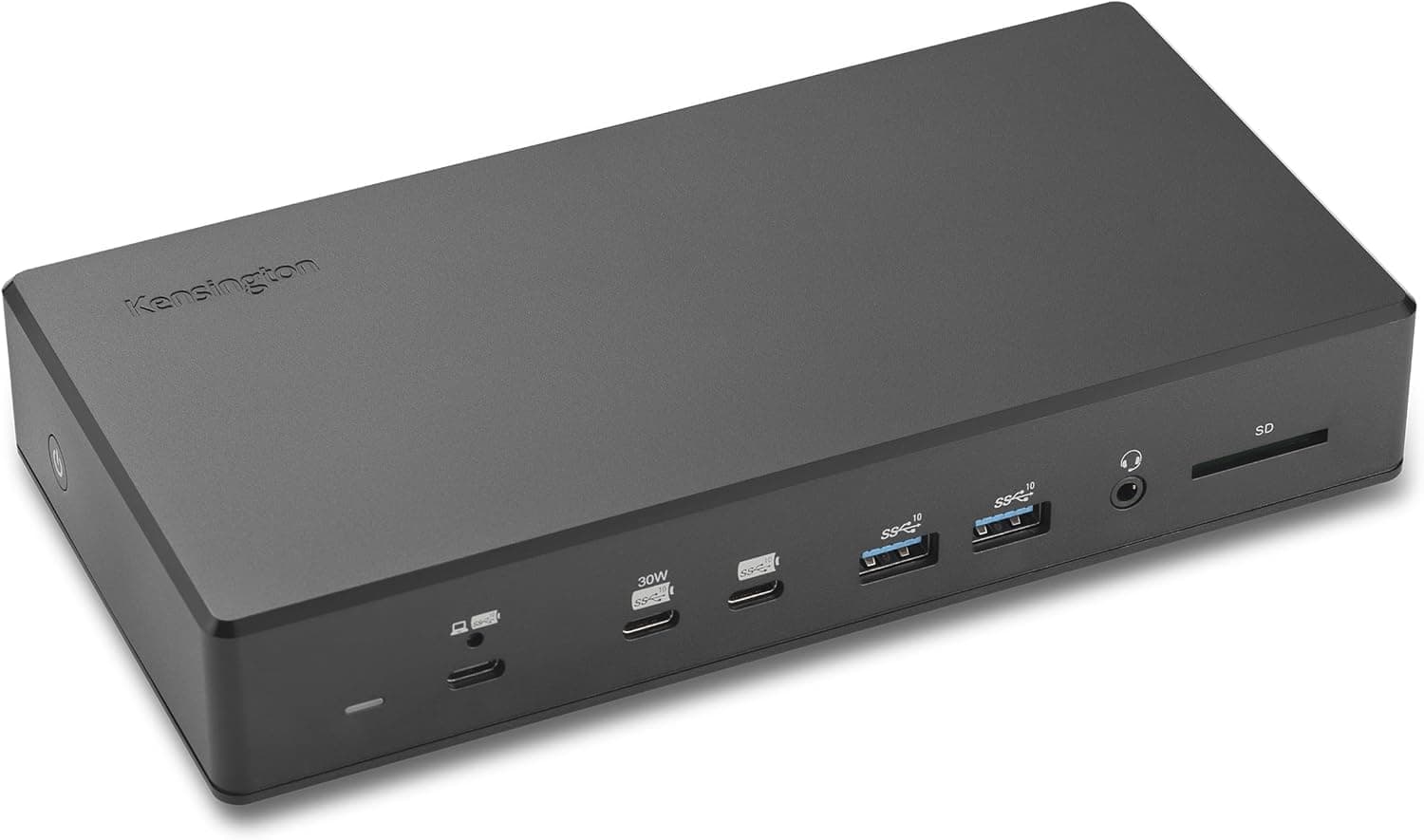
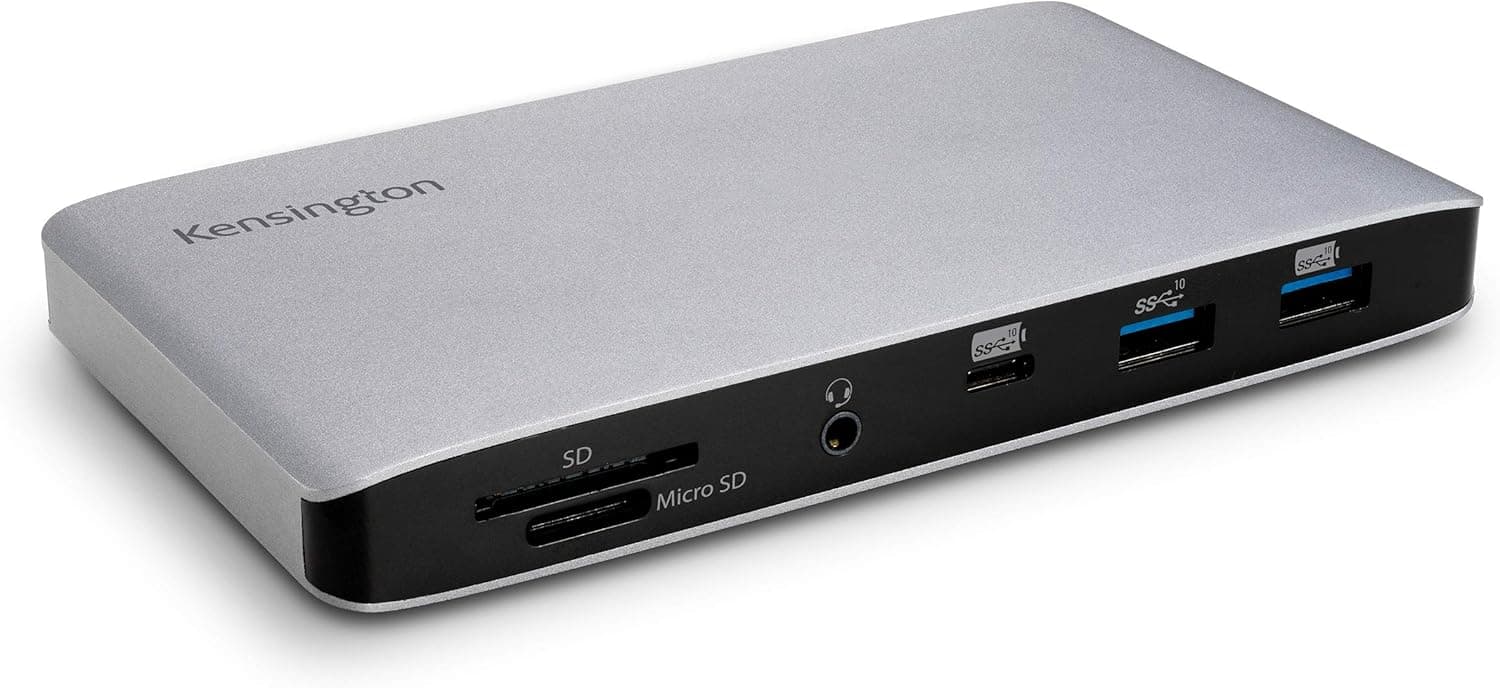
The Kensington SD3210U3 — 10Gbps USB-C Triple Video Driverless Dock is a 10-port docking station. One USB-C cable handles laptop charging, data, and video.
Video outputs are two HDMI 2.1 ports and one DisplayPort 1.4.
USB covers four 10Gbps USB-A ports and one USB-C port, and there is also Gigabit Ethernet and a 3.5mm combo audio jack.
The short version: it is an easy fit for Windows laptops running spreadsheets, documents, and chat across three screens. There are two catches.
With three displays, each one tops out at 4K @ 30Hz, and DSC v1.2 support is required.
The only supported operating systems are 64-bit Windows 10 and 11, so macOS is out.
According to the original listing, the model number is K32802NA and the housing uses 71% post-consumer recycled plastic. The dock is plug-and-play with no driver to install.
Unlike DisplayLink docks, it needs no extra software, which makes it easy to deploy on locked-down corporate laptops.
The trade-off is that 'driverless' means the laptop's own GPU drives the displays over USB-C DisplayPort Alt Mode. Whether you get video at all, and how many screens, depends heavily on the host port and GPU.
The Compatibility Guide below covers this in detail.
Living With Triple 4K at 30Hz
The rated maximums are 8K @ 30Hz on one display and 4K @ 30Hz on each of three displays, and both require DSC v1.2.
30Hz is fine for text and spreadsheets. Most people will notice clear stutter in cursor movement, window dragging, and scrolling compared with 60Hz.
Most video runs at 30fps or less, so watching videos is fine. Gaming and video-editing previews are not.
A practical approach is to skip 4K on every screen: mix Full HD or QHD monitors, or use the laptop's built-in panel as the main screen with two external monitors.
Lower resolutions may allow higher refresh rates, but the spec data here does not list per-combination limits. Check Kensington's product page or manual for the support table.
Do not assume the HDMI 2.1 label means 4K @ 120Hz.
The ceiling is set by the bandwidth of a single USB-C cable and by the host GPU.
Compatibility Guide
The host must have a USB-C port with Thunderbolt 5/4, USB4, or USB-C Alt Mode, and the OS must be 64-bit Windows 10 or 11. The most common failure is a data-only USB-C port without DisplayPort Alt Mode.
In that case USB devices and Ethernet may work, but there will be no video at all. Look for a DisplayPort or Thunderbolt icon next to the port, or confirm video output in the laptop maker's spec sheet.
| Check | This dock requires | Common mistake |
|---|---|---|
| Host port | USB-C DP Alt Mode / Thunderbolt 5 or 4 / USB4 | Plugging into a data-only USB-C port and getting no video |
| OS | Windows 10/11 64-bit only | Expecting three extended displays on macOS |
| Triple display / 8K | DSC v1.2 on host, dock, and monitors | Older GPUs or monitors reduce the resolution or screen count |
| Power | Up to 100W (USB-C PD) | Too little power for heavy gaming laptops |
| USB speed | Up to 10Gbps | Expecting Thunderbolt-level bandwidth |
Plugged into a Thunderbolt 5/4 or USB4 port, the dock still works as a USB-C Alt Mode device. USB stays at 10Gbps and video uses the same path, so you will not get the 40Gbps-class bandwidth of a dedicated Thunderbolt dock.
The upside of a universal dock is that laptops with USB-C Alt Mode but no Thunderbolt work the same way.
DSC v1.2 has to be supported by both the laptop's GPU (including its driver) and the monitors.
Recent laptops usually support it, but older models and some monitors do not. In that case, three-screen setups may drop resolution or lose a display.
Keeping the host's graphics driver up to date is a basic step that heads off many video problems.
Power delivery tops out at 100W. That is plenty for typical business laptops.
Gaming and creator laptops whose stock chargers are rated above 100W may slowly drain their battery under heavy load. Compare the figure against your laptop's original adapter.
Product Info
rmation
| Item | Detail |
|---|---|
| Total ports | 10 |
| Video outputs | HDMI 2.1 x2, DP 1.4 x1 |
| USB-C | 1 (USB 3.2 Gen2, 10Gbps, PD 100W input) |
| USB-A | 4 (USB 3.2 Gen2, 10Gbps each) |
| Max data rate | 10Gbps |
| Max power delivery | 100W (USB-C PD) |
| Max single display | 8K @ 30Hz (requires DSC v1.2) |
| Max triple display | 4K @ 30Hz each (requires DSC v1.2) |
| Network | Gigabit Ethernet (RJ45) |
| Audio | 3.5mm combo audio jack |
Check the retailer's page for the latest price. Prices change with sales and stock, so check the current price before buying.Check the retailer's page for the latest user reviews.
Fourteen reviews is a small sample, so the rating alone tells you little about compatibility problems. It is more useful to read the low ratings and note which laptop and monitor they involve.
Most dock complaints come from the setup, such as a host port without video output or a monitor without DSC, rather than from the dock itself.
The original listing says the box contains the dock, an AC adapter, and a quick-start guide. A mounting bracket (K34050WW) is sold separately, and the dock has a Kensington lock slot.
It also mentions a 3-year limited warranty with registration. If you buy in Japan, confirm the seller and where warranty claims are handled.
The four USB-A ports reportedly use KonstantCharge, which keeps powering connected devices after the laptop is unplugged. Besides keyboard and mouse receivers, the dock can double as a desk charger for a phone or earbuds.
It is a small feature you end up using every day.
How It Compares
Knowing the dock type up front avoids most buying mistakes. There are three main approaches: DP Alt Mode like this dock, DisplayLink, and dedicated Thunderbolt docks.
| Type | Strengths | Weaknesses |
|---|---|---|
| DP Alt Mode (this dock) | No driver, the GPU drives the displays directly | Screen count and resolution depend on the host GPU and bandwidth; extending multiple displays on macOS is hard |
| DisplayLink | Multiple displays are easier on macOS | Needs a driver; compressed video can add CPU load and quirks |
| Dedicated Thunderbolt | High bandwidth, handles high resolution and refresh rates | Expensive; limited on PCs without Thunderbolt |
As a rule of thumb: Mac users, or anyone who can install software and wants stable triple displays, should look at DisplayLink. If two screens are enough, a smaller and cheaper USB-C hub will do.
For high-refresh external monitors, go with a Thunderbolt dock. This dock fills the gap for Windows users who want three screens and plenty of USB ports without installing a driver.
There is no SD card reader and no VGA port. The ten ports are three video, five USB, one Ethernet, and one audio.
If you import camera cards often, plan on a separate reader or pick a dock with a card slot.
Recommended Users
- Office workers who want three screens on a company Windows laptop without installing drivers
- Hybrid workers who swap different laptops at a hot desk or at home
- Anyone connecting several 10Gbps devices such as external SSDs (all five USB ports run at 10Gbps)
- Remote workers who want wired Ethernet for stable video calls
Plugging in one cable switches charging, network, monitors, and keyboard all at once, and that pays off every time you arrive at or leave your desk. The more time you spend looking at information side by side, as traders and engineers do, the more three screens help.
Before You Buy
First, assume it will not work on macOS. Support is listed as 64-bit Windows 10/11 only.
Driving several screens over one cable generally relies on DisplayPort MST, and macOS does not support MST for extended displays. If you buy expecting it to just work, you may get mirrored screens or a single display.
For multiple displays on a Mac, DisplayLink is the usual choice.
Second, three displays top out at 4K @ 30Hz each, and the host, dock, and monitors must all support DSC v1.2.
That rules it out for high-refresh gaming and for editing or retouching work that needs smooth motion. Networking is also limited to Gigabit; there is no 2.5GbE.
Third, the spec sheet is ambiguous. The USB-C entry reads 'USB 3.2 Gen2, 10Gbps, PD 100W input', which makes it unclear whether the dock-side USB-C is a data port or is being confused with the upstream host port.
Check the quick-start guide for which port connects to the laptop and whether the downstream USB-C can charge devices.
Fourth, power. The rated maximum is 100W, but with docks of this type the power that actually reaches the laptop is often lower, because the dock uses some itself.
If your laptop's stock charger is around 100W, do not count on a tight power budget.
Finally, check the listing details. The pricing source is labeled 'Amazon US', but the prices come from Amazon Japan, and the seller and shipper are also listed as Amazon US.
The item may ship from overseas, so check the AC adapter plug type and the warranty contact before ordering. Listing details can also be wrong, so confirm the product by its photos and title before you buy.
FAQ
Q. Does it work with a MacBook? A.
No. Support is limited to 64-bit Windows 10/11.
For multiple displays on a Mac, look at a DisplayLink dock.
Q. Will it be faster on a Thunderbolt 4 laptop? A.
No. The dock runs as a USB-C Alt Mode device, so USB tops out at 10Gbps and you do not get Thunderbolt dock bandwidth.
Q. Can all three screens run at 4K @ 60Hz? A.
No. With three displays the rated limit is 4K @ 30Hz each, and DSC v1.2 is required.
For 60Hz, lower the resolution or use fewer screens, and check the maker's support table for the exact limits.
Q. Do I need to install a driver? A.
The dock itself needs no driver. Video comes from the laptop's GPU, though, so keeping the graphics driver current helps stability.
Q. Can I charge my phone after unplugging the laptop? A.
The USB-A ports reportedly support KonstantCharge, which keeps them powered after the laptop is unplugged. As long as the dock's AC adapter is connected, it works as a charging station.
Product Disclosure (Amazon)
- Manufacturer: Kensington
- Seller: Amazon US
- Fulfilled by: Amazon US
- ASIN: B0G2MWGYL1
- Note: This article covers a manufacturer-made product based on Amazon listing details.