Overview
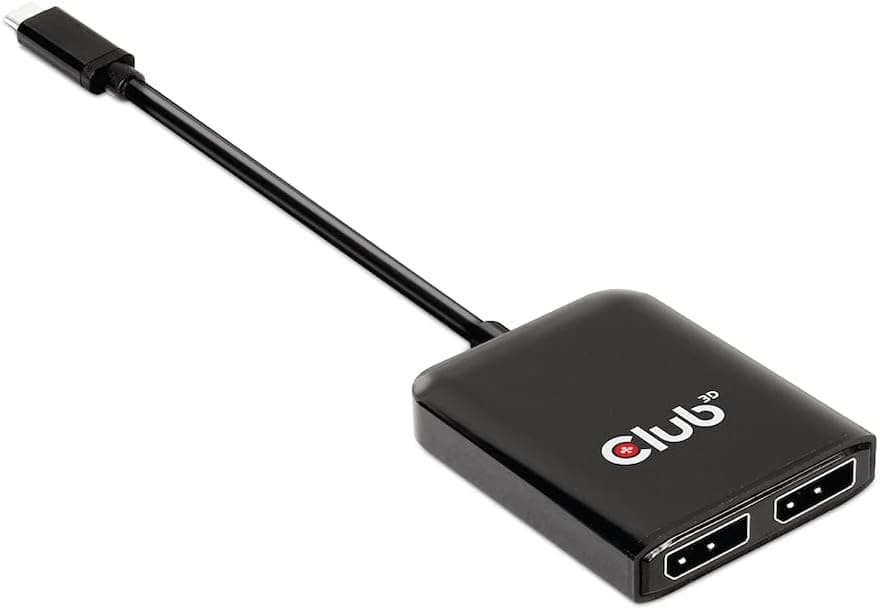
This adapter is listed on Amazon Japan as j5create USB-C - デュアル HDMI マルチモニターアダプター USB Type-A コンバーター付き. In English, that is the j5create USB-C to Dual HDMI Multi-Monitor Adapter with USB Type-A Converter, often referred to by the model number JCA365.
It lets you connect two HDMI monitors to a laptop through a single USB-C port. In short, it is a low-cost way to add a second work screen when your laptop has only one video-capable USB-C port or your Mac is limited in how many external displays it supports.
It is not a tool for building a high-refresh gaming or video-editing setup.
It has two HDMI outputs. Per the specs, Port 1 supports up to 3840×2160 (4K) and Port 2 supports up to 2048×1152.
The difference between the two ports is the most important thing to understand about this product. It supports Windows 10 or later and macOS 10.9 or later, and a driver is required on both.
The chassis is aluminum.
As of September 2026, the product is rated 4.2 out of 5 stars from 116 reviews on Amazon.co.jp.
That is not a large sample, but the rating is consistently positive. The sections below use the spec numbers to explain what this adapter can and cannot do.
Understand the Two HDMI Ports First
The difference between the two ports is the thing buyers most often discover too late. Port 1 goes up to 4K, but Port 2 tops out at 2048×1152.
This means you cannot run two 4K monitors at full resolution. Before you buy, check your monitors' resolutions and decide which one goes on which port.
| Your monitors | Port 1 (up to 4K) | Port 2 (up to 2048×1152) | Verdict |
|---|---|---|---|
| Two Full HD | 1920×1080 | 1920×1080 | Both within limits |
| 4K + Full HD | 3840×2160 | 1920×1080 | The intended setup |
| Two WQHD (2560×1440) | Within limit | Over limit | Port 2 cannot run at native resolution |
| Two 4K | Within limit | Over limit | The second screen will not be 4K |
The setups that work best are two Full HD monitors or one 4K plus one Full HD. The specs provided do not say what happens when you connect a WQHD monitor to Port 2.
It may run at a lower resolution or not display at all, so check the product page or the manufacturer's support information.
The refresh rate is not officially specified, and 4K output may be limited to around 30Hz. If you need 4K at 60Hz, confirm the supported refresh rates on the product page before buying.
For spreadsheets and documents, 30Hz is usually acceptable. Cursor movement and scrolling, however, will feel noticeably less smooth than on a 60Hz screen.
Compatibility Guide
The most common mistake is on the laptop side. The spec requires a USB-C port with DisplayPort Alt Mode, or a Thunderbolt 3/4 port.
Many USB-C ports handle only data or charging and cannot output video. Look for a DisplayPort or lightning-bolt icon next to the port, or check your laptop's spec sheet for video output support.
| Check | Requirement | How to verify |
|---|---|---|
| Laptop port | USB-C (DisplayPort Alt Mode) or Thunderbolt 3/4 | Icon next to the port, laptop spec sheet |
| OS | Windows 10+ / macOS 10.9+ | OS version in system settings |
| Driver | Required | Internet access needed for first setup |
| USB-A connection | Connects through the included converter, but no video output | Not suitable for USB-A-only laptops |
| Linux | Not listed | Research first if you plan to use it |
The driver requirement is a real difference from plug-and-play adapters. With driver-based display adapters, part of the work of producing the image is generally handled by the host's CPU or GPU and the driver, which adds some load to the laptop.
After a major OS update, you may need to wait for an updated driver. On managed work laptops where you cannot freely install software, you may need approval from IT.
According to the provided data, the included USB Type-A converter supports data and charging only, not video output. Do not buy this to add dual screens to an older laptop that only has USB-A ports.
Treat the converter as a secondary accessory.
Using It with M1/M2 MacBooks
MacBook Air and MacBook Pro models with the base Apple M1 or M2 chip support only one external display out of the box. Swapping to a different USB-C hub does not remove this limit.
Driver-based adapters like this one have been a common way to work around it.
Pay attention to macOS version support. The spec says macOS 10.9 or later, but Apple Silicon Macs only run macOS 11 or later in the first place.
What actually matters is whether a driver is available for the macOS version you are running now. Driver-based products like this often ask for screen recording or similar permissions in macOS.
If you do not grant them, the second screen may stay blank.
Newer MacBook Air models with M3 or later support two external displays natively when the lid is closed. If you plan to replace your Mac soon, consider whether you actually need this adapter.
Product Info
rmation
At capture time on September 28, 2026, the price on Amazon.co.jp was ¥10,891.
Prices change with sales and stock, so check the product page for the current price. As of September 2026, the product is rated 4.2 out of 5 stars from 116 reviews (84% positive).
| Item | Detail |
|---|---|
| Interface | USB-C (DisplayPort Alt Mode) |
| HDMI ports | 2 |
| Max resolution (Port 1) | 3840×2160 (4K) |
| Max resolution (Port 2) | 2048×1152 |
| Supported OS | Windows 10+, macOS 10.9+ |
| Driver | Required |
| Chassis | Aluminum |
The original article said the adapter was released around 2022 with a 1-year warranty. It listed the box contents as the adapter, a USB-C cable (about 20cm), a USB-A converter, and a quick-start guide.
Box contents and warranty terms can change between listings, so confirm them on the product page.
This is an entry-level product. It does less than a full docking station, but it stays at around ¥11,000.
For anyone who just wants to try dual screens, it is good value. The aluminum body releases heat better than plastic and holds up well in a bag.
Compared with a Docking Station
If your goal is two screens over USB-C, a Thunderbolt 4 dock is the other main option. The two differ in more than price.
| Aspect | This adapter | Typical Thunderbolt 4 dock |
|---|---|---|
| Video output | 2x HDMI (second port up to 2048×1152) | Some models support two 4K displays |
| Laptop charging | No power delivery through this adapter | Usually supported |
| Extra ports | Video only | Often USB, Ethernet, card reader |
| Driver | Required | Often not required |
| Portability | Small and easy to carry | Mostly desk-bound |
A dock suits someone who wants one cable to handle charging, peripherals, and two screens at a permanent desk. This adapter suits someone who wants dual screens on the road or wants to try them cheaply.
If you try to use one device for both home and travel, one of the two will probably disappoint you.
Setup Steps
Confirm that your laptop's USB-C port supports video output (check the port icon or the spec sheet).
Download and install the driver for your OS version from the manufacturer's official site.
You need internet access the first time. 3.
Connect the adapter to the laptop, and plug the higher-resolution monitor into Port 1. 4.
Arrange the screens and set resolutions in Windows Display settings or the macOS Displays settings. 5.
On a Mac, if the second screen stays blank, check that the driver's app has been granted permission in Privacy settings.
If you set it up for the first time on a business trip, unreliable hotel Wi-Fi may keep you from downloading the driver. Connect it once at home and confirm it works before you take it anywhere.
Recommended Users
M1/M2 MacBook users who want to go beyond the one-external-display limit using a driver-based adapter. It fits work where screen space directly affects productivity, such as coding with documentation on one screen and an editor on another, or keeping chat tools visible all the time.
Owners of thin Windows laptops with a single USB-C port who want more room for office work, such as meeting slides on one screen and spreadsheets on the other.
Frequent travelers and remote workers. It is small enough to keep in a laptop bag, so you can set up two screens wherever you work.
You will still need monitors and HDMI cables at your destination.
Anyone who wants to try a multi-monitor setup cheaply. At about ¥11,000 (as of September 2026), it lets you try dual screens and move up to a dock later if you need one.
Before You Buy
It is not suited to gaming. The refresh rate is not specified, and driver-based output adds latency and system load.
To get the most out of a high-refresh gaming monitor, connect it directly to your laptop's HDMI or DisplayPort output, or use a dock with native video output.
The second screen is capped at 2048×1152. If you own two WQHD or two 4K monitors, one of them will not run at full resolution.
This adapter is the wrong choice if your goal is to use two expensive monitors to their full potential.
It does not charge your laptop. According to the original article, this adapter cannot pass power through to the laptop.
On a laptop with only one USB-C port, you cannot charge through that port while the adapter is plugged in, so keep an eye on your battery level.
It depends on the driver. As with any driver-based product, it may stop working right after an OS update.
Similar products are also known to block protected video content on the driver-driven screen. If you plan to watch streaming services on the second screen, check for reports before you buy.
The listing data is inconsistent. In the collected data, the international price entry is labeled Amazon US, but the link points to Amazon.co.jp.
The spec also lists both DisplayPort Alt Mode and a required driver, so it is unclear which method produces the two outputs. j5create also sells several USB-C adapters with similar names.
Product listings are sometimes wrong, so check the images, the title, and the port layout to make sure you are buying the right product.
FAQ
Q. Can I use two external monitors with an M1 MacBook Air? A.
That is what this adapter is designed for. You need to install the driver, and you should first confirm that a driver exists for your macOS version.
Q. Can I connect two 4K monitors?
A. Not both at 4K. Only Port 1 outputs 4K; Port 2 tops out at 2048×1152.
Q. Will it work on a laptop that only has USB-A ports? A.
The included converter lets you connect it, but according to the provided data it does not output video. Do not count on it for dual screens.
Q. Can I charge my laptop through it?
A. No. Charge the laptop through another port or with its own AC adapter.
Q. How much does it cost? A.
At capture time on September 28, 2026, it was ¥10,891 on Amazon.co.jp.
Prices change, so check the product page before buying.