Overview
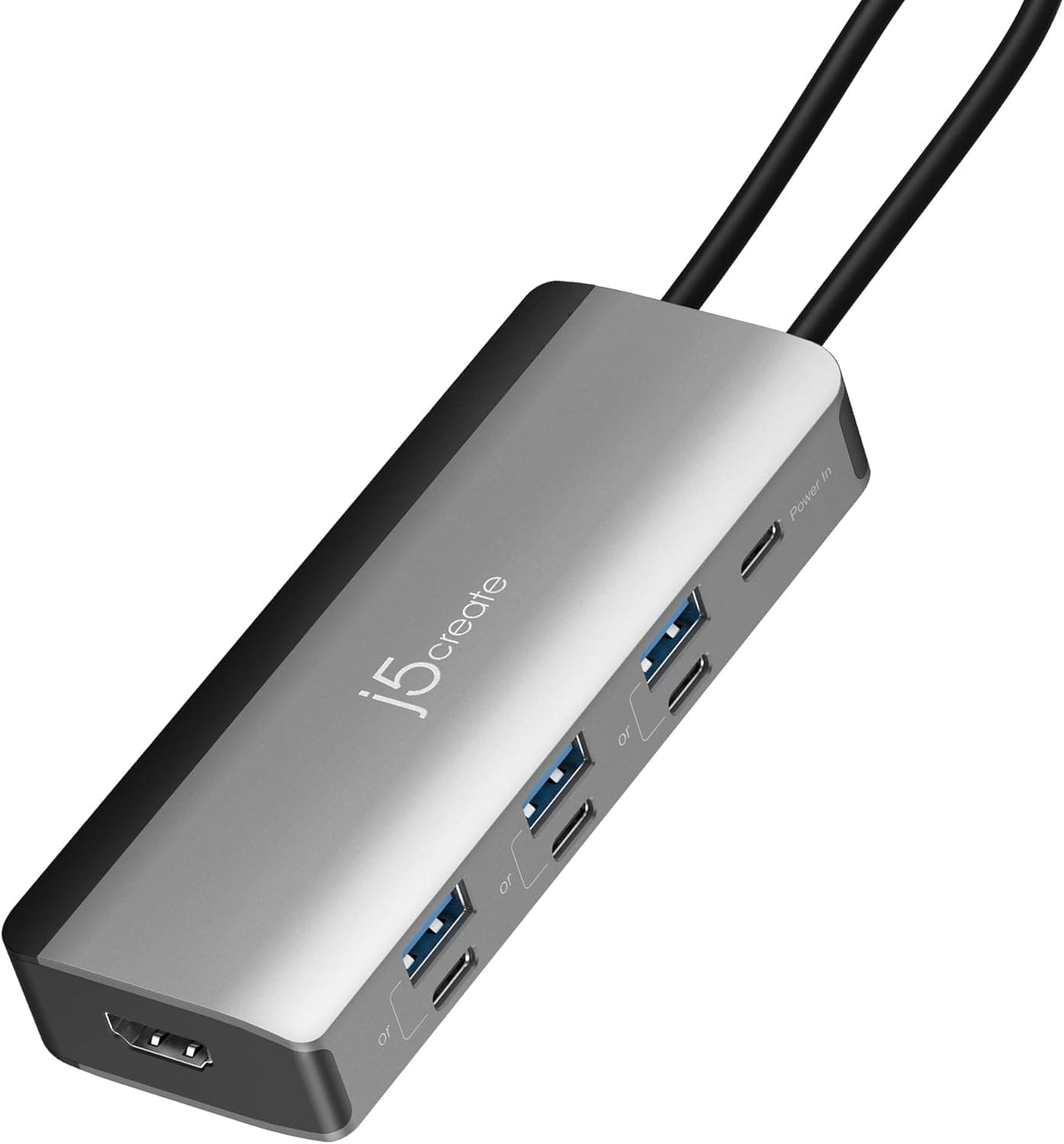
The j5create JCD382 — Compact 7-in-1 USB-C Hub for MacBook is a seven-port adapter designed mainly for MacBook users. Short verdict: it is a good-value choice if you often import SD cards and want a high-resolution display over Thunderbolt 3.
It is a poor fit if you plan to drive your main HDMI monitor from it, because the HDMI port tops out at 4K@30Hz.
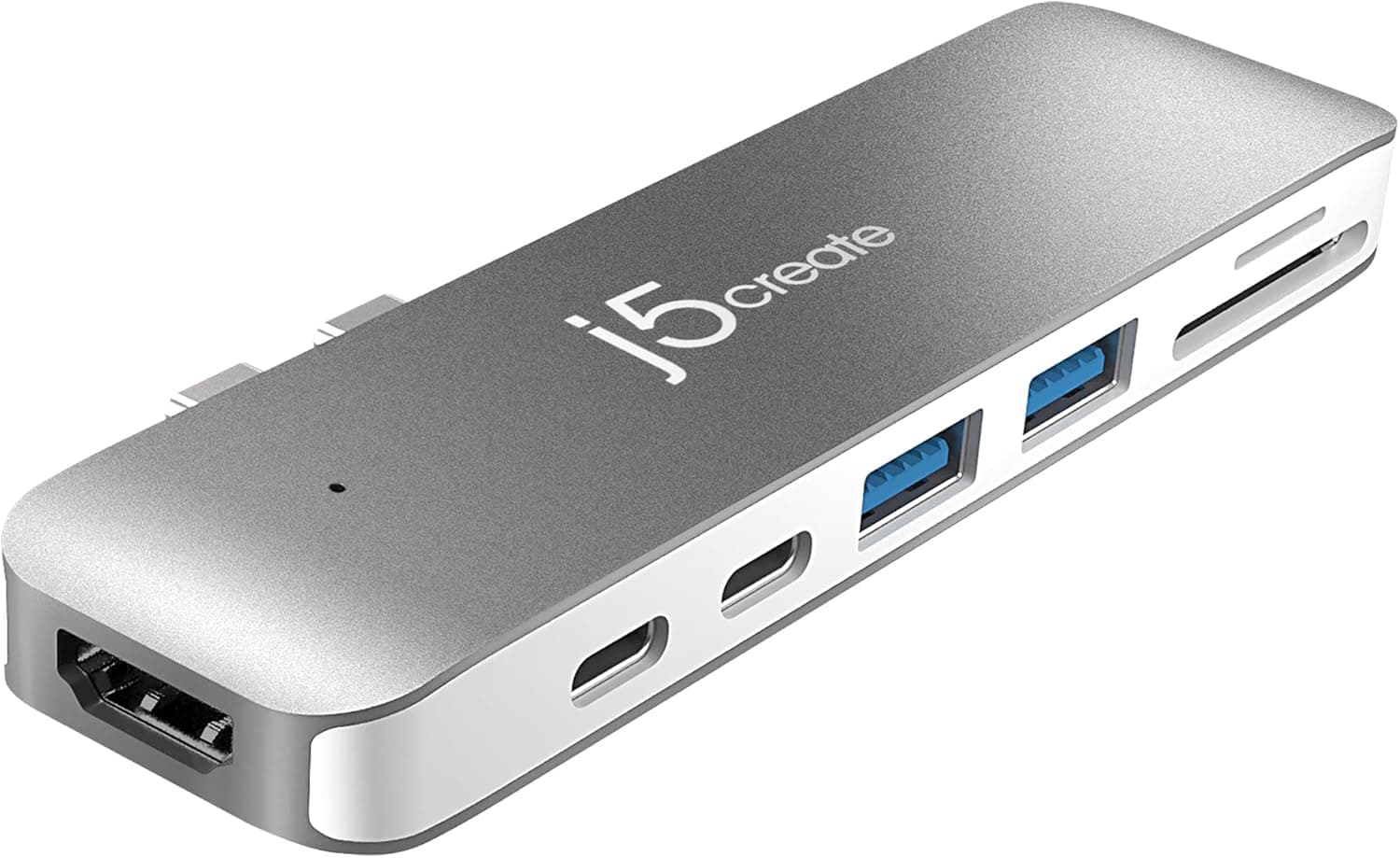
The Thunderbolt 3 port does the heavy lifting: 40Gbps data transfer, 100W USB Power Delivery passthrough, and up to 5K@60Hz video. The hub also has a USB-C data-only port, HDMI, two USB-A 3.0 ports, and an SD/microSD card reader.
At 60 grams, it is light enough to carry every day.
This review goes beyond the spec sheet. It covers which port to use for what, how many displays your Mac can actually drive, and the limits people tend to discover only after buying.
Ports and How to Use Them
| Port | Qty | Spec | Best for |
|---|---|---|---|
| Thunderbolt 3 | 1 | 40Gbps / 100W PD / 5K@60Hz | Charging, 5K/4K monitors, fast external SSDs |
| USB-C (data only) | 1 | USB-C 3.1 | USB-C peripherals and flash drives |
| HDMI | 1 | 4K@30Hz | Projectors, meeting-room TVs, secondary screens |
| USB-A 3.0 | 2 | — | Mouse, keyboard, legacy flash drives |
| SD / microSD | 1 each | — | Camera and drone card imports |
The key point is that only one port is high-performance. The 5K@60Hz video, the 40Gbps transfers, and the 100W charging all run through the Thunderbolt 3 port.
The hub works best with a split like this: your main monitor on Thunderbolt 3, and HDMI for the occasional projector.
If you connect an everyday HDMI monitor instead, you get 30Hz. That is fine for reading text, but cursor movement and scrolling look choppy, which gets tiring over long sessions.
Compatibility Guide
The listed compatible models are MacBook Pro/Air (M4/M3/M2/M1) and 2018–2019 Intel MacBooks. The hub is also said to work with Thunderbolt 3 Windows laptops.
It is designed for Macs, though, so expect video and charging behavior to vary by Windows model.
Display count depends on the Mac, not the hub
This is where most buyers go wrong. Base M1 and M2 MacBook Air/Pro models support only one external display natively. Connecting both Thunderbolt 3 and HDMI will not give you two screens.
Limits for M3 and M4 models vary by model, so check Apple's tech specs for your exact machine before you buy.
Requirements for 5K
5K@60Hz needs three things: a 5K-capable computer, a Thunderbolt cable, and a 5K monitor. If any one is missing, resolution or refresh rate drops.
Check that your USB-C cable supports Thunderbolt by looking for the lightning-bolt logo or its model number.
Charging notes
Passthrough charging needs a separate USB-C PD charger. The hub typically keeps some power for itself, so your Mac receives somewhat less than the charger's rated output.
If you run heavy workloads on a MacBook Pro, choose a charger with headroom. The listing also says passthrough charging is disabled when you use the USB-C port for display output.
Keep that in mind when planning your connections.
Physical fit
The connector design matters. A cable-attached hub and one that plugs directly into the side of the Mac differ in how they block neighboring ports and whether they fit with a hard-shell case.
If you use a case, check the product photos for connector shape and spacing.
Product Info
The JCD382 has been on sale for several years as a multi-function hub for Macs. On Amazon Japan it was ¥2,980 when checked in August 2026 and ¥3,480 when checked in June 2026. The seller is j5create Outlet Park, and Amazon ships it.
The seller name suggests clearance or outlet pricing. Prices change with sales and stock levels, so check the product page for the current price.
Check the retailer's page for the latest user reviews. That is too few to say most buyers are happy.
Reviews from people who own your exact Mac model are more useful than the star average.
The listing states a 2-year warranty. It also says only the hub is in the box, so you need to supply your own Thunderbolt cable.
If you plan to use 5K output or 40Gbps transfers, include the cable in your budget.
Comparison with Alternatives
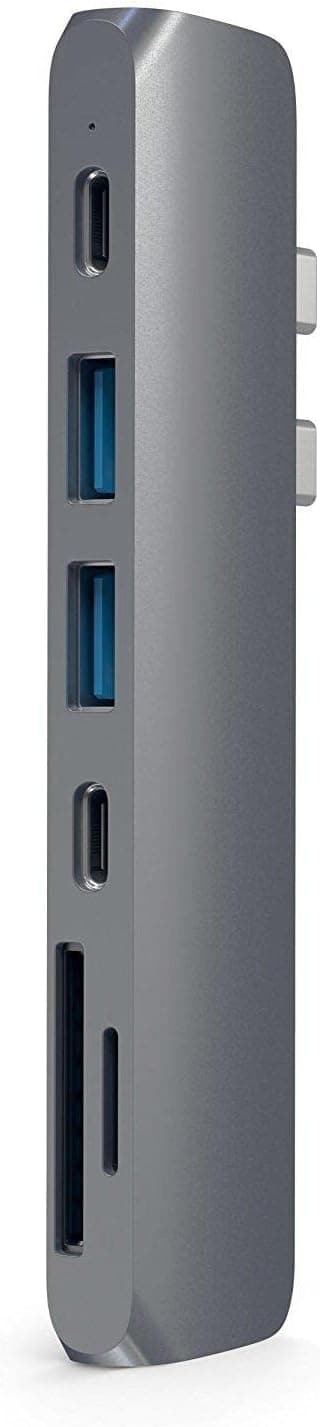
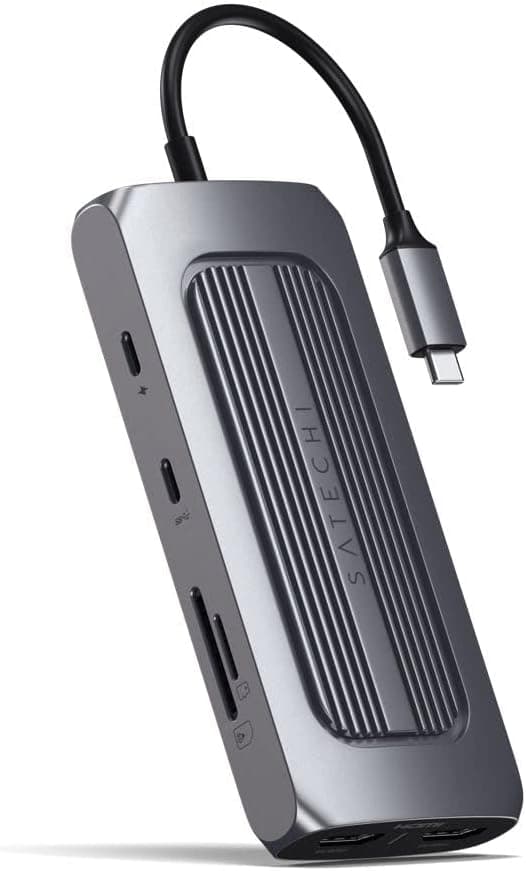
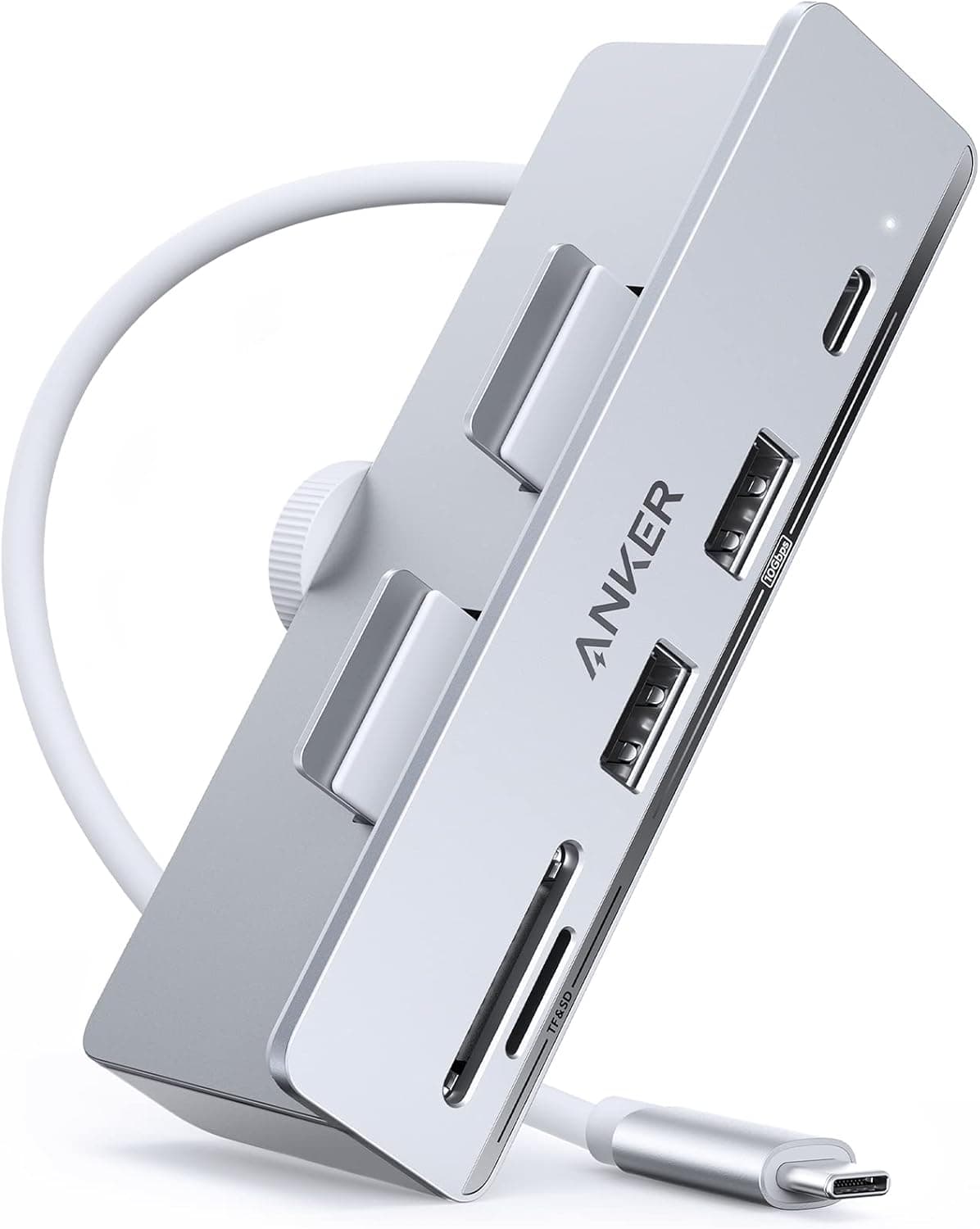
| Factor | j5create JCD382 | HDMI 4K@60Hz hub (e.g. Satechi OntheGo) | USB-A data hub (e.g. Anker 4-Port) |
|---|---|---|---|
| High-res monitor | 5K@60Hz via Thunderbolt 3 | 4K@60Hz via HDMI | No |
| HDMI refresh | 4K@30Hz | 4K@60Hz | None |
| SD cards | SD / microSD | SD | No |
| Best for | Mac users with a Thunderbolt monitor | People working on HDMI monitors | People who only need more ports |
The deciding factor is how your main monitor connects. If it accepts Thunderbolt or USB-C video input, the JCD382's 5K@60Hz output is the advantage.
If your monitor is HDMI-only, a hub with 4K@60Hz HDMI will serve you better. If you don't need video at all and only want more ports for a mouse or flash drives, a simple USB-A data hub is enough and costs less.
Recommended Users
- MacBook users who import camera cards often. It reads both SD and microSD, so you can import from a DSLR and from an action camera or drone without a separate reader.
- People with a Thunderbolt/USB-C monitor who want charging, video and data on one port. 100W passthrough and 5K@60Hz share the same Thunderbolt 3 port.
- People who present on projectors. For slides in a meeting room, 4K@30Hz over HDMI is rarely a problem.
- Travelers who value light gear. At 60 grams, it can stay in your pouch all the time.
Before You Buy
HDMI is limited to 4K@30Hz. If you want an HDMI monitor as your daily main screen, look elsewhere.
Connect your main monitor through Thunderbolt 3 instead.
Your Mac decides whether you get two screens. Base M1/M2 MacBooks support only one external display, however many ports the hub has.
Don't buy this hub expecting it to give you a dual-monitor setup.
Full performance requires Thunderbolt. The 40Gbps and 5K figures apply only when the hub is connected to a Thunderbolt 3 port.
Don't expect the same performance on a plain USB-C port. Windows users should confirm their laptop's port supports Thunderbolt.
Check the photos for an audio jack. The original listing mentions an audio jack.
However, the seven listed ports (Thunderbolt 3, USB-C, HDMI, 2× USB-A, SD, microSD) already make seven, which leaves no room for one. If you need a wired headset jack, confirm it in the product images before buying.
**There are very few reviews. The seller is an outlet store, so check the return policy before you buy.
No cable is included, according to the listing. A cheap non-Thunderbolt USB-C cable may prevent 5K output or 40Gbps transfers.
FAQ
Q. Can I run two displays from an M1 MacBook Air? A.
No. The M1 MacBook Air supports only one external display, and a hub cannot change that limit.
Q. Does HDMI support 4K@60Hz?
A. No. HDMI is capped at 4K@30Hz. For 60Hz, connect a compatible monitor to the Thunderbolt 3 port.
Q. Does it work with Windows laptops? A.
It is said to work with Thunderbolt 3 Windows laptops. Because it is designed for Macs, check video and charging behavior for your specific model.
Q. Can I charge and use an external monitor at the same time? A.
Yes, via Thunderbolt 3 with a PD charger, up to 100W passthrough. However, the listing says passthrough charging stops if you use the USB-C data port for display output.
Q. Can it read SD and microSD at the same time? A.
The available information doesn't say. If you need both at once, check the product page.
Product Disclosure (Amazon)
- Manufacturer: j5create
- Seller: j5create Outlet Park
- Fulfilled by: Amazon
- ASIN: B07BJT7QZW
- Note: This article covers a manufacturer-made product based on Amazon listing details.