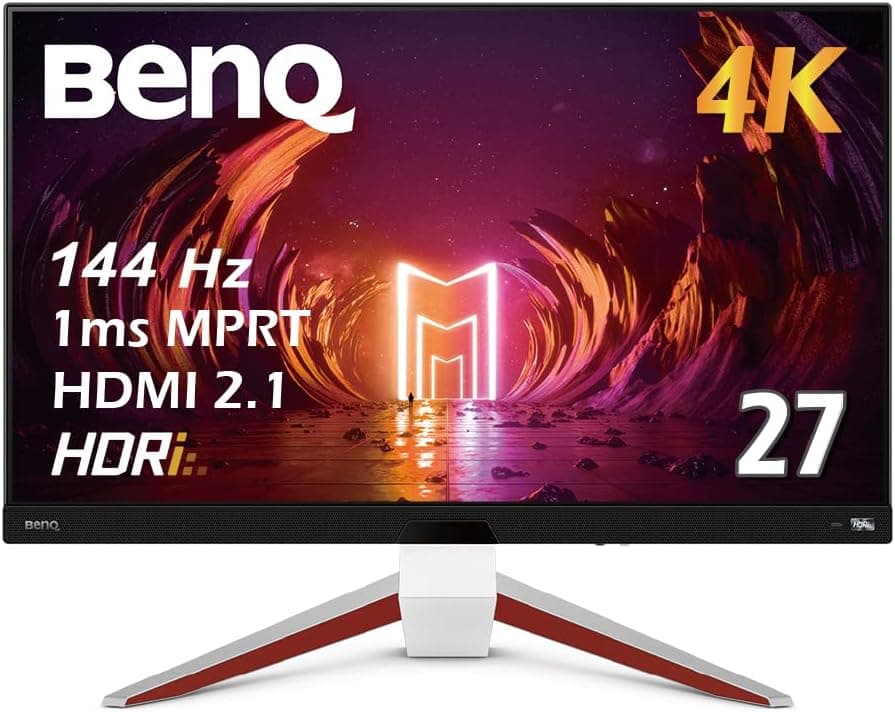
Overview
The Gigabyte M28U is a 28-inch gaming monitor that combines 4K (3840×2160) resolution with a 144Hz refresh rate. The short verdict: if you want 4K sharpness for work and high-refresh smoothness for games on one screen, it offers a well-balanced mix of size and features.
If you also expect punchy HDR, or plan to run the latest demanding games at a locked 4K 144fps, the monitor alone will not get you there.
The panel is SS IPS with a 2ms (MPRT) response time, aimed at keeping motion clear in shooters and racing games. With VESA DisplayHDR400 certification and 94% DCI-P3 (120% sRGB) color coverage, it also has enough color range for photo and video editing, not just gaming.
On the connectivity side, two HDMI 2.1 ports allow 4K 120Hz output from PlayStation 5 and Xbox Series X.
The USB-C port supports DisplayPort Alt Mode for a single-cable video connection to compatible laptops. AMD FreeSync Premium Pro support keeps motion smooth and tear-free on compatible setups.
On Amazon Japan the product is listed as “Gigabyte M28U 28インチ 144Hz ゲーミングモニター 3840 x 2160 SS IPSディスプレイ 2ms (MPRT) 応答時間 94% DCI-P3 VESA Display HDR400 FreeSync Premium Pro ディスプレイポート 1.4 x HDMI 2.1 x 1”.
As of October 2026, Amazon Japan reviews averaged 4.3 out of 5 across 553 ratings (86% as a score), a solid result for a model released in 2021.
What 28-inch 4K Means
At 28 inches, 4K works out to about 157ppi. That is clearly sharper than 27-inch WQHD (about 109ppi), nearly identical to 27-inch 4K (about 163ppi), and finer than 32-inch 4K (about 138ppi).
Text edges look smoother, which matters more than refresh rate for long sessions of writing or reading code.
The flip side is that at 100% scaling in Windows, most people find text too small. At 150% scaling you get a workspace equivalent to WQHD (2560×1440) with noticeably crisper text, which is the realistic way to use this monitor.
If you expect four times the desktop space because it is 4K, you will likely be disappointed.
A 28-inch screen keeps eye movement small even on an ordinary desk, so minimaps and HUD elements at the edges stay easy to see. You give up the immersion of a 32-inch class screen, but gain less desk clutter and less neck strain.
That is the trade-off of this size.
Compatibility Guide
Video inputs are 2× HDMI 2.1, 1× DisplayPort 1.4, and 1× USB-C (DisplayPort Alt Mode, 15W power delivery).
There are also 2× USB 3.0 downstream ports, a 3.5mm headphone jack, and a VESA 100×100mm mount.
Here is what to expect by device.
| Device | Recommended port | What to expect |
|---|---|---|
| Desktop PC | DisplayPort 1.4 | Primary path for 4K 144Hz |
| Desktop PC (GPU with HDMI 2.1) | HDMI 2.1 | GPU must also support HDMI 2.1 |
| PlayStation 5 | HDMI 2.1 | 4K 120Hz (requires console setting and supported titles) |
| Xbox Series X | HDMI 2.1 | 4K 120Hz (requires supported titles) |
| Xbox Series S | HDMI 2.1 | Works; games usually render below 4K |
| Nintendo Switch (original) | HDMI | Output tops out at 1080p, so no 4K benefit |
| USB-C laptop | USB-C | Port must support DP Alt Mode |
On PC, DisplayPort 1.4 is the primary path to 4K 144Hz.
Pushing 4K 144Hz at full color through DisplayPort 1.4 bandwidth typically relies on Display Stream Compression (DSC), so older graphics cards or adapters in the chain can cap you at 120Hz or 60Hz.
If 144Hz does not appear in your settings, check the cable and connection path first.
For 4K 120Hz or higher over HDMI 2.1, the source must support HDMI 2.1 too.
On PC, that generally means GeForce RTX 30 series or newer, or Radeon RX 6000 series or newer. Older generations stop at HDMI 2.0, which limits you to 4K 60Hz.
Use the bundled cable or a certified Ultra High Speed HDMI cable.
When connecting a laptop over USB-C, the laptop's port must support DisplayPort Alt Mode or there will be no picture. The monitor only supplies 15W, which is not enough to charge most laptops in use.
If you want one cable for both video and charging, plan on keeping the laptop's own power adapter plugged in.
The VESA 100×100mm mount lets you move the screen to a monitor arm. When choosing an arm, check on the product page that its weight capacity exceeds the monitor's weight without the stand.
GPU Requirements for 4K 144Hz
To make full use of 4K 144Hz you need a powerful graphics card; RTX 3070 or better is the recommended baseline. That is the line for playing comfortably at 4K with tuned settings.
Holding 144fps at 4K with maximum settings in the latest heavy titles is hard even for higher-end GPUs, so in practice expect to use upscaling such as DLSS or FSR.
On the other hand, lighter competitive titles such as esports shooters and MOBAs reach high frame rates more easily and benefit most from 144Hz. A realistic approach is to run heavy games at 60 to 90fps with quality settings, and let lighter games use the full 144Hz.
You can lower the resolution when your GPU falls short, but feeding 2560×1440 into a 4K panel does not scale by a whole number, so the image looks slightly soft. 1920×1080 is exactly 2× in each direction and tends to hold up better, though the result depends on the monitor's own scaler.
If you plan to upgrade your GPU later, in-game resolution scaling or upscaling usually looks cleaner in the meantime.
Product Info
The Gigabyte M28U was released in June 2021. As of October 2026, it was priced at ¥89,980 on Amazon Japan.
Prices change frequently with sales and stock levels, so check the product page for the current price before buying.
It sits in the mid-to-high tier, and its main selling point is fitting 4K 144Hz into a compact 28-inch size. The manufacturer's standard warranty is listed as three years, but terms can vary by retailer and region, so confirm before purchase.
Accessories include a power cable, HDMI cable, DisplayPort cable, USB upstream cable, and a quick-start guide.
| Item | Specification |
|---|---|
| Screen size | 28 inches |
| Resolution | 3840×2160 (4K UHD) |
| Panel type | SS IPS |
| Refresh rate | 144Hz |
| Response time | 2ms (MPRT) |
| HDR certification | VESA DisplayHDR400 |
| Color gamut | 94% DCI-P3 (120% sRGB) |
| Adaptive sync | AMD FreeSync Premium Pro |
| Video inputs | HDMI 2.1×2, DisplayPort 1.4×1, USB-C (DP Alt Mode) |
| USB ports | USB 3.0×2 (downstream) |
| VESA mount | 100×100mm |
The standout spec is the pair of HDMI 2.1 ports.
You can leave a PC and PS5, or a PS5 and Xbox Series X, plugged in at the same time and use both at 4K 120Hz just by switching inputs. Monitors with a single HDMI 2.1 port force you to swap cables, so this matters more the more devices you own.
Alternatives Compared
Buyers considering the M28U usually weigh three directions: saving money with 4K 60Hz, easing GPU load with high-refresh WQHD, or going bigger with a larger 4K screen. Here is how they differ.
| Option | Best for | Compared with the M28U |
|---|---|---|
| 27-inch 4K 60Hz | Mostly work and video, light gaming | Easier on the budget, but no high refresh or HDMI 2.1 benefit |
| 27 to 32-inch WQHD high refresh | Mid-range GPU, prioritizing fps | Higher fps on the same GPU, but less sharp text |
| Around 32-inch 4K high refresh | Big-screen immersion, roomy desk | More impact, but usually more cost and desk space |
| Full HD high refresh | Maximum fps in competitive shooters | Far less sharp, but lightest GPU load |
The M28U aims for an ambitious middle ground: keep 4K for productivity while making games as smooth as possible. If your GPU will stay mid-range for a while and you mainly game, a high-refresh WQHD monitor may satisfy you more.
If you game mostly on PS5 and use the PC for work, the M28U fits that setup very well.
Best Use Cases
- Gamers who want 4K resolution with high refresh rates: The 144Hz panel provides fluid motion while 4K delivers crisp detail, ideal for FPS and racing titles. A powerful GPU (RTX 3070 or better) is recommended to drive 4K 144Hz.
- Console gamers with PS5 or Xbox Series X: HDMI 2.1 enables 4K 120Hz output with VRR support, making the most of current-generation consoles.
- Users who game and do creative work on one monitor: 94% DCI-P3 coverage is sufficient for photo and video editing, so you can skip a second display. Professional color work may still require calibration.
- People who share one monitor between a PC and a console: two HDMI 2.1 ports mean switching inputs instead of swapping cables.
- Those with shallow desks who cannot fit a 32-inch class screen but want 4K: 28 inches balances 4K sharpness with an easy footprint.
Before You Buy
DisplayHDR400 is the most entry-level tier of VESA's HDR standards and does not require local dimming. That means you should not expect the classic HDR look where small bright areas pop against dark scenes.
Some titles look washed out with HDR on, so using SDR when you prefer the image is a perfectly normal choice.
IPS panels offer stable color and wide viewing angles, but blacks tend to look raised, and dark scenes in a dark room can show a faint glow in the corners (IPS glow). This is a trait of IPS in general and varies by unit.
If you mainly play horror games or watch movies in a dark room, consider VA or OLED monitors as well.
USB-C power delivery is only 15W. Running a laptop on one cable for both video and charging will not work for most laptops.
If you are buying for a single-cable USB-C desk setup, this is where expectations fall short.
When DisplayPort carries 4K 144Hz using DSC, some GPU and driver combinations may restrict certain features or the number of displays you can connect at once. If you plan a multi-monitor setup, check your GPU's specifications as well.
FreeSync Premium Pro is an AMD standard. NVIDIA graphics cards can often enable variable refresh over DisplayPort as Adaptive-Sync (commonly called G-SYNC Compatible), but confirm support beforehand if you depend on it.
The M28U launched in 2021, and newer 4K high-refresh models have appeared in the same price range. If the price has not dropped much, compare it with newer options at the same budget before deciding.
Also check the stand's height and tilt range on the product page to make sure it suits your setup.
FAQ
Q. Can I use it with an RTX 3060 class GPU? A.
Yes. Light titles and reduced settings are playable at 4K, but running heavy games at 4K 144Hz is not realistic.
Plan on using upscaling.
Q. How do I get 4K 120Hz on PS5? A.
Connect to an HDMI 2.1 port using the bundled cable or a certified Ultra High Speed HDMI cable, then enable 120Hz output in the PS5 video settings.
The game must also support 120Hz.
Q. Can I use a laptop with a single USB-C cable? A.
Video works if the laptop's USB-C port supports DisplayPort Alt Mode. Power delivery is only 15W, so keep the laptop's charger connected.
Q. Should I use HDR?
A. DisplayHDR400 is an entry-level tier, so compare per game. If the image looks washed out, SDR may look better.
Q. How does it differ from a 27-inch 4K monitor? A.
Pixel density is nearly the same. The main differences are the 144Hz refresh rate and two HDMI 2.1 ports for consoles.
For work alone, a 27-inch 4K 60Hz monitor is enough.
Product Disclosure (Amazon)
- Manufacturer: GIGABYTE
- ASIN: B094NX6C8R
- Note: This article covers a manufacturer-made product based on Amazon listing details.