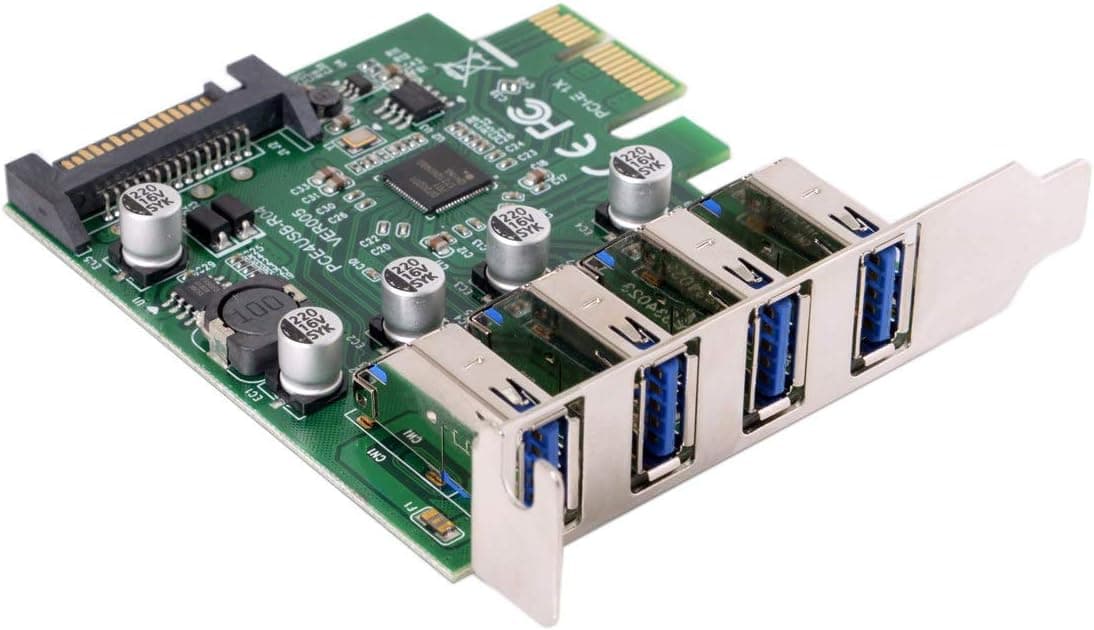
The chenyang CY Low Profile 4 Ports PCI-E to USB 3.0 HUB PCI Express Expansion Card Adapter 5Gbps for Motherboard adds four USB 3.0 ports to a desktop through a spare PCI Express slot.
This article focuses on the three things that actually decide whether you'll be happy with a card like this: bandwidth, power delivery, and physical fit.
Overview
This is a PCI Express 2.0 x1 card providing four USB 3.0 Type-A ports rated at 5 Gbps each.
Both a standard and a low-profile bracket are included, and at 0.05 kg the card puts no meaningful mechanical load on the slot.
It suits people with a clear, narrow goal: the rear I/O is full, or an older board has few or no USB 3.0 ports.
It is a poor fit if you want USB 3.2 Gen2 (10 Gbps), Type-C, or plan to hammer several fast SSDs at once.
The compatibility and caveats sections explain exactly why.
On Amazon.co.jp the card held a 4.7/5 average across 24 reviews (94% positive) as of the 2026-06-21 capture.
Twenty-four reviews is a small sample, so weigh the bandwidth and power conditions below more heavily than the star rating.
Compatibility Guide
The card is PCIe 2.0 x1, so it fits x1, x4, x8, and x16 slots — the usual PCI Express downward compatibility.
Putting it in an x16 slot does not make it faster; it still runs at x1 speed.
On the software side, the vendor states plug-and-play operation on Windows 7 and later plus Linux, with no driver install. USB 3.0 host controllers are handled through the standard xHCI interface, so OS-native drivers doing the job is normal behaviour.
Windows 7 is the exception worth flagging: its built-in USB 3.0 support is weak, and some systems still need vendor or chipset updates.
Power comes from a SATA connector on the card. USB 3.0 allows 900 mA (about 4.5 W at 5 V) per port, so four ports can draw roughly 18 W — more than you want to pull through the slot alone.
If you plan to attach bus-powered external HDDs or docks, connect the SATA lead. Light peripherals may work without it, but connecting it up front avoids chasing intermittent disconnects later.
Physical interference is the most common real-world failure, especially in small cases. The low-profile bracket solves bracket height, but the real question is whether the neighbouring slot is free.
A GPU two slots thick often physically blocks the x1 slot above or below it. Open the case and count the genuinely usable slots before ordering — Mini-ITX builds with a single slot already filled by a GPU are the classic dead end.
Quick Compatibility Table
| Item | Detail | Watch out for |
|---|---|---|
| Slot | PCIe x1 / x4 / x8 / x16 | x16 still runs at x1 speed |
| Interface | PCI Express 2.0 x1 | ~500 MB/s theoretical |
| Ports | 4 × USB 3.0 Type-A (5 Gbps each) | Bandwidth is shared |
| Aux power | SATA power | Essential for power-hungry devices |
| Brackets | Standard + low profile | Height solved; clearance is separate |
| Weight | 0.05 kg | No slot sag concern |
Row two is the one that decides satisfaction with this product.
Understanding the Bandwidth Ceiling
A PCIe 2.0 x1 lane delivers roughly 500 MB/s in each direction after encoding overhead.
USB 3.0's 5 Gbps typically lands around 400–450 MB/s in practice.
In other words, one port running flat out already consumes nearly the whole upstream link.
The conclusion follows directly. One fast external SSD is fine.
Two running at once roughly halves each drive's throughput; four is worse still. "Four ports × 5 Gbps = 20 Gbps" is the wrong reading — the correct one is "four ports sharing ~500 MB/s."
The practical layout is one high-speed device at most, with the remaining ports given to keyboards, mice, flash drives, webcams, or audio interfaces that barely touch the link. Used that way, the card earns its price.
If you want to back up four external HDDs in parallel, a USB 3.2 Gen2 card on PCIe 3.0 x4 is the cheaper answer in the end.
How It Compares to the Alternatives
- Bus-powered USB hub — cheapest, works on laptops, but it splits one host port's bandwidth and power. It is branching, not expansion, and gets unstable with multiple drives.
- Self-powered hub with an AC adapter — better on power than this card for many hungry devices; the cost is another box and cable on your desk.
- PCIe expansion card (this product) — adds a host, so it competes with neither the bandwidth nor the power of the onboard ports, and keeps cables at the rear. Costs one slot; desktop only.
- Unused USB 3.0 internal header — check this first. If your board has a spare header, a front panel or bracket may be all you need.
- Replacing the motherboard — the real fix if the board is simply too old, but it usually drags CPU and RAM along, an order of magnitude more expensive.
For reviving an older machine, try this card first and only rebuild the platform if it falls short.
Product Info
The brand is CHENYANG, the manufacturer listed on Amazon is RIELOV, and the ASIN is B07P6J35SC. The box contains the card, a pre-installed standard bracket, a low-profile bracket, and a SATA power cable.
No driver media is needed.
Pricing varies by capture date. It was ¥2,599 on Amazon as of the 2026-08-26 capture, ¥4,491 in a 2026-06-21 capture, and $17.99 on an eBay listing as of 2026-08-03.
All are point-in-time figures; small parts like this move quickly with stock and seller. Check the current price on the product page before buying, and note that the same ASIN can change price when the seller changes.
Reviews stood at 24 with a 4.7/5 average (94% positive) as of the 2026-06-21 capture — high, but on a small sample.
Product Disclosure (Amazon)
- Manufacturer: RIELOV
- Brand: CHENYANG
- Seller: Amazon US
- Fulfilled by: Amazon US
- ASIN: B07P6J35SC
- Note: This article covers a manufacturer-made product based on Amazon listing details.
Installation Steps
The job takes about ten minutes. The steps people get wrong:
Shut down, unplug the power cable, and flip the PSU switch off.
Open the case and pick a free PCIe slot that doesn't choke the GPU's airflow.
Swap to the low-profile bracket if you're in a slim case; have the small screws ready.
Seat the card fully and squarely.
A partially seated card is the classic "not detected" cause. 5.
Attach a spare SATA power connector from the PSU. 6.
Screw down the bracket, close up, and confirm detection in Device Manager (or lsusb / lspci on Linux).
If it isn't detected, try a different slot first. Some slots are disabled in BIOS/UEFI or share lanes with an M.2 socket; the motherboard manual's lane-sharing notes usually resolve it quickly.
Best Use Cases
- Desktop users chronically short on rear ports — keyboard, mouse, headset, webcam, flash drives, external storage. Adding a host beats splitting one.
- Owners of older machines with little or no USB 3.0 — going from USB 2.0 (roughly 30–40 MB/s in practice) to USB 3.0 transforms external storage, far cheaper than a new board.
- Slim tower / low-profile builds — the bracket solves height; verify adjacent-slot clearance first.
- Anyone whose peripherals are mostly low-bandwidth — audio gear, MIDI, printers, dongles. Shared bandwidth simply never becomes an issue.
Things to Check Before Buying
Don't add up "4 × 5 Gbps." The upstream link is a single PCIe 2.0 x1 lane at roughly 500 MB/s.
Buying this to run several fast SSDs at once will disappoint you, and that is the interface working as specified, not a defect.
Don't skip the SATA power lead. Most reports of devices dropping out or transfers failing on cards like this trace back to insufficient power.
Check that your PSU has a spare SATA connector; if not, budget for a splitter cable.
Don't assume the slot is usable. Low-profile support is about bracket height only.
Thick GPUs, large CPU coolers, and internal cabling can block an otherwise empty slot. A Mini-ITX build with one slot already taken rules this card out entirely.
There is no USB 3.2 Gen2 or Type-C here. If 10 Gbps external SSDs or Type-C devices are the point, this product cannot meet the requirement.
Decide the port type you need before shopping.
The onboard controller chip isn't identifiable from public listing data. At this price point, visually identical cards with different chips do circulate.
If you need a specific controller — for driver requirements on a particular OS, or for passthrough in a virtualised setup — confirm it on the seller page or choose a product that documents it.
Listing metadata can disagree with itself. Here the brand (CHENYANG) and the listed manufacturer (RIELOV) differ.
That is common for grey-market parts, but you will see the same mismatch on the product page. Confirm port count, bracket contents, and interface generation from the product images and title rather than the metadata fields, and check the seller before adding to cart, since price moves with the seller.
FAQ
Q. Do I need to install drivers? A.
The vendor states plug-and-play on Windows 7 and later and on Linux. USB 3.0 uses the standard xHCI interface, so native OS drivers normally handle it.
Windows 7 is the weak spot and may need additional driver or chipset updates.
Q. Is the SATA power connection mandatory? A.
Light peripherals often work without it, but connect it if you use external HDDs or bus-powered docks. USB 3.0 allows 900 mA per port, roughly 18 W across four.
Q. Will an x16 slot make it faster?
A. No. The card is PCIe 2.0 x1, so it runs at x1 speed in any slot.
Q. Can I run four external SSDs at once? A.
You can connect them, but they share about 500 MB/s upstream, so per-drive speed drops sharply. One fast device plus low-bandwidth peripherals is the realistic layout.
Q. Does it offer USB 3.2 Gen2 or Type-C?
A. No — four USB 3.0 Type-A ports only. Choose a different card if you need either.
Q. Does it work with a laptop? A.
No. It requires a PCI Express slot, so it is desktop-only.
Laptops need a USB hub or a Thunderbolt/USB dock instead.