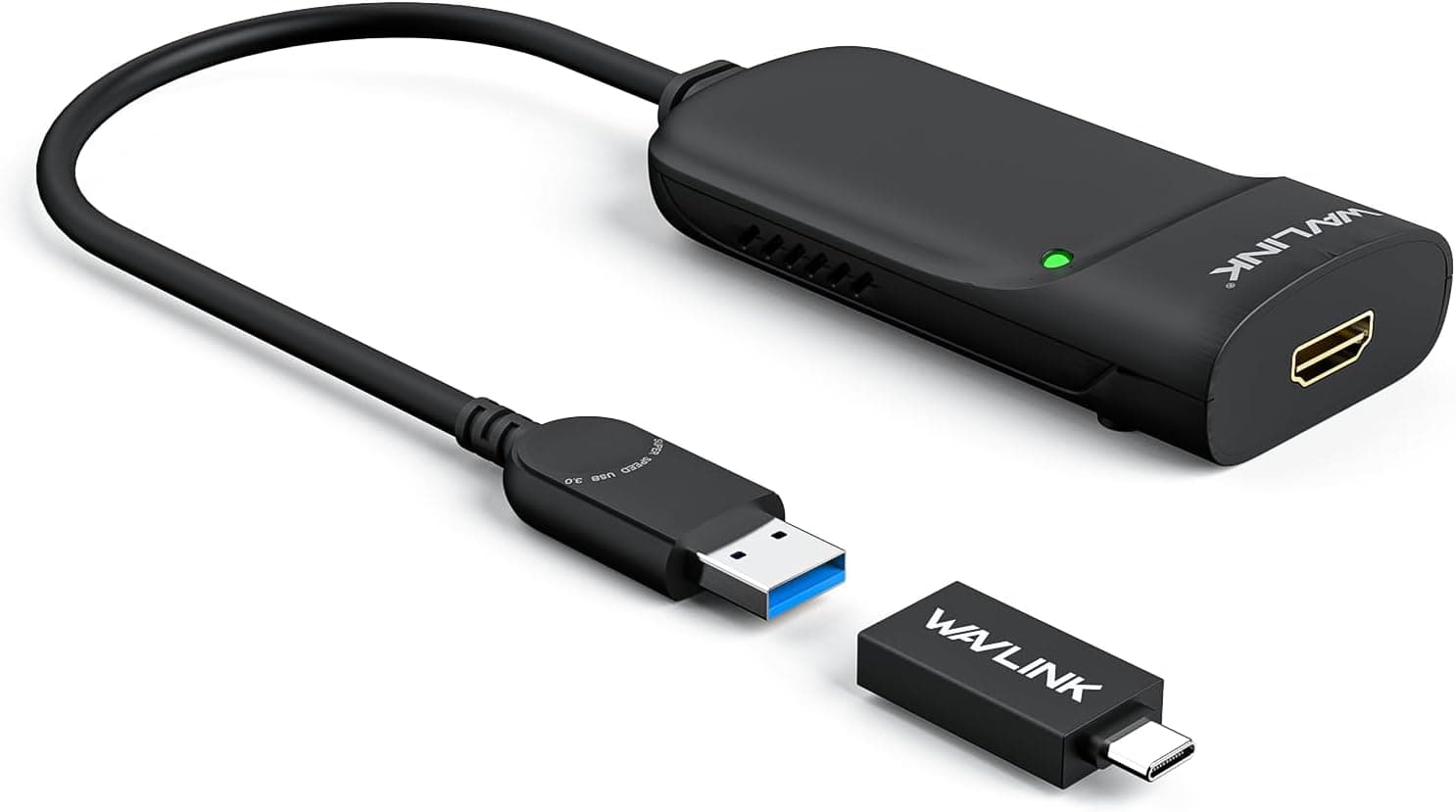
Overview
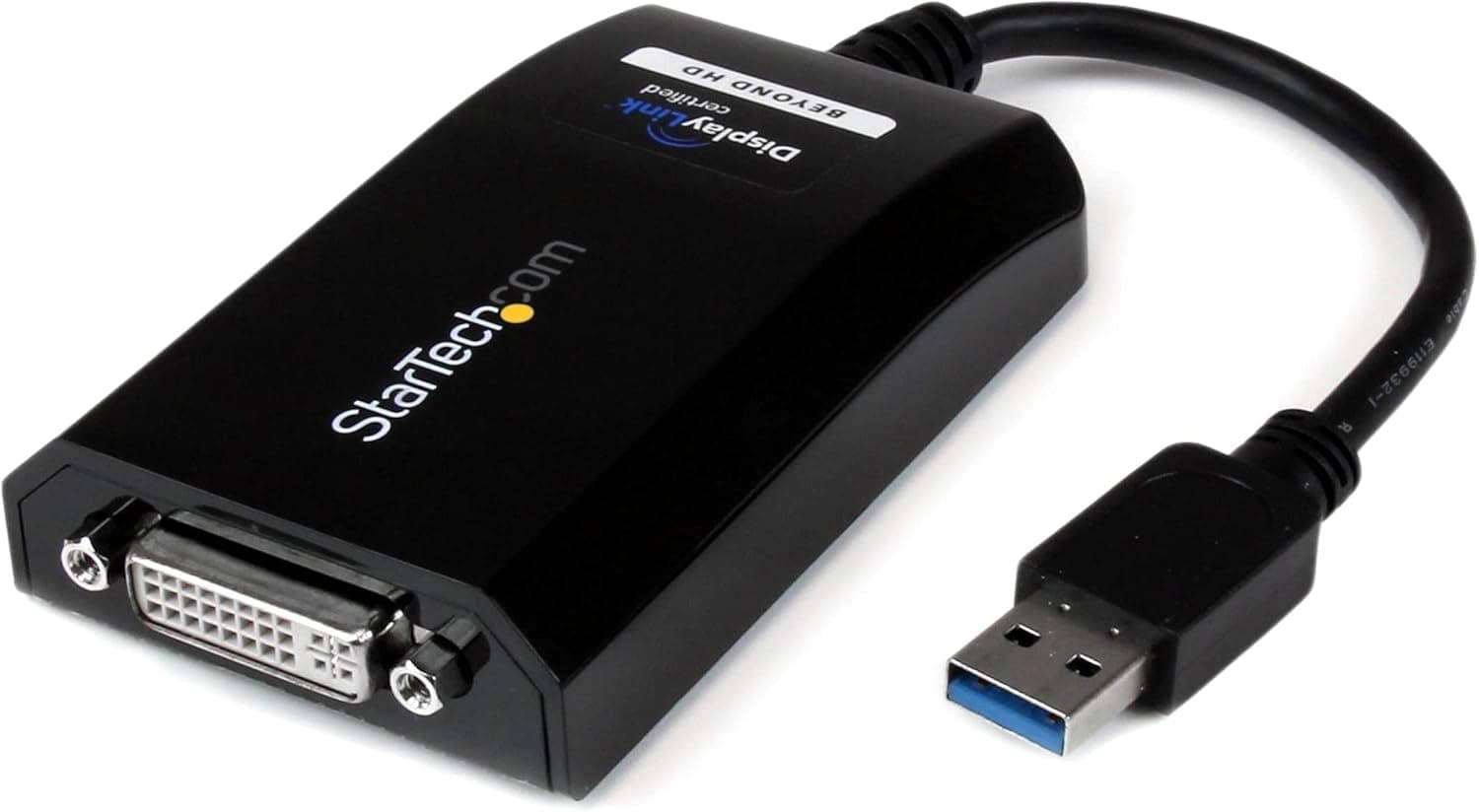
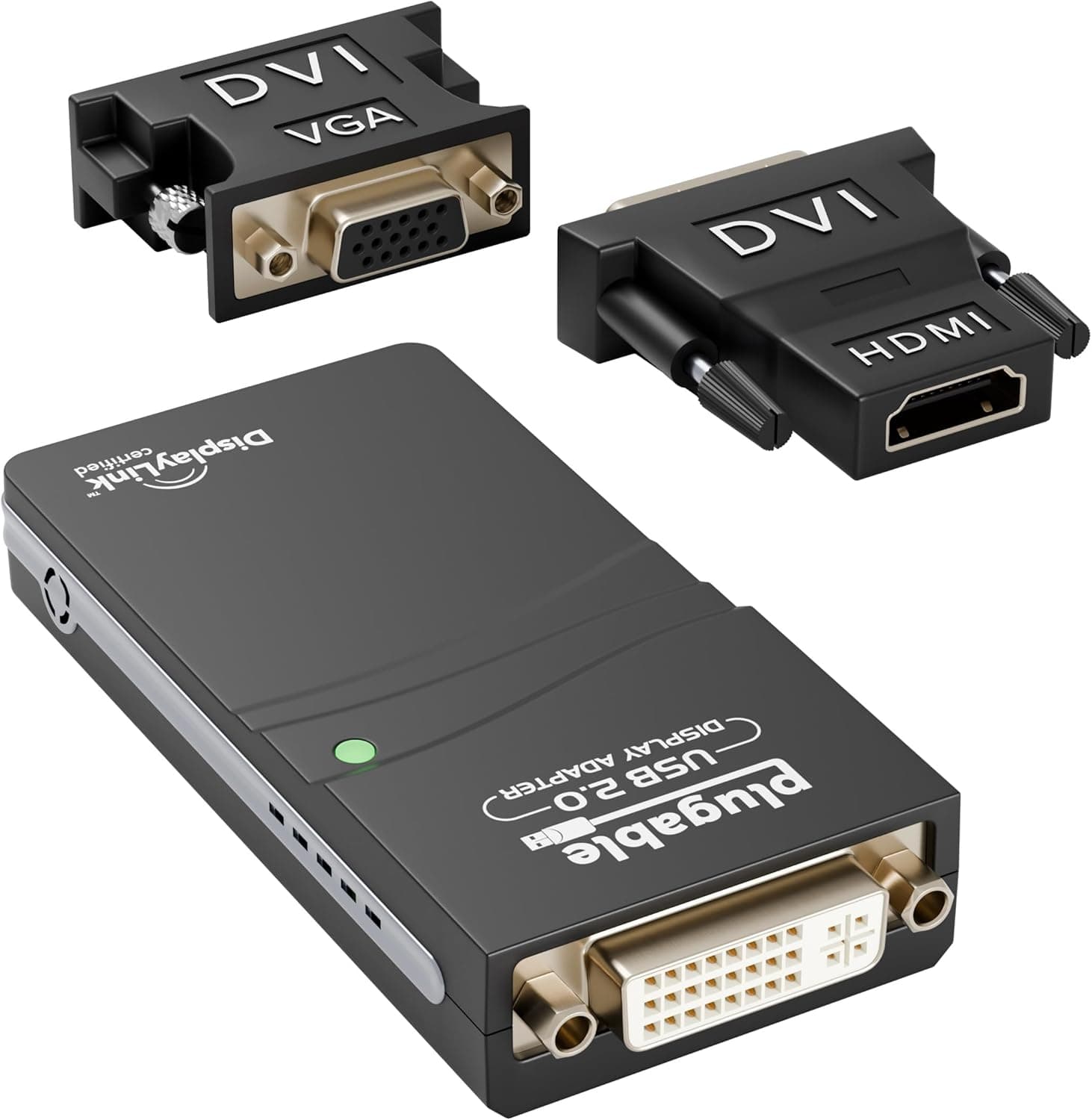
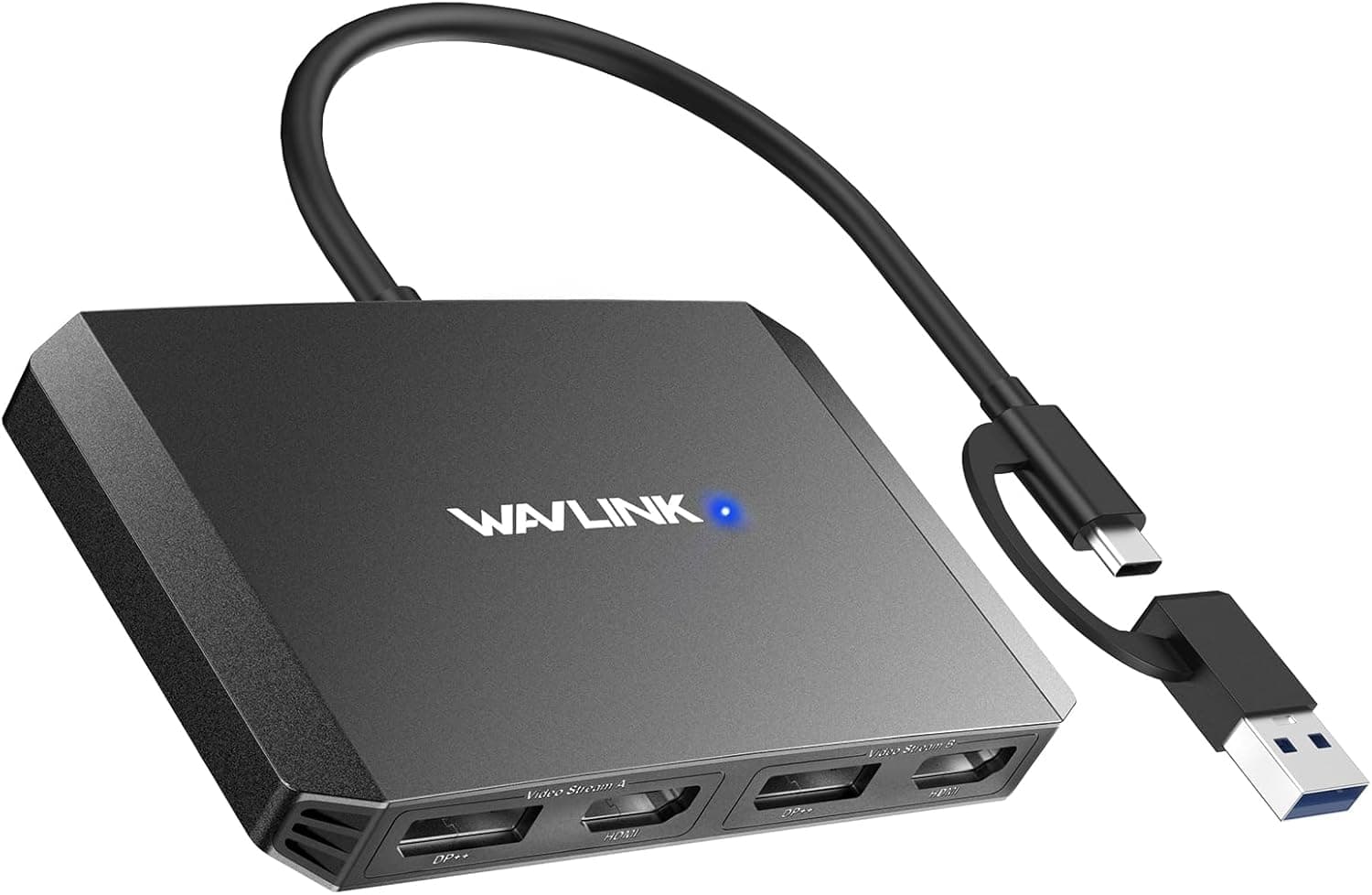
The Wavlink USB 3.0 HDMIマルチディスプレイアダプタ (Wavlink USB 3.0 HDMI Multi-Display Adapter) is a DisplayLink-style adapter that adds an HDMI monitor through a USB 3.0 port.
The short verdict: it is genuinely useful when your PC has run out of video outputs and you want to park spreadsheets, browsers, chat windows, or dashboards on an extra screen — and it is the wrong tool for gaming or video work. Its limits are stated up front: 2048x1152 maximum resolution, no HDCP, and official OS support covering Windows Vista/7/8/8.1/10 plus macOS up to 10.13.3.
Amazon.co.Check the retailer's page for the latest user reviews.
That "fine but not loved" rating is exactly what this product class earns. It behaves as advertised on mostly-static content and disappoints whenever someone points video or a game at it.
Reading the low-star reviews with "what were they displaying?" in mind tells you more than the average does.
Quick Verdict by Use Case
| Use case | Fit | Why |
|---|---|---|
| Spreadsheets, browsers, chat, code | Excellent | Small screen deltas compress well over USB |
| Trading charts, monitoring dashboards | Excellent | More screens is the whole point; updates are partial |
| Video-call secondary screen (slides) | Good | Fine for documents; keep camera feeds on the native output |
| Streaming video | Poor | No HDCP, so protected content may not display |
| Video or photo editing | No | Capped at 2048x1152; wrong for color and latency work |
| Gaming | No | Neither high refresh rates nor low latency are available |
Opinions on this adapter split along the rows above. When only part of a window redraws, the data volume stays low and USB 3.0 copes easily.
When the whole frame changes every refresh, compression and CPU work fall behind and you feel it as stutter and lag. Decide which row you live in before buying — that single choice prevents most disappointment.
Connectivity & Compatibility
The host side is USB Type-A (USB 3.0, backward compatible with USB 2.0) and the output is HDMI Type-A.
A USB 2.0 port will detect the adapter, but USB 2.0 offers less than a tenth of USB 3.0's bandwidth, so it is only viable for near-static content.
If you intend to run 2048x1152, plug directly into a USB 3.0 port on the machine itself rather than through a hub.
Official OS support is Windows Vista/7/8/8.1/10 and macOS up to 10.13.3.
Windows 11 is not listed in this product's compatibility notes, so treat it as unverified. DisplayLink-class devices often run on either vendor drivers or newer DisplayLink releases, but nothing guarantees that for this unit.
If Windows 11 or an Apple Silicon Mac is your target, check the manufacturer's current support list before buying. macOS behavior reportedly changed from 10.13.4 onward, and 10.15.5 may require a specific beta driver.
On the physical side, the listed dimensions are 216 x 152 x 41 mm. That is far too large for a USB adapter body and most likely reflects packaging rather than the device.
Do not plan desk or cable clearance around that figure — confirm the actual size from the product photos and listing details.
The specification states support for up to six monitors. In this product class, "up to six" normally refers to the driver-side ceiling when several DisplayLink devices share one PC, not six outputs from a single adapter.
Plan on one adapter per added screen, verify the per-unit output count on the product page, and remember that stacked adapters also share USB bandwidth.
Product Info
Key specifications: 2048x1152 maximum resolution, USB 3.0 interface (USB 2.0 compatible), no HDCP support, and a stated six-monitor ceiling with the caveat above.
Primary, extended, and mirror display modes are supported, and the unit runs on USB bus power, so no external power brick is required — a small but welcome detail on a crowded desk.
On pricing, Amazon.co.jp showed ¥6,299 as of the August 2026 capture, and eBay US showed $24.99, also captured in August 2026.
Both land around the same level, with no suspicious outliers, and that is a normal street price for a DisplayLink-based adapter. Prices move with sales and stock, so check the listing for the current figure before ordering.
The 1,163-review count (July 2026 capture) at least confirms this is a long-selling product rather than an unknown. The 3.9-star average simultaneously confirms that a meaningful share of buyers had the wrong use case in mind.
Product Disclosure (Amazon)
- Manufacturer: WAVLINK
- Seller: Wavlink direct store
- Fulfilled by: Amazon
- ASIN: B01CSG7TUC
- Note: This article covers a manufacturer-made product based on Amazon listing details.
How DisplayLink Actually Works
Every strength and weakness here follows from one fact: the video travels as compressed data over USB. HDMI and DisplayPort cables carry dedicated video bandwidth; a USB display adapter compresses the screen, ships it over the USB data link, and decodes it into HDMI on the other end.
The side effect is CPU load, since your processor does the compression. On a machine with headroom you will not notice; on an older laptop or a PC already running heavy work, the extra screens eat the margin you needed elsewhere.
That is how a productivity upgrade turns into a slowdown.
One more thing worth knowing: BIOS/UEFI and pre-boot screens never appear on this adapter. Output starts only after the driver loads, so keep at least one monitor on the machine's native video output for firmware settings and boot troubleshooting.
That is the design, not a defect.
Setup Steps
- Install the driver first, then connect the adapter.
Plugging in first lets a generic driver bind and creates extra cleanup work. 2.
Use the current driver from the vendor or DisplayLink rather than an old bundled version. Since the box contains only the adapter and the manual lives online, locate the download before you start.
- Plug into a USB 3.0 port (blue, or marked SS) directly.
Hubs hurt on both bandwidth and bus power. 4.
Connect HDMI, then choose extend or duplicate in display settings and arrange the screen order there. 5.
If it works but feels sluggish, drop the monitor one resolution step, disable animated wallpapers and slideshows, and move video playback to a natively connected screen — in that order.
Compared With the Alternatives
There are two real rivals. The first is a USB-C or Thunderbolt dock: if your PC supports DP Alt Mode, video gets a dedicated lane and wins on resolution, refresh rate, and latency.
If your machine outputs video over USB-C, start there. The second is adding a graphics card, which remains the proper answer on a desktop that needs more outputs.
This Wavlink earns its place only when neither option exists — a PC whose USB-C carries no video, a laptop or mini PC with no expansion slots, or a fixed workstation whose OS and hardware cannot be updated. Under those constraints, one extra screen for roughly ¥6,299 (August 2026 capture) is a practical fix.
Given better options, though, this is not the one to reach for.
Best Use Cases
- Office users who keep many windows visible. Trading desks, call centers, and order-processing work are full of "display only" panels. Put the slow-changing ones on this adapter and keep active work on the native output.
- Laptop and mini-PC owners short on video outputs. One HDMI port becomes two without opening the chassis.
- Anyone maintaining older systems. Official Windows 7/8.1 and macOS 10.13 support is something newer adapters rarely offer, which makes this a credible way to extend the life of machines that cannot be upgraded.
- Desks with no spare outlets. Bus-powered operation means no extra AC adapter.
Before You Buy
No HDCP is the defining compromise. Copy-protected video — most streaming services, Blu-ray playback software — may simply fail to display on a monitor attached to this adapter.
If your reason for buying is "a second screen to watch things on," this product defeats that purpose. Rule it out.
The 2048x1152 ceiling matters too. Standard 1080p fits comfortably, but WQHD (2560x1440) and 4K panels cannot run at native resolution.
High refresh rates are out as well, so a gaming monitor's strengths go unused here.
Verify the OS list and the stated dimensions yourself. Official support stops at Windows 10-era releases and macOS 10.13.3, with no guarantee on current systems, and the 216 x 152 x 41 mm figure is almost certainly packaging rather than the adapter.
Listing data does carry stale or mismatched entries from time to time, so confirm the product from the images and title, and cross-check purchase-deciding details such as size and OS support against the manufacturer's own information.
Other things buyers discover late: hubs can cause instability, USB 2.0 ports are not practical, nothing displays until the driver is installed, BIOS screens never appear, and screen arrangement sometimes scrambles after sleep.
These are normal traits of the method, not proof of a faulty unit — try a different port and the latest driver before starting a return.
FAQ
Q. Can I connect a 4K monitor?
A. Physically yes, but the 2048x1152 cap means no 4K output. Treat it as a 1080p-class device.
Q. Will streaming services play?
A. Possibly not. Without HDCP, protected content may refuse to display. Do not buy this for video.
Q. Do I really get six screens? A.
Six is the stated ceiling, which normally applies to several DisplayLink devices on one PC. Check the product page for outputs per unit, and note that stacked adapters share USB bandwidth.
Q. Does it work on Windows 11 or Apple Silicon Macs? A.
The official list covers Windows 10-era releases and macOS 10.13.3.
Current OS support is unverified — confirm with the manufacturer first.
Q. Is it usable for games? A.
Not practically. Compressed video over USB brings latency and dropped frames, and high refresh rates are unavailable.
Keep games on a natively connected monitor.
Q. Does CPU load increase? A.
Somewhat, because the CPU handles compression. Machines with headroom cope fine; already-loaded systems may feel it.