Overview
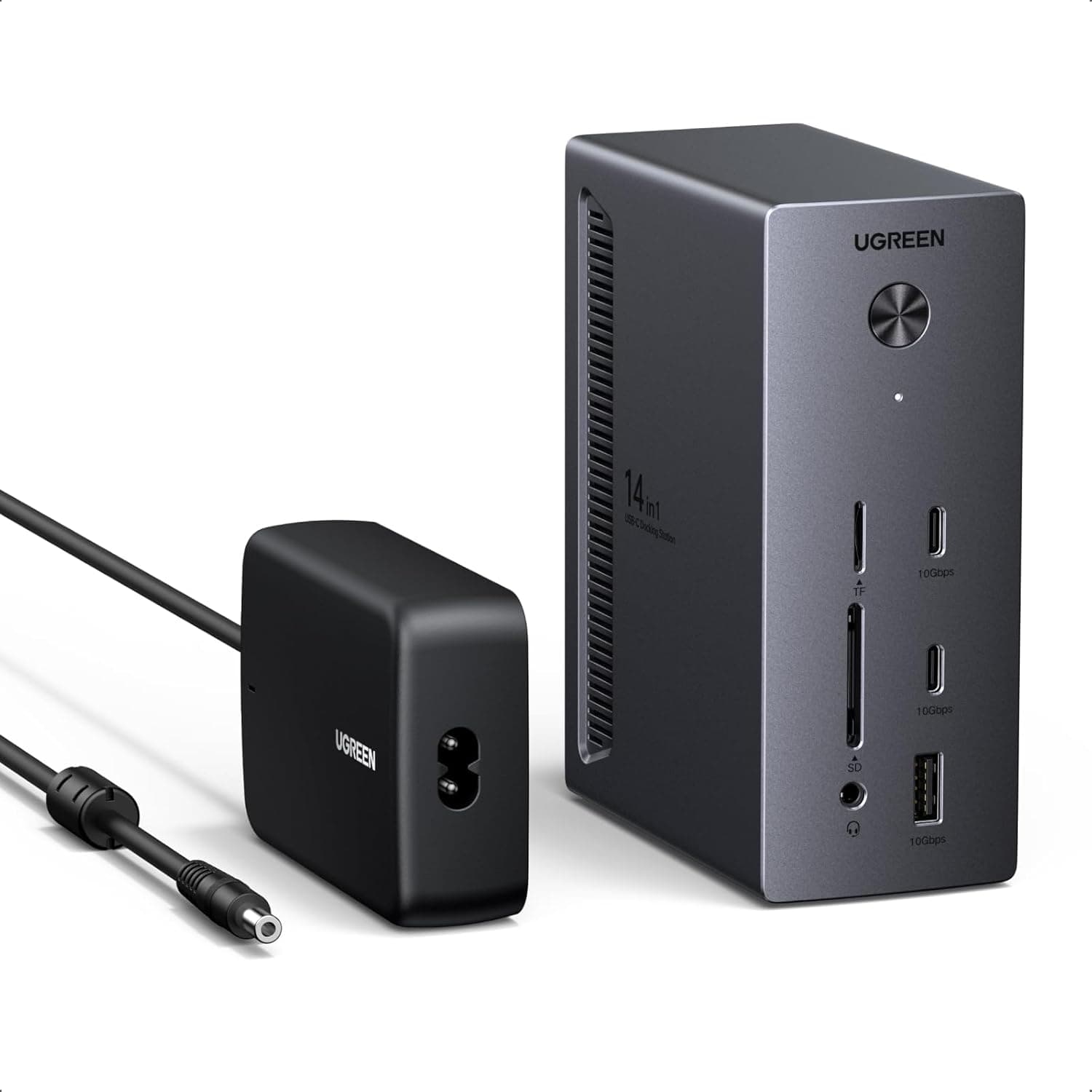
The UGREEN Revodok Pro 314 14-in-1 USB-C Docking Station with Triple Display Support connects multiple peripherals and monitors through a single USB-C port. Its port list and feature list are gathered in the Product Information section.
The official manufacturer page spells out the conditions for using the dock in detailed notes, covering macOS display behavior, 4K@120Hz output and how power is shared between ports. This article organizes those notes into what to check before buying.
Compatibility Guide
According to the manufacturer's notes, full compatibility requires a laptop USB-C port that supports both Power Delivery and DisplayPort 1.2/1.4 Alt Mode, in addition to USB4 or Thunderbolt 5/4/3.
Check your laptop's specification sheet for all three points first.
| Item | Official page statement |
|---|---|
| Laptop USB-C port | Power Delivery and DisplayPort 1.2/1.4 Alt Mode, plus USB4 or Thunderbolt 5/4/3 |
| Multiple monitors on macOS | Not recommended if you want different content on each monitor; external monitors show identical content |
| 4K@120Hz | Only DisplayPort, on a single 4K display; the laptop's USB-C port must support DP1.4 with DSC |
| Cable for 4K@120Hz | A DisplayPort 1.4 cable no longer than 3 m (28AWG) |
| 100W laptop charging | Laptop must support PD 3.0, and the dock's 27W USB-C PD port must be free of connected devices |
The table restates the official notes. For a MacBook user who wants three independent screens, the fact that the manufacturer does not recommend this use is the first thing to weigh.
Product Info
rmation
The following comes from the official manufacturer page.
- SKU: 55892
- Hardware interface: Ethernet, HDMI, USB 3.0, USB Type C
- Special features: Fast Charging, Fast Data Transfer, Plug and Play, Portable, Powered
- Total USB ports: 5
- Data transfer rate: 10 Gigabits Per Second
The notes also distinguish the 100W upstream USB-C port, the 27W USB-C output and the front USB-C ports. Because each port has a different role, read the Before You Buy section before deciding what goes where.
Recommended For
- Users who checked their laptop's specification sheet and found USB-C support for Power Delivery and DisplayPort Alt Mode plus USB4 or Thunderbolt, which matches the full-compatibility condition on the official page.
- Users planning a single 4K@120Hz display over DisplayPort who can provide a DP1.4 port with DSC and a cable of 3 m or less.
- Users who can assign the front USB-C ports to devices that only need data transfer, such as external storage.
Before You Buy
Start with macOS. The official manufacturer page does not recommend this dock for MacBook users who want to connect multiple monitors with different content, and states that on macOS the external monitors display identical content.
Next, power. The official page says the 100W upstream USB-C port and the 27W USB-C output share a combined 100W.
When both are in use, the maximum output per port may be less than the individual rating. To charge a laptop at 100W, the laptop must support PD 3.0 and the dock's 27W USB-C PD port must have nothing connected.
The front USB-C ports offer neither charging nor display and are for data transfer only. The 27W USB-C PD output is described as charging only.
Decide whether a port is for phone charging or external storage before plugging in.
For 4K@120Hz, all three conditions must hold: DisplayPort only, a laptop port with DP1.4 and DSC, and a DisplayPort 1.4 cable of 3 m or less (28AWG).
Check the sales page for current price and stock.
FAQ
Can a MacBook show three different screens on three monitors?
The official page does not recommend it, since macOS treats the external monitors as showing identical content.
What does it take to charge a laptop at 100W?
The official notes name two conditions: PD 3.0 support on the laptop, and an empty 27W USB-C PD port on the dock.
Can the front USB-C ports charge a phone?
No. The front USB-C ports do not support charging, so charging goes through the 27W USB-C PD output.