This article takes a close look at the ASUS Chromebook CX14 — 14-inch FHD Touchscreen Chromebook Laptop, focusing on what its spec sheet means in daily use. The short answer: it is a laptop with a narrow focus, meant for people whose work happens in the browser and Google services and who do not need Windows-only software.
Overview
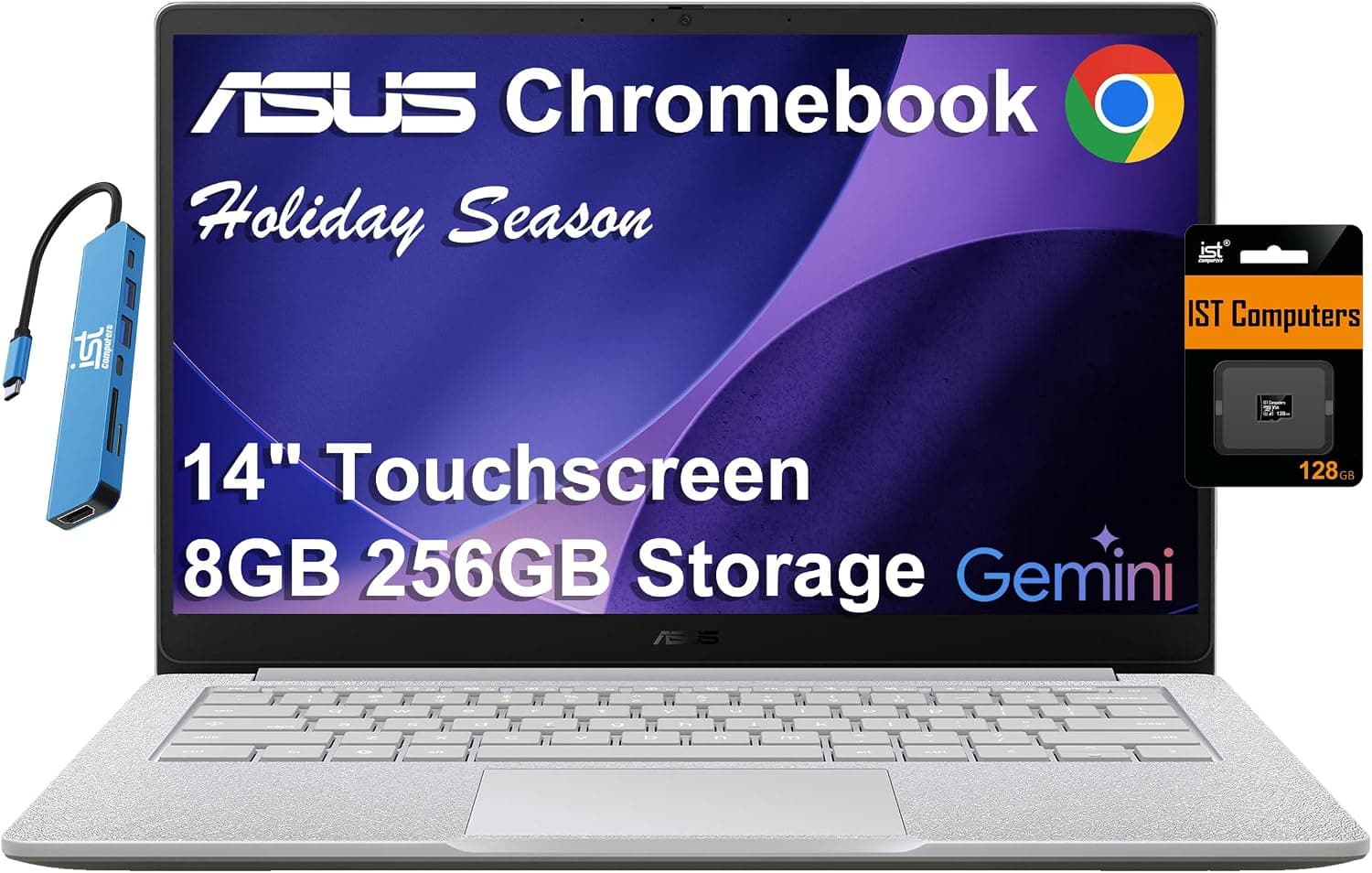
The ASUS Chromebook CX14 (model CX1405CKA) is a Chrome OS laptop with a 14-inch Full HD (1920×1080) touchscreen. It runs on an Intel Celeron N4500 with 8GB of RAM, an entry-level setup aimed at everyday tasks such as web browsing, document editing, video streaming and video calls.
It is sold with 128GB of eMMC storage plus a 128GB SD card.
At about 1.39 kg, it is easy to carry for a 14-inch machine.
According to the product description, it passes 24 MIL-STD-810H durability tests. The 180° hinge lets the screen lie flat so you can show it to someone across the table.
Wireless support covers Wi-Fi 6 and Bluetooth 5.4.
In one sentence, this machine gives up heavy workloads in exchange for light weight, touch input and easy maintenance. If you don't push it beyond that, it can be very satisfying.
If you expect it to replace a Windows laptop and do everything, you will be disappointed. The sections below explain where that line falls.
Performance Expectations: What the Celeron N4500 and 8GB Can and Cannot Do
The Intel Celeron N4500 is a dual-core, dual-thread low-power processor designed for thin, inexpensive laptops. Chrome OS is lightweight, so browsing with a few tabs, editing Google Docs and Sheets, and playing Full HD video all work fine.
When you run several things at once, such as a video call with many tabs open, the CPU in this class tends to hit its limit first. 8GB of RAM is generous for a Chromebook at this level and reduces the tab reloading common on 4GB models.
More memory does not make the CPU itself any faster, though.
Chrome OS can run Android apps from the Google Play Store and, if enabled, a Linux environment. Android 3D games or daily use of development tools under Linux are a heavy load for this CPU, so treat them as possible but not comfortable.
Video editing, serious photo editing and PC gaming are out of scope.
Compatibility Guide
The first thing to check is whether your software runs on Chrome OS. As the listing states, this is a Chrome OS-only device, and Windows or macOS applications will not run.
Microsoft 365 can often be replaced by its web or Android versions. However, Windows-only business software, accounting tools or certain printer drivers required by your school or employer may not work.
Before buying, check that each app you rely on has a web version.
The laptop has one USB Type-C port (Power Delivery), two USB Type-A ports, HDMI 1.4 and a combo audio jack.
The USB-C port is also used for charging, so you need a hub to connect another USB-C device while charging. This bundle is said to include an IST 7-in-1 hub with HDMI (4K@30Hz), USB-C 2.0, two USB 2.0 ports and an SD/TF card reader.
External displays need care. HDMI 1.4 tops out at 30Hz at 4K, and the hub's HDMI is also 4K@30Hz.
The original description claimed support for up to three monitors with 4K@60Hz output, but we could not confirm this. A single Full HD monitor as an extended screen should be fine.
If you want smooth 4K or multiple displays, check the video output specs on the manufacturer's product page.
Storage is 128GB eMMC plus a 128GB SD card. The listing describes the SD card as integrated and not removable.
SD cards are generally slower than eMMC, so they work better for storing files than for installing apps. Chrome OS is designed around cloud storage such as Google Drive, so a stable internet connection matters more than local capacity.
With Wi-Fi 6 (802.11ax), connections tend to stay more stable on busy networks when paired with a Wi-Fi 6 router.
It still connects to Wi-Fi 5 or older routers, using the router's standard. Bluetooth 5.4 handles wireless mice and earbuds.
Product Info
rmation
| Item | Details |
|---|---|
| Processor | Intel Celeron N4500 |
| RAM | 8GB |
| Storage | 128GB eMMC + 128GB SD card |
| Display | 14-inch 1920×1080 (FHD) touchscreen |
| OS | Chrome OS |
| Wireless | Wi-Fi 6 (802.11ax), Bluetooth 5.4 |
| Weight | About 1.39 kg |
| Battery life | Official figure not confirmed |
| Ports | USB Type-C (PD), 2× USB Type-A, HDMI 1.4, combo audio jack |
| Bundled hub | IST 7-in-1 (HDMI 4K@30Hz, USB-C 2.0, 2× USB 2.0, SD/TF card reader) |
As the table shows, this is a standard entry-level Chromebook setup. What stands out is the combination of a 14-inch FHD touchscreen and 8GB of RAM at about 1.39 kg.
According to the original description, the box includes an AC adapter, the IST 7-in-1 hub and a quick-start guide. The standard manufacturer warranty is one year, and the SD card storage is said to carry a separate three-year warranty.
It is worth checking on the product page whether warranty claims go to the manufacturer or the seller.
As of August 25, 2026, Amazon.co.jp listed it at ¥102,337.
Even counting the bundled hub and SD card, that is high for a Celeron N4500 Chromebook. Prices change often, so check the current price on the product page and compare it with other listings for the same model.
Check the retailer's page for the latest user reviews. Reading what the low-rated reviews say about shipping condition, the keyboard or the battery is more useful.
Comparison with Competitors: Chromebook or Windows Laptop?
The real alternative for most buyers of the ASUS Chromebook CX14 is a Windows laptop in a similar price range. A light Windows laptop such as the LG gram 14, with a Core i5, 16GB of RAM and a 512GB SSD, beats it on performance, storage and software compatibility.
The trade-off is that you have to handle OS updates and security yourself, which takes more effort than a Chromebook.
The reason to choose a Chromebook is that it does less but needs less looking after. Sign in with a Google account and your setup returns, OS updates install automatically, and you generally don't need antivirus software.
For a shared family computer or a child's study laptop, that simplicity can matter more than raw performance.
A quick guide:
- Everything you use runs in a browser or as an Android app → a Chromebook is enough
- You need even one Windows-only app → choose a Windows laptop
- You want photo or video editing or gaming → look at a more powerful laptop, not this class
- You want to present with touch or write directly on the screen → the touchscreen and 180° hinge are useful here
Who It's For
Students and education: Chrome OS works well with Google Classroom and other education services, and it is easy to manage. The touchscreen helps with interactive material and writing on the screen.
Heavy creative software such as Adobe Premiere Pro will not run, so it is a poor fit for video-focused courses.
Remote work and home office: At about 1.39 kg, it is easy to carry and works for Zoom or Google Meet calls.
The original description says it has a 720p webcam with a privacy shutter. It is not an option if you need Windows-only business apps.
Media consumption and light browsing: The 14-inch FHD touchscreen has enough resolution for videos and websites. The low-power Celeron N4500 handles light tasks without trouble, but it is not meant for gaming or video editing.
Users who value security and simplicity: Chrome OS updates itself automatically and generally does not need separate antivirus software. That makes it easy to manage for households or small offices without IT support.
Before You Buy
First, check the Chromebook's Auto Update Expiration (AUE). Each Chromebook model has a fixed date after which it stops receiving OS and security updates.
The Celeron N4500 came out in 2021. Look up model CX1405CKA in Google's public auto-update policy list before buying.
Next, the price. ¥102,337, as captured in August 2026, is expensive for these specs.
Consider whether you really need the bundled hub and SD card. If not, compare listings without accessories, or Windows laptops at the same price with stronger hardware.
Mind the real-world storage speed as well. 128GB of eMMC is slower than an SSD, and the 128GB SD card is usually slower still.
Treating it as 256GB and filling it with files and apps will not give you the smooth experience you might expect.
External display specs are another common misunderstanding. The laptop's HDMI is version 1.4 and the hub's HDMI is 4K@30Hz, so do not plan on running a 4K monitor at 60Hz.
If smooth cursor movement matters to you, a Full HD or WQHD monitor may be a better match.
At the time of writing, we could not confirm an official battery life figure. If you plan long sessions away from an outlet, check the battery life on the manufacturer's product page.
Also, even on Amazon.co.jp, bundle listings may ship with a US English keyboard instead of a Japanese layout.
Check the product images and description for the keyboard layout.
Finally, a note about the listing details. The source data for this article included Amazon listing information naming MSI as the manufacturer, with an ASIN that differs from the reference page.
The ASUS Chromebook CX14 is an ASUS product, so we treated that information as belonging to another item and removed it from this article. The product page may show similar mismatches, so confirm from the images and title that it is the ASUS Chromebook CX14 (model CX1405CKA) before you buy.
FAQ
Q. Can I use Microsoft Word and Excel? A.
The Windows version of Office cannot be installed. The web version of Microsoft 365 and the Android apps handle basic editing, but macros and some advanced features may not work.
If they are essential for work, check before buying.
Q. Can it play games? A.
Assume Steam and other PC games will not run. Light Android games and browser games work, but heavy 3D games are too much for the Celeron N4500.
Q. Is 8GB of RAM enough? A.
It is a generous amount for a Chromebook and plenty for everyday browsing and documents. In this configuration, the CPU usually reaches its limit before the memory does.
Q. How long will it be supported? A.
Each model has a set update expiration date. Look up model CX1405CKA in Google's published list.
The laptop keeps working after that date, but security updates stop.
Q. Does it support a stylus? A.
It has a touchscreen, but we could not confirm stylus support from the listing. If handwriting matters to you, check the product page for pen support.