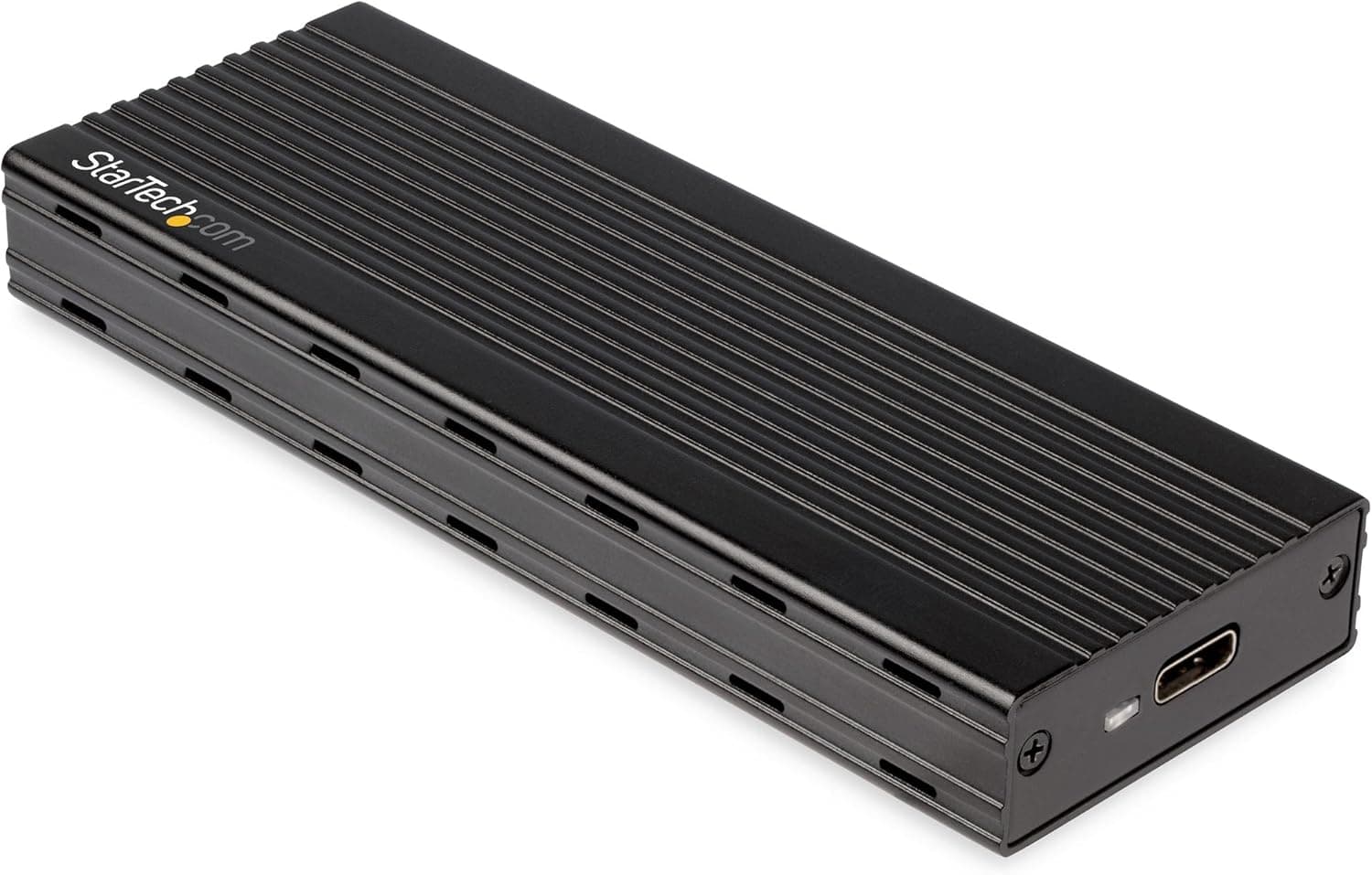
The StarTech.com SV231DPUEA is a KVM switch for sharing one dual-monitor DisplayPort setup between two PCs.
This article goes past the spec sheet: which setups it actually works in, where you have to compromise, and who should skip it.
Overview
The SV231DPUEA lets you run two computers from a single keyboard, mouse, and pair of monitors. The short verdict: it is aimed at people who want to share a 4K/60Hz dual-screen setup across two PCs without dropping resolution.
It is not for anyone who daisy-chains monitors over MST, or who needs high-refresh gaming output.
| Item | Value |
|---|---|
| PC ports | 2 |
| Video interface | DisplayPort 1.2 |
| Max resolution | 3840×2160 @60Hz (per monitor) |
| Monitors per PC | 2 |
| USB hub | USB 3.0 (5Gbps) ×2, front panel |
| Console USB | USB 2.0 Type-A ×2 (keyboard/mouse) |
| PC-side USB | USB 3.0 Type-B ×2 |
| Supported OS | Windows / macOS / Linux |
| Power | AC adapter (included) |
| Warranty | 2 years |
DisplayPort 1.2 generally carries HBR2-class bandwidth (around 21.6Gbps total), which is enough for 4K/60Hz over a single link.
Because the switch takes two DisplayPort inputs per PC, two 4K/60Hz screens is the practical ceiling. Anything that assumes DisplayPort 1.4 or later — 5K, or 4K at 120Hz — is outside its design envelope.
Compatibility Guide
This is not an internal PC component, so CPU sockets, chipsets, and PSU wattage are irrelevant here. What actually trips people up is cable count, video standards, and USB port generations.
Count your cables first. Each PC needs two DisplayPort cables, so two PCs means four — plus two more from the KVM to the monitors.
That is six DisplayPort cables total, and none of them are included. The box contains two USB 3.0 Type-A to Type-B cables, an AC adapter, and a quick-start guide.
Since you are pushing 4K/60Hz, use cables rated for DisplayPort 1.2 or better.
MST is not supported. You cannot daisy-chain monitors; each display must connect directly to the KVM.
If you currently drive two screens from one DisplayPort output, you will need to rewire.
HDMI-only monitors need an active DisplayPort-to-HDMI adapter (sold separately). Passive adapters often fail or become unstable at 4K/60Hz.
Likewise, a laptop with USB-C video only will need a DP Alt Mode adapter — verify that on the product page for your specific hardware.
Keyboard and mouse go on the USB 2.0 console ports. That bandwidth is fine for HID devices, but audio interfaces and webcams belong on the front-panel USB 3.0 hub instead.
Note that those two hub ports share the 5Gbps link, so running two demanding drives at once will cost you throughput.
The switch is driverless on Windows, macOS, and Linux.
Setup Steps
Connect the AC adapter — this unit is not bus-powered.
Connect both monitors directly to the KVM's DisplayPort outputs.
Plug keyboard and mouse into the USB 2.0 console ports.
Connect PC #1 with two DisplayPort cables and one supplied USB 3.0 Type-B cable, and confirm both screens work before going further.
Only then connect PC #2 and test switching.
Wiring both machines at once makes troubleshooting far harder. Verify one PC at a time.
Product Info
The SV231DPUEA belongs to StarTech.com's professional lineup and sits in the mid-range of dual-monitor DisplayPort KVMs.
The manufacturer warranty is 2 years, and the box includes the unit, two USB 3.0 cables, a power adapter, and a quick-start guide.
As of the data captured on 9 June 2026, user ratings stand at 4.8 out of 5 across 71 reviews (96% positive).
That is a small sample, but a strong one for a professional accessory — it reflects the thing that matters most in a KVM: it works without fiddling. With only 71 reviews, however, environment-specific quirks would not necessarily show up in the score.
On price, be careful. The price figures in the source data do not line up with what this product class normally sells for, and appear to have been mixed with another product's listing. For that reason this article does not quote a figure.
Dual-DisplayPort KVMs are typically pricier than simple switch boxes — check the product page for the current price, since prices move often and articles do not.
What Daily Use Is Actually Like
As with KVM switches generally, switching inputs can look to the OS like the monitors were unplugged and replugged. Windows may shuffle onto one screen, and virtual desktop layouts can shift.
If you switch many times a day, decide in advance whether that is acceptable.
Running two 4K/60Hz links is also sensitive to cable quality. When a screen flickers or stays black, suspect the DisplayPort cable first — especially long, cheap ones.
Which Kind of KVM You Should Buy
| Option | Good for | Weakness |
|---|---|---|
| DisplayPort KVM (this unit) | Sharing 4K/60Hz dual screens at full resolution | Six cables, no MST, DP cables sold separately |
| HDMI KVM | Setups standardized on HDMI displays | Resolution/refresh ceilings vary widely by model |
| USB-C docking KVM | Laptop-first desks that also want charging | Needs USB-C video output on the desktop too |
| Software KVM (Synergy/Barrier class) | Sharing only keyboard and mouse | No video sharing — each PC needs its own monitor |
If you want to keep a single set of monitors, hardware KVM is the answer. If each machine already has its own display, software is far cheaper.
Best Use Cases
- Creators and engineers running two machines — a work workstation plus a personal or test box — who want the same dual-screen setup for both, without losing 4K/60Hz.
- Anyone cutting desk clutter, consolidating to one keyboard and mouse while sharing flash drives and external storage through the front USB 3.0 hub.
- People mixing a personal PC with a locked-down corporate laptop, where installing software-KVM tools is not permitted — a driverless hardware switch sidesteps that entirely.
Before You Buy
First, this is not a gaming switch. The spec ceiling is 3840×2160 @60Hz.
If you want 144Hz or 240Hz, look at a different product category altogether.
Second, the lack of MST can be a dealbreaker. Daisy-chained setups must be rewired so each monitor connects directly.
Cable clutter behind the desk may increase, not decrease.
Third, six DisplayPort cables are required and none are included. Budget for that before comparing prices.
Fourth, the two front USB 3.0 ports share bandwidth. Keep fast external storage connected directly to a PC if throughput matters.
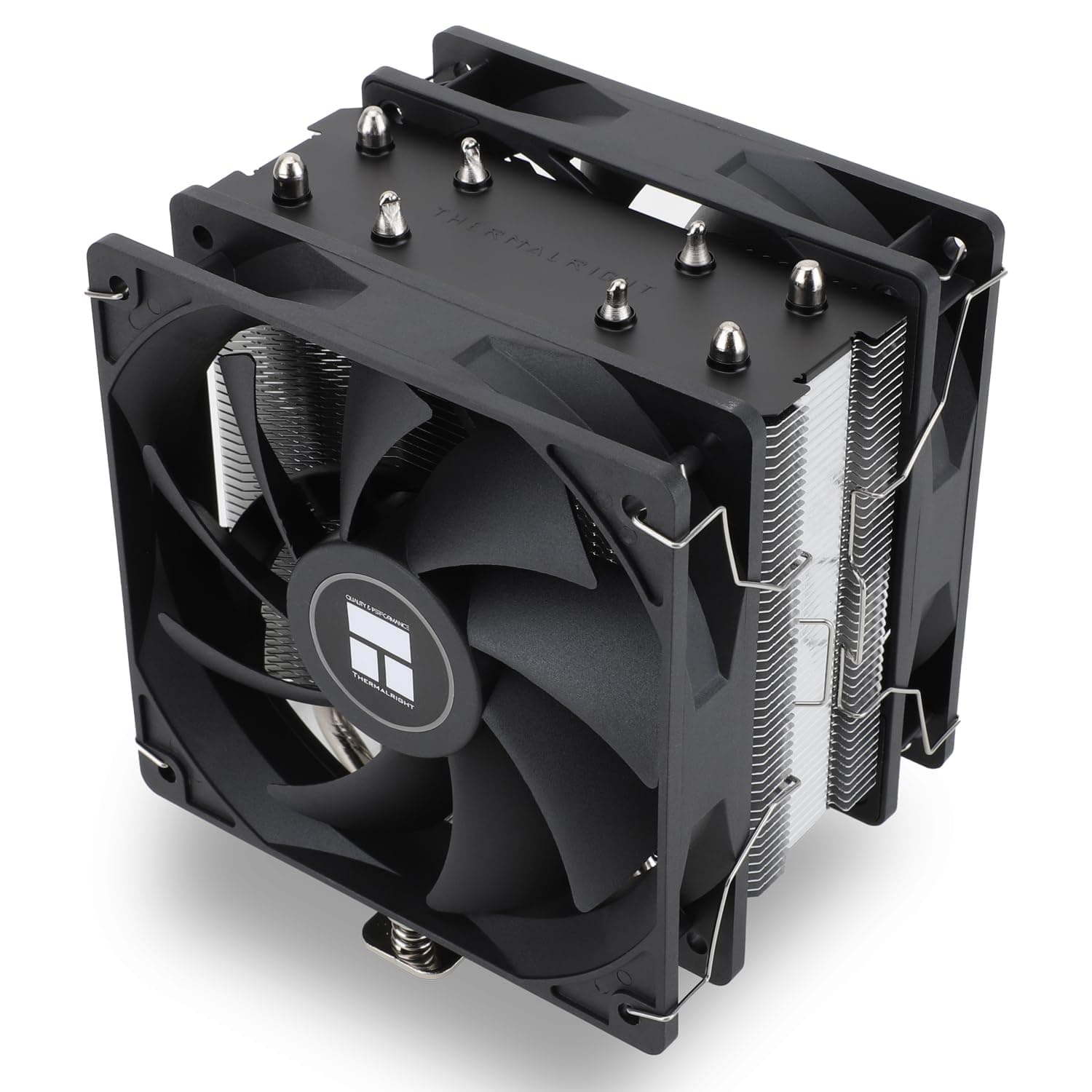
Finally, a data warning. The listing information around this product shows signs of contamination from an unrelated item — in the source data used here, some pricing and related-link entries pointed to a Thermalright CPU cooler.
You may run into the same mismatch on the product page, so confirm the product image, title, and model number (SV231DPUEA) yourself before ordering, and double-check that the price and reviews shown belong to this product.
FAQ
Q. Can one PC drive three or more displays through it? A.
No. Two monitors per PC is the limit, and MST daisy-chaining is not supported.
Q. Can it really do 4K/60Hz on both screens? A.
The spec supports 3840×2160 @60Hz per monitor. Whether you achieve it also depends on your GPU output and DisplayPort cable quality.
Q. Will it work with HDMI monitors? A.
Only with an active DisplayPort-to-HDMI adapter, sold separately. Passive adapters are unreliable at 4K/60Hz.
Q. Do I need drivers?
A. No. It is plug-and-play on Windows, macOS, and Linux.
Q. Does it run without the power adapter? A.
An AC adapter is included and the design assumes external power; bus-powered operation is not intended.
Q. How long is the warranty?
A. Two years from the manufacturer, which matters if you are deploying it in a work environment.
Product Disclosure (Amazon)
- ASIN: B0C76RW82Q
- Note: This article covers a manufacturer-made product based on Amazon listing details.