Overview
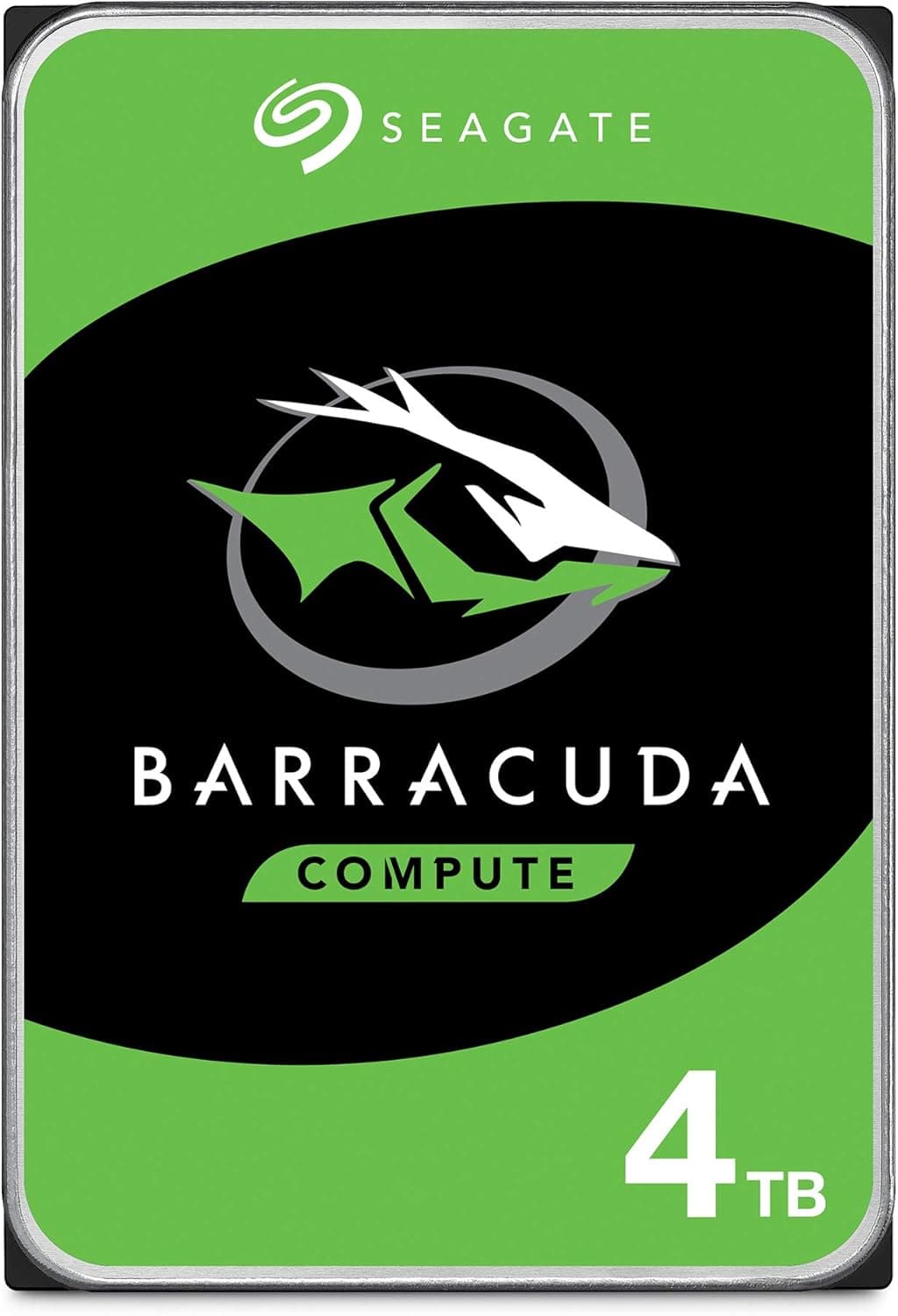
Seagate 4 TB BarraCuda内蔵ハードドライブ — the Seagate BarraCuda ST4000DM004 — is a 3.5-inch, SATA 6 Gb/s desktop hard drive.
It spins at 5400 RPM, carries a 256 MB cache, reads sequentially at up to 170 MB/s, and ships with a 2-year limited warranty. Its role is straightforward: this is not a drive you buy for speed, it is a drive you buy to secure cheap capacity as a place to put things.
Here is the conclusion up front. For data you write once and rarely rewrite — photo and video libraries, recordings, finished project archives, games you launch occasionally — it remains a sensible choice.
But do not use it as a boot drive, as a member of a NAS or RAID array, as a disk in a 24/7 file server, or as a scratch disk that absorbs hundreds of gigabytes of continuous writes. The reason is not the spindle speed; it is the recording method, covered in the next section.
As of 2026-05-29, the Amazon.co.Check the retailer's page for the latest user reviews.
That is a healthy sample at a stable score, which suggests dead-on-arrival units are not common. It does not, however, say anything about survival rates three or five years out.
Treat any hard drive as a consumable. Seagate also provides its free DiscWizard utility for cloning and migrating from an older drive.
What SMR Means for This Drive
This is the single most important thing to know. The ST4000DM004 is documented as an SMR (Shingled Magnetic Recording) drive.
SMR overlaps data tracks like roof shingles to raise areal density, and that is exactly why 4 TB is affordable at this tier. The trade-off is that rewrite behaviour is fundamentally different from conventional CMR.
Because a single overlapped track cannot be rewritten in isolation, the drive keeps an internal staging area — a media cache — absorbs incoming writes there, and then reorganises them into the shingled region during idle time.
- Copies of a few gigabytes to a couple of dozen gigabytes finish at roughly the rated speed
- Write long enough to exhaust the staging area and throughput can collapse to tens of MB/s, sometimes single digits
- The collapse is more likely when the drive is nearly full or never gets idle time
- Read performance is largely unaffected by SMR
Most reports of "it's fast until a big copy suddenly stalls" describe this mechanism, not a fault. Keep the workload read-dominant and SMR is a non-issue.
Point it at sustained writes and it becomes an operational problem. RAID rebuilds, ZFS resilvers and first-time NAS syncs are precisely "hours of writes that never stop" — if the drive falls behind and responds slowly, the array can drop it as failed.
That, not durability, is why this drive does not belong in a NAS.
Compatibility Guide
The electrical and physical requirements are entirely standard.
| Item | Detail |
|---|---|
| Form factor | 3.5-inch; needs a desktop 3.5-inch bay |
| Interface | SATA 6 Gb/s (SATA III), backward compatible with 3 Gb/s and 1.5 Gb/s |
| Power | Standard 15-pin SATA power connector |
| Partition scheme | GPT required to use all 4 TB (MBR caps at 2 TB) |
| OS support | Windows, macOS, Linux — no extra drivers |
| PSU requirement | Nothing special; roughly 5 W in operation |
The case is the first hurdle. A 3.5-inch drive measures about 101.6 mm wide, 147 mm deep and 26.1 mm tall, and many modern mini-tower and SFF chassis ship with only one 3.5-inch bay, often tucked under the PSU shroud.
A 3.5-inch drive will not fit a 2.5-inch bay (the reverse works with an adapter), and it will not fit a laptop at all.
For external use you need a powered 3.5-inch enclosure with its own AC adapter — bus-powered 2.5-inch enclosures cannot drive it.
The second hurdle is GPT. Four terabytes exceeds MBR's 2 TB ceiling, so an MBR-initialised disk shows only about 2 TB.
As a pure data drive it does not matter whether your OS boots in UEFI or legacy mode; you simply choose GPT in Disk Management when initialising. What does matter is initialising as MBR and only noticing after filling it — converting later generally means moving the data off first.
Choose GPT the first time.
Expect Windows to report roughly 3.63 TB.
That is the difference between decimal (vendor) and binary (OS) units, not missing capacity. On the motherboard side, check that you still have a free SATA port: on many boards, populating an M.2 slot disables specific SATA ports, which is frequently mistaken for a dead port.
Thermally and acoustically a 5400 RPM drive is easy, though stacking several adjacent drives can amplify seek noise through resonance.
Product Info
Published specifications: 4 TB (4000 GB) capacity, SATA 6 Gb/s interface, 5400 RPM spindle, 256 MB cache, 170 MB/s sequential read, 3.5-inch form factor, 2-year warranty.
The generous 256 MB cache, together with the media cache described above, is what papers over short bursts of writing. The 2-year warranty is shorter than the 3–5 years typical of NAS-class drives, which again reflects the intended role: a secondary drive inside a desktop.
Check the retailer's page for the latest price.co.jp as of 2026-05-29 and $189.00 on eBay US as of 2026-07-09.
Both are on the high side for a 4 TB desktop drive. These are likely marketplace listings, or include shipping and currency effects, so do not read either as the street price.
Hard drive pricing moves with supply, so check the product page for the current price and the actual seller before buying — if a CMR NAS-class 4 TB drive lands near the same figure, the recommendation below changes.
How It Compares
Pick the use case first and the decision becomes easy.
| Use case | This drive | Better option |
|---|---|---|
| Bulk data inside a desktop | Excellent cost per TB | — |
| Game archive | Fine, reads dominate | 7200 RPM class or a dedicated game drive for speed |
| NAS / RAID | Not recommended (SMR) | CMR NAS models (Toshiba N300, Seagate IronWolf, WD Red Plus) |
| 24/7 server | Outside design intent | NAS-class drives with longer warranties |
| OS and applications | Painful in daily use | An SSD |
A 4 TB CMR NAS drive costs more, but if the disk is going into an array that premium buys "works at all" rather than "works faster." Conversely, buying a NAS drive for a single bulk-storage slot can cost you in noise and power for no benefit.
A 7200 RPM class drive typically transfers around 20% faster, at the price of more heat and noise.
Real-World Speed
Translate 170 MB/s into something concrete: moving a 100 GB game takes about 10 minutes even in theory (100,000 MB ÷ 170 MB/s ≈ 588 s), and 12–15 minutes is more realistic once file counts are factored in. Hard drives are also faster on the outer tracks than the inner ones, so effective throughput drops noticeably as the platter fills — inner tracks commonly run at roughly half the outer-track rate.
Leaving 10–20% free helps both speed and SMR reorganisation.
Random access is where the gap widens. At 5400 RPM, average rotational latency is about 5.6 ms, and 4K random throughput lands in the range of tens to roughly a hundred operations per second.
Against an SSD's tens of thousands, that is the difference you feel when launching apps or loading a game level. For sequential work — playing video, browsing photos, restoring a backup — the difference is far less noticeable.
That asymmetry is the whole argument for this drive.
For capacity planning, 4 TB holds roughly 2,000 hours of full HD video or about 200,000 RAW photos, depending heavily on bitrate and sensor resolution. Even with many modern AAA titles exceeding 100 GB, that is still around 30 games side by side.
Best Use Cases
Creators with large media libraries. Footage and exported files are written once and mostly read afterwards, which hides SMR's weakness and leaves only the cost advantage.
Keep active edits on an SSD and move finished work down to this drive.
Gamers overflowing an SSD. Frequently played titles on the SSD, the backlog here.
Cheaper than buying more flash, as long as you accept slow installs.
Anyone wanting a second backup copy. A reasonable "one more copy" under the 3-2-1 rule — but never let a single drive be your only backup.
Anyone adding cheap capacity to a desktop. If a 3.5-inch bay and a SATA port are free, installation takes minutes and needs no drivers.
Things to Consider
The biggest trap is dropping it into a NAS or RAID array without knowing about SMR. Sustained writes can stall the drive long enough for a rebuild to never finish or for the array to eject it.
Even a home NAS writes for hours during its initial sync, so there is no safe exception — buy a drive explicitly labelled CMR for array duty.
It is also not designed for 24/7 duty. Desktop drives assume idle hours.
Running one in an always-on home server is possible, but do it knowingly; the 2-year warranty is consistent with that positioning.
Watch the pricing, too. The captured ¥21,999 (2026-05-29) and $189.00 (2026-07-09) are high for this class, which often signals a marketplace or grey-import listing — verify the seller and whether a domestic warranty applies.
Separately, product pages occasionally carry manufacturer, model or ASIN metadata that does not match the item shown. Do not trust the listing fields alone: confirm from the product images and title that you are buying the 4 TB ST4000DM004.
Refurbished units sometimes appear alongside new ones, so check SMART power-on hours after delivery.
Finally, the physical constraints: this is a 3.5-inch drive and will not fit a laptop or some compact cases.
Before ordering, confirm a free 3.5-inch bay, a spare SATA power connector, and an available SATA port.
FAQ
Q. Can I still install games on an SMR drive? A.
Yes. Installs and patches may be slow, but gameplay is read-dominant, so it works in practice.
Load times will lag an SSD, so keep your main titles on flash.
Q. Can I put it in a NAS? A.
Not recommended. Rebuilds and initial syncs are exactly the sustained-write pattern SMR handles worst, and a slow response can get the drive dropped from the array.
Choose a CMR NAS model instead.
Q. Why does it show 3.63 TB instead of 4 TB?
A. Decimal versus binary units. Nothing is missing; the full capacity is available.
**Q. I initialised it as MBR by mistake. A. You will only see about 2 TB. Converting to GPT is required, and the safe path is to move the data elsewhere, reinitialise as GPT, and copy it back.
Q. Can it be a boot drive? A.
Technically yes, but this is the workload where the gap with an SSD is most obvious. Put the OS and applications on an SSD and use this drive for data.