This article takes a close look at the Lenovo ThinkCentre Tiny VESA Mount II(4XF0N03161). It covers how to confirm compatibility, where installation commonly goes wrong, and what to check before buying.
Overview
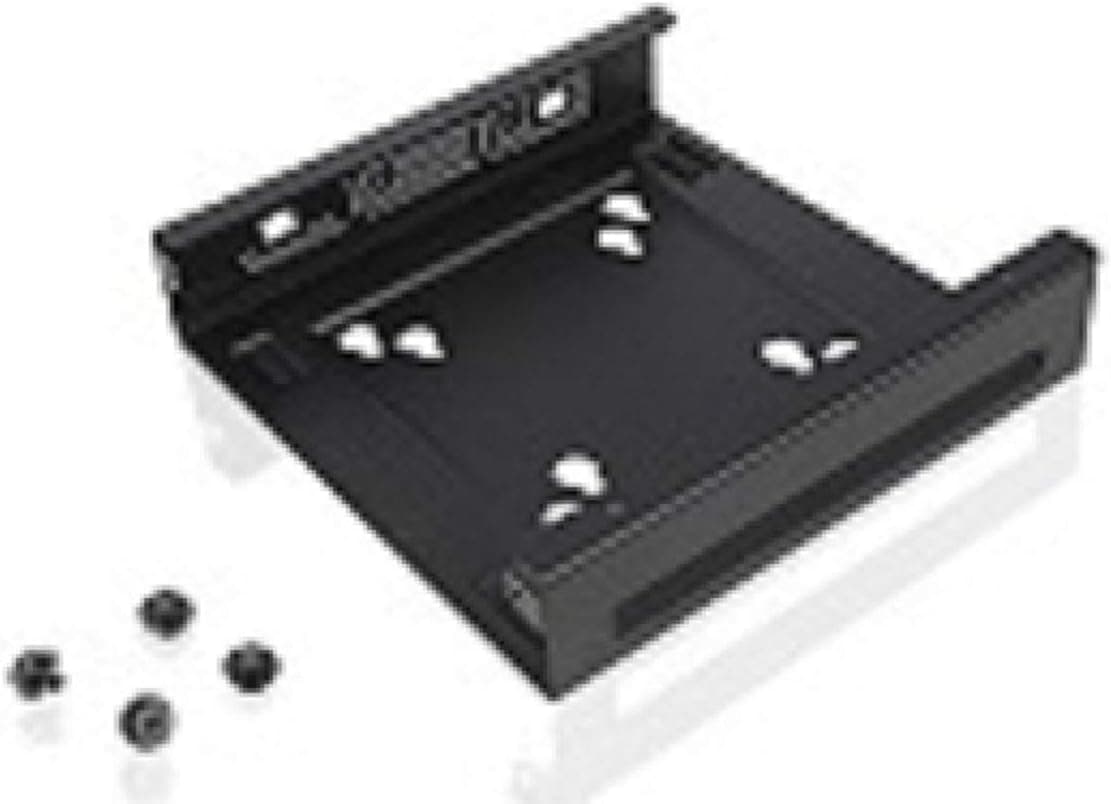
The Lenovo ThinkCentre Tiny VESA Mount II (model 4XF0N03161) is Lenovo's genuine bracket for mounting ThinkCentre Tiny ultra-compact desktops on the back of a VESA-compatible monitor or TV. The short verdict: if you own a supported Tiny model and want the PC off your desk, it is an easy recommendation.
If you skip the compatibility check, though, it simply will not fit. Pairing it with a monitor arm also raises issues with weight and screw length.
Buy it if you are prepared to check those things yourself.
It supports VESA 100x100mm and 75x75mm patterns and comes with four mounting screws. Once the bracket is fixed to the monitor and the PC is seated in it, the PC takes up almost no desk space.
It suits office desks, reception and call-center terminals, digital signage, and TVs in living rooms, anywhere you want to save space and keep things tidy.
On Amazon.co.Check the retailer's page for the latest user reviews.
Because it is a genuine part, fit is rarely a problem on supported models. The one thing that matters is whether your specific Tiny is actually supported.
Compatibility Guide
Monitor side: VESA pattern
The bracket supports 100x100mm and 75x75mm only. Most 24 to 27 inch office monitors use one of these patterns.
Slim monitors without VESA holes, or models that only accept a proprietary stand, will not work. Larger TVs often use 200x200mm or wider patterns, which will not fit directly.
Check that your display's spec sheet lists VESA 75 or VESA 100.
PC side: supported models
The listing names the following models.
| Line | Listed models |
|---|---|
| ThinkCentre | M600, M700, M700z, M715q, M800z, M900, M900x, M900z |
| ThinkStation | P410 |
The M600, M700, M715q, M900 and M900x come in Tiny configurations, and those Tiny configurations are what this bracket is designed for. A tower or small-form-factor (SFF) M700 or M900 has a completely different chassis and will not fit.
Before buying, check the label on the bottom of your PC or Lenovo's support page to confirm it is a Tiny.
The M700z, M800z and M900z are generally known as all-in-one models, and the ThinkStation P410 as a tower workstation. Neither form factor matches a Tiny-only bracket.
The listed model table is not necessarily accurate, which is covered again under Things to Check Before Buying.
Newer Tiny generations (such as the M70q, M720q and M920q) are not on this list. The data here cannot confirm whether they work or not.
If you plan to use a newer Tiny, check Lenovo's official accessory compatibility information to see whether 4XF0N03161 is listed for your model.
Load capacity and balance
The full weight of the bracket and the PC hangs off the back of the monitor. On a stock monitor stand, the shifted center of gravity can make the display tip backward, and the tilt adjustment may gradually sag.
With a monitor arm, add up monitor + PC + bracket and make sure the total is within the arm's rating. Tiny weights vary by model and configuration, so check your unit's spec sheet.
An arm loaded close to its limit tends to droop over time.
Screw length
When the bracket sits between the monitor and an arm, you need screws long enough to cover the bracket's thickness. The screws that came with the monitor are often too short.
Overly long screws, on the other hand, can damage the monitor's internals. Whether the four included screws are long enough depends on the depth of your monitor's screw holes, so test-fit them and make sure they tighten without force.
Installation Steps
Installation is simple, and a Phillips screwdriver is the only tool you need.
Confirm compatibility: make sure your PC is a supported Tiny configuration.
Prepare the monitor: remove any cover or stand over the VESA holes, and lay the monitor face-down on a soft cloth.
Attach the bracket: line it up with the VESA holes and screw it in.
With an arm, stack them as monitor, then bracket, then arm. 4.
Seat the PC: insert the PC into the bracket, make sure it is secured, and give it a light shake to check for play. 5.
Connect cables: video, LAN, USB and power. Tiny PCs use an external AC adapter, so decide where the power brick will sit and how it will be secured.
- Check airflow: make sure the intake and exhaust vents are not blocked by a wall or the monitor body.
Getting back behind the monitor later is a hassle, so slightly longer cables make it easier to do everything in one go.
Product Info
| Item | Detail |
|---|---|
| Model | 4XF0N03161 |
| Product type | System mount bracket |
| VESA pattern | 100x100mm / 75x75mm |
| Included screws | 4 |
| Color | Black |
| Form factor | Lenovo Tiny |
All prices are as of when they were captured. On Amazon.co.jp it was ¥9,511 as of August 29, 2026. The seller and shipper on that listing was EKUSITO, not Lenovo directly.
On eBay US, a listing was $19.99 as of August 31, 2026. eBay listings vary between new, used and bulk-pack items, and international shipping or import costs may be added, so do not compare sticker prices alone.
Both prices change with sales and stock, so check the product page for current pricing before buying.
Based on its listing history, this bracket has been on the market since around 2017. Warranty handling can differ depending on where you buy it (Lenovo direct, an Amazon third-party seller, or an overseas marketplace), so check the seller's page if this matters to you.
Versus Third-Party Mounts
Plenty of generic VESA mounts for mini PCs are available. Most use adjustable holders or straps that clamp the PC, so they can be reused with a different mini PC later, and they usually cost less than the genuine part.
On the downside, they are not shaped to your chassis, which can lead to wobble or to vents ending up blocked.
The Lenovo ThinkCentre Tiny VESA Mount II is built around the Tiny chassis, so on supported models it fits cleanly and holds securely. The trade-off is that it only works with Tiny PCs, and it becomes useless if you move to another brand of mini PC.
If you plan to keep this Tiny for years, go genuine. If you might switch PCs soon, a generic mount is the practical choice.
Best Use Cases
- Office workers who want desk space back: paired with a monitor arm, the PC disappears from the desk entirely, and cables can be routed behind the monitor.
- Workplaces running many identical terminals: reception desks, call centers and inspection-line displays benefit from standardizing on the genuine mount, which keeps installation and maintenance consistent.
- Users running several PCs side by side: one Tiny per monitor gives you multiple independent systems in a small footprint, which suits traders and developers who separate work by machine.
- Hiding a PC behind a TV: on a TV with VESA 75/100 holes, you get a living-room home theater PC without visual clutter.
Who should skip it
- Owners of non-Tiny PCs (tower, SFF, or other brands' mini PCs)
- Anyone mounting to a display without VESA holes, or a large TV with a 200x200mm or wider pattern
- People who use the front USB ports or power button many times a day, since they end up behind the monitor
- Anyone planning to switch to a different mini PC soon
Things to Check Before Buying
Do not trust the listed model table blindly. It includes the M700z, M800z and M900z, generally known as all-in-ones, and the ThinkStation P410, a tower workstation.
Store listings sometimes contain errors. Base your decision on whether your unit is a Tiny configuration and on Lenovo's official compatibility information.
Also use the listing photos and title to confirm the item is actually 4XF0N03161.
The same model name does not guarantee a Tiny. Going by M700 or M900 alone, tower or SFF owners can end up buying it by mistake.
Check the bottom label or machine type number.
Check newer Tiny generations individually. The list mainly covers early generations, so confirm with Lenovo before buying for a newer model.
Tipping and sagging. A slim stock monitor stand can tilt backward under the added weight.
With an arm, always add up the total weight against its rating.
Screws that are too short. This is the most common snag when combining the bracket with an arm.
Check screw length before you start, and keeping a few M4 screws in different lengths on hand helps.
Heat and airflow. The back of a monitor already traps heat from the display itself.
Mounting the PC with its vents blocked, or flush against a wall, can make the fan louder and slow the PC down. Leave a gap if you wall-mount.
Where the AC adapter goes. Even with the PC mounted, the power brick remains.
Plan where to strap it so it does not dangle under the desk.
Seller and price gaps. The Amazon listing was sold and shipped by EKUSITO (as of August 2026).
Confirm the item is new and check the return terms. Large price gaps with eBay usually come from condition or shipping differences, so compare on equal terms.
FAQ
Q. Does it work with the ThinkCentre M720q or M920q? A.
They are not on this listing's compatibility table. Check Lenovo's official accessory compatibility information to see whether 4XF0N03161 covers your model.
Q. Can I use it with a monitor arm? A.
Yes. The bracket sits between the monitor and the arm.
Check the arm's load rating against the combined weight of monitor, PC and bracket, and make sure the screws are long enough.
Q. Can I mount it behind a TV? A.
Yes, if the TV has a 75x75mm or 100x100mm VESA pattern. Larger TVs often use wider patterns, so check the spec sheet.
Q. What tools do I need?
A. Just a Phillips screwdriver. Four screws are included.
Q. Will the PC overheat behind the monitor? A.
If the vents are unobstructed and there is a gap from the wall, everyday use is rarely a problem. For sustained heavy workloads, keep an eye on fan noise and temperatures.
Product Disclosure (Amazon)
- Manufacturer: Lenovo
- Seller: EKUSITO
- Fulfilled by: EKUSITO
- ASIN: B06ZY1DQ7Z
- Note: This article covers a manufacturer-made product based on Amazon listing details.