Overview
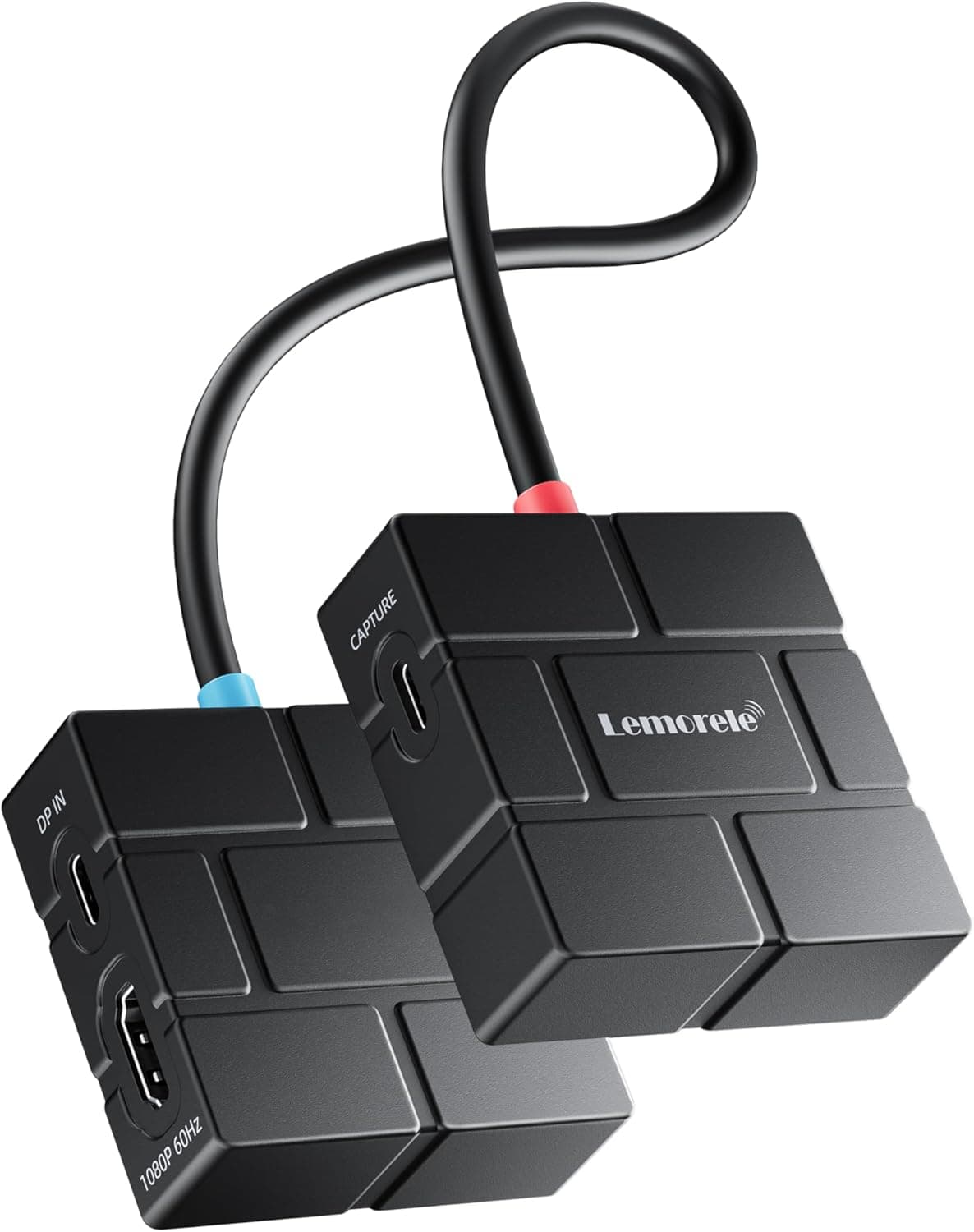
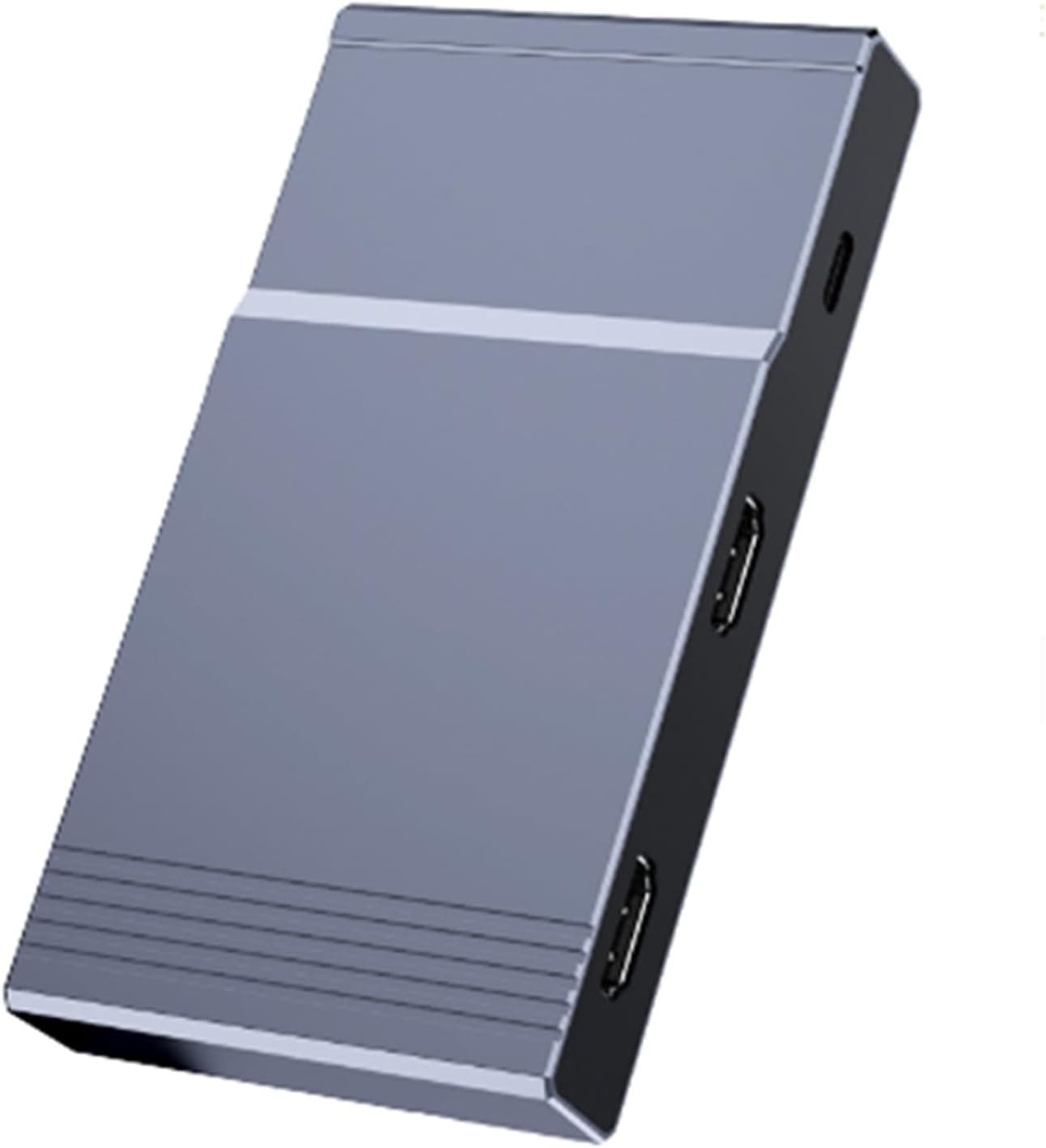
The EZCast Pocket PD is a compact display adapter for putting your screen on a TV or monitor. You plug its transmitter into the USB-C port of a smartphone, tablet, or laptop.
On Amazon Japan it is listed as EZCast Pocket PD(60Wの給電に対応バージョン)(イージーキャストポケット パワーデリバリー)【日本語版】【技適マーク取得済み】. Its main feature is up to 60W of USB Power Delivery passthrough, which keeps your device charging while it outputs video.
In short, it is a solid pick if you own a USB-C device that supports video output and want to show your screen on a big display without running cables. It is not the right tool if you need 4K or want to record or stream gameplay.
As the name says, this is the version with 60W power delivery. Even a phone or tablet with only one USB-C port can display and charge at the same time.
Maximum output resolution is 1080p, and the product data lists Miracast, AirPlay, and Google Cast as its wireless protocols. Supported platforms are given as USB-C iOS devices, Android, Windows, and macOS, and it is sold as plug-and-play with no dedicated app.
On Amazon Japan it is rated 4.3 out of 5 stars across 52 reviews (as of October 6, 2026).
Reviews are mostly positive but still few. Before you look at the star rating, check whether your own device can output video through it.
This article focuses on how to check that, and on the pitfalls people tend to find only after buying.
How It Differs From a Capture Card
This site files the product under capture cards, but it does the opposite job. A capture card brings video from a console or other source into a PC so you can record or stream it.
The EZCast Pocket PD sends your device's screen out to a TV or monitor. Its picture will never show up as an input in recording software on your PC.
If your goal is to record Switch gameplay or feed a mobile game into streaming software, you need a capture card. If your goal is to put your phone or laptop screen on a meeting-room or living-room TV, a capture card won't help.
The two often show up side by side in search results, so first decide which job you actually need done.
Compatibility Guide
Whether it works mostly comes down to two things: your device's USB-C port and the display's inputs. Based on the compatibility info in the product data, here is what to check.
| Item | Requirement | How to check |
|---|---|---|
| Device USB-C | DisplayPort Alt Mode or data support | Look for video output, DP Alt Mode, or Thunderbolt in your device specs |
| Display (wireless) | Miracast / AirPlay / Google Cast (per product data) | Check the package contents and listing for what the TV side needs |
| Display (wired) | HDMI input | For displays without wireless support |
| Power | USB PD charger | To use the full 60W, a charger rated 60W or higher |
| Resolution | Up to 1080p | A 4K TV will show a Full HD picture |
The most common mistake is plugging it into a device that can't output video. USB-C only describes the connector's shape; video output varies from device to device.
Many ports handle only charging and USB 2.0-class data.
Phones are the worst case: often only a maker's higher-end models support video out. On iPhone, only USB-C models qualify; Lightning iPhones can't take it directly.
Many Windows laptops have several USB-C ports but output video from only some of them. A DisplayPort logo or a lightning-bolt Thunderbolt mark next to a port is a good sign it supports video.
The USB-C and Thunderbolt ports on MacBooks generally support video output.
The display side needs checking too. The product data lists Miracast, AirPlay, and Google Cast, yet the product is designed so you just plug in the transmitter.
Whether your TV works depends on whether a receiver comes in the box or the TV's own receiving feature is used. Read the package contents and connection instructions on the listing before you buy.
Thinking About 60W Passthrough Power
For phones and tablets, 60W of passthrough is more than enough. Laptops are different.
If your laptop's stock charger is rated above 60W, as on many performance gaming laptops, the battery may drain under load or charging may not start at all. Check your laptop's charger wattage first.
The adapter also draws some power itself, so your device usually receives a bit less than the charger's rating. If your device needs close to 60W, use a charger with some headroom.
For cables, a standard 3A-rated USB-C cable usually handles up to 60W. Still, avoid thin charge-only cables and old cables.
Setup Steps
- Check your device's specs to confirm its USB-C port supports video output (DisplayPort Alt Mode, for example) 2.
Check the TV or monitor's inputs (a free HDMI port, any built-in receiving feature) 3. Prepare the display side as the listing describes, then plug the transmitter into your device's USB-C port 4.
For long sessions, connect a USB PD charger to the adapter's USB-C port 5. If nothing appears, try another USB-C port, restart the device, and check the display's input selection
When nothing shows up, the cause is almost always step 1 (the device can't output video) or step 2 (the display is on the wrong input). Rule those out before suspecting a faulty unit.
Product Info
| Item | Detail |
|---|---|
| Interface | HDMI, USB-C |
| Passthrough charging | 60W (USB PD) |
| Wireless protocol | Miracast, AirPlay, Google Cast |
| Max output resolution | 1080p |
| Price | ¥13,950 (Amazon Japan, as of October 6, 2026) |
| Rating | 4.3 out of 5 stars (52 reviews, as of October 6, 2026) |
The price was ¥13,950 when checked on October 6, 2026. Sales and point rebates change what you actually pay, so check the listing for the current price.
That is clearly more than a simple HDMI adapter that needs one cable. Think of the difference as what you pay for going wireless and getting 60W passthrough, and the decision gets easier.
The seller is エー・リンクライフ and Amazon handles shipping. As the title says, this is the Japanese edition and it carries Japan's 技適 radio certification, so it is legal to use as a wireless device in Japan.
Warranty length and bundled accessories (such as cables) are not in our data, so check the listing.
Recommended Users
- Business travelers and field workers: Good for showing a laptop or tablet on a hotel or meeting-room TV for presentations or work. The 60W passthrough means you won't worry about battery during long meetings. If the room's equipment only has HDMI input, check the listing for how to connect beforehand.
- People who want phone or tablet photos and videos on a big screen: Showing vacation photos to family on the living-room TV is a perfect fit. Because it charges while casting, long viewing sessions won't drain your battery. Output tops out at 1080p, though, so it will disappoint anyone expecting 4K.
- People whose device has only one USB-C port: Not having video output and charging compete for the same port is the main reason to choose this PD model. On a laptop with several ports, the charging feature matters less.
- Casual gamers sharing a screen: Fine for party games or turn-based games played together on a TV. Not suitable for FPS, fighting, or rhythm games, where input lag decides the outcome.
Before You Buy
If your device can't output video, nothing will appear. As covered in the compatibility guide, many devices have USB-C ports that can't carry video.
This is behind almost every arrived-but-doesn't-work complaint. Check your device's spec sheet before you order.
It does not support 4K. Maximum output is 1080p.
On a 4K TV you won't get full resolution, and the difference shows with text-heavy slides and detailed video. If movie picture quality matters most, the TV's built-in streaming apps or a dedicated streaming box will likely satisfy you more.
Being wireless, latency and dropouts never go to zero. They are rarely a problem for video or slides but are a poor fit for anything sensitive to input lag.
Crowded radio environments, or a wall between the device and the TV, make dropouts more likely; that is true of all wireless video gear.
Some streaming apps may show a black screen. Some streaming services use copy protection such as HDCP to limit playback through screen mirroring.
This happens with any device that mirrors a screen to an external display, not just this one. If watching a particular service is your main goal, first check whether it allows mirrored playback.
Laptops that need more than 60W may not keep up. Phones and tablets are fine.
With high-performance laptops, expect the battery to drain while you work.
It cannot record or stream gameplay. We list it under capture cards, but it does not bring video into a PC.
Note that the site's category does not match what the product actually does. For recording or streaming, choose a capture card.
Check the wireless method and package contents on the listing. Our data lists Miracast, AirPlay, and Google Cast, but what the TV side needs depends on what comes in the box.
Store listings sometimes differ from the actual product, so check the photos and description together.
FAQ
Q. Does it work with iPhone? A.
USB-C iPhones are the target. Lightning iPhones can't plug in directly, so they fall outside what this product is designed for.
Q. Can I use it with a 4K TV?
A. Yes, it will display a picture, but output tops out at 1080p. You won't get 4K resolution.
Q. Can I use it to record or stream games? A.
No. It sends your screen to a TV or monitor and cannot bring video into a PC.
You need a capture card for that.
Q. What wattage charger should I use? A.
For phones and tablets, the USB PD charger you already own is usually enough. To deliver up to 60W to a laptop, use a USB PD charger rated 60W or higher.
Q. What does the 技適 certification mean? A.
It shows the device is certified under Japan's Radio Act. Using a wireless device without it in Japan may violate that law, so it is an important check for any wireless video product.
Product Disclosure (Amazon)
- Manufacturer: EZCast
- Seller: エー・リンクライフ
- Fulfilled by: Amazon
- ASIN: B0CTZZ7CF2
- Note: This article covers a manufacturer-made product based on Amazon listing details.