Overview
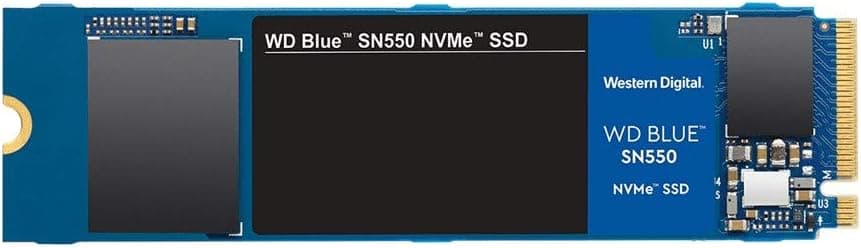
The Western Digital WD Blue SN550 250GB Internal SSD (Up to 2,400 MB/s Read) is an M.2 2280 NVMe drive that uses PCIe Gen3 x4.
Its model number is WDS250G2B0C-EC. The short answer: it is still a solid pick if you want to move an older PC or a secondary machine from a SATA boot drive to NVMe for faster boot and app loading.
It falls short in both capacity and write performance as a main game drive or for regular large-file writes.
Rated sequential read is 2,400 MB/s and sequential write is 950 MB/s. SATA SSDs top out around 550 MB/s, so reads are more than four times faster, but the write figure is modest for NVMe.
Random 4K performance is rated at 170,000 IOPS read and 135,000 IOPS write, which matters most for small-file work such as booting and launching apps. The warranty is 5 years.
On Amazon.co.Check the retailer's page for the latest user reviews.
How to Read the Specs
| Item | Rated value | What it means |
|---|---|---|
| Capacity | 250 GB | Shows as about 232 GB in Windows |
| Interface | M.2 PCIe Gen3 x4 (NVMe) | Works in Gen4/Gen5 slots at Gen3 speed |
| Sequential read | 2,400 MB/s | More than 4x SATA |
| Sequential write | 950 MB/s | Under 2x SATA; low for NVMe |
| Random read (4K) | 170,000 IOPS | Helps OS and app launches |
| Random write (4K) | 135,000 IOPS | Plenty for everyday small writes |
| Warranty | 5 years | Assumes an authorized retail unit |
The main thing to notice is the large gap between read and write speeds. Smaller SSDs carry fewer flash chips, so they have fewer paths to write in parallel.
That is why the 250GB model has a lower rated write speed.
Rated speeds are also peak numbers measured inside a fast write cache. As with most consumer SSDs, write speed drops once a large copy of tens of gigabytes fills that cache.
You will rarely notice this in everyday use, but it matters if you work with video files often.
Compatibility Guide
Most 'it won't fit' or 'it won't show up' problems come from the M.2 slot, not the drive.
- NVMe support: Some M.2 slots only support SATA, and this drive will not work in them. They are common in older laptops and some motherboards, so look for 'PCIe' or 'NVMe' in the manual.
- 2280 length: The drive is M.2 2280 (22 mm wide, 80 mm long). Some compact PCs and laptops only fit 2230 or 2242 drives.
- Slot bandwidth: On some boards, the second or third M.2 slot runs at PCIe x2 or goes through the chipset, which lowers the read ceiling. Gen4 and Gen5 slots are backward compatible and will run the drive at Gen3 speed.
- Shared SATA ports: On some motherboards, using an M.2 slot disables certain SATA ports. This matters if you run several HDDs.
- Booting from NVMe: Booting from NVMe needs UEFI support. As a rough guide, motherboards from before about 2015 may not boot from NVMe or may need a BIOS update.
- Power: The drive draws power from the slot, so it needs no cables and has little effect on PSU sizing.
On older desktops without an M.2 slot, a PCIe x4 adapter card lets you use the drive for data.
Whether you can boot from it depends on the BIOS, so check before you plan on using it as a boot drive.
Product Info
The WD Blue SN550 was a widely available entry-to-mid NVMe drive around 2020. It was aimed at SATA users who wanted NVMe speed at a low price.
WD has since released the WD Blue SN570 (Gen3) and SN580 (Gen4), so the SN550 is now a previous-generation product.
Amazon.co.jp listed it at ¥8,869 as of August 25, 2026.
An eBay listing showed $29.95 in late August 2026, but marketplace listings can include used or overseas stock, so check the condition and the seller.
Prices change often and can swing during sales, so check the current price on the product page before you buy.
Because this is an older product, a successor model or a 500GB-class drive may cost less per gigabyte at times. Compare what the same budget buys right before you order.
Heat output is low, and in a typical desktop case the drive usually needs no heatsink.
Real-World Experience
How much faster it feels depends on what you are replacing:
- Replacing an HDD: The difference is dramatic. Booting, launching browsers and Office, and running Windows Update all get much faster.
- Replacing a SATA SSD: Benchmark numbers more than quadruple, but everyday use often feels only slightly faster. Boot and app load times depend heavily on random access and CPU work, so don't expect too much if speed is your only reason to switch.
- Heavy writes: Large copies and video exports slow down once the cache fills. The drive is DRAM-less. Drives of this type usually borrow a small part of system memory as a cache (HMB) to make up for it, but sustained heavy writes still expose the difference.
Best Use Cases
- Reviving an older PC that still boots from an HDD: This is the best value use, as long as the PC has an M.2 NVMe slot.
- A boot drive for a secondary or office PC: For documents, browsing, and email, 250GB holds the OS and your main apps.
- Budget first-time builders: You get NVMe speed for little money. Plan on a separate, larger drive if you want to install games.
- The OS drive in a compact PC or home server: Low power draw and low heat suit small cases and OS-only drives.
Things to Consider
250GB shows up as about 232GB. After Windows, update files, and the hibernation file, the usable space is smaller than you might expect.
Some modern games take more than 100GB each, so this is not a main game drive. SSDs also tend to write more slowly when nearly full, so it is safest to keep 10 to 20% free.
It is a poor fit for frequent large writes. The rated 950 MB/s write is lower than the larger SN550 models, and the DRAM-less design slows down under sustained load.
For video-editing caches or scratch drives, choose a drive with DRAM or a higher capacity.
Compare it against newer models. With the SN570 and SN580 on the market, a newer drive can be the better deal depending on price.
Don't assume the SN550 is cheaper; compare at the time you buy.
Check that it is an authorized retail unit. The 5-year warranty assumes the drive came through official channels.
Grey-import, used, and marketplace units may not be covered in your country.
Watch the space if you are cloning. To clone to a smaller drive, the data you are using must fit within 250GB (about 232GB as shown).
Clean up unneeded files first.
Moving from a SATA SSD may feel like a small change. As noted above, everyday use may not reflect the benchmark gap.
If you are short on space, a 500GB-class SATA SSD for the same money is a reasonable choice. If you care about overall speed, including random access, NVMe has the edge.
FAQ
Q: Can I use it as internal PS5 storage? A: It is not recommended.
PS5 internal M.2 expansion is designed for PCIe Gen4 NVMe drives, and this drive is Gen3.
You can put it in an M.2 USB enclosure and use it as external storage.
Q: Does it need a heatsink? A: Usually not in a typical desktop case.
Heat can build up in small, poorly ventilated cases or thin laptops, so use the motherboard's M.2 heatsink if it has one.
Q: How does it compare with the 500GB and 1TB models? A: Rated reads are about the same, but larger models have higher rated write speeds.
The 250GB model costs the least but has the lowest write performance in the series.
Q: Will it work on a Gen4 or Gen5 motherboard? A: Yes.
PCIe is backward compatible, so the drive runs at Gen3 speed (up to 2,400 MB/s read).
Q: Can I install it in a laptop? A: Yes, if the laptop has an M.2 2280 NVMe slot.
It will not work in SATA-only M.2 slots or in laptops that only fit 2230 or 2242 drives, so check the manufacturer's specs first.
Product Disclosure (Amazon)
- Manufacturer: ウエスタンデジタル(Western Digital)
- ASIN: B082VZVBXY
- Note: This article covers a manufacturer-made product based on Amazon listing details.