Overview

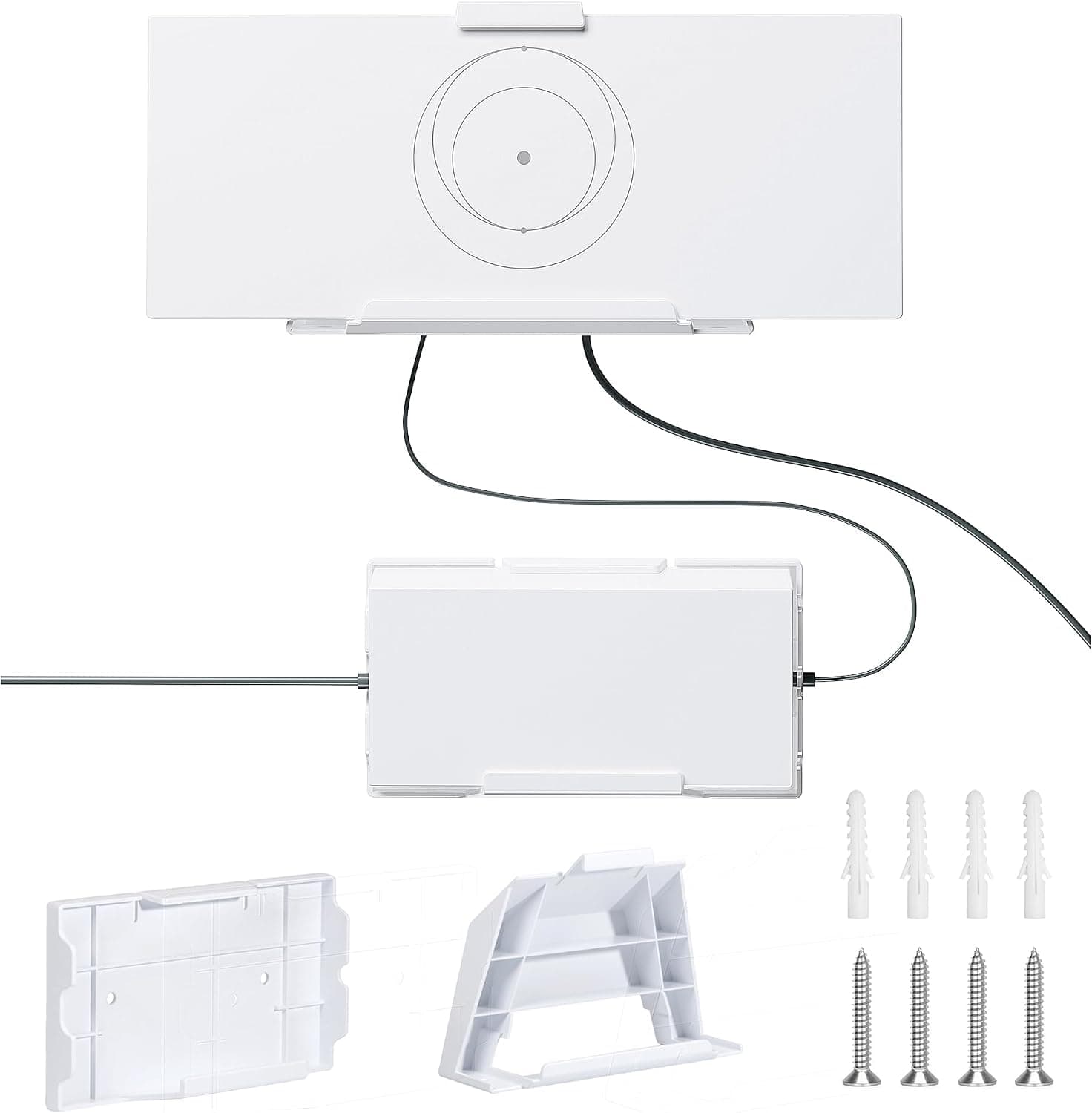
The Mskekit mk01 2-in-1 Wall Mount for Starlink Gen 3 Router and Power Supply does exactly one job: it puts both the Starlink Gen 3 router and its power brick on a single bracket on your wall. This is not a networking upgrade.

It is hardware for people who already own a Gen 3 setup and are tired of the router, the power supply, and a thick cable occupying floor or desk space.

The bracket is molded ABS plastic, listed as all-weather, and includes a cable retention feature that clamps the cable running between router and PSU. On Amazon.co.Check the retailer's page for the latest user reviews.

That review count is modest in absolute terms, but for a single-purpose mount it indicates real, repeated use rather than a listing with no track record.

Compatibility Guide

Supported hardware is the Starlink Gen 3 router plus Gen 3 / V4 / V5 / 4X (UTR-32) power supply units. Gen 2 and earlier routers have a different enclosure and will not fit, and neither will routers from other brands.

Starlink has changed chassis shape across generations while keeping the same product name, so buying a "Starlink mount" without checking your generation is the single most common mistake here.

Item Detail
Router Starlink Gen 3
Power supply Gen 3 / V4 / V5 / 4X (UTR-32)
Not supported Gen 2 and earlier, third-party routers
Material ABS plastic
Package size 203 x 140 x 76 mm
Tools needed Drill, marker, Phillips screwdriver

The wall matters as much as the router. The included self-tapping screws and expansion bolts target ordinary surfaces — wood, concrete, or drywall with a stud behind it.

Driving screws into hollow drywall means the combined weight of router plus PSU, plus any tug on the cable, will eventually pull them out. Find a stud or buy proper drywall anchors.

Metal studs, tile, brick, and lightweight concrete panels all need material-specific anchors and bits that are not in the box.

One factor no spec sheet mentions: orientation and heat. The Gen 3 router is designed to stand upright and sheds heat by convection through its vents.

Mounting it flat against a wall changes that airflow, so avoid spots in direct sunlight or near a ceiling where heat pools. Wi-Fi also suffers behind metal and near water lines, so do not mount it behind a breaker panel, beside a refrigerator, or on a bathroom wall just because the cable run is convenient there.

Product Info

Check the retailer's page for the latest price.co.jp, captured 2026-08-27.

Prices move constantly with sales and exchange rates, so check the product page for the current figure. Note that the same ASIN shows the identical yen price under an "Amazon US" seller entry — likely an imported listing priced in yen.

If so, import fees and delivery times may differ from a domestic shipment, so confirm the shipper and estimated arrival date at checkout.

Four spec points define the product: ABS plastic construction, an all-weather claim, cable retention, and the ability to carry router and PSU on one bracket. ABS is light and inexpensive and is plenty strong indoors, but it is more vulnerable to UV aging than metal.

Treat the all-weather claim as splash tolerance, not as permission to leave it in the sun for years. Package size is 203 x 140 x 76 mm, which is compact for a two-device bracket.

Comparison With Alternatives

Third-party Starlink mounts differ along three axes: material, whether the power supply is included, and how many generations are supported. The mk01 sits at plastic construction, two devices on one bracket, Gen 3 only.

If you only need the router off the desk, a smaller router-only mount is cheaper and simpler. If the loose power brick on the floor is your actual complaint, the 2-in-1 layout solves it directly.

Versus a metal mount, plastic is lighter and cheaper but can crack if you overtighten screws and may warp over years. In high-vibration installs — vehicles, boats — either choose metal or plan on periodically re-checking the screws.

If you expect to replace Starlink hardware later, a mount that explicitly lists multiple generations gives you more runway.

Installation and Common Mistakes

The job takes about 30 minutes: mark the hole positions with the bracket held in place, check for a stud and drill pilot holes, fasten with the expansion bolts or self-tapping screws, then seat the router and PSU and route the cable through the retention clamp.

Three mistakes account for most bad installs. First, mounting high without checking cable length — people discover the power cable no longer reaches the outlet only after drilling.

Dry-fit and run the cable first. Second, driving screws without pilot holes, which cracks the ABS around the mounting face.

Third, in semi-outdoor installs, letting the cable enter pointing upward; water tracks down the cable into the gear. Route the cable down first, then up in a U-shaped drip loop.

Best Use Cases

  • RV, camper, and boat users — keeps equipment from sliding around in motion. Given the plastic build, plan on re-checking screw tightness periodically in constant-vibration environments.
  • Shops, offices, and warehouses — removes a trip hazard and gets the hardware above hand height.
  • Anyone who wants cables out of sight — the retention clamp cuts down on visible slack.

If your gear already has a home, if you do not own Gen 3 hardware, or if you cannot drill, skip it.

Things to Consider

Generation mismatch is the big one. Gen 2 and older routers will not physically fit, and only Gen 3 / V4 / V5 / 4X (UTR-32) power supplies are covered.

Judge by the physical shape of your unit and when you bought it, not by the product name.

Renting complicates it. Installation means holes in the wall, which are typically your responsibility to repair.

Ask your landlord first, or use a freestanding stand or shelf instead. This kit has no adhesive mounting option.

Budget for the right anchors. The bundled hardware targets common wall materials.

Hollow drywall, metal studs, and tile all need anchors you supply yourself. This mount carries continuous load, so a shortcut here shows up as a fallen router months later.

Do not trade signal and cooling for tidiness. Flat wall mounting changes airflow behind the router, and metal or plumbing nearby degrades Wi-Fi.

Pick the spot for the network first, the cable run second.

Verify the listing yourself. This ASIN carries a yen price under a US seller entry, so shipping origin and delivery terms may differ from a domestic item.

Amazon listings also sometimes carry manufacturer, model, or compatibility data that does not match the physical product. Before ordering, confirm from the photos and title that you are buying the two-piece mount for the Gen 3 router and its power supply.

FAQ

Q: Will it fit a Starlink Gen 2 router? A: No.

Gen 2 and earlier use a different enclosure. This kit is for the Gen 3 router and Gen 3 / V4 / V5 / 4X (UTR-32) power supplies only.

Q: What tools do I need? A: A drill, a marker, and a Phillips screwdriver.

Add material-specific anchors and bits for drywall, tile, or metal studs.

Q: Can I install it in a rental? A: It screws into the wall, so it leaves holes.

Check your lease or landlord first; otherwise use a stand or shelf.

Q: How strong is the cable retention? A: It holds firmly in normal use but will release under a hard pull.

Route cables where a vacuum or a foot cannot put tension on them.

Q: Can I mount it outdoors? A: It is listed as all-weather, but it is ABS plastic and the Starlink router and PSU themselves are indoor devices.

Keep it under an eave, in a garage, or somewhere sheltered from direct rain and sun.

Q: How is it rated?

Product Disclosure (Amazon)

  • Manufacturer: Mskekit
  • Seller: Amazon US
  • Fulfilled by: Amazon US
  • ASIN: B0D6KF693R
  • Note: This article covers a manufacturer-made product based on Amazon listing details.