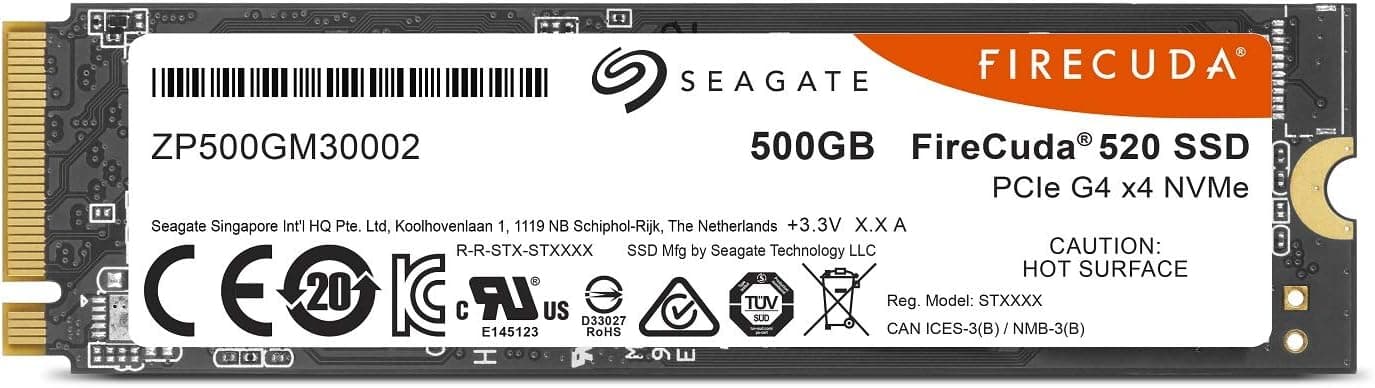
Overview
The Seagate FireCuda 520 ZP500GM3A002 — High-performance PCIe Gen4 M.2 NVMe internal SSD is an M.2 2280 NVMe drive that connects over PCIe Gen4 x4.
It suits people who have a PC that can reliably run Gen4 and want a boot drive for the OS and their main games, backed by a warranty and a data recovery service. It is not built to chase top speed.
What sets it apart is the pairing of first-generation Gen4 performance (5,000MB/s sequential reads) with a 5-year warranty and 3 years of Seagate's Rescue data recovery service.
The FireCuda 520 belongs to the first wave of Gen4 SSDs and is known as one of the drives built on Phison's E16 controller. It uses 3D TLC NAND and has a DRAM cache.
Compared with budget DRAM-less drives, it holds up better as the drive fills up and when it handles many small files. Against top PCIe 3.0 SSDs (around 3,500MB/s), its sequential reads are a little over 40% faster.
By 2026, however, second-generation Gen4 drives around 7,000MB/s and even faster Gen5 SSDs are easy to buy. So this article goes beyond the spec sheet.
It helps you decide whether the drive will actually run at Gen4 in your PC, whether 500GB is enough, and whether there is still a reason to pick it today.
Compatibility Guide
The FireCuda 520 is an M.2 2280 drive (22mm wide, 80mm long) for M.2 slots wired for PCIe (NVMe).
It does not work in SATA-only M.2 slots.
On older laptops and some small PCs, a common mistake is 'the slot is M.2, but the drive is not detected'.
Check your motherboard or PC manual to confirm the slot supports PCIe / NVMe.
Whether you get Gen4 speed is not decided by the chipset alone. It depends on the CPU and the slot together.
The table below shows common combinations.
| Platform | How this SSD runs |
|---|---|
| AMD X570 / B550 + Ryzen 3000 or 5000 series (excluding G-series APUs) | Gen4 in the CPU-attached slot |
| AMD B650 / X670 / B850 / X870 + Ryzen 7000 or 9000 series | Gen4 (runs as Gen4 in a Gen5 slot too) |
| AMD A520 / B450 / X470, or APUs such as Ryzen 5000G | Limited to Gen3 |
| Intel Z590 / B560 + 11th Gen Core | Gen4 only in the CPU-attached slot |
| Intel Z590 / B560 + 10th Gen Core | Limited to Gen3 |
| Intel 600 / 700 series + 12th to 14th Gen Core | Many boards have a Gen4 slot (varies by board) |
| Any PCIe 3.0-only motherboard | Limited to Gen3 (still works) |
The easy case to miss is a Gen4 chipset paired with a CPU that lacks Gen4. On a B550 board with an APU such as the Ryzen 5 5600G, the M.2 slots run at Gen3.
On Intel Z590 / B560 with an 11th Gen Core, only the CPU-attached slot runs at Gen4. The chipset slots are usually Gen3, so check the block diagram or slot table in your manual.
Another trap is shared lanes. On some motherboards, using a certain M.2 slot disables some SATA ports or a PCIe expansion slot.
If you also use HDDs or SATA SSDs, an existing drive may seem to vanish depending on where you install this one. Check the sharing table in the manual before you install it.
Also check for physical clearance. The listed dimensions are 80.15 × 22.15 × 3.58mm.
Desktop M.2 slots rarely have a problem, but some laptops and slim small PCs leave little room for thickness.
If you add the motherboard's heatsink, its height counts too. In a slot directly under the GPU, the heatsink can come close to the back of the card, so check for contact after installing.
Installation Tips
To install, slide the drive into the M.2 slot at an angle and secure the end with the screw or tool-less latch.
Before you start, confirm that the standoff is in the 80mm position. If you use a heatsink, remember to peel the protective film off the thermal pad.
Leaving the film on stops heat from escaping and is a classic cause of slowdowns.
In Windows, a new SSD will not show up in File Explorer right away. Initialize it in Disk Management (usually as GPT) and create a volume first.
If you are moving from an existing boot drive, decide ahead of time whether to clone it or do a clean install.
After installing, check the transfer mode field in a tool such as CrystalDiskInfo to confirm the drive is really linked at PCIe 4.0 x4.
If it shows PCIe 3.0, your setup matches one of the Gen3 cases in the table above.
When benchmark results fall short of the rated speeds, this is the first thing to check.
Product Info
| Item | Detail |
|---|---|
| Capacity | 500GB |
| Model number | ZP500GM3A002 |
| Interface | PCIe Gen4 x4 / NVMe 1.3 |
| NAND | 3D TLC |
| DRAM cache | Yes |
| Sequential read | 5,000MB/s |
| Sequential write | 4,400MB/s |
| TBW | 1,800TB |
| Dimensions | 80.15 × 22.15 × 3.58mm |
| Warranty | 5 years |
| Data recovery | 3 years (Rescue) |
The table repeats this article's spec data as-is. For write speed and TBW, though, check the rated figures for each capacity before you decide, as explained under Things to Consider.
TBW is a guide to the total amount you can write while the drive is covered. The spec data lists 1,800TB, which works out to about 4.9 years at 1TB of writes per day.
Writing 1TB every day is an extreme case, though. A boot drive for gaming or office work usually writes tens of GB per day, so you will normally run out of space or upgrade long before you reach the TBW.
Price: as of June 5, 2026, Amazon.co.jp listed it at ¥19,800.
That is on the high side for a 500GB Gen4 SSD. Once a product has been out for years and stock thins, prices can differ widely between sellers.
Prices change, so check the current price and the seller (including whether it is an authorized distributor unit) on the product page. Compare it with the 1TB model and with other brands at the same capacity before buying.
Check the retailer's page for the latest user reviews. With several hundred reviews, the rating is high and stable.
Keep in mind, though, that reviews reflect prices and alternatives at the time they were written. Whether the drive is worth buying at today's price is a separate question.
The Rescue service lets you use Seagate's recovery service if the drive fails or files become unreadable through a mistake. Conditions may apply, such as product registration and limits on the number of attempts or what is covered, so read the terms after purchase.
The Japanese listing is an authorized-distributor unit, which affects where you go for warranty and service in Japan.
Alternatives
| Product | Generation | Read (rated, approx.) | Notes |
|---|---|---|---|
| Seagate FireCuda 520 500GB | Early Gen4 | 5,000MB/s | DRAM cache, 5-year warranty, 3-year recovery |
| Samsung 980 PRO 500GB | Second-gen Gen4 | Around 7,000MB/s | Built for peak performance |
| WD Black SN850 500GB | Second-gen Gen4 | Around 7,000MB/s | A standard gaming pick |
| High-end Gen3 SSDs | Gen3 | Around 3,500MB/s | Full performance on older systems |
| Gen5 SSDs | Gen5 | Some exceed 10,000MB/s | Need a Gen5 platform and strong cooling |
On paper, second-gen Gen4 drives are about 40% faster. That gap does not show up one-to-one in game loads or OS boot times.
Game loading also involves decompressing data and CPU work, so the difference between Gen3 and Gen4, or between Gen4 drives, is often hard to notice. The gap is clear when you copy large video files or write huge files back to back.
The clearest reason to choose the FireCuda 520 is the 3-year data recovery service. With most rival drives, the warranty only replaces the hardware and your data is not recovered.
If you would pick the faster drive at the same price, line up current prices before you decide.
If your motherboard tops out at Gen3, you will get almost nothing from this drive's Gen4 speed. In that case, a proven Gen3 drive, or a large high-endurance Gen3 model, can be the more sensible choice.
Best Use Cases
- Anyone with a confirmed Gen4 slot who needs a boot drive. With X570 / B550 and a Ryzen 3000 or 5000 CPU (not an APU), or the CPU-attached slot on Intel 11th Gen or newer, you can use the full 5,000MB/s read speed.
- Anyone who values data recovery. If you keep work files or personal photos on the drive, even briefly, having one more way to recover them after a failure adds peace of mind.
- Anyone who prioritizes a DRAM cache. It suits users who want performance that holds up as the drive fills and under heavy small-file workloads.
- Gamers who keep only a few titles on the fast drive. It fits a setup where the OS, apps and a handful of favorite games live here, and the rest of the library sits on another drive.
On the other hand, it is not a good fit for users who want the fastest Gen4 drive, need more than 500GB, or are shopping for a PS5 expansion drive.
Things to Consider
Confirm the specs are for the 500GB model. This article's spec data lists 4,400MB/s writes and 1,800TB TBW.
However, FireCuda 520 capacities have different rated write speeds and TBW, and smaller capacities are generally rated lower. Before buying, check the manufacturer's product page or datasheet to confirm these values apply to the 500GB model (ZP500GM3A002).
The listed price may be high. The ¥19,800 Amazon listing at capture time (June 2026) is on the high side for a 500GB Gen4 SSD.
Older products have thinner supply, and prices can vary widely between sellers. Compare price per GB against other drives and the 1TB model, and confirm the seller is an authorized distributor.
Without Gen4, there is little reason to pick this drive. As the compatibility table shows, it runs at Gen3 speed on APUs and Gen3 slots.
It will not break, but you would be paying Gen4 money for performance a Gen3 SSD already delivers.
Heat and cooling. The E16-generation controller in the FireCuda 520 runs fairly warm.
During long writes without a heatsink, the drive may slow itself down to cool off (thermal throttling). This rarely matters for everyday gaming or office work, but for long, large writes, use the motherboard's heatsink or an aftermarket one.
Long writes fall below the rated speed. TLC SSDs use part of the NAND as a fast write area (SLC cache).
Once a large write fills that area, speed drops well below the rated figure. If you write hundreds of GB of video in one go, do not expect the numbers in the table.
500GB fills up faster than you think. Some recent big-budget games take more than 100GB each.
Once the OS, apps and updates are installed, only a few games may fit. SSDs also tend to slow down when nearly full, so if you play many games, a 1TB or larger drive is less likely to leave you regretting the choice.
Data recovery is not a backup. Recovery is only an attempt, and there is no guarantee every file comes back.
Keep important data on another drive or in the cloud as well.
Laptop use. Because it has a DRAM cache, it draws slightly more power and runs slightly warmer than DRAM-less SSDs.
Keep that in mind if battery life matters. You also need to confirm the 3.58mm thickness fits your slot.
Check the model number on the product page. Amazon listings may show other capacities in the series or newer models side by side.
Do not rely on the image or title alone. Confirm the model number ZP500GM3A002 and the capacity before you order.
FAQ
Q. Does it work on a PCIe 3.0 motherboard? A.
Yes. In a PCIe (NVMe) M.2 slot, it runs at Gen3 speed.
You will not get Gen4 performance, though, so if you plan to stay on Gen3, compare prices with Gen3 SSDs.
Q. Can I use it to expand PS5 storage? A.
It is not recommended. Sony recommends expansion SSDs with reads of 5,500MB/s or more, and this drive's 5,000MB/s falls below that.
The PS5 also requires a heatsink.
Q. Do I need a heatsink? A.
Not for everyday use, but it is safer to have one. The E16 generation runs warm, so use your motherboard's M.2 heatsink if it has one.
For long, sustained writes, treat a heatsink as essential.
Q. Should I choose 500GB or 1TB? A.
500GB is enough for the OS, apps and a few games. If you install several big games or store video footage, 1TB or more is the better choice and also avoids the slowdown that comes with a nearly full drive.
Q. With data recovery included, do I still need backups? A.
Yes. Recovery is a last resort after a failure, and not every file is guaranteed to come back.
Keep copies of important data somewhere else.
Product Disclosure (Amazon)
- Manufacturer: シーゲイト(SEAGATE)
- ASIN: B07ZPRQ4YM
- Note: This article covers a manufacturer-made product based on Amazon listing details.


