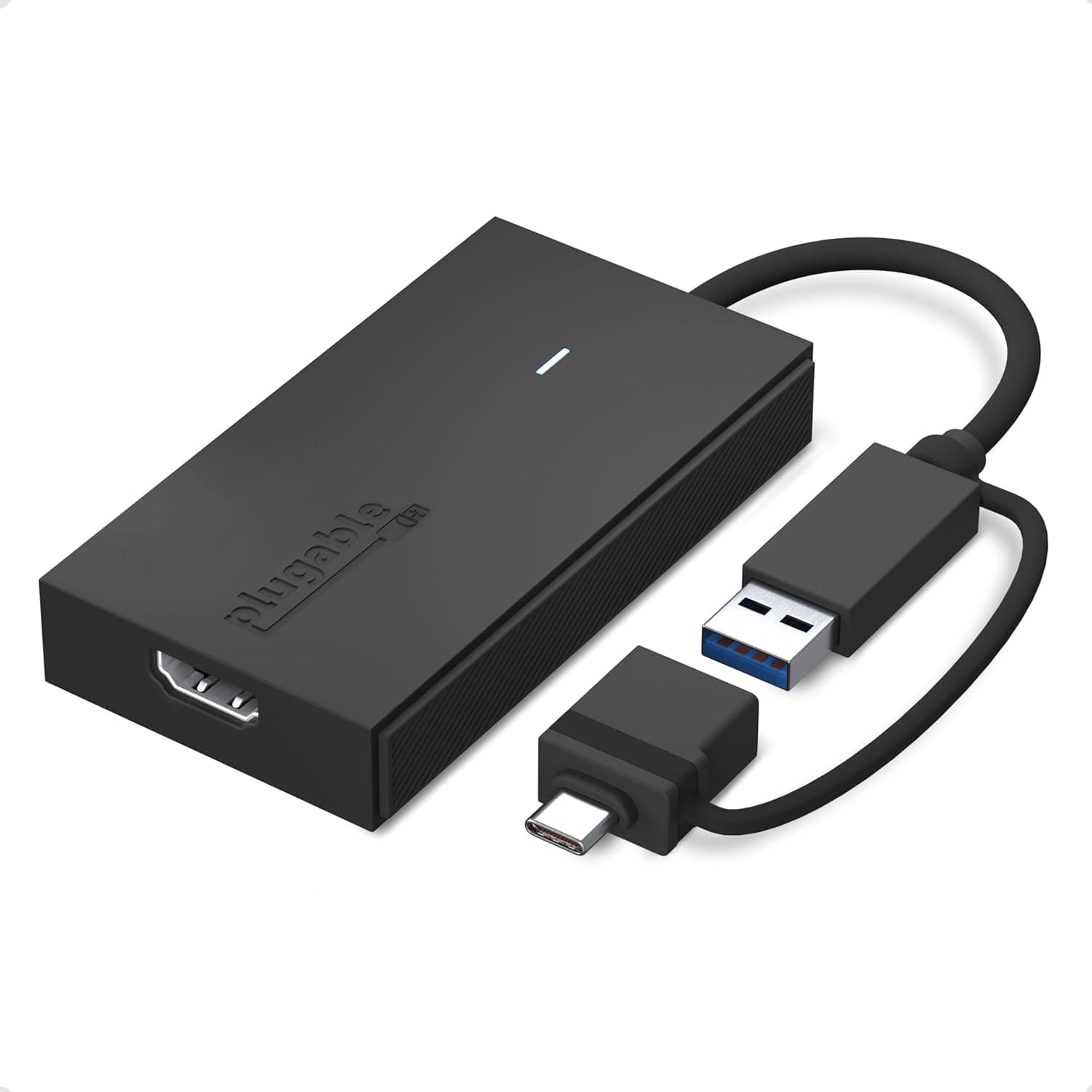
Overview
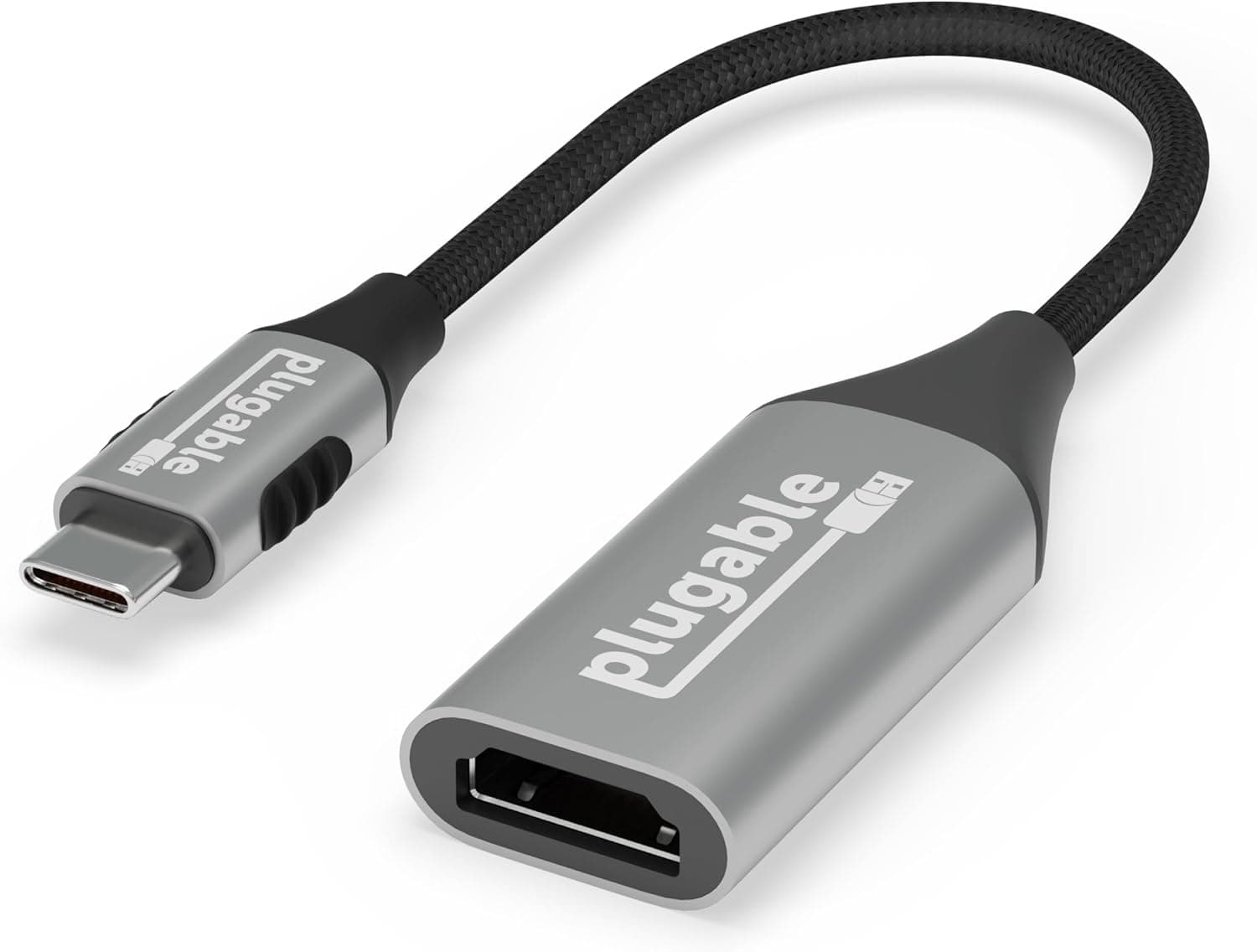
The Plugable UGA-HDMI-S is a compact USB-to-HDMI adapter that adds one external display at up to 1920×1080 @ 60Hz to any PC with a USB-C or USB-A port. Its attached hybrid cable covers both USB 3.0 Type-A and USB-C (including USB4 and Thunderbolt 4/3), so no extra converter is needed.
It uses a Silicon Motion chipset and works on Windows, macOS, and ChromeOS.
Put plainly, this is a tool for growing one Full HD secondary screen out of a spare USB port. It suits business users whose laptop video output is already occupied — or absent entirely.
It is not the product to buy if you expect 4K, HDR, gaming, or protected-content playback. Understanding that boundary up front prevents disappointment later.
Amazon.co.Check the retailer's page for the latest user reviews.
That is not a huge sample, but it is a stable score for this class of adapter. The gap from a perfect score most likely comes from the driver behavior and the lack of HDCP discussed below.
Compatibility Guide
The first thing to check is the generation of the port you plug into. Supported interfaces are USB 3.0 Type-A and USB-C (including USB4 / Thunderbolt 4 / Thunderbolt 3).
Because video travels over USB, USB 3.0 bandwidth is a prerequisite.
Plugged into a USB 2.0 port it may enumerate, but you should not expect usable frame rates.
On laptops that mix black (USB 2.0) and blue (USB 3.0) ports, choosing the wrong socket is the single most common failure.
Crucially, this adapter does not use DisplayPort Alt Mode. Unlike a direct Alt Mode cable, it does not consume a GPU video output, so you can add a screen while keeping your existing HDMI or DisplayPort output in use.
The trade-off: frames are encoded on the CPU and pushed over USB, so CPU load is not zero. On a low-power ultrabook running full-screen video all day, it is at a disadvantage versus a native output.
| Item | Spec | Common pitfall |
|---|---|---|
| Connection | USB 3.0 Type-A / USB-C (USB4, TB4, TB3) | Unusable on USB 2.0 ports |
| Max resolution | 1920×1080 @ 60Hz | A 4K monitor will not run at 4K |
| OS support | Windows 11/10/8.x, macOS 10.15+, ChromeOS | Driver install required first |
| Chipset | Silicon Motion | Not the same driver as DisplayLink parts |
| Protected content | No HDCP | Blu-ray and some streaming won't display |
| Dimensions | 140 x 102 x 19 mm | Attached, fairly short cable |
Adding more screens means buying more of the same adapter. Up to 8 displays on Windows, 4 on Mac, and 2 on Chromebook are cited, but those are ceilings.
In practice USB bandwidth and CPU load bite harder with each unit, so treat two or three as the realistic everyday limit.
On macOS, note that support starts at 10.15, and Apple Silicon machines can behave differently around external displays depending on OS version.
Check Plugable's product page for a driver matching your macOS build before buying. ChromeOS usually detects the adapter without a driver, though this varies by model.
Product Info
rmation
Key specs: 1920×1080 @ 60Hz maximum output, HDMI connector, black housing, 140 x 102 x 19 mm, Silicon Motion chipset, and a 2-year warranty. Nothing ships in the box beyond the adapter itself, and no external power supply is required — one USB cable carries both power and video.
On pricing, the Amazon.co.jp listing read ¥6,772 as captured on 9 June 2026 and ¥8,591 as captured on 27 August 2026.
That is a swing of over ¥1,800 in about two and a half months, which is itself the best evidence that adapters in this bracket move a lot. Do not take the figures here as current; check the product page before ordering.
The eBay entry is a search link only, with no specific price captured.
Positioning is entry-to-mid-range. Against higher-end DisplayLink adapters it caps out lower and lacks HDCP, but it costs less accordingly.
For static screens — documents, spreadsheets, browsers, chat apps — it is exactly enough at this price.
How It Compares
There are broadly three ways to get video out of a USB port: a USB graphics adapter like this one, a direct USB-C cable using DisplayPort Alt Mode, or a USB-C dock with video output.
Alt Mode cables need no driver, add less latency, and often reach 4K, so they are the cleaner choice when they fit. But they require a USB-C port that supports Alt Mode and is not already spoken for.
This adapter's value is that it works when those conditions cannot be met — an older laptop with only USB-A, or a machine whose video outputs are all in use.
A dock bundles hubs, wired Ethernet, and charging, but costs more and is bulkier to carry. If you only want one more screen, or want to drop it in a bag for meetings, this cable-integrated adapter wins on handling.
For a fixed desk with many peripherals, a dock may work out cheaper overall.
In Use and Setup
The reliable order is: download the Silicon Motion driver from Plugable's product page, install it, restart, then connect the adapter. Plugging it in first can let the OS attach a generic driver and leave detection flaky. Once detected, choose extend or mirror in Windows Display Settings or macOS Displays preferences.
The feel is not identical to a native output. With mostly static content you will rarely notice, but fast cursor movement or continuous scrolling can show slight lag.
Keep video and games on the built-in panel and put documents or chat on this screen — that split suits the hardware best.
At 140 x 102 x 19 mm with an attached, short cable, distance should be gained on the HDMI side, not the USB side. Extending the USB run invites both bandwidth and power instability.
Before You Buy
The biggest caveat is no HDCP. Blu-ray playback and some HDCP-protected streaming services will not display on a monitor driven by this adapter.
If your goal is streaming video on a second screen while you work, this product cannot do it. That single limitation rules it out for a fair number of buyers.
Second, the 1920×1080 @ 60Hz ceiling. Connect a 4K panel and you get a scaled Full HD image, not 4K.
If your monitor is WQHD or higher, you are accepting a real compromise. For higher resolutions, choose Alt Mode or an adapter that explicitly states 4K support.
Third, driver dependence. Displays going dark after a major OS update, or dropping out after sleep, can happen with any adapter of this type.
A driver update usually fixes it, but this is not a plug-it-in-forever device. If downtime would hurt, keep a backup connection method available.
Finally, listing accuracy. Amazon product pages sometimes carry prices, model numbers, or compatibility claims that do not match the actual item — as the price gap between our two captures shows.
Before ordering, confirm from the image and title that you are buying the Plugable UGA-HDMI-S, and cross-check the stated OS support and port shape against your own machine rather than trusting the page outright.
FAQ
Q. Will it work on a USB 2.0 port? A.
Officially it needs USB 3.0 or better.
USB 2.0 lacks the bandwidth for usable output.
Pick a port marked 3.0 or higher.
Q. What happens with a 4K monitor? A.
Output caps at 1920×1080 @ 60Hz, so you get a scaled Full HD image rather than the panel's native resolution.
Q. Can I watch Netflix or Blu-ray on this screen? A.
No. Without HDCP, protected content will not display.
Use a different connection for video playback.
Q. Can I add more than one monitor? A.
Yes, with additional units — up to 8 on Windows, 4 on Mac, 2 on Chromebook. But bandwidth and CPU load rise with each, so two or three is realistic for daily use.
Q. Is the driver mandatory? A.
A Silicon Motion driver is required on first connection. ChromeOS may not need it; Windows and macOS generally do.
Q. What warranty is included?
A. Two years, with email support — generous for this price bracket.
Best Use Cases
- Business users who need one more Full HD screen beyond a cramped laptop panel
- Anyone whose PC has no video output, or has already used them all, but has a spare USB port
- Mobile workers who want a quick second screen in meeting rooms or coworking spaces
- People whose second screen holds documents, spreadsheets, chat, and reference material rather than video or games
- Buyers who value a 2-year warranty and easy availability over the lowest possible price
It is not for those chasing 4K or high refresh rates, those who want protected content on an external display, or those unwilling to manage drivers after OS updates. In those cases, look at direct USB-C DisplayPort Alt Mode or a dock with video output.